Extract pages from a PDF: keep the chapter — the book stays whole
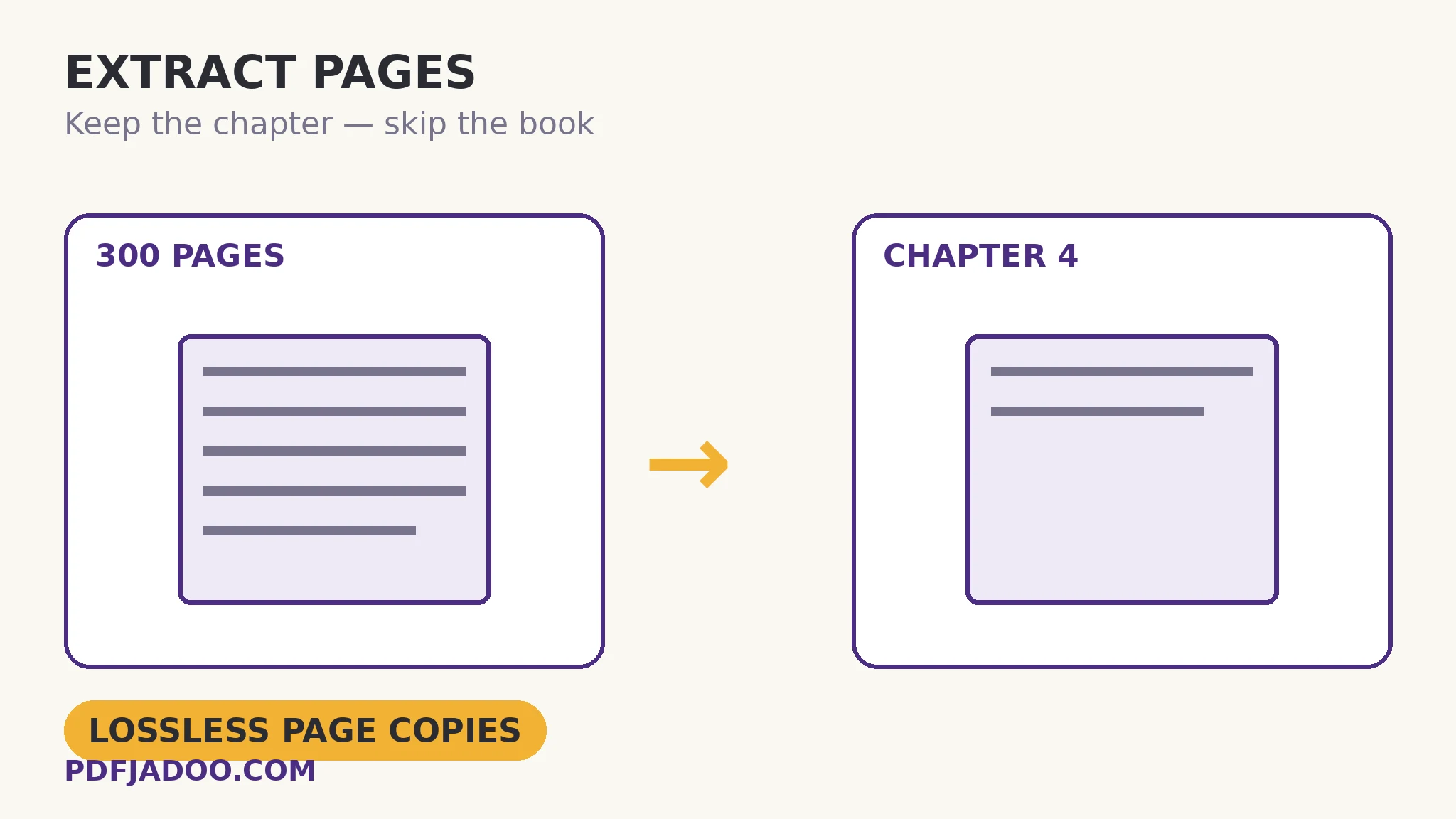
The manual is 300 pages. The person in front of you needs chapter 4 — 11 pages — and sending the whole book to make them find it is its own small rudeness. Extract Pages copies the pages you name into a clean new PDF: type them as singles and ranges — 1-3, 5, 8 — or tick the previews, and the chosen pages are copied losslessly into the extract. The original is never touched. Extraction is a quotation: the book stays on the shelf, whole; the extract is the passage, carried away. This article separates the three verbs people confuse — extract, split, delete — and gives the quotation its craft.
 By the PDFJadoo Team5 min read
Lossless, because pages are copied, not converted
Extraction belongs to the merge/split family of operations that move whole page objects between files. The chosen pages are copied as they are — same content, same quality, same text layer, same everything — into a fresh document. Nothing is rendered, recompressed or rebuilt, so an extract cannot degrade its pages; the 11-page chapter is bit-for-bit the manual's own chapter. This is why extraction is instant in a way conversion never is, and why the extract of a searchable PDF is itself searchable.
The input accepts the two human styles: the typist's — a page list in the little range language (singles and ranges, comma-separated, exactly as in splitting by range) — and the looker's — ticking previews, for documents whose pagination you know by sight rather than by number. They compose: type the bulk, tick the odd page you spotted while scrolling. The extract's pages appear in document order — extraction answers “which pages”, and the order question, if you have one, belongs to reordering afterwards.
Extract, split, delete — the separation, once and for all
| Verb | The original | The result | The job |
|---|---|---|---|
| Extract | Untouched | One new file with the chosen pages | Quote a part: the chapter, the appendix, the signed pages |
| Split | Untouched | Several files dividing the whole | Publish in parts: chapters as separate files, size-limited chunks |
| Delete | Pruned (in the saved copy) | The same document, minus pages | Clean this file: blanks and duplicates out |
Most “I split it but…” stories are verb confusion: someone extracted when the document itself needed pruning (the bloated original went on being sent), or deleted when they needed a quotation (and then needed the deleted pages back). Name the job first; the tool follows.
Extract pages, step by step
Step 1 — drop the PDF onto Extract Pages. Nothing uploads; the original will not be modified whatever you do next.
Step 2 — name the pages. Type singles and ranges (1-3, 5, 8), or tick the previews — or both.
Step 3 — press Extract those pages and download. A clean new PDF, only the chosen pages, losslessly copied.
Step 4 — open the extract and count. First page is the first page you named; the page count matches your list. The extract is the file you send, rename and file — name it for its content (“Manual — Chapter 4”), not its origin.
The extract as a citizen
An extract deserves the finishing touches its parent had: if the parent wore page numbers in its content, the extract's numbers will show the parent's pagination (chapter 4's pages say 87–97) — which is usually correct for citation, and worth a beat of thought when it is not. If the extract will live independently, stamp it afresh (page numbers, a header naming it) so it can stand alone in someone else's files. A quotation that names its source travels best.
Quote the chapter. Keep the book.
Pages named by typing or ticking, copied losslessly into a clean new PDF — original untouched.
Open Extract PagesSources
- Adobe — Extract pages from a PDF: Adobe's walkthrough of pulling pages into a new file without altering the original — matching the lossless, copy-not-convert behaviour described here.
- Tool behaviour — the steps and limits in this guide are from PDFJadoo's own Extract Pages tool page, checked 18 November 2026; the file never leaves your device, so the result you preview is the file you save.
A worked example: the signed pages
A 90-page agreement, executed, needs its signature pages sent to a third party — pages 88–90 — without the commercial terms in pages 1–87. Extraction is the precise tool: type 88-90, extract, send the 3-page file. The terms never travel; the signatures arrive as the document's own pages, lossless, verifiable against the whole. Note what did not happen: nobody printed to PDF, screenshotted, or cropped — the three improvisations that degrade or leak. The right verb, used once, is the whole security story.
Edge cases
Overlapping ranges. Naming a page twice (1-5, 3) asks for it once — an extract is a set of pages in order, not a playlist. For deliberate duplication, that is merge territory.
Bookmarks and links. Internal links pointing outside the extract have nowhere to land; treat an extract as a reading copy, not a navigable edition.
The extract that becomes the document. If the extract will be edited, signed or issued, finish it as its own citizen: numbers, header, protection — the finishing acts, applied to the file that will actually travel.
Before you finish: the 60-second check
- The verb was right: extract (quote), not delete (prune) or split (divide)
- Pages were named by number or ticked by sight — and the count verified in the result
- The extract was renamed for its content, not its origin
- Parent pagination showing in the extract was considered: correct for citation, or re-stamped
- The original remains whole and filed as the source
Fair questions
How do I extract pages from a PDF for free?
Drop the PDF onto Extract Pages, type the pages (like 1-3, 5, 8) or tick their previews, and press Extract those pages. You get a clean new PDF of only those pages, copied losslessly — the original is untouched.
Does extraction reduce quality?
No. Pages are copied as whole objects into the new file — nothing is rendered or recompressed — so the extract's pages are identical to the original's, text layer included.
What is the difference between extract and split?
Extract makes one new file with the pages you choose and leaves the rest behind. Split divides the whole document into several files covering everything. Extract quotes; split publishes in parts.
Can I extract pages out of order?
The extract follows document order — it answers “which pages”. If the chosen pages must be rearranged, reorder the extract afterwards with Organize Pages.
Will the extracted PDF still be searchable?
Yes — the pages keep their text layer through the copy, so a searchable original yields a searchable extract.
Is my PDF uploaded?
No — extraction runs in your browser; the file never leaves your device.
Tool behaviour — typed page lists and preview ticking, lossless page copying, and the untouched original — is from PDFJadoo's own Extract Pages page. Checked 18 November 2026.
Keep reading
Delete pages from a PDF
The pruning verb: this file, minus its passengers.
Split a PDF by page range
The dividing verb: the whole document, in parts.
Split a PDF by bookmarks
Chapters out automatically, along the document's own outline.
Merge PDF files into one
The assembling verb — extracts and all — into a single file.