Merge PDF files into one: the pages are copied, never re-printed
The portal wants one file. You have four: a cover letter, a CV, two certificates. Emailing them separately is how applications get lost, so you merge them — and then lie awake wondering whether the merge quietly degraded something. It did not, and the reason is worth understanding: merging never re-renders a single page. What it can scramble is order, bookmarks and form fields — and all three are decided before you press the button.
 By the PDFJadoo Team7 min read
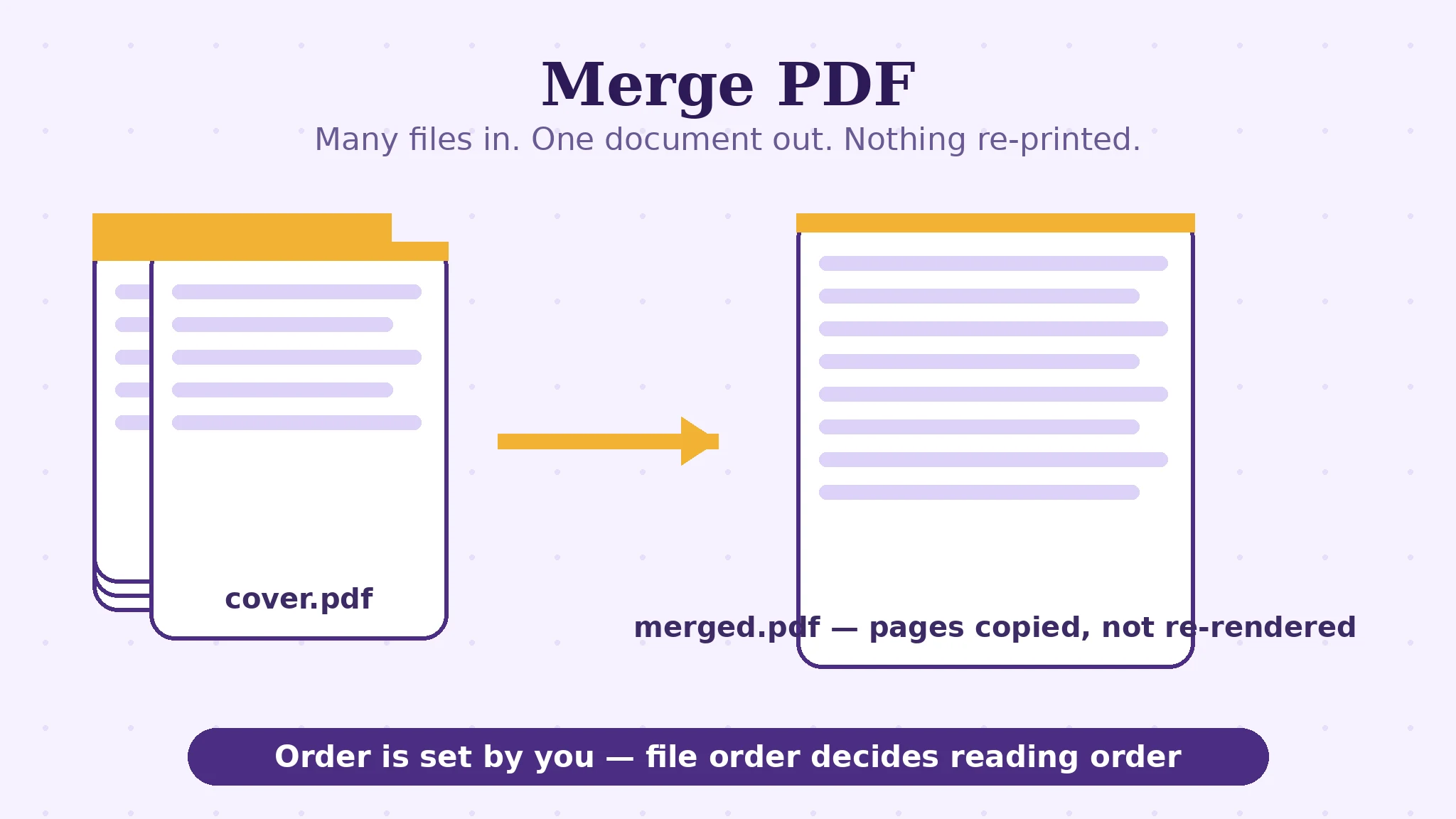
The one-file problem, and why it is really an order problem
Almost every merge starts with the same refusal. An immigration portal, a job application, a court bundle, a university admissions form: the upload box accepts one PDF, and your evidence lives in several. The IRCC combine walkthrough on this blog works through that exact wall step by step. What that post treats as a task, this article treats as a mechanism — because once you see what merging is, the mistakes people make with it stop being mysterious.
Here is the whole secret: a merge concatenates page objects. Each source PDF is opened, its pages are lifted out exactly as they are — same text, same images, same resolution — and placed one after another into a new file's page tree. Nothing is drawn again. Nothing is photographed, converted or compressed. That is why Merge PDF can honestly promise that the merged file's quality is identical to the originals': the pages inside it are the originals, wearing a new cover.
It also explains the one number people find suspicious: the merged file is usually about the size of its parts added together. Nothing was squeezed, so nothing shrank. If your four files totalled 6 MB, expect roughly a 6 MB bundle — and if that bundle is too big for the portal, the fix is a separate, deliberate step: compress it, knowing what the levels do, rather than hoping the merge will do it for you.
File order is reading order — filenames do not save you
The single decision a merge actually asks of you is the order of the files, because the merged document reads in file order, not in filename order, not in date order, not in the order your folder displayed them. Drop in certificates.pdf, cover-letter.pdf, cv.pdf — alphabetical, tidy, and wrong: your reader meets your certificates before they know whose they are.
That is why the tool shows every file in a list with up and down arrows before anything is combined. The list on screen is the document: first file's pages first, then the second file's, and so on. Set the order while the files are still separate and cheap to move. Reordering pages inside a finished 80-page bundle is a different, slower job — possible, but the two minutes spent on the arrows is the best-value step in the whole process.
What travels with the pages — and what can collide
Pages are the cargo, but a PDF carries more than pages, and merging is where the extras meet. Three things deserve a sentence each, because each explains a real surprise people report after merging.
Bookmarks and links. The outlines and internal links inside your source files are preserved where the format allows — a bookmark that pointed at page 12 of the second file is re-aimed at that page's new home in the bundle. Mostly this just works. Where two files use identical bookmark titles, the merged outline can look repetitive rather than wrong; a reader still lands on the right page.
Form fields. This is the genuine trap. If two source files contain form fields with the same field name — two copies of the same application form, say — the merged file treats them as the same field: type into one and the other fills in to match, because in PDF a field name is an identity, not a label. If you are merging filled forms that must stay independent, flatten each one first, or expect the twins to mirror each other.
Page sizes and rotations. Pages keep their own size and rotation inside the bundle. A landscape certificate stays landscape between portrait pages; an A4 letter stays A4 next to a Letter page. The bundle is a folder of originals, not a reprint on uniform paper — which is exactly what an assessor wants to receive.
Merge PDF files, step by step
Step 1 — gather and name honestly. Put the files in one folder. If two files would confuse you side by side, rename them now; the merge list shows filenames, and clear names make the next step foolproof.
Step 2 — drop the files onto Merge PDF. Add as many as you like — there is no file-count or page-count limit imposed by the tool; the only ceiling is your own device's memory, and most people merge dozens of files without trouble.
Step 3 — set the order with the arrows. Read the list top to bottom as if it were the finished document's table of contents. Cover first, then the substance, then the supporting evidence — whatever order your reader was promised.
Step 4 — merge and download. Press Merge my PDFs. The combined file is assembled in your browser — nothing was uploaded, so contracts, statements and identity documents never left your device.
Step 5 — the thirty-second audit. Open the result and check three things: the first page is the one you meant to lead with, the page count equals the sum of the parts, and one internal link or bookmark still lands where it should. That audit catches every realistic merge problem while the sources are still open.
One file, exactly in your order.
Pages copied losslessly, bookmarks carried over, nothing uploaded — assemble the bundle the portal asked for, in the order your reader expects.
Open Merge PDFA worked example: the application bundle
Take the standard case: a job application that must arrive as a single PDF. You have a one-page cover letter, a three-page CV, and two one-page certificates — six pages across four files, in a folder that lists them alphabetically: cert1.pdf, cert2.pdf, cover.pdf, cv.pdf.
Merged in folder order, the bundle opens on a certificate — a document whose first page makes no sense to a stranger. Merged after thirty seconds with the arrows — cover, CV, cert1, cert2 — it reads like the document the employer imagined receiving. Notice what did not change between those two merges: every page is pixel-for-pixel the page from its source file, the CV's text still selects and searches, and the total size is the sum of the four files, give or take the small overhead of one cover instead of four. The only variable was order, and order was the whole ballgame. That is the general rule this example makes concrete — in a merge, nothing about quality is at stake; everything about sequence is.
Edge cases: where merges surprise people
The password-protected source. A file that needs a password to open cannot have its pages lifted until it is unlocked. Unlock your own file first (you will need its password — unlocking removes protection, it does not guess it), then merge.
The enormous bundle. Merging is honest about size: a bundle of scans stays heavy. If the portal's limit is the real problem, merge first for order, then compress the finished bundle once, at a level chosen for its smallest print — compressing the parts separately gives you four different quality decisions instead of one.
The form-field twins. Covered above, and worth repeating because it baffles everyone it meets: identical field names merge into one field. Two different forms that happen to share a field name like name or date will mirror each other in the bundle.
“It merged them in the wrong order.” It merged them in the list's order — which is why Step 3 exists. The fix costs one re-merge, not an edit: go back to the sources, reorder, merge again. The originals are untouched, so a merge is always safely repeatable.
Sources
- Adobe — Combine files into a PDF: Acrobat's own merging workflow, including how it orders files and what it does with bookmarks and form fields — the behaviour this guide compares against.
- Tool behaviour — drag-to-reorder, page ranges per file and the nothing-is-uploaded processing model are from PDFJadoo's own Merge PDF page, checked 18 November 2026.
Before you finish: the 60-second check
- You know the reading order you want before you drop the files in
- The merge list reads like the finished document, top to bottom
- Filled forms with matching field names were flattened or kept separate on purpose
- The merged page count equals the sum of the source files' pages
- One bookmark or internal link in the result was clicked and lands correctly
- If the bundle is too big, you will compress the finished file once — not the parts
Fair questions
Does merging PDFs reduce quality?
No. Merging copies the original pages into a new file without re-rendering or re-compressing them, so text stays selectable and images keep their exact quality. The merged file is usually about the size of its parts added together, precisely because nothing was squeezed.
Is there a limit to how many PDFs I can merge?
Only your device's memory. PDFJadoo imposes no page-count or file-count limit — most people merge dozens of files without trouble. Very large bundles of scans are heavy work for a phone, so a computer is the comfortable tool for those.
Can I change the order of files before merging?
Yes — that is the step that matters most. Every file in the list has up and down arrows, and the merged document reads in exactly the list's order. Filenames and folder order do not decide anything; the list does.
Are my files uploaded to a server when I merge them?
Never. Merge PDF runs with JavaScript in your own browser — the file is assembled on your device and never stored anywhere. You can disconnect from the internet after the page loads and it still works.
Why did two forms in my merged file fill in together?
Because their fields share a name. In a PDF, a field name is an identity: two fields called the same thing are the same field, so typing in one updates the other. Flatten each form before merging if they must stay independent.
Will bookmarks and links survive the merge?
Where the format allows, yes — outlines and internal links are carried into the merged file and re-aimed at their pages' new positions. Check one link in the finished bundle as part of your thirty-second audit.
Tool behaviour — lossless page copying, the arrow-based ordering list, the absence of file or page limits, bookmarks preserved where the format allows, and in-browser processing — is from PDFJadoo's own Merge PDF page. The field-name behaviour is standard PDF form semantics. Checked 18 November 2026.
Keep reading
Merge PDFs without losing quality
The quality question, answered head-on: why a merge cannot blur your pages, and the checks that prove it.
Combine documents for an IRCC upload
The one-file portal wall, walked through step by step for a real immigration application.
Split a PDF by page range
The mirror job: one file in, exactly the pages they asked for out — ranges, extracts and every-page splits explained.
Compress a PDF without losing quality
Bundle too big for the portal? What the compression levels actually do to your pages.
One upload button, ten documents
A scholarship checklist behind a single slot: build the pack in checklist order, audit it, then handle the cap.