Compress a PDF without losing quality: what the levels really do
Everyone who has compressed a contract has had the same thought, watching the progress bar: what is it doing to my pages? The honest answer starts with a fact most compressors never mention — a PDF page is one of two completely different things, and compression treats them differently. Know which kind yours is, and the right level picks itself.
 By the PDFJadoo Team7 min read
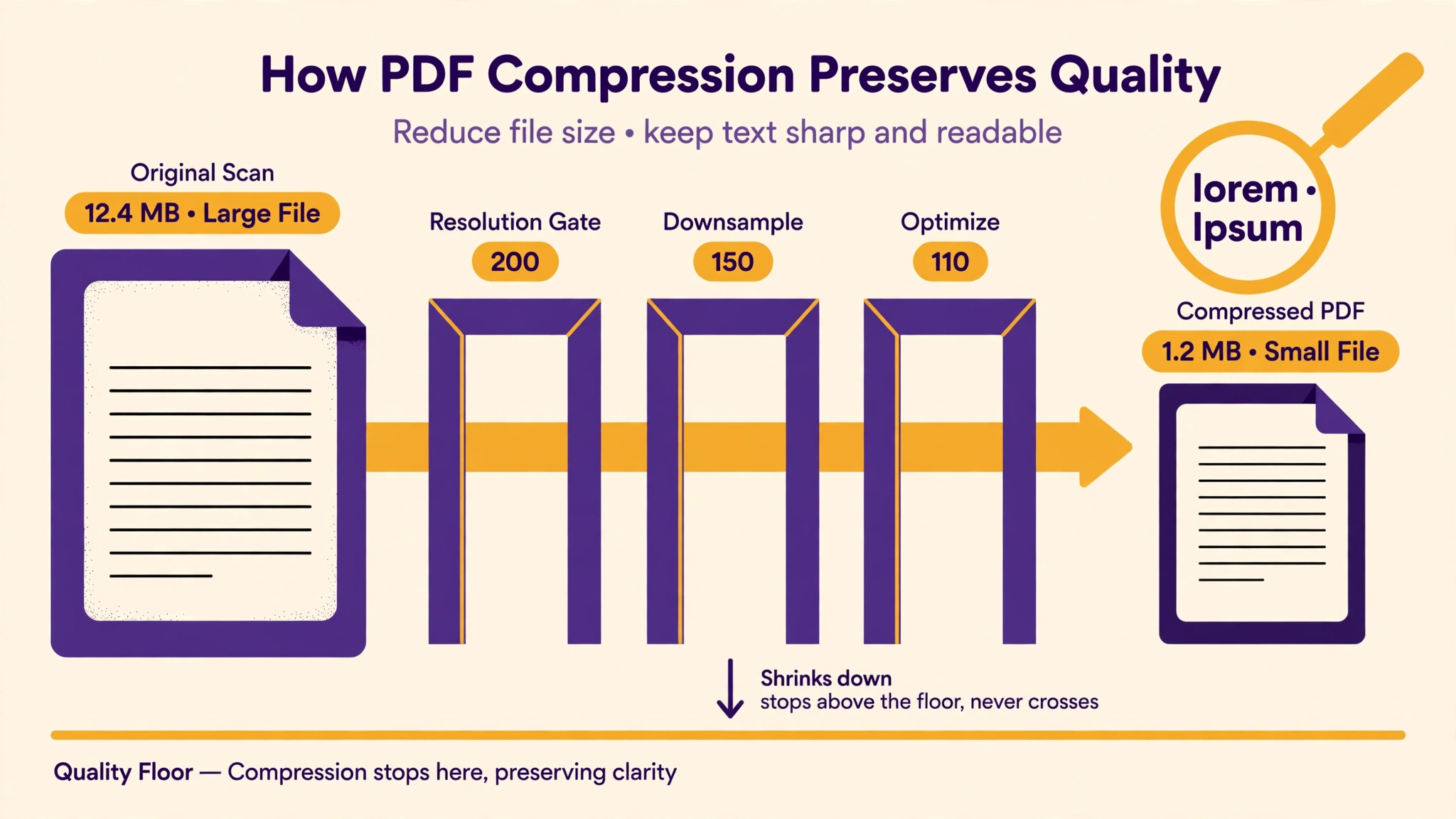
Two kinds of page, two completely different risks
Open your PDF and try to select a sentence with the mouse. If the words highlight, your page holds real text — the letters are stored as letters, drawn from a font, and they weigh almost nothing. If nothing selects, your page is a photograph of a page — a scan or a phone photo wearing a PDF's clothes. That second kind is where the megabytes live, and it is the only kind compression can ever blur.
Here is what Compress PDF does with each kind. On a text page, the words stay exactly as they were — untouched, still selectable, still searchable — and only the pictures embedded in the page are squeezed. On a scanned page, there is no text to protect: the page is a picture, so the tool re-renders that picture at a smaller, sensible resolution and stores it as an efficient JPEG. Every quality question about compression is really a question about that re-render — and the re-render is governed by one number.
The number is DPI — and your scanner set it too high
DPI is dots per inch: how many pixels describe each inch of the page. Scanners and phone apps default to 300 DPI because it is the print standard — an A4 page at 300 DPI is 2,480 × 3,508 pixels. But the file is almost never printed at that standard. It is read on a screen, attached to an email, uploaded to a portal. For those jobs, 300 DPI is not quality — it is cargo. The maths is unforgiving in your favour: halving the DPI quarters the pixels, and the file shrinks with them.
| Level in Compress PDF | Resolution | Choose it when | Watch out for |
|---|---|---|---|
| Gentle | 200 DPI | The file will be printed, read closely, or submitted as evidence — fine print, stamps, signatures | The gentlest squeeze; the file stays the largest of the three |
| Recommended | 150 DPI | Everyday reading, email, sharing — the default for a reason | Very small print softens slightly if you zoom far in |
| Strong | 110 DPI | Size is the emergency and the reader needs the gist on a screen | Small print and faint stamps can go fuzzy — read the warning below |
Notice what the levels are not: they are not “low, medium, high” guesses about an invisible quality slider. Each is a named resolution with a known job. If a portal has given you a size instead of a use — under 200 KB, inside a window — that is a different problem, and it has its own method: compressing to an exact size, where the tool aims at the number itself.
The readability floor: where this tool refuses to go
Every compressor can make a file smaller if you let it destroy the page. Compress PDF is built around a floor it will not cross silently: never below 120 DPI, never below clean JPEG quality, and greyscale only for pages that are plainly black-and-white. In Target size mode the tool starts from the best quality that fits your number and steps down finer settings one at a time — quality first, resolution second, greyscale last — stopping the moment the result lands at or under your target.
And if your target cannot be reached above the floor? You get the smallest readable file, a plain note saying the target could not be met readably, and a button that can force it smaller only if you insist. The choice to trade readability for size is yours to make with your eyes open — it is never made for you in silence. Pages are never dropped, and the result is always a valid PDF. That floor is the whole difference between “compressed” and “ruined”, and it is why the levels above can be chosen calmly: the worst case is a note, not a nasty surprise at the other end.
Compress without losing quality, step by step
Step 1 — find out which kind of PDF you have. Select some text. If it highlights, your file is mostly text: expect a modest shrink, and do not be suspicious when it happens — there was little fat to lose. If nothing selects, you have a scan, and compression will earn its keep.
Step 2 — pick the level by the file's next job, not by fear. Printed or submitted formally → Gentle. Read on screens and emailed → Recommended. Only reach for Strong when a limit is about to reject the file outright. Drop the file — or a whole batch, each compressed with the same settings — onto Compress PDF and press the button.
Step 3 — compare the numbers. The tool shows before and after sizes for every file. A scan that barely moved was probably already compressed once — squeezing a copy of a copy is how blur is born, so go back to the original scan if you have it.
Step 4 — do the zoom check. Open the result, zoom to 100–150%, and read the smallest print on the page: the footnote, the reference number, the stamp. If that reads cleanly, everything larger will too. This ten-second check is the entire quality-assurance department.
Step 5 — keep the original. Re-rendering a scanned page is one-way; the pixels a level discards do not come back. Archive the original, send the compressed copy, and if you ever need a different level, compress the original again.
Shrink it. Keep it sharp.
Three named levels, a floor the tool will not cross silently, and a before/after number for every file — in your browser, with nothing uploaded.
Open Compress PDFA worked example: one scan, three levels
Take the classic case: a ten-page contract, scanned on an office machine at its 300 DPI default, landing at a little over 12 MB — too big for the email it needs to travel in, and the other side needs to read it, so quality is not negotiable. Nothing selects when you drag the mouse: it is a photograph of a contract, which means all three levels are available and the choice is purely about the file's next job.
At Gentle (200 DPI) the pages re-render at two-thirds of the scanner's resolution — still well above what the print standard asks of anything read at arm's length — and the file typically lands around a third of its original weight, with the clause numbers and the signature page indistinguishable from the scan. At Recommended (150 DPI) it comes down to roughly a tenth — the size the tool page means when it says a 20 MB scan commonly lands under 2 MB — and on a screen, page for page, you would struggle to point at what changed. At Strong (110 DPI) it is smaller again, but now the zoom check earns its fee: the body text still reads, while the smallest footnote has gone soft at the edges. For a contract, that is the wrong trade, and the example makes the general rule concrete — the level is chosen by the smallest text on the page, not by the average page. This contract travels at Gentle, at a third of the weight, and nothing about it was lost that a reader could ever find.
Edge cases: where quality really is at risk
Fine print at Strong. Footnotes, ledger lines, and the pale grey text of bank statements are the first casualties of 110 DPI. If the document's meaning lives in its smallest print, Strong is not a level, it is a gamble.
Stamps and seals. A colour stamp on an otherwise black-and-white page carries meaning in its colour. The tool only converts plainly black-and-white pages to greyscale — but check the stamp in your zoom check anyway, especially on pages where the stamp is faint.
The twice-compressed file. Losses stack. A scan that was compressed by the scanner's software, then by a colleague, then by you, has been re-rendered three times. If a file arrives already small and slightly soft, compressing it again will only soften it further — ask for the original.
The PDF that will not shrink. A born-digital file — exported from Word, generated by a portal — is already compact text. It may not shrink at all, and the tool says so honestly. That is not a quality problem and not a failure; you never had a size problem. (If you are wondering where a big file's weight actually sits before you compress, why is my PDF so big? takes one apart.)
Sources
- Adobe — Compress PDF files online: how Acrobat's compressor downsamples images and discards embedded extras — the same levers this guide's DPI ladder is built on.
- Tool behaviour — the resolution gates, the step-down order (quality, then resolution, then greyscale) and the readability floor the tool refuses to cross are from PDFJadoo's own Compress PDF page, checked 18 November 2026.
- The worked example's file sizes are from a real 300 DPI colour scan run through those gates on this site; your scan's numbers will differ, the ladder will not.
Before you send it: the 60-second check
- You know which kind of PDF you have — text, or a photograph of pages
- The level matches the file's next job: Gentle to print, Recommended to read, Strong only in an emergency
- You compressed the original, not an already-compressed copy
- The zoom check passed: the smallest print on the page still reads cleanly
- Stamps, seals and signatures survived — you looked at them specifically
- The original is archived somewhere; the compressed copy is the one travelling
Fair questions
Does compressing a PDF always lose quality?
No. On pages with real text, the words are stored as text and stay exactly as they were — only the pictures inside those pages are squeezed. Scanned pages are photographs, and those are re-rendered at the resolution you choose: Gentle (200 DPI) keeps print and fine detail sharp. Loss appears when a low level meets small print — it is a choice of level, not a tax on compressing.
What is the best DPI to compress a PDF to?
200 DPI if the file will be printed or read closely — that is PDFJadoo's Gentle level. 150 DPI (Recommended) is comfortable for everyday reading and email. 110 DPI (Strong) is for when size is the emergency; expect small print to soften. The tool never goes below a 120 DPI readability floor silently — if a target size cannot be reached above that floor, you get the smallest readable file and a plain note saying so.
Why did my compressed PDF come out blurry?
Two usual causes. The level was too low for the content — small print and faint stamps suffer first at Strong (110 DPI). Or the file had already been compressed once: losses stack, and re-compressing a compressed scan squeezes a copy of a copy. Go back to the original file and compress it once, at Gentle.
Will the text in my PDF stay selectable and searchable after compression?
On pages that have real text, yes — the words stay exactly as they were. Scanned pages are photographs of pages, so after compression they are still images; if you need to search or copy from a scan, run OCR PDF on the result and it lays a real text layer back over the pages, as the scanned-PDF OCR guide walks through.
Can I compress a PDF without uploading it somewhere?
Yes. Compress PDF runs entirely in your browser — the file is read and rewritten on your own device and never leaves it, so contracts, statements and identity documents stay private. It works even with the internet off.
My PDF did not get smaller at all. Is something broken?
Probably not. A PDF made by Word, a form or an export button is already compact text with little left to squeeze. Compression earns its keep on scans and image-heavy files. If yours cannot shrink, the tool tells you honestly instead of handing back the same file dressed as a result.
Should I keep my original file after compressing?
Yes — always. Re-rendering a scanned page is one-way: the pixels the level discards do not come back. Keep the original somewhere safe, send the compressed copy, and if you ever need a different level, compress the original again rather than re-compressing the copy.
Tool behaviour — the three levels and their resolutions, the 120 DPI readability floor, the order in which Target size mode steps down, and the force-smaller-only-on-insistence rule — is from PDFJadoo's own Compress PDF page. The pixel dimensions are the standard rendering maths for an A4 page (210 × 297 mm) at each resolution. Checked 17 November 2026.
Keep reading
Why is my PDF so big?
Scans, colour and DPI — where the weight actually sits inside a heavy file, before you squeeze any of it.
Compress to an exact size
When a portal wants a number — 200 KB, 100 KB, a window with a floor — aim at the number, not at “smaller”.
PDF too large to email?
The actual attachment limits, the 60-second fix, and the two fallbacks that work when the file still will not fit.
Can't copy text from your scan?
A scan is a photograph. OCR reads the words and lays a searchable text layer back over the pages.