Split a PDF by page range: three jobs hiding under one word
You were asked for pages 4–9 of a 60-page contract. Sending the whole file also sends the pricing appendix and the internal notes — so you split it. But “split” names three different operations, and picking the wrong one gives you a ZIP of sixty files when you wanted one, or one file when you wanted six. The good news: all three copy pages without re-rendering them, so quality is never the question. Choosing the right job is.
 By the PDFJadoo Team7 min read
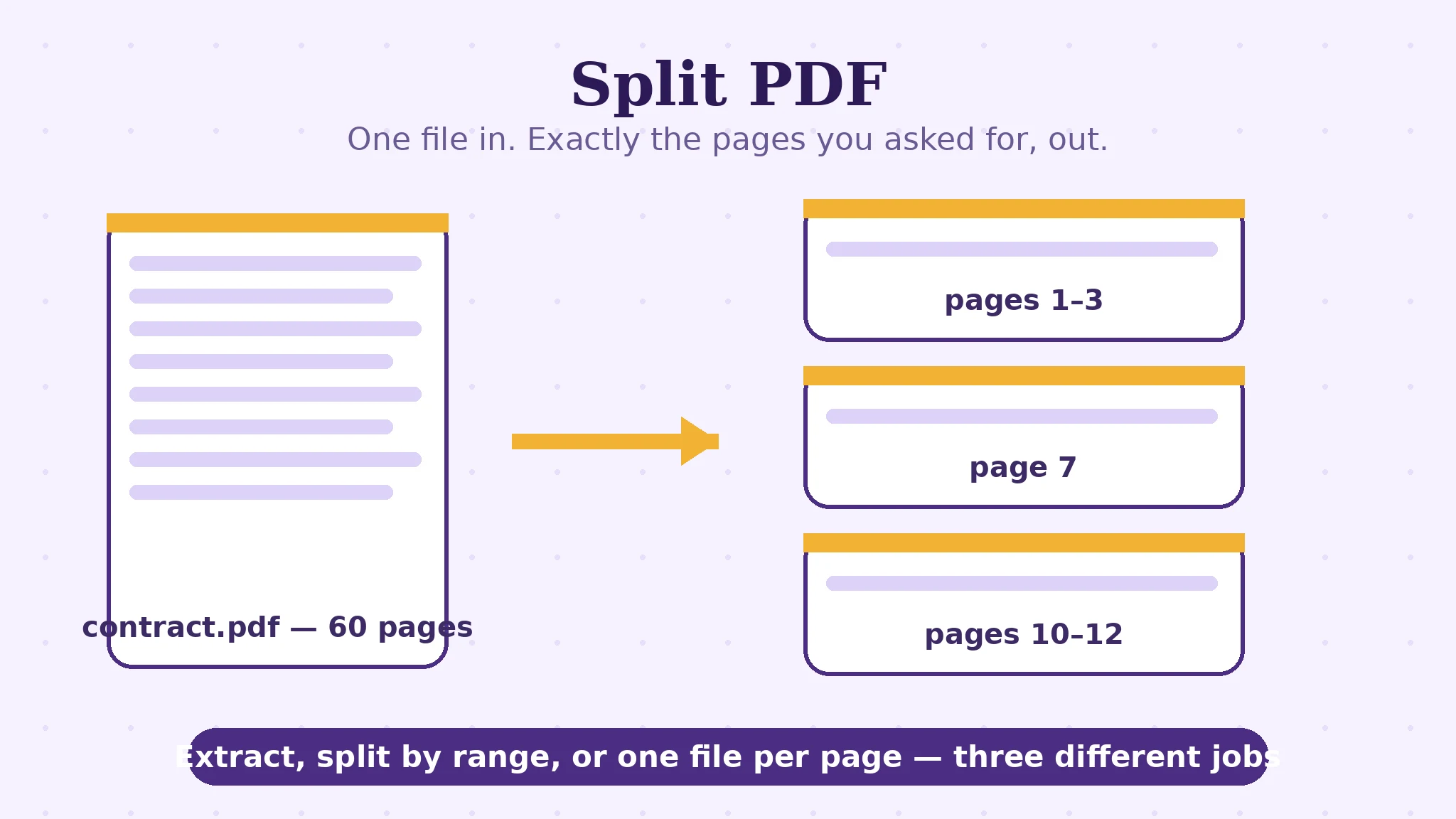
Extract, split by range, split every page — know your job
Search results and tool menus use these interchangeably, which is how people end up with the wrong file. They are distinct operations with distinct outputs, and Split PDF offers the ones that matter as explicit modes:
| The job | You give | You get | Reach for it when |
|---|---|---|---|
| Extract (one range) | One range, e.g. 4-9 | One new PDF holding just those pages | Someone asked for specific pages of a bigger document |
| Split at ranges | Several ranges, e.g. 1-3, 4-6, 7 | One PDF per range, delivered as a ZIP | A bundle must become its chapters, exhibits or sections |
| Every page its own PDF | Nothing but the file | One single-page PDF per page, in a ZIP | Each page will be filed, uploaded or sent separately |
The scenario this blog's earlier post — split a PDF: send only the pages they asked for — is built around is the first row: the extract. This article is the mechanics underneath all three: what a range really selects, why the copies are perfect, and where the page numbers on screen can quietly differ from the numbers printed on the pages.
Pages are copied, not re-rendered — quality cannot drop
A split does to one file what a merge does to many: it lifts page objects out and writes them into new files exactly as they are. The text layer comes along, so a split file is still searchable and selectable; images keep their stored resolution; nothing is photographed or recompressed. If a split result ever looks worse than the original, the cause is never the split — it is a viewer rendering a page at a different zoom, or the wrong pages entirely.
The original file, meanwhile, is untouched. Splitting is a copy operation with boundaries, not a cut: your 60-page contract still exists, whole, whatever you extract from it. That makes every split safely repeatable — wrong range, split again.
Range syntax: the small language of 1-3, 7, 10-12
Ranges are typed the way people say them. A hyphen joins a run — 1-3 means pages 1, 2 and 3. A comma separates groups — 1-3, 7, 10-12 asks for three runs and a single page. In ranges mode, each range you type becomes one output PDF containing exactly those pages, in order. If you would rather point than type, the tool also shows page previews you can tick — and there the rule is visual: each unbroken run of ticked pages becomes one PDF, so ticking 1, 2, 3 and 7 makes two files, not one.
One warning belongs in every splitting guide, because it causes real-world mis-sends: page numbers mean physical pages, not printed numbers. If a report's cover, title page and contents occupy the first three physical pages, the page printed “Page 1” is physical page 4. Count in the viewer's page box — the number beside the thumbnail — not the number in the document's footer. When someone asks for “pages 4–9”, confirm which numbering they mean before you cut; the thirty seconds is cheaper than a wrong disclosure.
Split a PDF, step by step
Step 1 — decide which of the three jobs you have. One set of pages for one person: extract. A bundle becoming its parts: split at ranges. Every page going its own way: every-page mode. Naming the job first prevents the classic wrong output.
Step 2 — drop the PDF onto Split PDF. One file; the cutting happens in your browser, and nothing is uploaded.
Step 3 — type the ranges, or tick the previews. Type them as you would say them — 1-3, 4-6, 7. For a single page, type just its number, e.g. 5. Verify each number against the viewer's physical page count, not the printed folios.
Step 4 — split and download. Press Split my PDF. A single result downloads directly; multi-part results arrive as one tidy ZIP.
Step 5 — open one output before you send anything. Check its first and last page against your intention. The original is unchanged, so any mistake is a re-split, not a rescue mission.
Send exactly the pages they asked for.
Ranges typed the way you say them, previews you can tick, copies that lose nothing — and an original that stays whole whatever you extract.
Open Split PDFSources
- Adobe — Split a PDF into multiple files: Adobe's account of splitting by page range and file size — the range behaviour this guide's worked example follows.
- Tool behaviour — the steps and limits in this guide are from PDFJadoo's own Split PDF tool page, checked 18 November 2026; the file never leaves your device, so the result you preview is the file you save.
A worked example: the contract extract
A client asks for the deliverables section of a 60-page contract — the part printed as pages 4–9 in the document's own numbering. The file opens with a cover, a title page and a one-page contents list, so printed page 4 is physical page 7, and printed page 9 is physical page 12. The correct range is 7-12, not 4-9 — and the difference is not pedantry: range 4-9 would have sent the contents page and the opening clauses, and left out the last two deliverable pages entirely.
With the range settled, the extract takes seconds: one new six-page PDF, text still selectable, the signature page's scan at its original resolution, and the pricing appendix — physical pages 40 and beyond — simply not in the file. Nothing was deleted from anything; the master contract is intact on your disk. The example generalises into the one rule worth memorising: in splitting, the mechanics are foolproof and the numbering is not — spend your care on the numbers.
Edge cases: where splits surprise people
“I got a ZIP when I wanted one file.” You used ranges mode with several ranges, or every-page mode. For one file, give exactly one range. Each range is one PDF by design.
Overlapping or repeated ranges. Typing 1-5, 3-8 is legal — you will get two files that share pages 3–5. Useful for overlapping exhibits; confusing if it was a typo. Read your ranges once before pressing the button.
The scanned bundle. Splitting a scanned bundle into its documents works beautifully, but the outputs are still scans: unsearchable until OCR gives them a text layer. Split first (small files, fast OCR), then run OCR on the pieces you keep.
Splitting is not redacting. Extracting pages 7–12 removes the other pages from the file you send — it does nothing to sensitive text on pages 7–12. If a page you are sending carries something that must not travel, that is a redaction job, not a splitting job.
Before you finish: the 60-second check
- You named your job first: extract, split at ranges, or every page its own file
- Every range was checked against physical page numbers, not printed folios
- Each range becomes one PDF — the count of ranges matches the files you expect
- Multi-part results arrive as one ZIP; you opened one output before sending
- The pages you are NOT sending are truly absent — and nothing on the sent pages needed redacting
- The original file is untouched and archived
Fair questions
What does “split at ranges” mean?
Each range you type — like 1-3 or 7 — becomes one output PDF containing exactly those pages, in order. Type several ranges and you get several PDFs, delivered together in a ZIP.
Will the split files lose quality?
No — pages are copied, not re-rendered, so quality is identical to the original and text stays selectable. If a result looks softer, check your viewer's zoom; the split itself cannot soften a page.
How do I get just one page out of a PDF?
Use ranges mode and type only that page number — for example, 5. You will get a one-page PDF holding physical page 5. Remember that physical page numbers count the cover and contents pages too.
What is the difference between extracting and splitting?
Extracting is splitting with one range: one new file with the pages you keep. Splitting at ranges produces several files at once, and every-page mode produces one file per page. Same lossless copying underneath — different packaging.
Is my PDF uploaded anywhere when I split it?
No. Split PDF runs entirely in your browser tab — the file is read and cut on your own device and never stored on a server.
Can I split a scanned PDF?
Yes — the pages copy out exactly as scanned. The outputs remain image-only scans, though: if you need to search or copy text from them, run OCR on the split pieces afterwards.
Tool behaviour — the every-page and ranges modes, ticked-preview runs becoming separate files, ZIP delivery for multi-part results, and lossless page copying — is from PDFJadoo's own Split PDF page. The physical-vs-printed page number warning is standard PDF practice. Checked 18 November 2026.
Keep reading
Split a PDF: send only the pages they asked for
The scenario post: what to send, what to hold back, and how to check before it leaves.
Merge PDF files into one
The mirror job: many files in, one document out — and why order is the only real decision.
Merge PDFs without losing quality
Why combining files cannot blur them — the page-copying fact, from the merge side.
Compress a PDF without losing quality
Split pieces still too heavy to send? What the compression levels actually do.