One upload button, ten documents? Build the pack in the right order
The single upload slot is not the portal being stingy — it is the portal telling you the expected shape of your application: one PDF, containing every document, in the order the checklist names them. Official scholarship guidelines say it outright — Nagaland's State Merit Scholarship instructs applicants with multiple marksheets to merge them as a single file and upload. So the workflow is assembly, not uploading: convert anything that is still a photograph, merge everything in checklist order, audit the pack page by page, and only then deal with the size cap if the finished pack breaks it.
 By the PDFJadoo Team9 min read
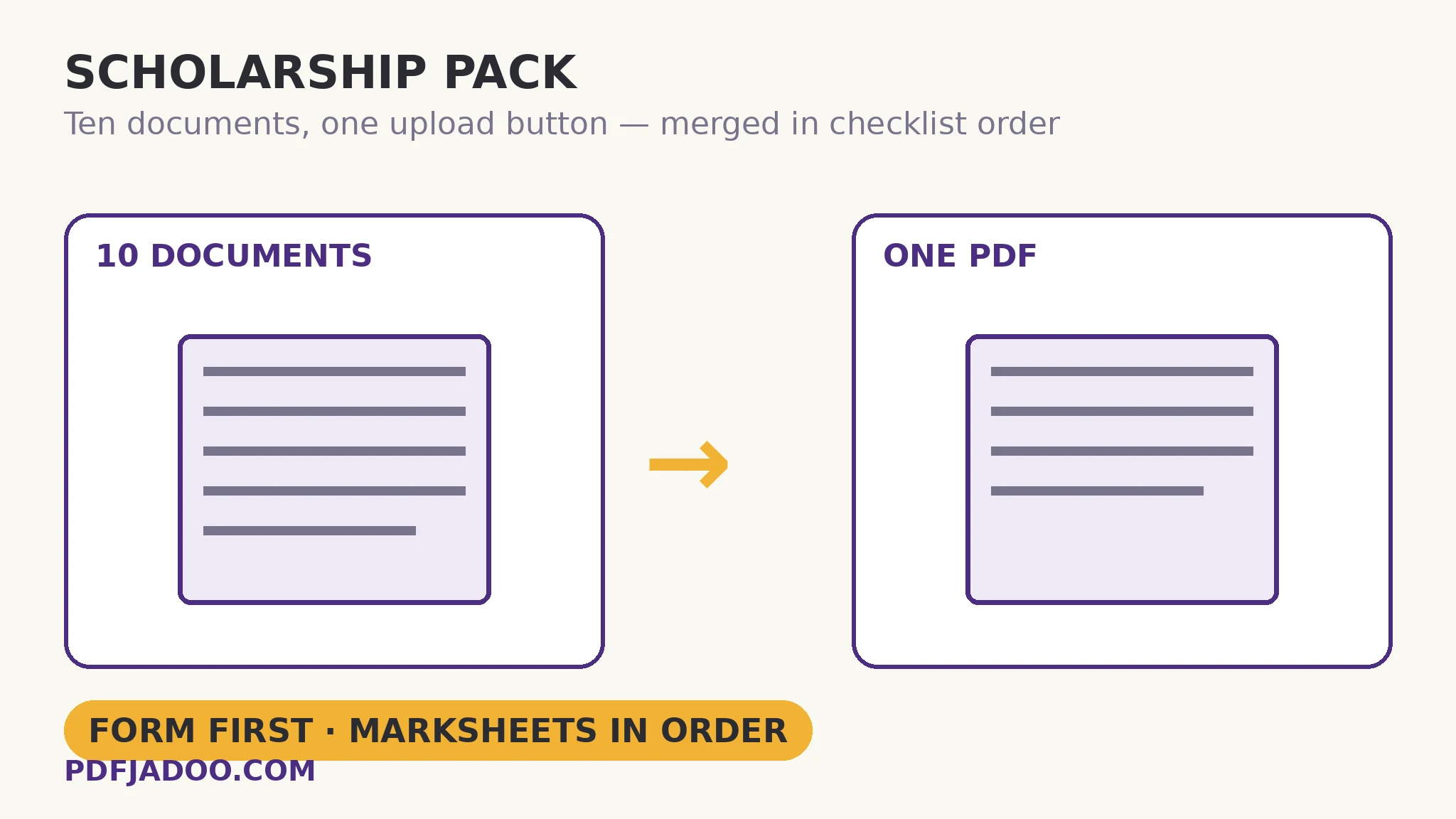
The one-slot rule is written into the official guidelines
This is not a workaround invented by applicants; it is the documented procedure. The Nagaland State Merit Scholarship guidelines state it in one sentence: for multiple marksheets, merge the marksheets as a single file and upload. Guides that walk government and scholarship applications through the same wall — one upload button, a list of required documents — describe the identical assembly: a single merged PDF whose internal order mirrors the application's own checklist. Scholarship-document guides add the format split that trips people up mid-assembly: your photo and signature travel as JPG images, while certificates and marksheets travel as PDF — and a document with a front and a back (an ID card, a certificate with entries on the reverse) goes in as both sides, merged into the one file, front first.
Why do portals want it this way? Because an officer reviews a file, not a folder. One PDF arrives complete or not at all, and cannot lose its third attachment to an inbox filter. Once you see the slot as a specification rather than an obstacle, every step below is just meeting the spec carefully.
The order that works — the checklist's order, not yours
Application-assembly guides converge on the same skeleton, and it is worth stating as a rule: the application's own document checklist is the table of contents of your pack. If the checklist lists documents in an order, your PDF follows that order exactly, even where a different order feels more logical to you — the officer checking items off works from that list, and a pack that matches it is a pack that passes quickly.
| Position | Document | Notes |
|---|---|---|
| 1 | Application form / cover page | The printed or saved form itself, first — it names everything after it |
| 2 | Marksheets, oldest to newest | In sequence, one after another — merged as a single run, per the official instruction |
| 3 | Certificates (degree, board, character) | Front and back as consecutive pages where the back carries entries |
| 4 | Income / domicile / category certificates | The proofs the scholarship's eligibility turns on |
| 5 | ID document | Both sides, front first, on consecutive pages |
| Last | Anything the checklist lists last | Bank details, declarations, undertakings — in checklist position, not forgotten position |
Scenario tables from merging guides put scholarship packs in exactly this shape — marksheets and the income certificate as the core, marksheets first. Where your portal's checklist differs from this table, the checklist wins; the table is the default for the common case where the form lists documents without numbering them.
The assembly, step by step
Step 1 — gather everything as PDFs before you merge anything. Merging works on PDF files, so the pack has two kinds of ingredient: documents that are already PDFs (a downloaded form, a scanned certificate saved as PDF) and documents that are still photographs on your phone. Photographed certificates, marksheets shot on a table, an ID card's two sides — convert those first with JPG to PDF: drop the photos in, order them with the ↑ ↓ arrows, choose A4 with a small margin so each certificate sits on a document-shaped page, and make one PDF per document. The images are embedded at full quality, never re-compressed, so seals and small print stay legible. Photo and signature, remember, usually upload separately as JPGs in their own slots — do not bury them inside the pack unless the checklist says to.
Step 2 — name each file before it enters the merge. Rename the ingredients in checklist order — 01-form.pdf, 02-marksheet-10th.pdf, 03-marksheet-12th.pdf, 04-income-certificate.pdf. The names cost a minute and pay it back twice: the merge list sorts itself, and months later you can still prove what the pack contained.
Step 3 — merge in that order. Drop the files onto Merge PDF, check the list against your numbered names, adjust with the ↑ ↓ arrows if anything landed out of place, and press the button. Merging copies every page losslessly — nothing is re-rendered or re-compressed, bookmarks inside source files are preserved where the format allows, and the combined file is usually no bigger than the sum of its parts. The merge guide covers the order audit in full.
Step 4 — clean the pack before anyone else sees it. Assembly guides name the three pages that embarrass applicants every cycle: the blank page a scanner added, the duplicate uploaded twice under two names, and the sideways page nobody rotated. Flip through the merged PDF once, slowly. A blank or duplicate comes out with Delete Pages; a sideways page turns upright with Rotate PDF — both lossless. This flip-through is also your completeness audit: count the pack's documents against the checklist, backs of two-sided ones included.
Step 5 — the size cap, last and only if needed. A pack of photographed certificates is heavy — ten documents can pass 15 MB against caps often set at 1–2 MB. Only now, with the pack final, compress it: Compress PDF in Target size mode, aimed a tenth under the cap, then zoom-check the smallest print — a certificate number, a seal's rim text. The generic version of this fight is walked end to end in the exact-size guide; a form that refuses to let you type in it is a different, fixable problem, covered by the fill-and-sign guide.
Ten documents. One file. Your order.
Drop the PDFs onto Merge PDF, arrange them with the arrows exactly as your checklist lists them, and download one combined file — pages copied losslessly, in your browser, with your certificates never uploaded to a stranger's server.
Open Merge PDFA worked example: a merit scholarship pack, assembled
The checklist asks for the application form, two marksheets, a domicile certificate, an income certificate and an ID — six documents, one slot, a 2 MB cap. The form is already a PDF. The marksheets and certificates exist as phone photographs: four JPG-to-PDF conversions, A4, small margin, one file each, named 02 through 05 in checklist order; the ID's front and back become a two-page PDF, front first. The merge takes a minute; the audit finds one sideways marksheet, rotated upright, and a blank page from a scanner, deleted. The pack weighs 11 MB, so Target size aims at 1.8 MB; the zoom check reads the income certificate's number cleanly, and the file uploads into the single slot it was always designed for. Nothing in that story is clever. It is a checklist, followed in order, with the audit done by the applicant instead of the officer.
Edge cases that reject good applicants
The portal has several slots after all. Some forms offer one slot per document once you scroll — read the whole form before merging. Where separate slots exist, use them, and keep the merged pack as your own complete copy; where the checklist says “single file”, the merge is mandatory, not a preference.
One document is a Word file or a spreadsheet. Convert it to PDF before the merge — a merged pack must be one format throughout, and an officer's machine is not obliged to open anything else. Convert first, audit the conversion, then merge.
A certificate is a single photograph with both sides visible. Split the photo into two images, or photograph each side separately, and place front then back as consecutive pages. A single side-view of a two-sided document reads as a missing page at audit time — because, to the checklist, it is one.
The pack is for a job application, not a scholarship. The same assembly serves — form, CV, certificates, proofs — and the CV inside it carries its own trap: if it began life as a scan, the employer's software may read nothing from it even inside a perfect pack. The resume-limits guide covers that diagnosis and its OCR fix.
Never merge your only copies into oblivion. Keep the numbered ingredient files in their own folder after uploading. If the portal loses the application or asks for one document separately, you rebuild the pack in minutes instead of re-photographing a certificate that is now in another city.
Sources
- Nagaland State Merit Scholarship — Official guidelines (“For multiple marksheets, merge the marksheets as single file and upload”).
- DocSet — Merge PDF Files Required for Government Jobs (One Single File) (the one-upload-button problem and the scenario order table: scholarship — marksheets plus income certificate, marksheets first).
- PhotocopyWala — How to Combine PDF Files for Forms and Certificates (form/cover first, then certificates and marksheets in checklist order; remove blank, duplicate and sideways pages).
- Scholarship documents guide — Scholarship Documents: Scanning, Formats and Sizes (photo/signature as JPG, certificates and marksheets as PDF, front-and-back merged into one file).
- Tool behaviour — Merge PDF's lossless page copying and ordering arrows, JPG to PDF's full-quality embedding and page sizes, and Compress PDF's Target size step-down are from PDFJadoo's own Merge PDF, JPG to PDF and Compress PDF pages.
Before you finish: the 60-second check
- Every document on the checklist gathered — and converted to PDF if it started as a photograph
- Photo and signature kept as separate JPGs unless the checklist says to include them in the pack
- Ingredients renamed in checklist order (01-, 02-, 03-…) before merging
- Merged pack flipped through once: no blank, duplicate or sideways pages; every document present, backs included
- File size checked against the portal's cap, and target-size compression applied only if needed — zoom check after
- The numbered ingredient files kept in their own folder after uploading
Fair questions
The form lists ten documents but has one upload button. What does it want?
One merged PDF containing all ten, in the checklist's order. Official guidance says so directly — the Nagaland State Merit Scholarship instructs applicants to merge multiple marksheets as a single file and upload. Assemble with Merge PDF after converting any photographed documents with JPG to PDF.
In what order should the documents go inside the pack?
Your checklist's order. The working default: application form or cover first, then marksheets oldest to newest, then certificates, then income/domicile/category proofs, then ID (both sides, front first), with anything the checklist lists last going last. If the portal's checklist numbers its documents differently, its order beats any generic table — including this one.
My certificates are photos on my phone. Can I merge photos directly?
Not into Merge PDF — it takes PDF files, and that honesty matters. Convert each photographed document first with JPG to PDF (A4, small margin, one PDF per document; images embedded at full quality), then merge the PDFs. Photo and signature are the exception: most portals want those as separate JPG uploads in their own slots.
Does merging reduce the quality of my certificates?
No. Merge PDF copies the original pages into the new file without re-rendering or re-compressing them, so a seal that was legible in the ingredient is legible in the pack. Quality is decided earlier — at the photograph and the conversion — which is why the audit flip-through matters.
The finished pack is 11 MB and the cap is 2 MB. What now?
Compress the finished pack — not the ingredients — in Target size mode in Compress PDF, aimed about a tenth under the cap (1.8 MB for 2 MB). Then zoom-check the smallest print in the pack, a certificate number or seal text, before uploading. Compressing last means one squeeze, applied once, to the file that actually travels.
A document has writing on the back. Does the back go in?
Yes — as the page immediately after its front. Convert both sides (two photos, front first) into that document's PDF before merging. An officer auditing against a checklist counts a missing back as a missing page, because some certificates and IDs carry endorsements and entries only on the reverse.
Tool behaviour — Merge PDF's PDF-only input, lossless page copying and ordering arrows, JPG to PDF's full-quality embedding, page sizes and margins, and Compress PDF's Target size step-down with its readability floor — is from PDFJadoo's own tool pages, checked 18 November 2026. The merging instruction and the format split are from the official and guide sources listed under Sources; your portal's own checklist is the final authority for your pack's contents and order.
Keep reading
Merge PDF files into one
The tool guide behind this assembly: lossless page copies, bookmarks, and the thirty-second order audit.
Combine JPG photos into one PDF
Order, orientation and size — the three ways photo-binding actually fails, handled one by one.
Compress to an exact size
The finishing step when the pack breaks the cap: aim at the portal's number, not at “smaller”.
Resume won't upload? Portal limits
The office-side sibling: size caps per job portal, and why a scanned CV fails silently inside any pack.