Combine JPG photos into one PDF: conversion never fails — order, orientation and size do
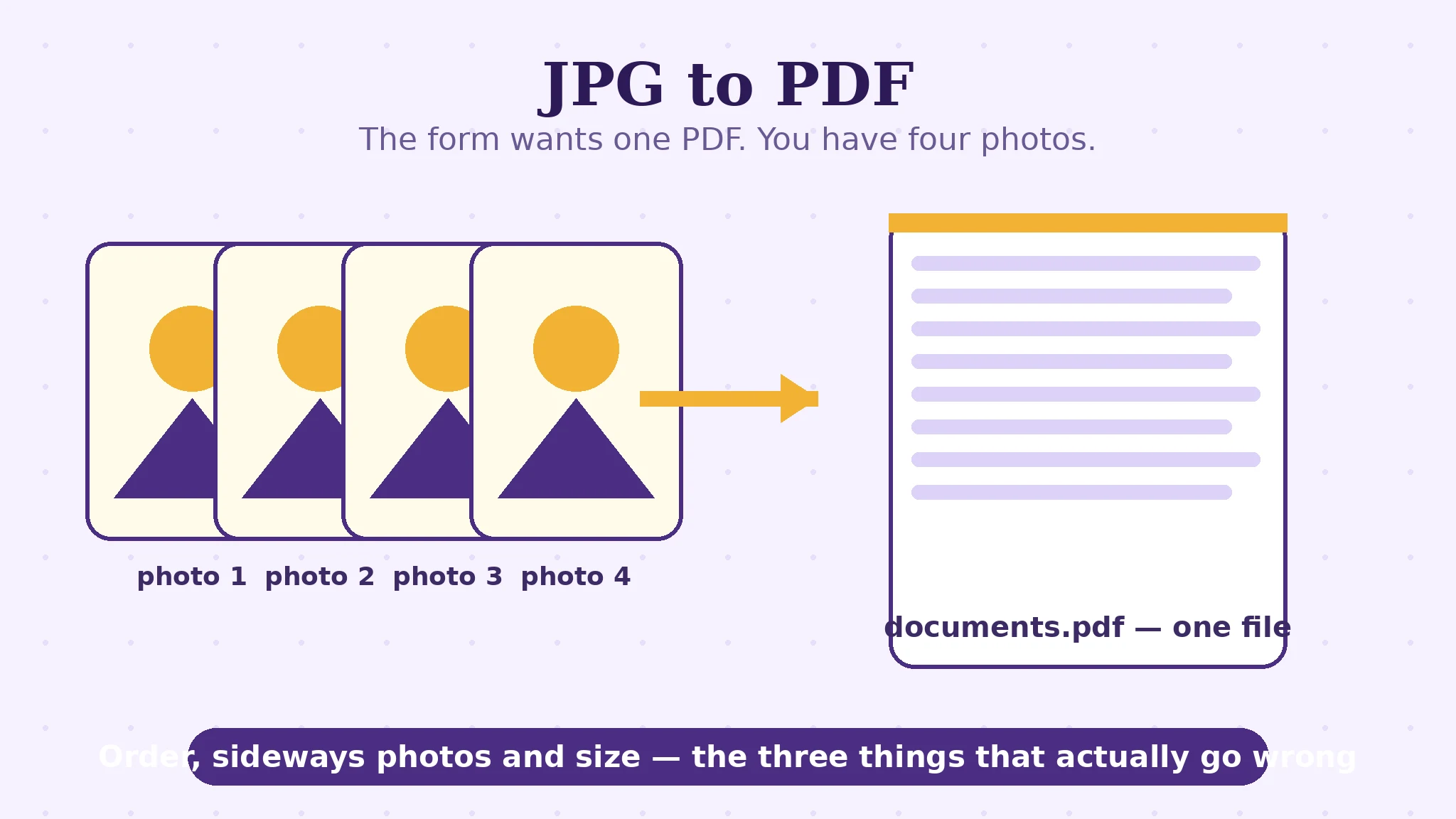
The form says “upload one PDF”. What you actually have is four photos on your phone: a passport page, two payslips, a utility bill. The upload box will not take JPGs, and emailing four loose images to an office that asked for one file is how applications come back. Turning the photos into a single PDF takes about a minute — and the conversion itself is the part that never goes wrong. What goes wrong is the order, the sideways photos, and a file too big to send. This article is about those three, and the mechanics underneath them.
 By the PDFJadoo Team7 min read
Embedding, not converting: why your photos lose nothing
Start with the reassuring mechanism. When JPG to PDF builds your file, it does not re-photograph your photos. Each image's data is embedded into the PDF as-is — never re-compressed — and wrapped in a page. The JPG bytes that arrive are the JPG bytes you supplied, which is why scans stay legible and photos stay sharp, and why the arithmetic of size is so predictable: a PDF made from JPGs is roughly the size of the JPGs added together. Four 2 MB phone photos make a roughly 8 MB PDF. If that number is a problem for an upload limit, it was a problem before conversion too — the fix lives elsewhere (resize or compress the photos first), not in the converter.
Because the image is embedded whole, the real decisions are presentational, and there are three: page order, page size, and margins. Page size offers Fit page to each image — every page exactly its photo's shape, ideal for receipts and screenshots — or a standard A4 or US Letter sheet with the photo placed on it, which is what documents you will print, and offices that think in paper, expect. Margins run from none to small (18 pt) to medium (36 pt) — a breathing border on standard sheets, irrelevant in Fit mode, where the page is the image. The batch workflow post on this blog, JPG to PDF in a batch, walks the errand itself; this article stays with the three failure points underneath it.
Failure one and two: order and sideways photos
Order. Files arrive in whatever order your device lists them — by name, by date, by nothing you intended. The PDF's page order is the order in the tool's list, full stop, and each image in that list carries up and down arrows for exactly this reason. Read the list as the document: identity first, evidence after, in the sequence the receiving office listed them. Ten seconds with the arrows is the difference between a bundle and a pile.
Sideways photos. Phone photos often are not rotated at all in their pixels — they carry an orientation note (EXIF) telling viewers to display them turned. Viewers that honour the note show the photo upright; pipelines that strip it show the photo lying on its side. A converter that reads the note bakes the photo into the page standing up, which is why the check that matters is the thumbnail in the list: if the thumbnail stands upright, the page will too. If a photo arrives from a messaging app — which often strips the note and sometimes the pixels' rotation with it — fix that one image's rotation before it goes in, because the PDF will faithfully preserve whichever way it was lying.
Failure three: the file is too big to send
Modern phone photos run 3–6 MB each. Ten of them, embedded unchanged, make a 30–60 MB PDF — honest arithmetic, and over almost every email and portal limit ever set. Since the converter will not quietly degrade your photos (that restraint is deliberate), the size decision is yours, made before conversion: if the PDF is for a screen and a form, run oversized photos through an image compressor first, or photograph documents at a sensible resolution to begin with. If the PDF is for printing or archiving, keep every pixel and send the big file by a channel that accepts it. What you should not do is convert, discover the size, and re-convert from the PDF — work from the original photos each time, so any resize happens once, from the best source.
One more output choice hides in the tool, and it answers a different form of the same problem: one combined PDF, or one PDF per image. Some portals want each document uploaded separately, under its own label. Choose “one PDF per image” and the same list produces individual PDFs, delivered together in a ZIP — same embedding, different packaging.
Combine JPG photos into one PDF, step by step
Step 1 — drop the images onto JPG to PDF. JPG and PNG both welcome, as many as your device's memory allows — there is no count limit imposed by the tool.
Step 2 — set the order with the arrows. Read the list as the finished document. Fix any sideways thumbnail now.
Step 3 — choose the page shape. Fit page to image for receipts, screenshots and mixed shapes; A4 or Letter for documents that will be printed or formally submitted; add a small margin on standard sheets if the office prints to the edge.
Step 4 — choose the packaging. One combined PDF for the one-file portal; one PDF per image (ZIP) when each document uploads under its own label.
Step 5 — make the PDF, then open page one. Press Make my PDF and check the first page is the document you meant to lead with — the thirty-second audit that catches every ordering mistake while it is still free to fix.
Four photos in. One tidy PDF out.
Order set by you, images embedded at full quality, page shaped to fit or to print — built in your browser, with nothing uploaded.
Open JPG to PDFA worked example: the four-photo application
The classic bundle: a passport photo page, two payslips and a utility bill, photographed on a phone, needed as one PDF for a rental application. The photos land in the list in folder order — bill, passport, payslip 2, payslip 1 — and one payslip is lying sideways, its orientation note lost when it passed through a messaging app.
Two minutes of arrangement fixes the document before it exists: passport first (identity leads), then payslip 1, payslip 2, then the bill; the sideways payslip rotated upright; page size set to A4 because the agent will print it; one combined PDF. The result is a four-page file of roughly the photos' combined size — the photos were about 2 MB each, so expect about 8 MB — which the application's portal accepts, and which reads in the order the agent's checklist lists them. Nothing about the conversion was clever; everything about the arrangement was. That is the general shape of this tool's work: the mechanics are faithful and instant, so all the quality lives in the ordering decisions only you can make.
Edge cases: where photo PDFs surprise people
HEIC photos from an iPhone. Recent iPhones save HEIC, which this converter does not take directly — convert HEIC to JPG first (there is a sibling tool for exactly that), then combine.
Mixed JPG and PNG. Perfectly fine — both are accepted and embedded losslessly, so screenshots and photos can share one document.
“The PDF is the same size as my photos — is it broken?” It is honest. Embedding without recompression means size in ≈ size out. A smaller PDF requires smaller images, chosen deliberately beforehand.
Screenshots that balloon. A tall phone screenshot becomes a tall page in Fit mode — correct, but startling in a print preview. For screenshot reports, A4 with a margin reads better on paper.
Before you finish: the 60-second check
- The list order reads as the finished document — identity first, evidence after
- Every thumbnail stands upright; sideways photos were fixed before conversion
- Page shape chosen on purpose: Fit for receipts and screenshots, A4/Letter for print
- Packaging chosen: one combined PDF, or one per image for separate uploads
- The expected size — roughly the photos added together — fits the destination's limit
- Page one of the result was opened and is the document you meant to lead with
Fair questions
Will my photos be compressed when I turn them into a PDF?
No. The original image data is embedded as-is, at full quality, so photos stay exactly as sharp as the files you supplied — and the PDF ends up roughly the size of the images added together.
Can I mix JPG and PNG images in one PDF?
Yes — both are accepted and embedded losslessly, so camera photos and screenshots can live in the same document.
How do I change the page order?
Each image in the list has up and down arrows. The PDF's pages follow the list exactly — filenames and folder order decide nothing.
Why is one of my photos sideways in the PDF?
Phones store rotation as an orientation note in the photo; apps that strip the note leave the photo lying sideways, and the PDF preserves it faithfully. Rotate that image upright before converting — check the thumbnail in the list, which shows the page as it will be.
Why is my photo PDF so large?
Because embedding is honest: ten 4 MB photos make a roughly 40 MB PDF. If a limit matters, shrink the photos before converting — the converter will not quietly degrade them for you.
Can I get each photo as its own PDF instead?
Yes — choose the “one PDF per image” output and the same list produces individual PDFs, delivered together in a ZIP. JPG to PDF offers both packagings from the same arranged list.
Tool behaviour — JPG and PNG input, arrow ordering, Fit/A4/Letter page sizes, 18 pt and 36 pt margins, one-combined vs one-per-image output, and embedding without recompression — is from PDFJadoo's own JPG to PDF page. The EXIF orientation explanation is the standard behaviour of phone photos. Checked 18 November 2026.
Keep reading
JPG to PDF in a batch
The workflow post: a pile of photos into one tidy PDF, errand-style.
Merge PDF files into one
Already have separate PDFs instead of photos? Assemble them the same way.
PDF to JPG: which DPI?
The road back — pages out as images, and the resolution decision that governs them.
iPhone photo won't upload? It's HEIC
When the photos will not even enter the converter — the format fix comes first.
One upload button, ten documents
Photographed certificates are step one of the pack — here is the whole assembly, order and audit included.