PDF to JPG: which DPI — the only setting that decides sharpness
The form will not take a PDF. The listing, the chat, the slide deck wants an image. So you convert — and the JPG comes out blurry, and the converter gets the blame. Almost always, the blur was decided before the JPEG existed: a PDF page has no pixels of its own, so converting means rendering it — painting it at a resolution you choose — and then encoding that painting as a JPEG. Render small, and no quality setting can invent the detail afterwards. This article is about that one decision: the DPI.
 By the PDFJadoo Team7 min read
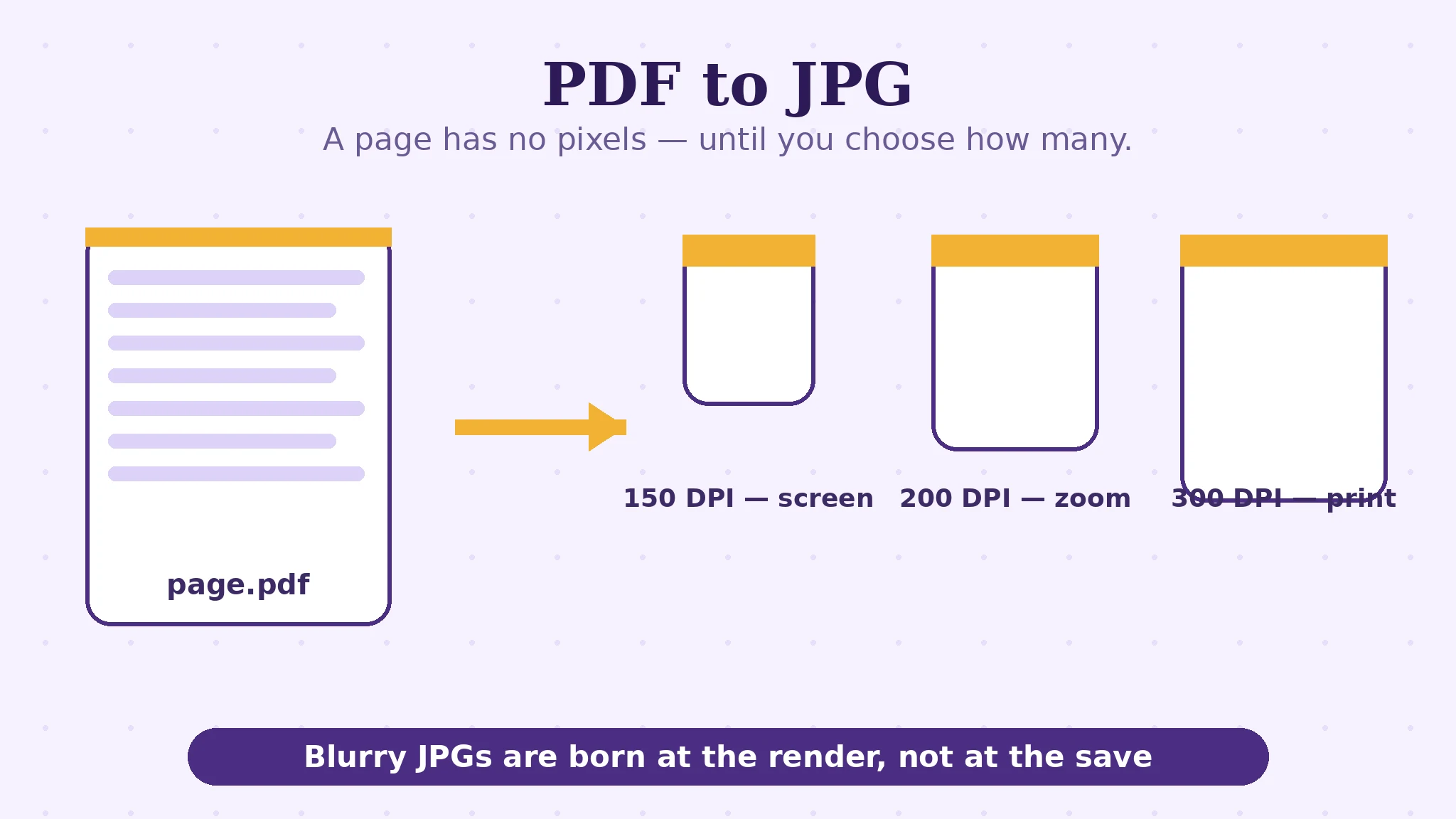
A page is a description, not a picture
Hold the contrast with a photograph. A photo is pixels — a fixed grid, recorded once. A PDF page is a set of instructions: draw this letter here, this line there, place this image at this size. Your viewer follows the instructions at whatever size your screen asks for, which is why a PDF can zoom forever without going soft — the instructions are re-followed, more finely, every time.
Converting to JPG means following those instructions exactly once, at a fixed fineness, and keeping the result. That fineness is the DPI — dots per inch of the page's real size. An A4 page rendered at 150 DPI becomes about 1,240 × 1,754 pixels; at 300 DPI, about 2,480 × 3,508 — four times the pixels, because doubling DPI doubles both dimensions. From that single fact, everything about PDF-to-JPG quality follows: the render is the moment of truth, and the JPEG encoding that follows can only preserve or discard what the render created. This is also why a screenshot of a PDF viewer always loses to a direct conversion: the screenshot keeps only the pixels your screen happened to show — often under 100 DPI's worth — while PDF to JPG renders the page fresh, at the resolution you pick. The existing post PDF to JPG without losing quality covers the form-upload scenario; this article is the resolution mechanics underneath it.
The three resolutions, and the job each is for
| Setting in PDF to JPG | An A4 page becomes | Choose it when | The cost |
|---|---|---|---|
| 150 DPI — good for sharing | ≈ 1,240 × 1,754 px | Screens: chats, listings, slides, email, uploads | Fine print softens if someone zooms hard |
| 200 DPI — sharper | ≈ 1,654 × 2,339 px | Documents people will zoom into and read closely | Roughly double the 150-DPI file size |
| 300 DPI — print quality | ≈ 2,480 × 3,508 px | Printing, archiving, feeding to OCR later | Roughly four times the 150-DPI file size; slower on big files |
Read the table as a destination choice, not a quality ladder. There is no benefit in choosing 300 DPI for a page that will only ever be seen on a phone — the extra pixels are discarded by the phone's screen, but the extra megabytes are not discarded by the email limit. Equally, sending a 150-DPI render to a printer asks the printer to stretch too few pixels across the page, and the softness people call “low quality” is just arithmetic.
Then JPEG gets its say: quality 92, and why
After the render, the pixels are encoded as a JPEG, and JPEG is lossy — it discards detail the eye is unlikely to miss, most aggressively in colour gradients. PDFJadoo encodes at quality 92: the setting where photographic content is visually faithful while files stay small. Two consequences are worth knowing. First, for photo-heavy pages, quality 92 is effectively transparent — you will not find the loss. Second, for pages of crisp text and flat diagrams, JPEG's weakness shows first as faint fringing around letters — which is why a page destined to be read as text at small sizes is sometimes better as a PNG (lossless), the sibling tool one shelf over. Format follows content: photographs and scans to JPG, razor-edge text and line art to PNG.
Batch behaviour is built for real folders. Drop several PDFs and every page of every one is converted and pooled into a single ZIP, named by source file and page. A one-page PDF skips the ZIP entirely and downloads directly; a multi-page one arrives as a ZIP of its pages. And because the conversion renders pages rather than copying them, a scanned page and a born-digital page come out equally sharp — the render does not care how the page was made.
Convert PDF pages to JPG, step by step
Step 1 — name the destination. Screen, zoom, or print? That one word picks the DPI: 150, 200, or 300.
Step 2 — drop the PDF — or several — onto PDF to JPG. Everything renders in your browser; nothing is uploaded.
Step 3 — choose the resolution and convert. Press Convert to JPG. One PDF's pages download directly or as a ZIP; a batch arrives as one ZIP holding every page image.
Step 4 — zoom once before you send. Open the first JPG at 100% and read the smallest text on it. That ten-second check verifies the DPI decision where it matters — at reading size, not at thumbnail size.
Render it once, at the right size.
150 for screens, 200 for zooming, 300 for print — pages rendered by the same engine your browser displays with, encoded at quality 92.
Open PDF to JPGA worked example: the certificate for the listing
A marketplace listing needs a training certificate as an image — the upload box takes JPG only. The certificate is one page, dense with small print: a registration number in 8-point type at the bottom. At 150 DPI the render is cheerful on a phone screen, but a buyer who pinches to read the registration number finds it soft — the number was rendered with too few pixels to survive the zoom. At 300 DPI the same number stays crisp at full zoom, and the file is still a perfectly uploadable size, because one page at 300 DPI is a few megabytes at most. The middle setting, 200, would have served nearly as well. The example's rule: choose DPI by the smallest text someone will actually try to read, at the largest zoom they will actually use — the same smallest-print rule that governs compression levels on this blog.
Edge cases: where JPG conversion strains
The 200-page document at 300 DPI. Rendering is real work, page by page, and 300 DPI quadruples it. On a phone, a huge high-DPI batch can run out of memory where a desktop succeeds. Convert in smaller batches, or at 200 DPI, which halves the strain.
“Why is my JPG bigger than my PDF?” Because the PDF stored efficient instructions and the JPG stores the painted result. A one-page text PDF of 40 KB can honestly become a 900 KB JPG at 300 DPI — pixels are heavier than instructions.
Transparency. JPG has none: transparent areas of a page are filled (white) in the render. If you need the transparency itself, that is a PNG job.
Colour fringing on text. JPEG stores colour at lower resolution than brightness — invisible on photos, occasionally visible as a coloured halo on tiny coloured text. Another vote for PNG when the page is mostly type.
Before you finish: the 60-second check
- The destination was named first: screen (150), zoom (200), or print (300)
- You converted from the PDF — never from a screenshot of the PDF
- The first JPG passed the 100% zoom check on its smallest text
- Photo-like pages went to JPG; razor-edge text pages were considered for PNG
- Big batches at 300 DPI were split if the device struggled
- The original PDF is kept — the JPG is a rendering, not a replacement
Fair questions
What DPI should I use to convert a PDF to JPG?
150 DPI for anything read on a screen, emailed or uploaded — an A4 page becomes about 1,240 × 1,754 pixels and stays light. 200 DPI when people will zoom in and read closely. 300 DPI for printing, archiving, or feeding the images to OCR later. Higher than 300 rarely helps and multiplies file size.
Why did my PDF to JPG come out blurry?
Almost always the render resolution, not the JPEG. If the page was rendered at a low DPI, the detail was never created, and no quality setting can invent it afterwards. Re-convert at 200 or 300 DPI — and never convert from a screenshot, which keeps only your screen's pixels.
What JPEG quality does the conversion use?
Quality 92 — the setting where photographic content is visually faithful while files stay small. It is fixed deliberately: the meaningful choice in this conversion is the DPI, not a quality slider.
How do I convert several PDFs at once?
Drop them all onto PDF to JPG together. Every page of every file is converted and pooled into a single ZIP, named by source file and page. A single one-page PDF downloads directly, without the ZIP.
Should I choose JPG or PNG for a page of text?
For photographs and scanned pages, JPG — small and faithful at quality 92. For pages of crisp text, diagrams or flat colour that must keep razor edges, PNG is lossless and often sharper-looking; it is the sibling tool one shelf over.
Does converting to JPG make the text unsearchable?
Yes — a JPG is a picture of the page. The words become pixels, so search, selection and copy no longer work on the image. Keep the PDF as the document of record; the JPG is for places that only accept images.
Tool behaviour — the 150/200/300 DPI settings, JPEG quality 92, single-page direct download vs ZIP delivery, batch pooling, and in-browser rendering — is from PDFJadoo's own PDF to JPG page. Pixel dimensions are the standard rendering maths for an A4 page (210 × 297 mm) at each resolution. Checked 18 November 2026.
Keep reading
PDF to JPG without losing quality
The form-upload scenario post: when the box only takes images, and the settings that keep them sharp.
Combine JPG photos into one PDF
The road back: a pile of JPGs becomes one tidy document again.
Compress a PDF without losing quality
The same DPI decision, from the compression side — levels, floors and smallest print.
Make a scanned PDF searchable
Converting pages to images for OCR later? Why 300 DPI is the feedstock OCR likes.