Make a scanned PDF searchable: Ctrl+F found nothing because there are no words
You press Ctrl+F in a two-hundred-page scan, type the word you can see on page 40, and get “0 results”. The viewer is not broken and the word is not missing. The file simply does not contain words: a scanned PDF is a photograph of pages, and photographs cannot be searched, selected, copied or read aloud. OCR — optical character recognition — is the machine reading that fixes it: software studies the photograph, recognises the letters, and lays a real text layer behind the image, so the page looks identical and behaves like a document. This article is how that reading works, and what it needs from your scan.
 By the PDFJadoo Team8 min read
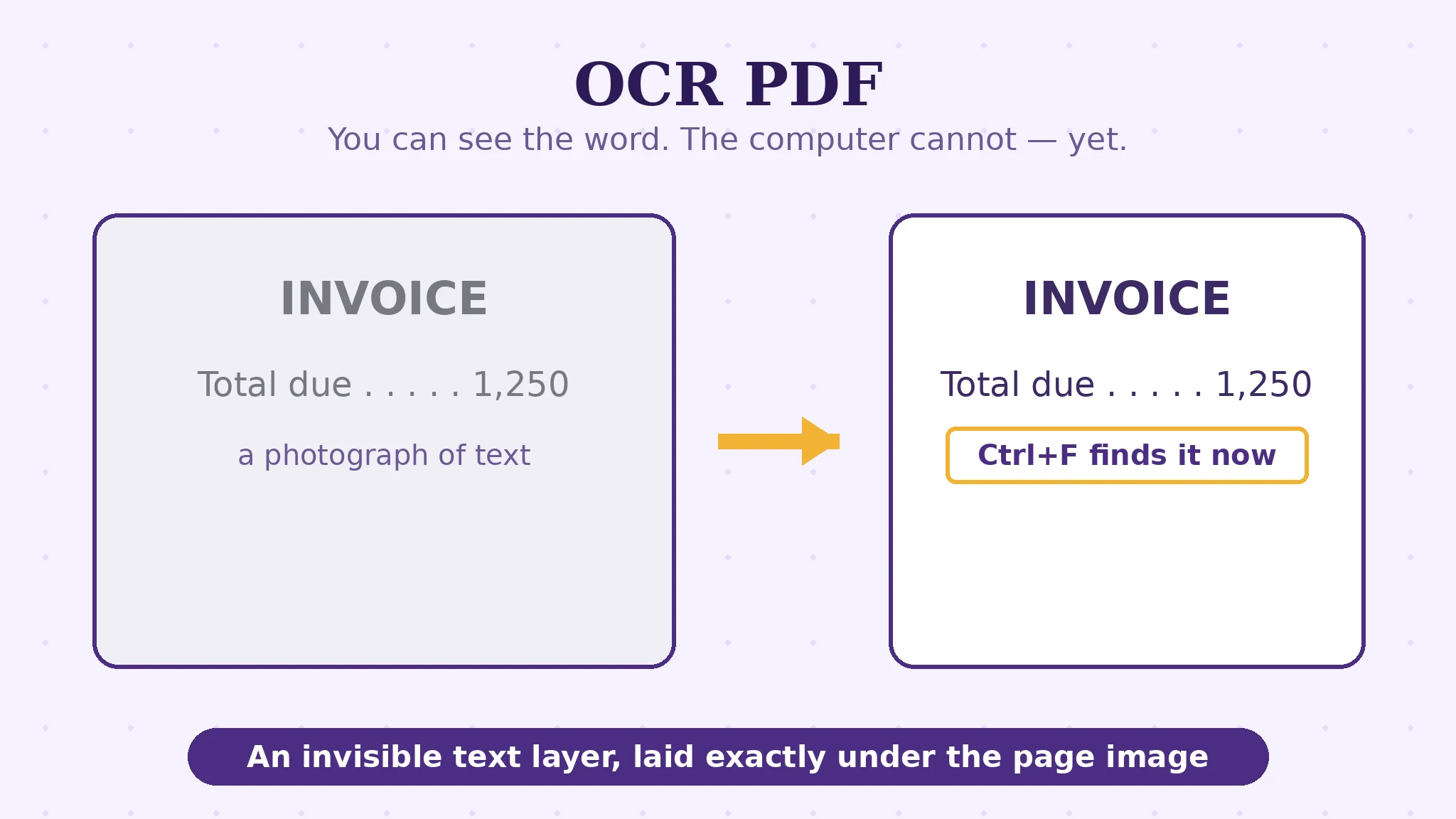
The diagnosis: picture of text vs text
Two PDFs can look identical on screen and be opposite kinds of object. A born-digital PDF stores letters as letters, with a text layer you can select, search and copy. A scanned PDF stores one image per page — the scanner or phone camera photographed the paper, and the file holds that photograph. Every frustration with scans is this one fact wearing different clothes: Ctrl+F finds nothing, the mouse selects the whole page as one picture, copy-paste yields an image, screen readers fall silent, and a converter asked for Word returns an empty document.
The symptom-first version of this diagnosis is this blog's PDF text not selectable post; this article goes one level deeper, into the cure. OCR PDF performs the recognition entirely in your browser — the Tesseract recognition engine runs on your device — which means a scanned contract, statement or ID never leaves your machine to be read. For documents people hesitate to upload anywhere, that is not a detail; it is the reason the tool is shaped this way.
How the reading works: render, recognise, lay down text
The pipeline has three movements. First, the page is rendered as an image at working resolution — 200 or 300 DPI. Recognition is a visual skill, and like the DPI choice in PDF to JPG, it is decided at the render: too few pixels and letterforms blur together. Second, the engine recognises: it segments the image into lines and words, matches shapes against its knowledge of the chosen language's letterforms — 124 languages are available, and picking the right one matters, because the engine reads with a language's dictionary in mind; its data for a language (a few megabytes at most) downloads once, the first time that language is used. Third, the output is assembled — and the output you choose decides what you get:
| Output | What you get | Choose it when |
|---|---|---|
| Searchable PDF | The same page image, with an invisible text layer behind it | The document must look untouched but behave — search, select, copy |
| Copy text / .txt | The recognised words, plain | You need the content, not the document |
| Word (.docx) | The recognised text as an editable document | The scan must become a draft you can rewrite |
The searchable PDF deserves a beat of appreciation, because it is the elegant one: the visible page is your original scan, pixel for pixel — signatures, stamps, coffee rings and all — while the invisible layer beneath carries the machine-read words. Search lands on the right page, selection highlights the right line, and nothing about the document's appearance was risked to get there.
Feedstock: the scan quality OCR can work with
Recognition quality is decided mostly before the engine runs. Resolution: a page scanned or rendered at 300 DPI gives the engine letterforms with edges; at very low resolutions, e's and c's merge and the reading guesses. Straightness: a page photographed at an angle skews every line; the engine tolerates a little, not a lot. Contrast: grey text on grey paper is hard for machines for the same reason it is hard for you. Two options in the tool exist for difficult pages: an enhanced-accuracy mode that spends more computation on the reading, and a black-and-white boost that pushes a faded page toward crisp two-tone before recognition. Use them when the standard pass stumbles — they are the difference between a clean layer and a layer with confetti in it.
And the honest limit, because OCR has one: recognition is reading by a very fast, very literal machine. Handwriting defeats it except in the clearest print-like hands. Badly damaged, stained or faint originals yield text with errors sprinkled through — the layer is searchable and copyable, but a document whose every word matters deserves a human proofread of names, numbers and dates, because those are exactly the tokens a dictionary cannot sanity-check.
Make a scan searchable, step by step
Step 1 — confirm the diagnosis. Try to select a sentence. Whole page selects as one picture: it is a scan, and you are in the right place.
Step 2 — drop the PDF onto OCR PDF. The pages render and the engine runs in your browser — nothing is uploaded. Big scans take real computation; give a long document a plugged-in device.
Step 3 — choose the language of the document. The text's own language, not your interface's — the engine reads with that language's letterforms and dictionary. First use downloads that language's data once.
Step 4 — pick the output. Searchable PDF to keep the document's face; copy text or .txt for the words alone; Word when the scan must become an editable draft.
Step 5 — verify with the search that failed. Open the result, press Ctrl+F, type the word from page 40. It lands. Then spot-check two names and a number against the scan — the thirty-second audit that turns trust into knowledge.
Give the photograph its words back.
Recognition in 124 languages, running entirely in your browser — out comes a searchable PDF, the plain text, or an editable Word file.
Open OCR PDFA worked example: the 200-page file that became an archive
A family's scanned property file — two hundred pages of deeds, receipts and correspondence, photographed over the years — was unusable as anything but a picture album. Nobody could find the 1998 receipt without flipping. After OCR with the searchable-PDF output, the file looks exactly as it did — every stamp and signature untouched — but Ctrl+F for a name lands on the right page in a second, a paragraph can be copied into an email, and the file can finally be indexed by the computer's own search. The transformation took one sitting and no uploads of a family's private papers to a stranger's server — the on-device point again, earning its keep.
The example generalises: OCR rarely changes what a document is for; it changes whether the document can be found, quoted and reused — which, for archives, is most of its value.
Edge cases: where OCR strains
Handwriting. Print-like, carefully separated letters sometimes read; cursive and hurried hands do not. Set expectations before the run, not after.
Mixed-language pages. One engine pass reads with one language's model. A document alternating languages page by page is best split and recognised per section.
The crooked phone photo. Perspective bends the lines the engine expects to be straight. Re-photograph flat and square if you can; a scanner app that flattens the page first pays for itself in accuracy.
Numbers in tables. Columns can interleave when spacing is ambiguous — a recognised table is a draft to check, not a ledger to trust blindly. Proofread figures character by character.
Before you finish: the 60-second check
- The selection test confirmed a scan before OCR ran
- The document's own language was chosen for recognition
- Difficult pages got the enhanced-accuracy or black-and-white boost options
- The output matched the purpose: searchable PDF, plain text, or Word
- Ctrl+F now lands on the word that failed before
- Names, numbers and dates were spot-checked against the original scan
Fair questions
How do I make a scanned PDF searchable?
Run it through OCR: the engine recognises the letters in the page image and lays a real text layer behind it. In OCR PDF you choose the document's language, pick the searchable-PDF output, and the result looks identical to the scan — but Ctrl+F, selection and copy all work.
Why does Ctrl+F find nothing in my PDF?
Because a scanned PDF contains a photograph of each page, not the words themselves — there is no text in the file for search to find. OCR adds the missing text layer.
Does OCR change how my document looks?
Not with the searchable-PDF output: the visible page remains your original scan, pixel for pixel, and the recognised text sits invisibly behind it. The plain-text and Word outputs give you the words without the page image.
What languages does the OCR support?
124 languages. Choose the language the document is written in — the engine reads with that language's letterforms and dictionary, which noticeably affects accuracy. The language data (a few megabytes) downloads once, the first time it is used.
Can OCR read handwriting?
Generally, no — OCR is built for printed text. Very clear, print-like separated letters sometimes read acceptably; cursive and hurried handwriting do not. Faded or damaged print also yields errors, so proofread names and numbers afterwards.
Is my scanned document uploaded for OCR?
No. The recognition engine runs entirely in your browser, on your device — the scan never leaves your machine. That is deliberate: scanned documents are usually the private ones.
Tool behaviour — Tesseract recognition in the browser, 124 languages with one-time per-language data downloads, 200/300 DPI rendering, enhanced-accuracy and black-and-white options, and the copy-text/.txt/searchable-PDF/Word outputs — is from PDFJadoo's own OCR PDF page. Accuracy limits for handwriting and damaged originals are stated as the tool's honest boundaries. Checked 18 November 2026.
Keep reading
PDF text not selectable? It's a scan
The symptom post: the five-second diagnosis that starts every OCR story.
PDF to Word without losing formatting
OCR first, convert second — the order that makes scanned documents editable.
How editing PDF text works
Once the words exist, they can be fixed in place — lines, fonts and all.
OCR receipts into a spreadsheet
The archive workflow at pocket scale: a shoebox of receipts becomes data.