PDF to Word without losing formatting: your PDF never had paragraphs
Every failed conversion starts with the same surprise: the document looked perfect, so why did the Word file come out with merged columns and a table turned into floating text boxes? Because the PDF was never storing what you think it was. A PDF stores letters at fixed coordinates. Word stores flowing paragraphs. Converting is not translation — it is reconstruction, a careful guess at structure the original file threw away. Understand the guessing, and you can predict — and fix — every conversion flaw before it happens.
 By the PDFJadoo Team8 min read
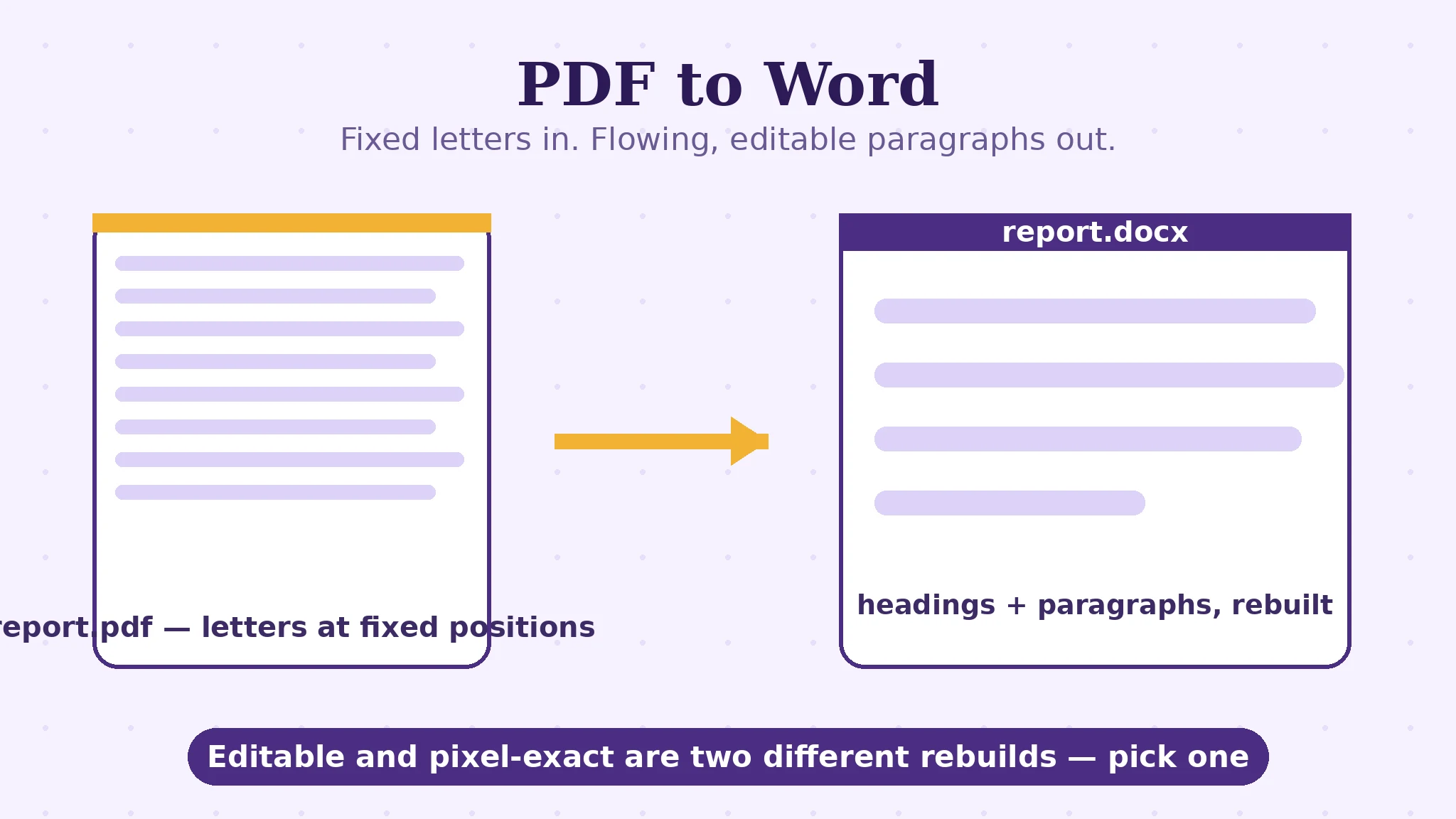
Why formatting “breaks”: the two formats store different things
Open a PDF in your mind's eye the way the file sees it. There is no paragraph, no heading, no table. There are instructions: draw the letter T at this x, this y, in this font, at this size — thousands of them, page after page. The visual order is perfect; the logical structure is absent. When you read the page, you supply the structure: you can see that these lines form a paragraph and those rows form a table. The file cannot.
Word is the opposite bargain. A .docx stores almost no positions at all — it stores paragraphs, headings, lists and tables, and lets the page layout flow from them every time the document opens. That is what makes it editable: change a word and the paragraph reflows. So a converter's real job, as this blog's troubleshooting post PDF to Word broke the layout puts it from the repair side, is to guess the structure back from the positions — to look at thousands of placed letters and decide where the paragraphs, headings and tables must have been. This article is that guessing, explained.
It follows immediately that “editable” and “exact look” are two different rebuilds, and no file can be both at once. A converter can freeze the page as a picture inside Word — perfect to look at, dead to edit — or it can rebuild flowing text that you can change, accepting that the flow will differ somewhere from the frozen original. PDF to Word here makes the honest choice openly: it rebuilds headings, paragraphs and lists into a clean, editable .docx, and its own page tells you plainly that exact original layout, fonts and images are not reproduced. That honesty is the feature: you know which rebuild you are getting.
How the converter guesses: size means heading, gaps mean paragraphs
The reconstruction runs on clues, and the clues are more reliable than people fear. Font size and weight are the heading detector: lines set larger or bolder than the body text become Word headings — PDFJadoo's converter detects headings by font size, which is why a document with disciplined, consistent styling converts beautifully and a document where someone faked headings by hand converts approximately. Line gaps are the paragraph detector: lines spaced at the normal leading are joined into one paragraph — and hyphenated line-endings are rejoined into whole words — while a larger gap starts a new paragraph. Alignment separates centred titles and right-aligned figures from body text.
Tables are the hardest guess, and the honest place to set expectations. A table in a PDF is letters arranged in a grid, sometimes with drawn ruling lines, sometimes with nothing but whitespace holding the columns apart. A converter must infer rows and columns from x/y positions — merged header cells and borderless tables are where the inference strains, and a converted table deserves a human glance at its column boundaries before you trust its totals. None of this is a defect in any particular tool; it is the shape of the problem, and it is why the cleanup checklist in the formatting-broken post exists as this article's companion.
The scan exception: no text layer, no conversion
Everything above assumes your PDF has a text layer — real letters stored as letters. A scanned PDF has none: it holds a photograph of each page, and there is nothing for a converter to reconstruct from. Feed a scan to any PDF-to-Word converter and you get an empty document or a document of page pictures, not because the tool failed but because the words were never in the file.
The diagnostic takes five seconds: try to select a sentence with the mouse. If the words highlight, you have text — convert away. If the whole page selects as one picture, you have a scan, and the correct first step is OCR PDF, which recognises the letters and lays a real text layer over the pages. OCR first, convert second — that order is the entire fix, and it is why the OCR article in this series, make a scanned PDF searchable, is this one's closest sibling.
Convert a PDF to Word, step by step
Step 1 — the selection test. Select a sentence. Highlights word by word: proceed. Selects as a picture: OCR first, then come back.
Step 2 — drop the PDF onto PDF to Word. One file with selectable text. Nothing is uploaded — the rebuild happens in your browser, which matters for contracts and statements.
Step 3 — press Convert to Word and download the .docx. The converter reads the text layer, detects headings from font size, groups lines into paragraphs, and writes the Word file.
Step 4 — open it where you will edit it. Word, LibreOffice or Google Docs all open the result. Walk the document once with the original beside it: headings first (did the big lines become headings?), then any table's columns, then headers and footers, which are page furniture and the first thing flowing text leaves behind.
Step 5 — fix at the paragraph level, not the character level. The few flaws a rebuild leaves — a paragraph split in two, two columns read as one — are structure fixes: delete one paragraph break, re-apply a column layout. Minutes, once you know you are repairing a reconstruction rather than proofreading a copy.
Get the words back — editable.
Headings detected, lines rejoined into paragraphs, a clean .docx for Word, LibreOffice or Google Docs — rebuilt in your browser, with nothing uploaded.
Open PDF to WordA worked example: the report that “converted badly”
A twelve-page report comes back from conversion with three complaints: the title is body-sized, the two-column section reads straight across both columns, and the figures table is a paragraph of numbers separated by spaces. Each complaint maps to one clue the converter had to work with. The title was set in the same font size as the body, only centred and bold in a way the file's styling made ambiguous — no size clue, no heading. The columns were close enough together that the gap between them read as a wide word-space, so lines were joined across the gutter. The table had no ruling lines at all — its columns existed only as aligned whitespace, the weakest clue there is.
None of the three needed a different converter; they needed five minutes of structure repair: make the title a Heading, select the two-column section and apply Word's two-column layout to the reflowed paragraphs, and rebuild the small table from its numbers, which converted in perfect reading order. The general lesson is the one this article exists to teach: judge a conversion by whether the words and their order survived — that is the hard part, done for you — and treat layout as the light finishing work it is.
Edge cases: where conversion strains
Multi-column newsletters and magazines. The gutter problem above, at scale. Convert, then re-apply columns section by section.
Forms with boxes and lines. A form's structure is its drawn furniture, which flowing text cannot hold. Filled-form PDFs are usually better flattened or edited in place than converted.
Font substitution. The PDF may embed only the characters it used; the .docx names fonts your machine may not have, and Word substitutes — shifting spacing without changing a single word. An appearance change, not a content error.
Headers, footers and page numbers. In the PDF these are repeated page decorations; in Word they belong in a header section. Expect to re-add them rather than find them converted.
Before you finish: the 60-second check
- The selection test passed — or OCR ran first on a scan
- You expected a rebuild: editable structure, not a frozen photograph of the pages
- Headings were checked — the big lines became real Word headings
- Every table's columns were eyeballed against the original
- Headers, footers and page numbers were re-added if the document needs them
- The .docx was opened in the app you will actually edit in, before you relied on it
Fair questions
Why did my PDF to Word conversion lose the formatting?
Because a PDF does not store formatting the way Word does. It stores letters at fixed coordinates; Word stores flowing paragraphs and headings. The converter has to guess the structure back from positions — font size suggests headings, line gaps suggest paragraphs — and some guesses, like borderless tables and tight columns, are genuinely hard.
Can a converted Word file look exactly like the PDF and stay editable?
No — those are two different rebuilds. A file can freeze the page as a picture (exact look, nothing editable) or rebuild flowing text (editable, layout approximate). PDFJadoo's converter makes the editable choice and says so on its own page: headings, paragraphs and lists are rebuilt; exact layout, fonts and images are not reproduced.
Why did my scanned PDF convert to an empty Word file?
A scan has no text layer — each page is a photograph, and there are no letters for the converter to rebuild from. Run the scan through OCR first to give it a real text layer, then convert.
How are headings detected during conversion?
Mainly by font size and weight: lines set larger or bolder than the body text become Word headings. Documents styled consistently convert best; a title typed at body size will be rebuilt as body text, and you promote it to a heading yourself in seconds.
What opens the converted .docx?
Microsoft Word, LibreOffice and Google Docs all open it happily. The conversion itself runs in your browser with PDF to Word — your document is never uploaded to a server.
My table became plain text. Can that be fixed?
Yes, and quickly: the numbers and labels convert in correct reading order, so rebuilding the table in Word — select the text, Insert Table, convert text to table — restores the grid from the converted words. Borderless tables are the hardest structure for any converter to infer.
Tool behaviour — text-layer reading, heading detection by font size, paragraph grouping, the .docx output, and the plain statement that exact layout, fonts and images are not reproduced — is from PDFJadoo's own PDF to Word page, checked 18 November 2026. The fixed-coordinates vs flowing-text explanation is the standard account of the PDF and DOCX formats.
Keep reading
PDF to Word broke the layout?
The repair companion: a cleanup checklist for the flaws a rebuild leaves behind.
Make a scanned PDF searchable
Scan converted to nothing? It needs a text layer first — how OCR lays one down.
Edit a PDF resume without the Word file
The commonest conversion job of all, worked end to end.
Edit a PDF without Acrobat
Sometimes you do not need Word at all — fix the line in the PDF itself.