How to edit text in a PDF: you are editing lines, not paragraphs
One typo. One wrong date. One old price — and the source file is gone, so the PDF is what you have. You open an editor, click the words, and discover the truth every PDF editor knows and few explain: PDF text does not reflow. It sits on the page in lines, each drawn in an embedded font that may contain only the characters the document originally used. Editing works — genuinely, in place, in the original font — once you understand those two facts. This article is those facts, and the fork that matters more than either: whether your PDF's text exists at all.
 By the PDFJadoo Team8 min read
First, the fork: does your PDF have text?
Everything about editing splits on one five-second test. Select a sentence with the mouse. If the words highlight, your PDF holds real text — letters stored as letters — and it can be edited in place. If the whole page selects as a single picture, your PDF is a scan: there are no letters, only a photograph of letters, and no editor on earth can retype a photograph. A scan's road to editability runs through OCR first — recognition lays real text back over the page — or through the editor's overlay tools: whiteout the wrong words and type new text over the spot, which is honest patching, not true editing. This blog's scenario posts — edit a PDF without Acrobat and the PDF resume edit — both begin at this fork; this article is the mechanics below it.
Lines, not paragraphs: what “edit” actually changes
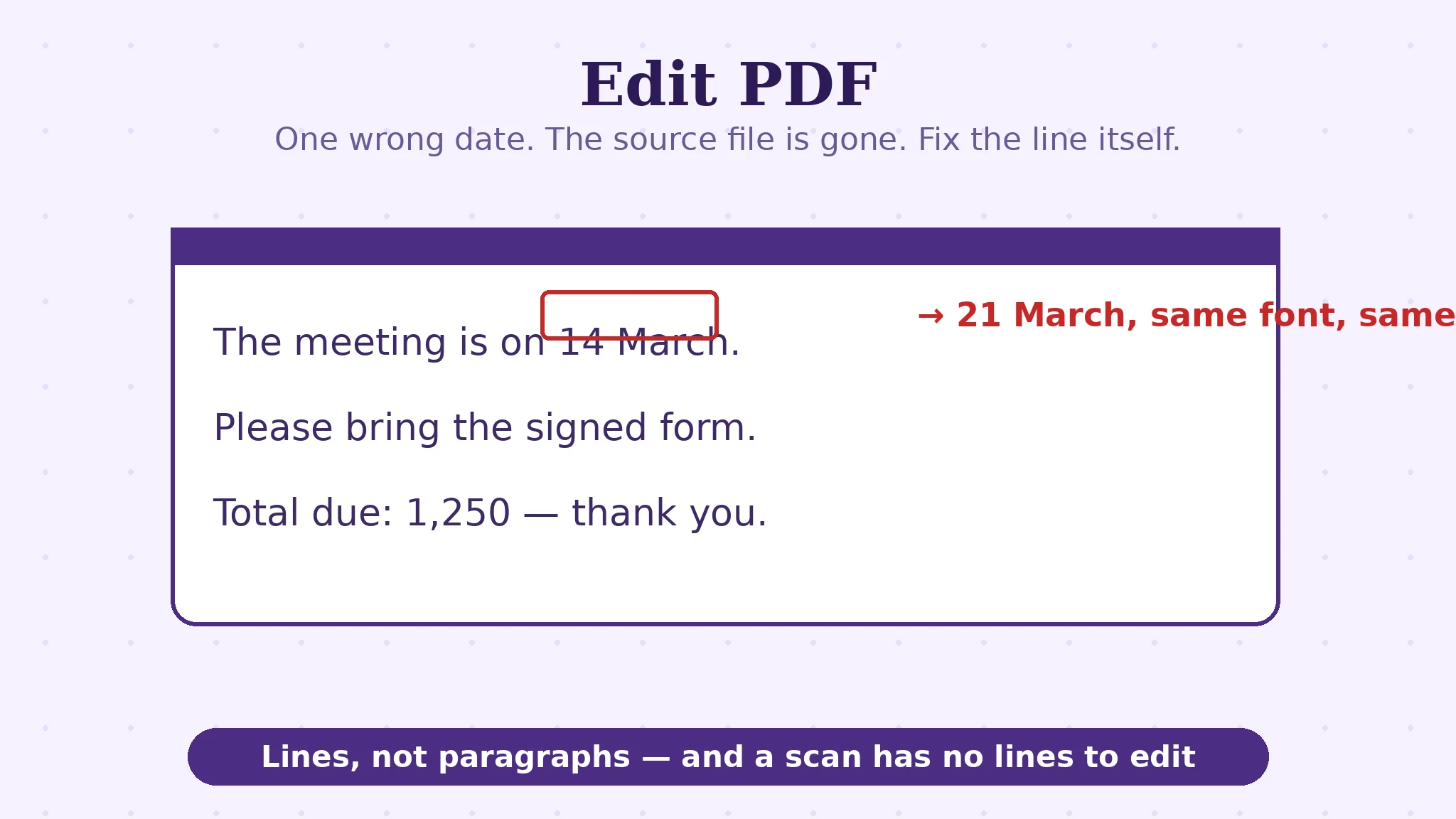
A word processor stores a paragraph and reflows it around your edits. A PDF stores positioned lines: this line, at this height, in this font. So in Edit PDF, you tap the text itself — a line becomes editable, you retype it, and the replacement is drawn in the original font, at the exact original size and colour, with the old words erased cleanly against the page background. Done well, the edit is invisible: the page looks as if it was always like that.
Two consequences follow, and both are features once you expect them. A longer replacement does not push the following lines down — there is no flow to push — so a much longer line can crowd its neighbours, and a much shorter one leaves a gap; keep edits near the original's length, or adjust deliberately. And the font subset limit is real: PDFs often embed only the characters the document used. If the embedded font never needed a “£” or a “ñ”, it may not hold one — type it, and that character must fall back to another font or fail to match. Ordinary letters, digits and punctuation are nearly always present; exotic characters are where the subset shows.
The second toolbox: adding, marking, covering
True text editing is one tool in the editor; the toolbar carries the rest, and knowing which job is which keeps edits clean. Add text places new text boxes anywhere — the tool for flat forms with no fields, missing lines, and annotations that must live on the page — with sizes from 10 to 32 pt and a colour palette to match the document. Bullet lists drop a formatted list where you click. Highlights and rectangles mark without changing: review marks that sit over untouched content. Whiteout covers — a patch over the page, honest as a sticky note is honest, and the right tool for scans. Add image places a logo, a stamp or a signature picture. And an Undo watches the whole session, because editing in place deserves a way back.
A word about the preview, because the tool states it itself: the editor preview may look a little different — when you save, your result will be accurate and exactly as edited. The canvas you edit on is a working view; the saved PDF is rendered from your edits properly. Judge the saved file, not the preview — open the download once before you send it, which is good practice for any edit anyway.
Edit a PDF's text, step by step
Step 1 — run the selection test. Words highlight: edit in place. Page selects as a picture: OCR first, or plan to whiteout and retype.
Step 2 — drop the PDF onto Edit PDF. It opens in the editor, in your browser — no document limit, nothing uploaded, which is why contracts and statements are safe here.
Step 3 — tap the text to fix. Retype the line; the replacement keeps the original font, size and colour, and the old text is erased cleanly. Watch the line's length against its neighbours.
Step 4 — add what is missing from the toolbar. Text boxes, lists, highlights, images — placed where you click, sized and coloured to sit naturally on the page. On a small screen, pinch to zoom before placing anything precisely.
Step 5 — Done, then Save. Press Done once when every page is edited, then save and download — and open the saved file to judge the result, as the preview note advises.
Fix the line. Keep the font.
Tap the words, retype them — original font, size and colour matched automatically, old text erased cleanly. Plus text boxes, lists, highlights and images when a line is not enough.
Open Edit PDFA worked example: the wrong date on the agreement
A signed service agreement says the start date is 14 March; both parties agreed it should be 21 March, and the Word source was on a laptop that no longer exists. The PDF's text is real — the selection test passes — so the fix is a true edit: tap the line, change 14 to 21, save. The replacement “21” is drawn in the agreement's own embedded font, at its size, in its colour; the “14” is erased against the white page. Nobody opening the file can see a seam, because mechanically there is barely one to see: the same kind of drawing instruction, amended.
Now vary the example the instructive way: the new date were “21 March 2027 (revised)” — twice the original's width. Lines do not reflow, so the longer text crowds the words after it on that line. The editor's answer is judgement, not magic: shorten the phrasing, or reduce that line's size a touch, or let the edit stand slightly proud. The general rule the example teaches: in-place editing is perfect for corrections of similar length, and honest work for anything longer — plan the words before you type them.
Edge cases: where PDF editing strains
The scanned contract. No text exists; tapping selects a picture. OCR it into editability, or whiteout + add-text as a visible patch — and know which of the two you did.
The missing character. Your replacement needs a symbol the embedded font subset never carried. The character falls back or mismatches — retype it as an added text box in a matching size instead, where you control the font.
The justified paragraph. Replacing a word inside a justified line leaves the line's spacing as it was — justified text spreads to fill its measure, and a shorter word leaves wider gaps. Real editors of PDFs keep such edits minimal and check the line at reading zoom.
Signed documents. Editing a cryptographically signed PDF invalidates the signature — the file itself will say so. Correct the document before it is signed, or re-sign after; never quietly edit a sealed file.
Before you finish: the 60-second check
- The selection test told you which job you have: true edit, or OCR/whiteout
- Replacements are near the original line's length — no crowding, no gaps
- Any character outside the embedded font's subset was handled as an added text box
- Added text matches the document's size and colour closely enough to sit quietly
- The saved file — not the preview — was opened and checked before sending
- If the document was signed, the edit happened before signing, or it will be re-signed
Fair questions
How can I edit text in a PDF for free without Acrobat?
Open the PDF in an editor that changes the text itself, tap the line you want to fix, and retype it. In Edit PDF the replacement automatically keeps the original font, size and colour, and the old text is erased cleanly — free, in your browser, with nothing uploaded.
Why doesn't the text reflow when I edit a PDF?
Because a PDF stores positioned lines, not flowing paragraphs. There is no paragraph structure for an editor to reflow — each line sits at fixed coordinates. That is why replacements near the original's length look seamless and much longer ones crowd their neighbours.
Why can't I edit my scanned PDF?
A scan is a photograph of a page — it contains no text to edit. Run it through OCR first, which recognises the words and lays a real text layer over the page; then the text can be edited. Whiteout plus added text is the quick patch when OCR is not an option.
Will my edit match the original font?
Yes, where the font allows: the editor reuses the PDF's own embedded font at the exact original size and colour. The limit is the font subset — PDFs often embed only the characters the document used, so an exotic character the font never carried may not match.
The preview looks slightly different from my download. Which is right?
The download. The editor states it plainly: the preview may look a little different, but when you save, the result is accurate and exactly as edited. Always judge the saved file.
Is there a limit to how much I can edit?
No document limit — everything runs in your browser and your file is never uploaded, so there is nothing to meter. Very large files are limited only by your device's memory.
Tool behaviour — tap-to-edit existing text with font, size and colour matched automatically, clean erasure, the add-text/list/highlight/whiteout/image toolbar, undo, and the preview-vs-saved note — is from PDFJadoo's own Edit PDF page. The line-based structure and font-subset behaviour are standard PDF mechanics. Checked 18 November 2026.
Keep reading
Edit a PDF without Acrobat
The scenario post: fix the typo, add the missing line — no subscription in sight.
Edit a PDF resume
The commonest real edit: your own CV, when the Word file is gone.
Make a scanned PDF searchable
Your file failed the selection test? Give it text first, then edit.
PDF to Word without losing formatting
When the edit is really a rewrite — rebuild the document in Word instead.