Reorder PDF pages: drag the story back into order
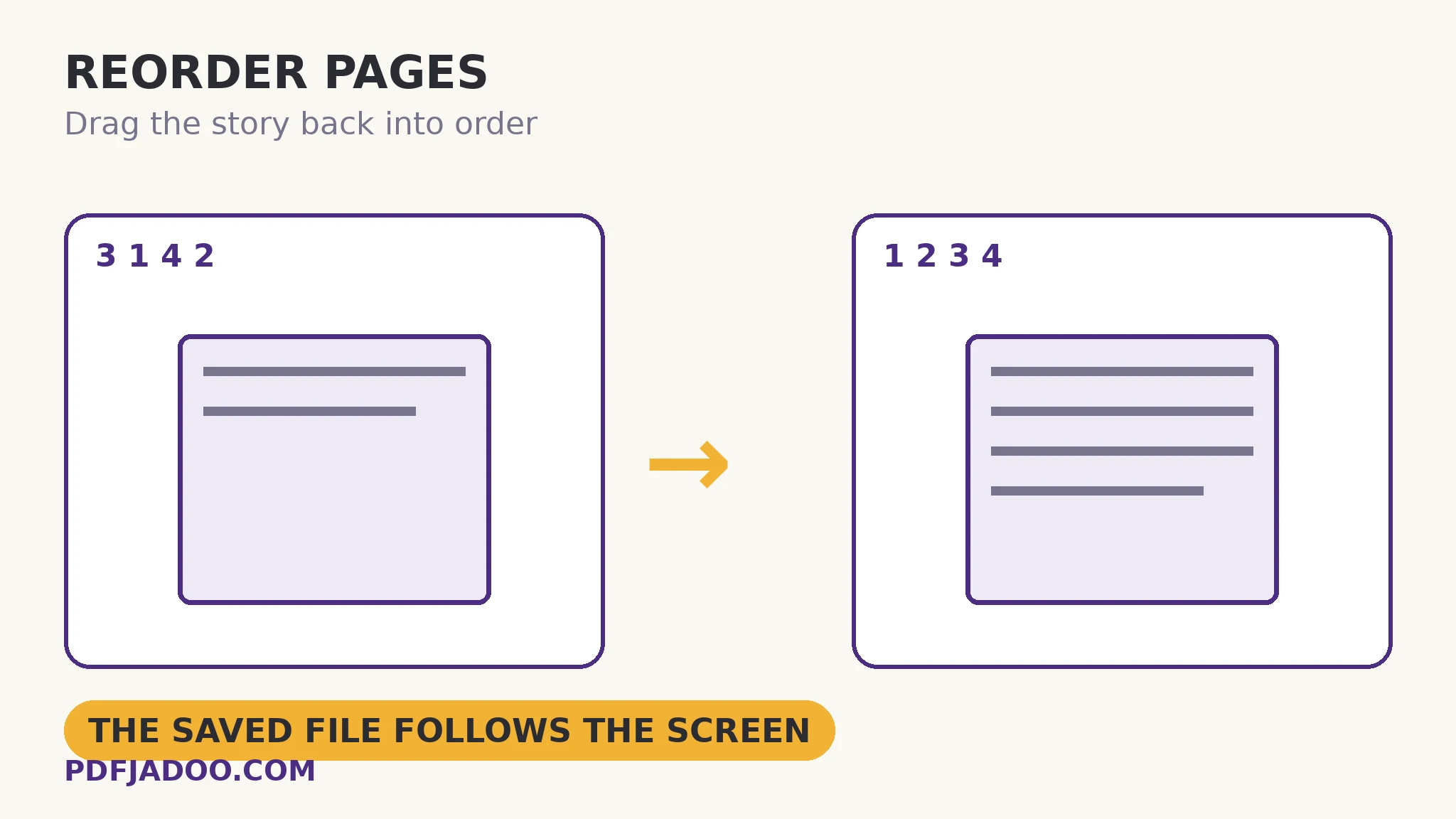
The scan is complete and wrong: page 3 before page 1, the appendix in the middle, the conclusion moonlighting as an introduction. Organize Pages fixes order the way order is understood — visually. The document's pages appear as previews; you drag each one into place (on mobile, press and hold, then drag) or nudge with the arrow buttons under each page, and the saved PDF follows exactly the order you see. Like its organise-family siblings, the operation moves whole page objects — lossless, instant, content untouched. This article covers the craft: reading a document by thumbnails, the reversal trick, and where reordering sits in the finishing order of operations.
 By the PDFJadoo Team5 min read
Why visual reordering beats range arithmetic
The alternative to dragging is describing the new order as instructions — move page 7 to position 2, swap 11 and 13 — a notation in which humans err constantly, because every move renumbers the board for the next. The preview wall abolishes the notation: the document is present, its pages recognisable by their own faces (the chart page, the signature page, the dense one), and you arrange the faces. Errors are visible before they are saved, which is the whole advantage — the same argument as deletion by preview, applied to sequence. The arrow buttons serve the precise cases: a page that must move exactly one slot, on a small screen where dragging is fiddly, or the final nudge after the big drags.
Underneath, nothing about the pages changes — reordering edits the document's page list, the sequence in which whole page objects are presented. Text, images, quality: untouched, because unrendered. That is why reordering composes freely with the other object-level operations (merge, split, delete, extract) in any order — and why one sequencing rule still applies at the document level: stamp page numbers after reordering, because stamped numbers are content, and content does not renumber itself when the list changes.
The reversal, and other party tricks
A document scanned back-to-front — the stack was face-down in the feeder — needs a full reversal: last page first. In the preview wall that is a minute of dragging for a short document (move the last preview to the front, repeat), and for a long one, honesty suggests the divide-and-merge route: split into chapters, reverse each shorter wall, merge in reverse chapter order. Other regular jobs: moving the appendix that a merge appended to the wrong end; promoting the summary that was written last to the front, where summaries live; and extracting a single misplaced page to its home several chapters away — one long drag, done.
Reorder pages, step by step
Step 1 — drop the PDF onto Organize Pages. Previews load; nothing uploads.
Step 2 — read the wall. Identify pages by their faces; find the strays before moving anything. A document whose disorder you understand takes one pass.
Step 3 — drag into order. Hold and drag on mobile; drag on desktop; arrow buttons for one-slot nudges. Work from the front: settle page 1, then page 2's neighbour, and the disorder shrinks from the left.
Step 4 — press Save the new order and verify the joins. Open the saved file at the seams — the pages around each moved page — and confirm the story reads. The file followed the screen; the check confirms the screen was right.
Reorder in the finishing sequence
The assembly pipeline this series repeats — merge → delete → reorder → furnish (numbers, headers) → protect — puts reordering third for a reason: it needs the final set of pages (deletion done) and must precede every content stamp (numbers assume the order). Slotting it correctly costs nothing and prevents the one classic waste: a beautifully numbered document whose pages then move.
Put the story in order.
Drag the previews until it reads properly — the saved PDF follows exactly the order you see.
Open Organize PagesA worked example: the feeder shuffle
A 24-page scanned report comes off a shared feeder in a private shuffle: the pages are all present (deletion found no blanks worth removing) but the sequence jumps — 1, 2, 7, 3, 4, 12… The wall shows the story's faces: the chart that belongs after page 6 is visible at position 3; the table that follows page 11 sits at position 6. Four drags restore the argument. The reader who receives it never knows; the colleague who scanned it is spared a re-scan of a document whose pages were never the problem — only their order was. Most “bad scans” are exactly this: good pages, wrong sequence, one visual pass from right.
Edge cases
Bookmarks and links after reordering. Internal navigation was built for the old order; a heavily reordered document's outline may point at moved content. For reading copies this is trivia; for issued editions, rebuild the outline after the order settles.
Very long documents. A 400-page wall is a lot of dragging. Split by chapter, order within chapters, merge — the divide-and-arrange pattern scales where a single wall does not.
“The order looks right but reads wrong.” Two pages share a face (continuation pages of one table). Read the page numbers in the content at the seams — the source's own pagination is the ground truth the wall cannot show at thumbnail size.
Before you finish: the 60-second check
- The wall was read before anything moved — the disorder understood in one pass
- Work proceeded from the front: page 1 settled, disorder shrinking leftward
- The saved file was verified at the seams around every moved page
- Stamping (numbers, headers) is scheduled after reordering, never before
- Long documents were divided by chapter rather than dragged whole
Fair questions
How do I reorder pages in a PDF for free?
Drop the PDF onto Organize Pages, drag the page previews into the order you want — or use the arrow buttons under each page — and save. The saved PDF follows exactly the order you see on screen.
How do I reverse a PDF's pages?
In the previews: move the last page to the front, then the next, working through the wall — practical for short documents. For long ones, split into chapters, reverse each chapter's shorter wall, and merge in reverse chapter order.
Does reordering reduce quality?
No. Reordering edits the document's page list — whole page objects change sequence, nothing is rendered or recompressed. Content and quality are untouched.
Should I reorder before or after adding page numbers?
Before. Stamped page numbers are content and do not renumber themselves when pages move. The finishing order is: assemble, prune, reorder — then stamp numbers and headers.
Can I reorder on a phone?
Yes — press and hold a preview, then drag it to its place. The arrow buttons under each page offer one-slot moves when dragging is fiddly on a small screen.
Is my PDF uploaded?
No — previews and reordering happen in your browser; the file never leaves your device.
Tool behaviour — preview dragging with press-and-hold on mobile, per-page arrow buttons, and the saved file following the on-screen order — is from PDFJadoo's own Organize Pages page. Checked 18 November 2026.
Keep reading
Delete pages from a PDF
Prune first, then arrange — the organise pair, in finishing order.
Add page numbers to a PDF
Order settled? Now the numbers can go on — permanently and correctly.
Split a PDF by bookmarks
The divide half of divide-and-arrange for very long documents.
Merge PDF files into one
Reversed chapters, merged in reverse order — assembly completes the trick.