Delete pages from a PDF: tick the offenders — the rest keep their order
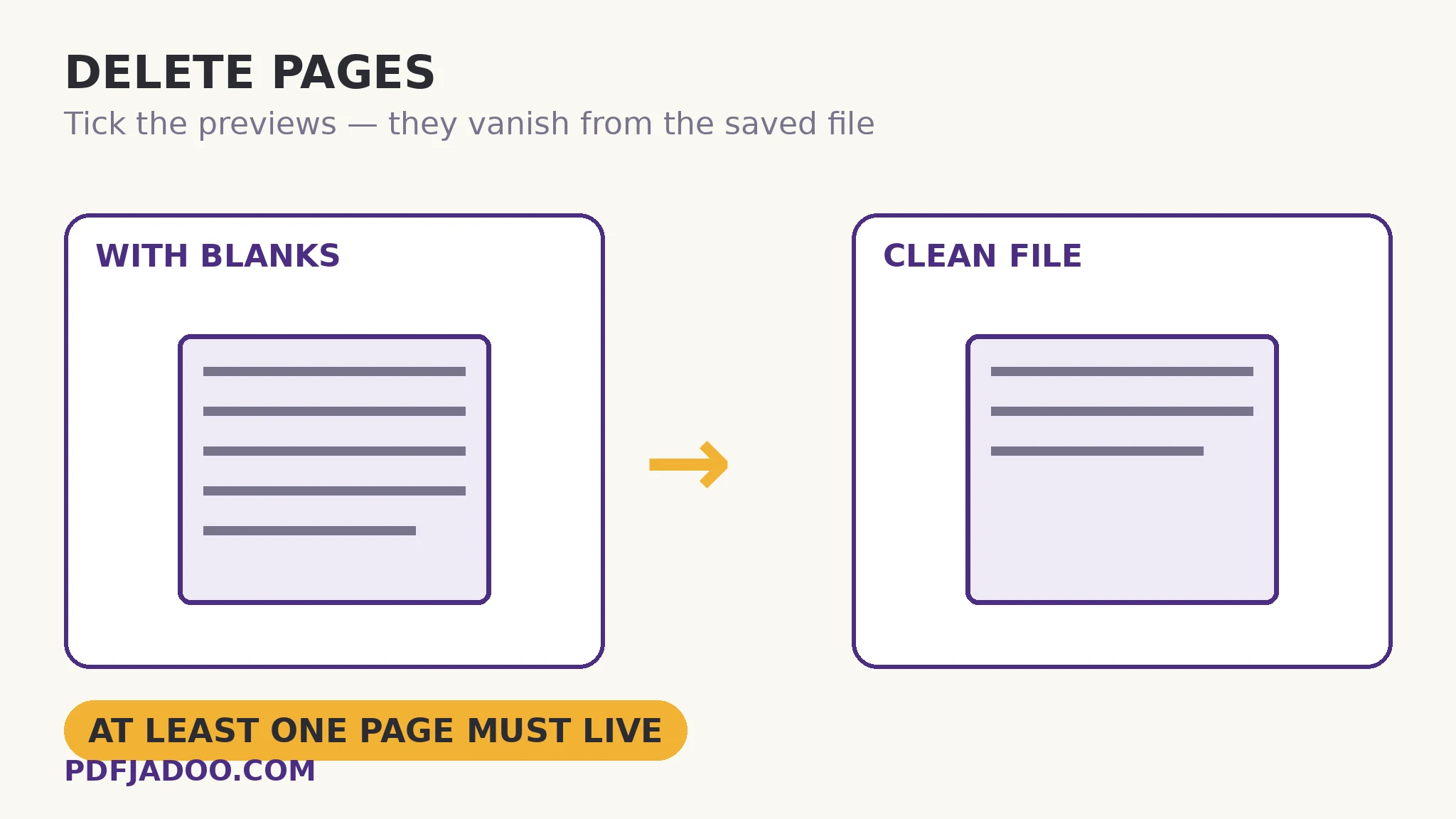
Every scan bundle carries passengers: blank pages where the feeder skipped, duplicates where it stuttered, the cover sheet nobody wants, the separator page from the office copier. Removing them should be a visual job, and in Delete Pages it is: the document's pages appear as previews; you tick the ones to remove; everything unticked is kept, in order, in the saved file. One rule is built in and worth knowing: deleting every page is not allowed — a PDF needs at least one. If your goal is an empty file, the goal is not a PDF. This article is short because the tool is honest — and because the craft around deletion (what to check before and after) is the real content.
 By the PDFJadoo Team5 min read
Deletion is the one edit that deserves a preview
Most PDF operations describe themselves in numbers — ranges, sizes, angles. Deletion by number (“remove pages 4, 9, 11–13”) is where mistakes breed, because nobody's mental page map survives contact with a real document: is the blank the 9th page of the file or the 9th page of the report, after the cover? Previews end the ambiguity. You are looking at the actual pages — the blank is visibly blank, the duplicate visibly identical to its neighbour, the separator visibly a separator. Tick what you see. The tool's contract is then simple: ticked pages vanish from the saved file; unticked pages keep their content and their order exactly.
That order preservation matters more than it sounds. Deletion is usually a cleaning act performed on a document whose order is already right — the scan of a complete file, in sequence, with passengers. The saved file is the same document, lighter: page numbers in the content (if the source printed them) will now skip where pages vanished, which is correct and visible — a reader sees the gap as the source's numbering, not an error. If the document will be re-numbered for issue, deletion comes before stamping, per the finishing order this series repeats: assemble, prune, then furnish.
The at-least-one rule, and its cousins
The tool refuses an empty result — a PDF with zero pages is not a PDF. Its cousins are the judgement rules: delete from a copy when the original bundle is evidence (the raw scan is the archive; the cleaned file is the working document); and beware the near-blank — the page that looks blank in a thumbnail but carries a faint stamp, a page number, or a signature tail at full size. The preview is a thumbnail; for pages on the borderline, your memory of the document — or a quick open of the original at that page — is the tiebreak. Deletion is permanent in the saved file; the original on your device is the safety net, and keeping it is the whole of the law.
Delete pages, step by step
Step 1 — drop the PDF onto Delete Pages. Previews load under the lamp. Nothing uploads.
Step 2 — tick the pages to remove. Blanks, duplicates, separators, the cover sheet. Borderline “blank” pages get a second thought — faint content hides in thumbnails.
Step 3 — press Delete ticked pages and download. The kept pages arrive in order, in a new file; your original is untouched.
Step 4 — flip the result once. First page, the joins where pages vanished, last page. Thirty seconds confirms the document you meant to keep is the document you kept.
Delete, extract, split — three verbs that are often confused
Delete keeps the document and removes pages from it. Extract keeps the original whole and copies chosen pages out into a new file — “keep the chapter” is extraction, and it has its own article. Split divides the document into parts. The verbs matter because the files they produce differ in what remains true: after deletion, the saved file is the document; after extraction, the document is untouched and the extract is a quotation from it.
Keep the document. Lose the passengers.
Tick the blanks, duplicates and separators in the previews — the rest keeps its order, in a new file.
Open Delete PagesSources
- Adobe — Delete pages from a PDF: Adobe's reference for removing pages and checking the result — the same preview-first discipline this guide sets out.
- Tool behaviour — the steps and limits in this guide are from PDFJadoo's own Delete Pages tool page, checked 18 November 2026; the file never leaves your device, so the result you preview is the file you save.
A worked example: the 60-page scan with 9 passengers
A scanned case file: 60 pages, of which 4 are feeder blanks, 2 are stutter duplicates, 2 are separator sheets and 1 is the copier's test page. In the previews they identify themselves — blanks are blank, duplicates sit beside their twins, separators wear their barcode stripes. Nine ticks, one press, and the working file is 51 pages of pure case. The raw scan stays archived untouched, because a “duplicate” that later turns out to be a signed copy of the page beside it is recoverable from the archive and from nowhere else. Cleaning took two minutes; the discipline — archive raw, clean a copy — is what makes the two minutes safe.
Edge cases
The document is mostly blanks. A scan that failed wholesale is a re-scan, not a deletion job — keep at least the honest pages and redo the rest at the feeder.
Numbered content with gaps. Deleting page 9 of a source-numbered document leaves 8 followed by 10. Correct, visible, and worth a covering note when the file is issued — or re-stamp numbers after pruning.
Huge files, many previews. Previews are real rendering; a 500-page file on a phone takes its time to draw. Patience, or work in a copy split by chapter first.
Before you finish: the 60-second check
- Deletion happened on a copy — the raw original stays archived
- Borderline “blank” pages were thought about twice — faint stamps hide in thumbnails
- The kept pages were flipped through once in the saved file
- Printed page-number gaps after deletion were expected — or numbers will be re-stamped
- The right verb was used: delete (prune this file), not extract (quote from it)
Fair questions
How do I delete pages from a PDF for free?
Drop the PDF onto Delete Pages, tick the page previews you want to remove, and press Delete ticked pages. Everything unticked is kept, in order, in a new file — in your browser, nothing uploaded.
Can I delete every page?
No — a PDF needs at least one page, and the tool will not produce an empty file. If everything must go, the answer is to delete the file itself, not its pages.
Does deleting pages change the order of the rest?
No. Kept pages preserve their content and their order exactly; the saved file is the same document, lighter. Printed page numbers in the content will skip where pages vanished, which is correct.
What is the difference between delete and extract?
Delete removes pages from the document — the saved file is the pruned document. Extract copies chosen pages out into a new file while the original stays whole. Pruning is delete; quoting a chapter is extract.
Is deletion reversible?
In the saved file, no — the pages are gone from it. Your original file is never modified, so keep it as the archive and delete from a copy when the document matters.
Is my PDF uploaded?
No — previews and deletion happen in your browser; the file never leaves your device.
Tool behaviour — preview ticking, kept pages preserving order, the at-least-one-page rule and the untouched original — is from PDFJadoo's own Delete Pages page. Checked 18 November 2026.
Keep reading
Extract pages from a PDF
The mirror verb: copy the chapter out, original untouched.
Split a PDF by page range
Dividing a document into parts — ranges, singles, and the ZIP.
Reorder PDF pages
Pruned the file? Now make the remaining order sing.
Compress a PDF without losing quality
Cleaned the bundle? Now shrink it for sending — levels and floors.