Split a PDF by bookmarks: the outline inside becomes the cutting lines
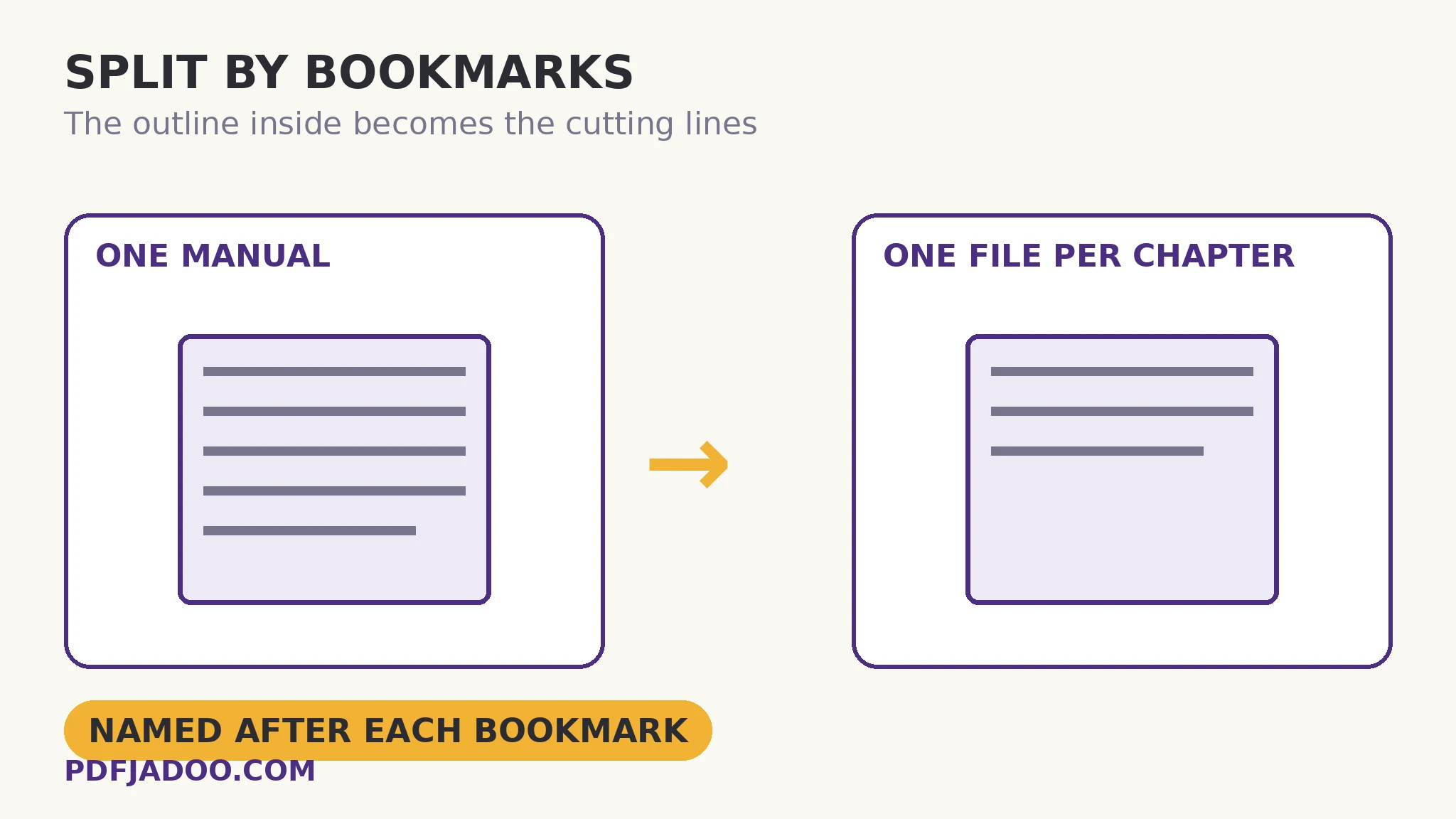
Manuals, textbooks and long reports carry a table of contents inside them — the bookmark outline, authored when the document was made. Splitting such a document by page ranges means first discovering its chapter boundaries: work the outline already did. Split by Bookmarks reads that outline and cuts along it: one file per top-level section, named after its bookmark. The parts come out as “Installation”, “Maintenance”, “Troubleshooting” — not “pages 41–86”. And the tool is honest about its precondition, on its own page: if your PDF has no bookmarks, it will tell you plainly — and points at the two roads from there. This article explains the outline economy: why author-drawn lines beat measured ones.
 By the PDFJadoo Team5 min read
Top level only — and why that is the right depth
Outlines are trees: chapters contain sections contain subsections. The splitter cuts at the top level — the chapters — because that is the granularity at which documents are actually distributed: the chapter as a handout, the section as a reference, the manual as a shelf of parts. Cutting at every level would shatter the document into confetti of two-page fragments; cutting at the top yields parts that are themselves documents. If a finer cut is needed, it is a second pass on one part (by range, against a part small enough to map by eye) — coarse by outline, fine by hand, in that order.
The naming deserves its sentence: parts inherit their bookmark titles as filenames. A split performed by ranges produces “manual-part-3.pdf”, which its recipient must open to identify; a bookmark split produces the chapter's own name, which files, searches and forwards as itself. Across a library of split manuals, that naming is the difference between an archive and a pile.
The no-bookmarks fork
Scans and older exports often carry no outline. The tool says so plainly rather than failing mysteriously, and the two roads are: add an outline first with the Bookmarks Editor (a worthwhile investment for a document you will split, cite or navigate repeatedly — the outline pays rent beyond this one cut), or split by page ranges, discovering boundaries by reading — right for a one-off. The fork is a small model of this site's honesty pattern: state the precondition, name the alternatives, let the user choose with open eyes.
Split by bookmarks, step by step
Step 1 — confirm the document has an outline. Open it in any reader and look at the bookmarks panel: a chapter list means you are in business.
Step 2 — drop the PDF onto Split by Bookmarks. Nothing uploads.
Step 3 — press Split at bookmarks. The top-level outline becomes the cutting lines; each section is copied out losslessly (whole page objects, as with every split in this family).
Step 4 — collect the named parts. One file per chapter, named after its bookmark — verify the count against the outline's top level, and the set is ready to file or send.
Where bookmark splits earn their keep
Course packs: the textbook becomes per-week chapter files. Support libraries: the manual becomes per-topic references a helpdesk can attach individually. Submissions: the report's annexes, split along their own headings for separate upload slots. In each case the value is the same compound: the author's structure, the author's names, zero boundary-hunting.
Cut along the author's lines.
The top-level outline becomes one named file per chapter — losslessly, in your browser.
Open Split by BookmarksA worked example: the service manual
A 340-page service manual must reach field technicians as per-system files — nobody should carry 340 pages to fix a pump. Its outline has nine top-level bookmarks: Safety, Installation, Hydraulics, Electrical, Maintenance, Troubleshooting, Parts, Specifications, Index. One split produces nine files with those names; the pump technician takes Hydraulics and Maintenance; the parts desk takes Parts. The alternative — a human reading the contents page and typing eight ranges into a range splitter — is twenty minutes and one inevitable off-by-one. The outline was always the map; the splitter is simply the first tool that asks the map instead of the human.
Edge cases
An outline that lies. Some documents' bookmarks point a page early or late (authored carelessly, or shifted by a later edit). Spot-check one boundary part — its first page should be the chapter's first page.
Front matter before the first bookmark. Pages preceding the first top-level bookmark (cover, contents) form their own part or join the first section depending on the outline's shape — check where the cover landed if it matters.
Deeply nested books. Top-level-only cutting keeps parts whole; a part that is itself a tome can take a second, range-based pass.
Before you finish: the 60-second check
- The document actually has bookmarks — checked in a reader's outline panel first
- One boundary part was spot-checked: its first page is its chapter's first page
- The part count matches the outline's top level
- Parts were filed under their bookmark names — the naming is half the value
- No-outline documents were routed honestly: add bookmarks, or split by range
Fair questions
How do I split a PDF into chapters for free?
If the PDF has bookmarks, drop it onto Split by Bookmarks and press Split at bookmarks. It cuts at the top level of the outline and produces one file per section, named after its bookmark.
What if my PDF has no bookmarks?
The tool will tell you plainly. You can add an outline first with the Bookmarks Editor — worthwhile for documents you will split or navigate repeatedly — or split by page ranges instead.
Does it split at every bookmark or only chapters?
At the top level of the outline — the chapters — which is the granularity documents are distributed at. Finer cuts are a second pass on a single part, by page range.
How are the split files named?
After their bookmarks — “Troubleshooting”, not “pages 201–244”. The names file, search and forward as themselves.
Does splitting by bookmarks lose quality?
No. Sections are copied out as whole page objects, like every split in this family — the parts' pages are identical to the original's.
Is my PDF uploaded?
No — the outline is read and the cutting done in your browser; the file never leaves your device.
Tool behaviour — top-level-outline cutting, bookmark-named parts, and the plain no-bookmarks message with its two named alternatives — is from PDFJadoo's own Split by Bookmarks page. Checked 18 November 2026.
Keep reading
Split a PDF by page range
The manual cutting rule — for one-offs and second passes.
Extract pages from a PDF
One chapter, quoted out — when the rest of the book stays home.
Reorder PDF pages
Parts in hand? Arrange them before they are merged or filed.
Merge PDF files into one
Selected chapters, reassembled into a custom reader.