PDF to PowerPoint: every page a slide — a picture of the page, honestly
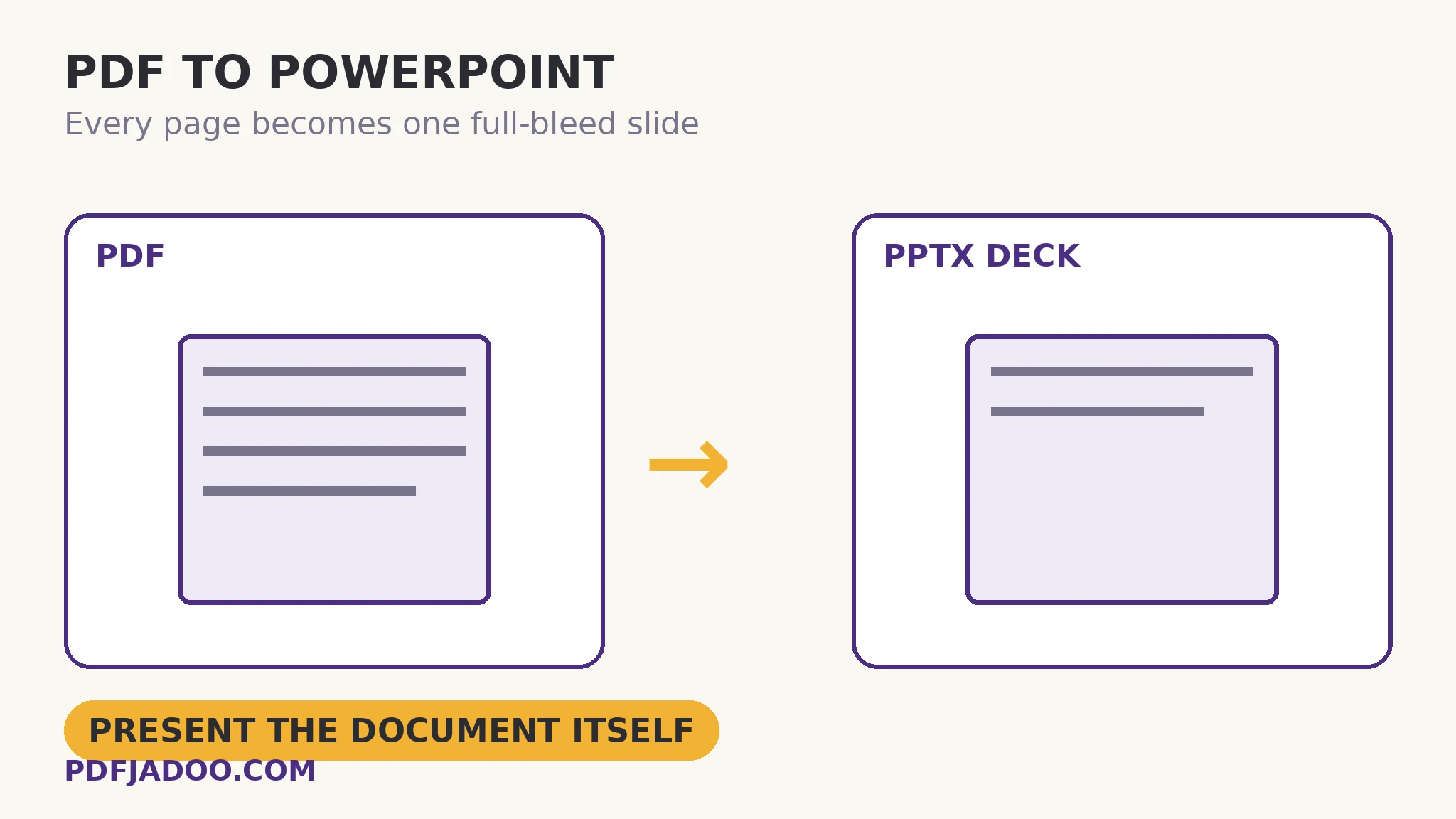
The document has to be presented — walked through on a screen, page by page, in the meeting. PDF to PowerPoint does the direct thing: it renders each PDF page and places it edge-to-edge on a widescreen slide, producing a genuine .pptx you can present as-is or use as backdrops under your own commentary. And it labels the trade in the open, on its own page: the slide text is not individually editable, because each slide is a high-resolution image of the page. This article explains when that trade is exactly right — it often is — and when you should rebuild instead.
 By the PDFJadoo Team6 min read
Two different jobs wear the same name
“Turn this PDF into slides” hides two requests. Present the document: the audience should see the report's actual pages — its tables, its figures, its exact layout — while you talk. For this job, image slides are not a compromise; they are the correct tool, because the page's fidelity is the point and editability is a distraction. Rebuild the deck: the PDF's content should become native slides you can reword, restyle and animate. That is a reconstruction job — the PDF to Word family of inference, applied to slides — and this tool states plainly that it is Phase 2 work, not what it does today. Confusing the two jobs is how people end up disappointed by a tool that did its own job perfectly.
The mechanics serve the first job well. Pages render at 150 DPI (balanced) or 200 DPI (sharper, bigger file) — the same render arithmetic as PDF to JPG, aimed at projector and screen resolutions. Each image fills its slide edge-to-edge, so the deck presents full-bleed with no margins or letterboxing surprises. The .pptx opens in PowerPoint, LibreOffice Impress or Google Slides, and from there the presenter toolkit — timing, presenter view, annotation — works as usual, over the faithful pages.
Using image slides well
Image slides reward a presenter's habits: put your talking points in the speaker notes, where editability lives; add native overlay shapes — a highlight box, an arrow — on top of the image slide when you need to point at a figure, since overlays are ordinary PowerPoint objects even when the backdrop is an image; and build section title slides natively between page runs, so the deck breathes. The document supplies the evidence; you supply the narrative around it.
Convert a PDF to PowerPoint, step by step
Step 1 — name your job. Presenting the document: proceed. Needing editable slide text: this is the wrong tool today, and knowing that now is the saving.
Step 2 — drop the PDF onto PDF to PowerPoint. One file; conversion in your browser.
Step 3 — pick the slide resolution. 150 DPI for ordinary screens and smaller files; 200 DPI when the pages carry fine print the audience must read, or the screen is very large.
Step 4 — convert and download the .pptx. Every page is a slide, in order.
Step 5 — dress the deck. Notes for your script, a title slide in front, overlay shapes where you will point. Then present.
The file-size footnote
A slide per page at 200 DPI makes a deck whose size tracks the document's length and richness — a 60-page report is a substantial .pptx. For presenting locally that is nothing; for emailing the deck, 150 DPI or the PDF itself may be the kinder attachment. Choose per destination, as always.
Put the document on the big screen.
Every page rendered sharp and placed full-bleed on its own slide — a real .pptx, built in your browser.
Open PDF to PowerPointA worked example: the audit walkthrough
A finance lead must walk the audit committee through a 22-page report — not summarise it, walk it: this table, that note, the reconciliation on page 14. Native slides would mean rebuilding the tables and risking a transcription error in the numbers being audited. Image slides carry the report itself, pixel-faithful; the lead's work goes where it belongs — notes, sequencing, two overlay arrows on the reconciliation slide. The committee sees the document, the numbers are the document's own, and the deck took four minutes to make. That is the first job, done by the right tool.
Edge cases
“I need to change one word on slide 9.” The slide is an image; the fix lives upstream — edit the PDF (or its source), reconvert. Small, but plan for it.
Landscape pages in a portrait document. Each page fills its slide as rendered; a rotated page may need rotating in the source first — Rotate PDF is the one-minute detour.
Accessibility. Image slides are opaque to screen readers. If the deck must be accessible, the PDF itself (with real text) is the better handout — send both.
Before you finish: the 60-second check
- The job was named first: present the document, not rebuild a deck
- Resolution matched the screen: 150 ordinary, 200 for fine print and big screens
- Speaker notes carry the script; overlays carry the pointing
- A title slide and section breaks were added natively
- An accessible text version (the PDF) travels with the deck when needed
Fair questions
How do I convert a PDF to PowerPoint for free?
Drop the PDF onto PDF to PowerPoint, choose 150 or 200 DPI, and convert. Every page becomes a full-bleed widescreen slide in a genuine .pptx — in your browser, nothing uploaded.
Can I edit the text on the converted slides?
No — each slide is a high-resolution image of the page, which the tool states openly. That is perfect for presenting the document itself; rebuilding native, editable slides from a PDF is a different job (listed as Phase 2). Edit the PDF and reconvert if a word must change.
Which resolution should I choose — 150 or 200 DPI?
150 DPI is balanced for ordinary screens and keeps the file smaller. Choose 200 DPI when pages carry fine print the audience must read, or the presentation screen is very large.
What can I do with the slides besides present them?
Use them as backdrops: add native PowerPoint shapes, highlights and arrows over the page images, put your script in speaker notes, and insert native title slides between sections.
Why is the .pptx file large?
Each slide is a full-page image; at 200 DPI across many pages, the megabytes add up honestly. For emailing, 150 DPI — or sending the PDF itself — may suit better.
Is my PDF uploaded for conversion?
No — rendering and assembly happen in your browser; the file never leaves your device.
Tool behaviour — per-page rendering at 150/200 DPI, full-bleed widescreen slides, the not-individually-editable note and the Phase 2 framing — is from PDFJadoo's own PDF to PowerPoint page. Checked 18 November 2026.
Keep reading
PowerPoint to PDF, slide by slide
The reverse conversion — where the text does stay text.
PDF to JPG: which DPI?
The render arithmetic under the slide resolutions.
N-up: pages on one sheet
After the meeting: the pages as a compact printed handout grid.
Rotate PDF pages right-side up
A sideways page in the deck? Straighten the source first.