PowerPoint to PDF, slide by slide: the text stays real text
A presentation is built for one machine — yours, with your fonts, your PowerPoint version, your projector. The PDF is how the deck travels to everyone else's: every slide becomes one page, and the file opens anywhere, looking the same. PowerPoint to PDF makes a point worth noticing: in its conversion, the text stays real text — selectable, searchable, copyable in the PDF — with colours and pictures riding along. The honest note rides along too: SmartArt, charts and animations simplify or are left out. This article walks the manifest, so the deck you send is the deck you meant.
 By the PDFJadoo Team6 min read
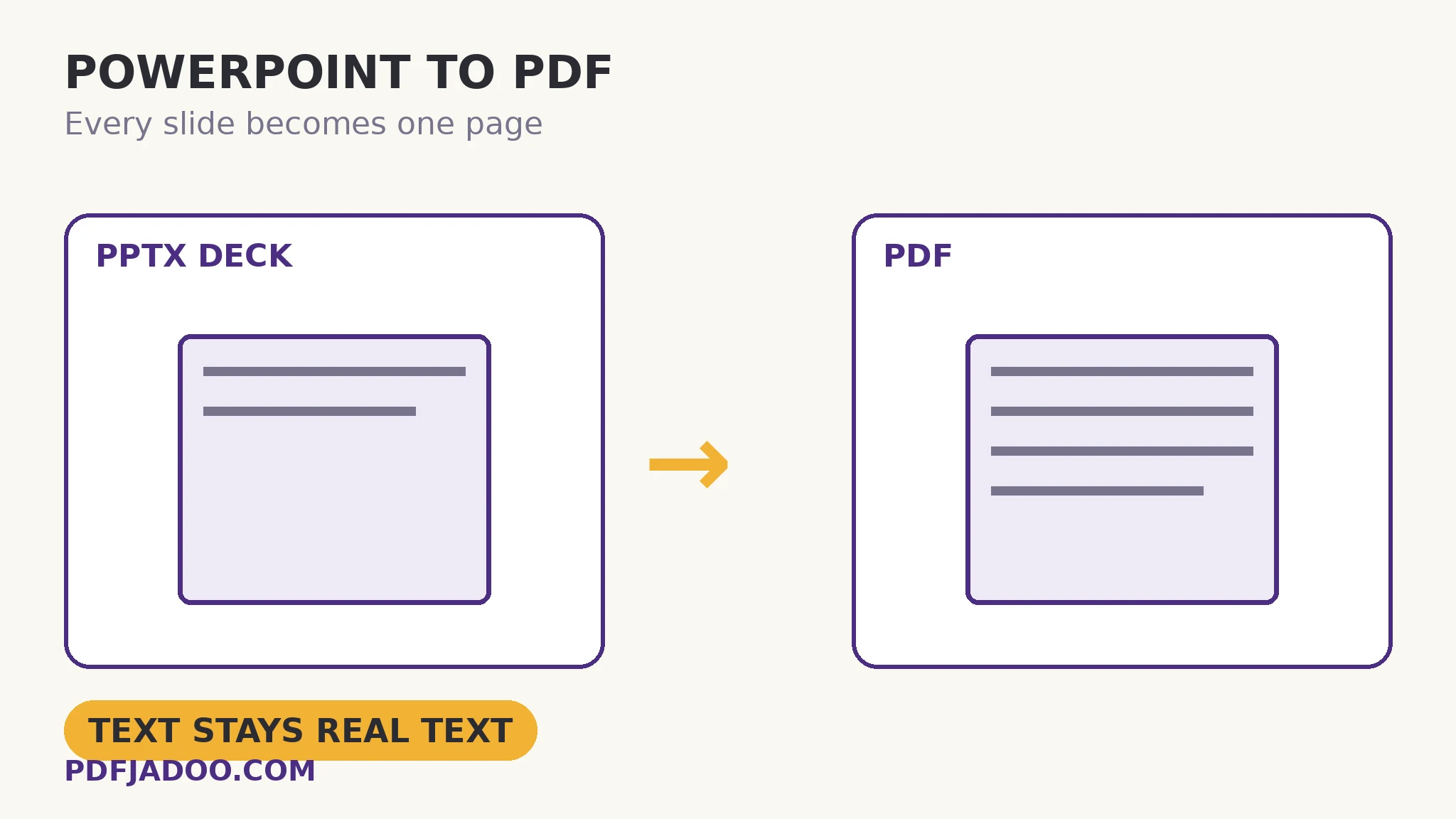
A faithful-looking conversion — and what that phrase means
The tool calls its own output a faithful-looking conversion, not an Office-perfect render, and the distinction is the same spectrum as Word's: what is structural converts; what depends on PowerPoint's own rendering engine simplifies. Text, colours, pictures, simple tables and common shapes convert well. A bullet slide, a title slide, an image slide, a simple agenda table — the working majority of real decks — come across cleanly, and because the text is rebuilt as text, the PDF remains a document: findable by search, readable by screen readers, quotable by copy-paste.
The simplifications cluster where you would predict. Animations have no meaning on a static page — a build sequence collapses to its final state, which is usually what a handout wants anyway. SmartArt and charts are engine-drawn graphics; they simplify or stay behind rather than arriving mangled. Speaker notes are workshop material, not slides. If a chart carries the argument of a slide, the deck-friendly fix is the same as Excel's: export that chart as an image and place it on the slide as a picture before converting — pictures ride along reliably.
One deck, or several at once
The output choice is practical: drop several presentations and take one PDF per presentation — the natural unit — or combine all slides into one PDF, the conference-pack unit: every speaker's deck in a single handout file, in drop order. Either way the conversion is local, in your browser; the unreleased product deck does not visit a server to become a PDF.
Convert PowerPoint to PDF, step by step
Step 1 — drop the .pptx — or several — onto PowerPoint to PDF.
Step 2 — choose the output shape. One PDF per presentation, or one combined PDF of all slides.
Step 3 — press Convert to PDF and download. Each slide is now a page; text is text.
Step 4 — flip through once. Watch the slides you know are engine-heavy: the SmartArt process diagram, the animated build, the chart. If one carries the argument, rebuild that slide with the graphic as a picture and reconvert — a two-minute fix for the only slides that need it.
Why not just send the deck?
Sometimes you should — when the audience must present it, animations and all. But for reading, reviewing, archiving and printing, the PDF wins on the usual grounds: it opens everywhere including phones, it cannot be accidentally edited, its fonts cannot go missing, and it prints as a handout without a fight. The deck stays the performance; the PDF is the publication.
Publish the deck.
Slides to pages in your browser — text still text, pictures aboard, one PDF per deck or all combined.
Open PowerPoint to PDFA worked example: the training pack
A trainer's three decks — induction, safety, systems — go to forty trainees as one combined PDF: 68 slides, one file, in order. The bullet-and-picture majority converts untouched. Two slides need the known fix: a SmartArt cycle diagram and a results chart, both exported as images and placed as pictures in a copy of the deck before conversion. The pack prints as the course handout and reads on trainees' phones between sessions — searchable, because the text stayed text. Nobody installed anything; nobody's fonts went missing. That ordinariness is the conversion succeeding.
Edge cases
Embedded video and audio. Media does not live in a static page; the PDF carries the slide, not the screening. Link the media separately if it matters.
Fonts. As with Word, an exotic font may substitute in the re-render. Standard deck fonts travel fine.
The old .ppt format. The tool takes .pptx; save legacy decks forward in PowerPoint or LibreOffice first.
Before you finish: the 60-second check
- Engine-heavy slides (SmartArt, charts, builds) were checked individually
- Argument-carrying graphics were placed as pictures before converting
- Output shape chosen: per-deck PDFs, or one combined pack
- The PDF's text was spot-checked as selectable — the conversion's signature
- Media-dependent slides were handled by links, not expectations
Fair questions
How do I convert PowerPoint to PDF for free?
Drop the .pptx onto PowerPoint to PDF, choose one PDF per presentation or one combined PDF, and convert. Every slide becomes a page — in your browser, nothing uploaded.
Does the text stay as text in the PDF?
Yes — text converts as real text, so the PDF stays selectable, searchable and copyable, with colours and pictures riding along. It is a faithful-looking conversion rather than an Office-perfect render.
What happens to animations and SmartArt?
Animations collapse to the slide's final state — a static page has no builds. SmartArt and charts simplify or are left out. If one carries the argument, export it as an image and place it on the slide as a picture before converting.
Can I combine several presentations into one PDF?
Yes — drop them together and choose the combined output: every deck's slides in one file, in drop order. Or keep one PDF per presentation.
Can I convert the old .ppt format?
The tool takes .pptx. Save a legacy .ppt forward as .pptx in PowerPoint or LibreOffice first.
Is my deck uploaded?
No — conversion runs in your browser, so an unreleased deck never visits a server.
Tool behaviour — slide-per-page conversion with real text, the converts/simplifies manifest, per-deck vs combined output — is from PDFJadoo's own PowerPoint to PDF page. Checked 18 November 2026.
Keep reading
PDF to PowerPoint, slide by slide
The reverse: a document becomes a deck of full-bleed slides.
Word to PDF without surprises
The same structural spectrum, for documents.
Excel to PDF: values travel
The workbook's presentation copy — what crosses, what stays.
N-up: slides as handouts
The converted deck, printed 6-up as the classic handout grid.