Excel to PDF: values travel — formulas stay home
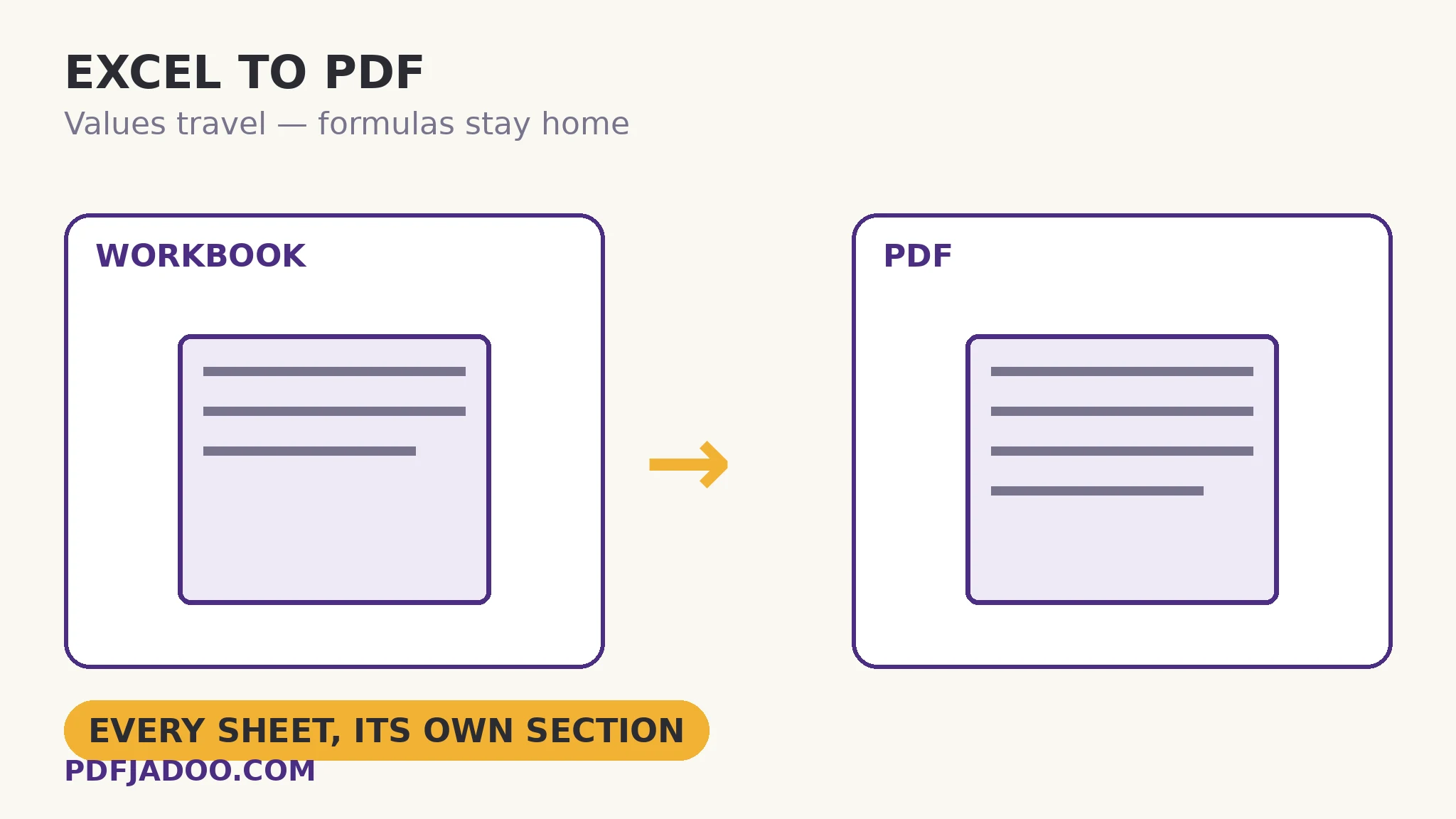
A spreadsheet is a working document: alive, formula-driven, one careless keystroke from a different total. A PDF is a presentation document: the numbers, fixed, safe to email to people who should see them, not edit them. Excel to PDF makes that presentation copy in your browser: every sheet of the workbook becomes its own section of PDF pages, values and gridlines rendered cleanly, very wide sheets scaled to fit the page width. The conversion's manifest is short and honest — values and basic styling cross; formulas, charts, print areas and frozen panes do not — and this article explains why that manifest is exactly right.
 By the PDFJadoo Team6 min read
Why values-without-formulas is the correct design
A formula is an instruction: sum the cells above. A PDF has no cells, so the instruction has nowhere to live. What can cross is the formula's result — the number it currently computes — frozen at conversion time. That freezing is not a limitation to apologise for; it is the entire reason the PDF copy exists. The recipient sees the totals as they stood when you sent them, cannot break them by typing over a cell, and cannot be confused by a recalculation under different settings. If the numbers change later, you send a new PDF — a new edition, not a silently different document with the same name.
The rest of the manifest follows the same logic. Gridlines and basic styling cross, because they are presentation. Charts do not, because a chart is a live view over data, rendered by the spreadsheet engine — the honest options are to screenshot it as an image or accept its absence, and the tool chooses absence over a mangled imitation. Print areas and frozen panes do not, because they are workshop settings, meaningless on paper. And very wide sheets are scaled to fit the page width — the eternal spreadsheet-to-paper problem, solved the only way it can be: shrink the sheet to the sheet of paper, which is why a 30-column ledger is a document to view on screen zoomed, not to read off a printout.
CSV too — and what a workbook's sheets become
The tool takes .xlsx and .csv. A CSV is one flat table — it becomes a clean run of pages. A workbook keeps its organisation: sheet after sheet, each laid out in turn as its own section, so the PDF reads like the workbook was browsable — summary sheet, then detail sheets, in tab order. Long workbooks take a few seconds; each sheet is real layout work, done locally.
Convert Excel to PDF, step by step
Step 1 — drop the .xlsx (or .csv) onto Excel to PDF. Nothing uploads — budgets and payrolls stay on your machine.
Step 2 — press Convert to PDF. Each sheet is laid out in turn; wide sheets scale to the page.
Step 3 — download and audit the totals. Check two or three headline numbers against the workbook. Values freeze at conversion, so the audit is about catching a stale workbook, not a broken conversion.
Step 4 — send the PDF, keep the workbook. The workbook remains the living source; the PDF is the edition you published. If a chart matters, add it as an image page separately rather than expecting it to cross.
The recipient's side of the bargain
What you send determines what can go wrong at the other end. A workbook can arrive with macros blocked, formulas recalculated under a different locale (decimal commas are real), or a well-meaning edit saved over the original. A PDF arrives as itself. For invoices' supporting schedules, board packs, price lists and results — the whole genre of “these are the numbers” — the frozen copy is not a lesser version of the spreadsheet. It is the appropriate one.
Publish the numbers. Keep the workshop.
Every sheet laid out as clean PDF pages in your browser — values fixed, gridlines tidy, workbook never uploaded.
Open Excel to PDFA worked example: the monthly pack
A small firm's monthly pack is a workbook of six sheets: summary, sales, costs, payroll summary, stock, notes. Emailed as a workbook, it once came back with a “corrected” cost figure that nobody could trace. As a PDF, the pack is one file, sheets in order, totals frozen — the meeting discusses the numbers that were sent, and corrections happen in the workbook, producing next month's edition. The conversion's only surprise was the stock sheet: forty columns wide, scaled to fit, microscopic in print — and perfectly readable zoomed on screen, which is how the pack is actually read. The example is the manifest working as designed: presentation where presentation belongs.
Edge cases
The chart that must travel. Export or screenshot the chart as an image and include it as its own page — via JPG to PDF — rather than expecting the conversion to redraw it.
Hidden sheets and columns. Assume anything in the workbook may render. If a sheet is genuinely private, remove it from the copy you convert — “hidden” is a workshop concept.
Numbers that look different. A cell displayed as 1.2K or 45% is a formatted value; the PDF shows the presentation the converter renders. Spot-check formatted columns in the audit step.
Before you finish: the 60-second check
- Headline totals in the PDF match the workbook at conversion time
- Wide sheets were expected to scale — and will be read zoomed, on screen
- Charts that matter were added as image pages, not expected to cross
- Private sheets were removed from the converted copy, not merely hidden
- The workbook stays the source; the PDF is the edition that was sent
Fair questions
How do I convert an Excel workbook to PDF for free?
Drop the .xlsx or .csv onto Excel to PDF, press Convert to PDF, and download. Every sheet becomes its own section of pages, values and gridlines rendered cleanly — in your browser, nothing uploaded.
Do formulas convert to PDF?
No — a PDF has no cells for a formula to live in. What crosses is each formula's current value, frozen at conversion time. That freezing is the point of the presentation copy: recipients see the totals as sent and cannot alter them by accident.
What happens to very wide sheets?
They are scaled to fit the page width. A very wide sheet prints small but reads fine zoomed on screen — the standard, honest answer to the spreadsheet-versus-paper problem.
Do charts come across?
No — charts are live views rendered by the spreadsheet engine and are not reproduced. If a chart matters, export it as an image and include it as its own page.
Can I convert a CSV file?
Yes — .csv is accepted alongside .xlsx. A CSV becomes a clean run of pages from its single flat table.
Is my workbook uploaded?
No. The conversion runs in your browser; the workbook never leaves your device.
Tool behaviour — per-sheet sections, values and gridlines crossing, formulas/charts/print areas not reproduced, wide-sheet scaling, and .xlsx/.csv input — is from PDFJadoo's own Excel to PDF page. Checked 18 November 2026.
Keep reading
PDF tables to Excel
The return trip: a PDF's tables rebuilt as living cells again.
Word to PDF without surprises
The word-processor sibling — structure travels, exotic furniture simplifies.
PowerPoint to PDF, slide by slide
The deck, frozen into a document that opens anywhere.
Flatten a PDF
Freezing, taken further: even form fields become page content.