PDF tables to Excel: the grid is inferred from where the words sit
The statement, the price list, the results table — the numbers are right there in the PDF, and useless: you cannot sort a picture of a table, and a PDF table is closer to a picture than to a spreadsheet. It has no cells, no rows, no columns — only text items at coordinates. Converting to Excel means inferring the grid from the positions: words that share a horizontal band become a row; vertical alignments become columns. PDF to Excel does this in your browser and says the quiet part on its own page: neat, aligned tables convert beautifully; tangled multi-line cells may need a quick tidy afterwards. This article explains the inference, so you can predict which of your tables will fly.
 By the PDFJadoo Team6 min read
How columns are detected: x-coordinates vote
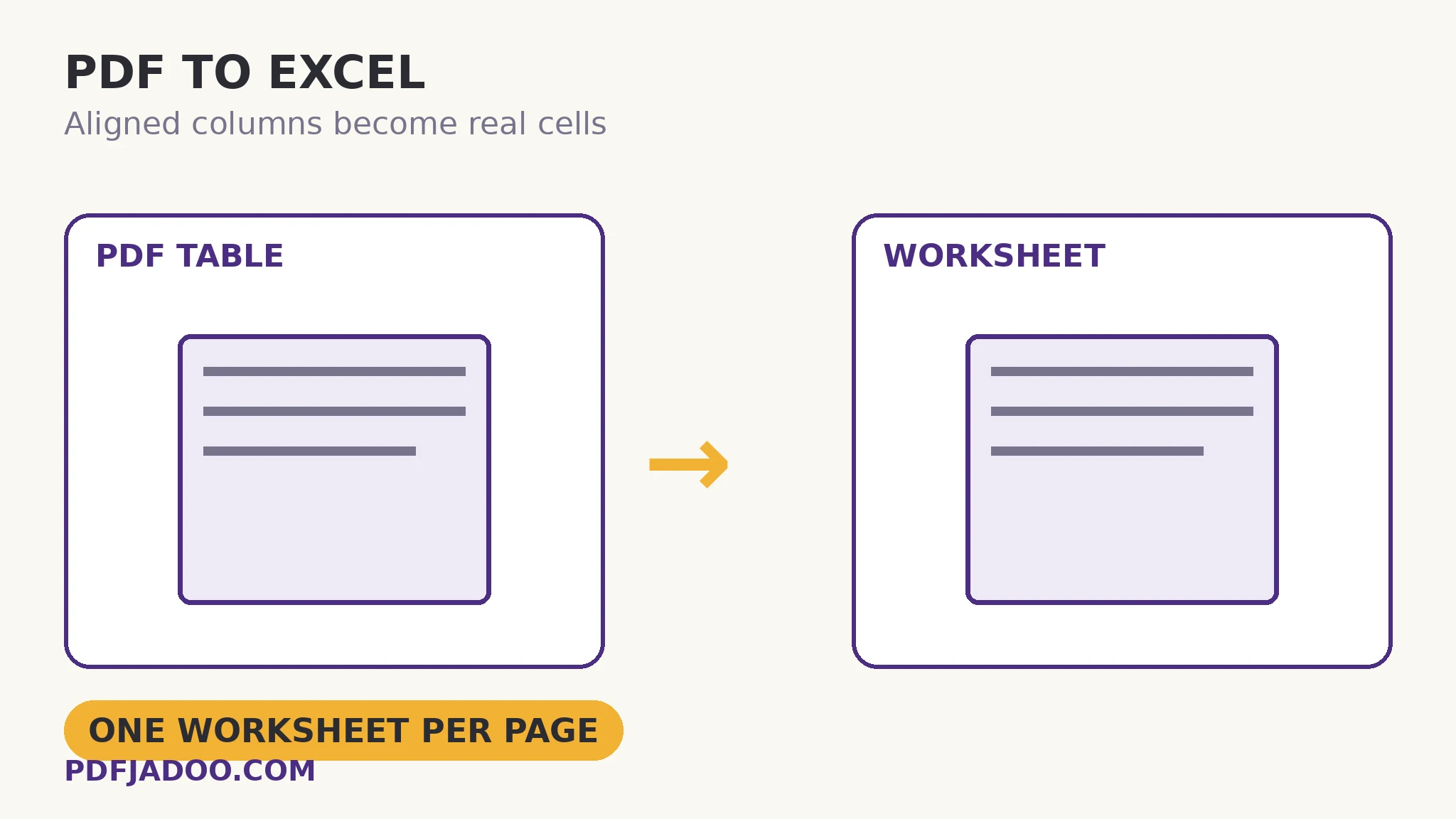
The converter reads every text item on the page with its position. Items whose vertical positions cluster become a row. Then, across all rows, the horizontal starting positions are compared: numbers that begin at nearly the same x, page after page of the table, vote for a column boundary. A tidy table — left-aligned labels, right-aligned figures, consistent spacing — produces clean votes and a clean grid. The result is a real .xlsx, one worksheet per page, ready to sort, filter and sum in Excel, LibreOffice or Google Sheets.
The failure modes are geometric too, and now predictable. A cell whose text wraps to two lines looks like two rows to the inference. Numbers with mixed alignment — some centred, some right-aligned — blur the column votes. A merged header cell spanning three columns has no position that matches any of them. And a table drawn with no consistent alignment at all (each row nudged by hand in the source document) gives the inference nothing to vote on. None of these are the converter being careless; they are the information content of the file. The tidy afterwards — merging two half-rows, splitting a doubled column — is minutes in Excel precisely because the hard part, getting every value out of the PDF and into cells, already happened.
The born-digital requirement
All of this needs the text items to exist. A scanned table is a photograph: no positions, no votes, no grid. The tool needs a born-digital PDF, and says so. The scan road is the familiar one — OCR first to create the text, then convert — with the extra caution that recognised tables deserve a careful proofread, because a misread digit in a spreadsheet does not look wrong the way a misread word does.
Convert a PDF table to Excel, step by step
Step 1 — check the table is born-digital. Select a number: it highlights as text, you are set; the page selects as a picture, OCR first.
Step 2 — drop the PDF onto PDF to Excel. Your statements and price lists never leave the browser — for financial tables, that locality is the feature.
Step 3 — press Convert to Excel and download the .xlsx. Each page becomes a worksheet.
Step 4 — audit the grid before you calculate. Check the column count against the original, scan for split rows (wrapped cells) and doubled columns, and fix the handful the geometry made ambiguous. Then sort and sum with confidence.
What the numbers become — and what they don't
Cells arrive as their text: a figure like 1,250.00 lands as a value you can sum once Excel reads it as a number, which it usually does automatically for clean numeric text. Dates and currencies with symbols may land as text strings in some locales — a quick format pass in the spreadsheet fixes a column at a time. Formulas, of course, do not exist in a PDF and cannot be recovered; what you recover is the data, which is the part that was trapped.
Free the numbers from the page.
Aligned tables rebuilt as real worksheets — one per page — in your browser. Your financial files are never uploaded.
Open PDF to ExcelA worked example: the bank statement that became a budget
A year of PDF statements needs to become one sortable transaction list. Each statement converts to a worksheet per page; the tables are machine-generated and ruthlessly aligned, so the inference is nearly perfect — date, description, debit, credit, balance in five clean columns, page after page. The human work is assembly: stack the worksheets, delete the repeated header rows, reformat the date column once. An afternoon of manual retyping became twenty minutes of tidying, and the sums reconcile to the statements' own totals — the audit that proves the conversion rather than trusting it. Machine-made tables are the best case, and a great deal of the world's trapped data — statements, invoices, exports — is machine-made.
Edge cases
The wrapped description column. Long descriptions wrapping to two lines split into two rows. In Excel, sort by the date column and the orphans surface together; merge them back in a pass.
Negative numbers in brackets. Accounting format (1,250) may land as text. A find-and-replace plus number format restores summability.
Two tables on one page. The inference sees one field of positions; two stacked tables usually survive as one grid with a blank band — separable in seconds, worth knowing before you wonder.
Before you finish: the 60-second check
- The PDF is born-digital — its numbers select as text
- Column count in the .xlsx matches the original table
- Wrapped cells and split rows were merged back
- Numeric columns actually sum — spot-checked against the PDF's own totals
- Scanned tables were OCR'd first, and their digits proofread
Fair questions
How does PDF to Excel conversion detect columns?
From geometry: the converter reads every text item's position, groups items into rows by vertical position, and infers columns where horizontal positions align consistently across rows. Neat, aligned tables convert beautifully; tangled multi-line cells may need a quick tidy.
Why did my table convert with split rows?
A cell whose text wraps onto two lines looks like two rows to the position-based inference. It is a quick tidy in Excel — the values themselves all made the trip.
Can I convert a scanned PDF table to Excel?
Not directly — a scan has no text layer for the converter to read positions from. OCR the scan first to create text, then convert, and proofread the digits carefully.
What do I get — one file or many?
One .xlsx workbook, with one worksheet per PDF page, openable in Excel, LibreOffice or Google Sheets.
Are the converted numbers summable?
Clean numeric text usually lands as numbers Excel can sum directly. Figures carrying currency symbols or bracketed negatives may land as text in some cases — a quick column format pass fixes them.
Is my financial PDF uploaded?
No. PDF to Excel runs entirely in your browser — statements and price lists never leave your device.
Tool behaviour — position-based column detection, one worksheet per page, the born-digital requirement and the tidy-up note — is from PDFJadoo's own PDF to Excel page. Checked 18 November 2026.
Keep reading
Extract text from a PDF
When you need the words, not the grid — plain text in reading order.
Make a scanned PDF searchable
Scanned table? Give it text first, then convert — and proofread the digits.
PDF to Word without losing formatting
The other reconstruction: paragraphs and headings instead of cells.
Merge PDF files into one
Assemble the statements into one file before the conversion run.