Extract text from a PDF: all the words, none of the formatting fights
Sometimes you do not want the document at all. You want the words — to quote them, search them, feed them to a spreadsheet or a script, keep them in a note. Extraction is the plainest tool in this series: it opens the PDF, reads its text layer in reading order, page by page, and hands you the words in a box — copy them, or download a clean .txt. No formatting survives, and that is the point. But two honest limits shape every extraction, and knowing them in advance is the difference between a clean haul and a puzzling one: columns, and the scan wall.
 By the PDFJadoo Team6 min read
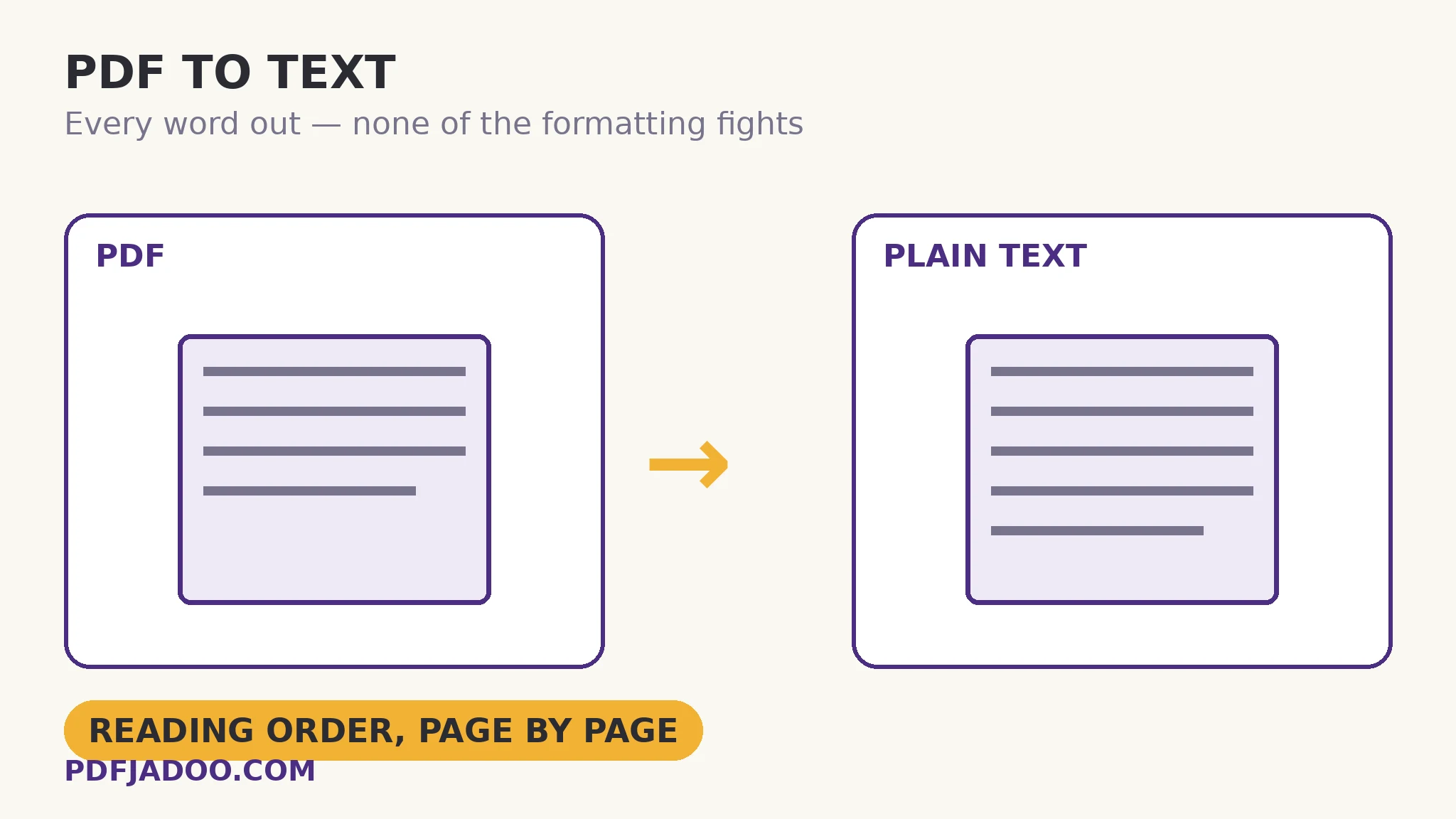
What extraction actually reads
A born-digital PDF stores its text as positioned characters: each letter sits at coordinates on the page. Extraction walks the page's content in the order the file presents it — which, in any sanely produced PDF, is the reading order — reassembles lines, and moves to the next page. PDF to Text does exactly this, in your browser: drop the file, press Extract the text, and the words appear in the box, ready to copy or download as .txt. Nothing is interpreted, styled or improved — the text layer, verbatim.
That verbatim quality is both the virtue and the limit. Hyphenated line-breaks stay hyphenated, because the file stored them that way. Headers and footers repeat on every page, because the file repeats them. And two-column layouts can interleave: if the producing software stored the page column-by-column, extraction reads column-by-column (correct); if it stored line-by-line across the gutter — left line, right line, left line — extraction faithfully returns that zigzag. The tool is not misreading; it is reporting the file's own storage order. When the zigzag appears, the fix is a converter with layout analysis — PDF to Word rebuilds paragraphs with more inference — or accepting the plain haul and tidying it where it lands.
The scan wall: when there are no words to extract
The second limit is absolute. A scanned PDF has no text layer — its pages are photographs. Extraction opens it, finds no characters, and the tool tells you so plainly rather than handing you an empty file in silence. The words must be created before they can be extracted, and that is OCR's job: recognition reads the photograph and lays down a real text layer, after which extraction (or the OCR tool's own text output) works as expected. The full story is this series' make a scanned PDF searchable. The five-second test never changes: select a sentence — highlights, extract; selects as a picture, OCR first.
Extract text, step by step
Step 1 — drop the PDF onto PDF to Text. One file with a text layer. It never leaves your browser — extraction works even with the internet off, which is a fair summary of how local it is.
Step 2 — press Extract the text. The words appear in the box, page after page, in reading order.
Step 3 — take them the way you need them. Copy a passage straight from the box, or download the whole haul as a .txt file.
Step 4 — read the first page against the original. Thirty seconds confirms which kind of file you had: clean prose means a well-ordered text layer; interleaved columns mean the file stored its page in slices, and a layout-aware converter will serve you better.
Extraction vs conversion: choosing the plain tool on purpose
Extraction's plainness is a feature with real uses. Plain text is searchable everywhere, diff-able in version control, pastable into anything, and immune to formatting surprises. For feeding text to a script, an AI prompt, a translation tool or a notes app, the .txt is often better than a Word rebuild — structure you do not need is weight you do not carry. Choose Word when the document must live and be edited as a document; choose text when the words themselves are the cargo.
Just the words, please.
The text layer lifted out in reading order — copy it from the box or download the .txt. In your browser, even offline.
Open PDF to TextA worked example: the policy document into a searchable note
A 60-page policy PDF needs to live in a team's notes, where it can be searched alongside everything else. As a PDF it is a silo; extracted, it becomes a text file the notes app indexes fully. The extraction takes seconds. The result carries the policy's running footer on every page — “Policy v4.2 — Internal” repeated sixty times — which is the file being truthful about its own structure, and a two-minute find-and-delete in the notes app. Every word of substance arrives in order, because the policy was produced by software that stored its pages sanely. The example's lesson: extraction quality is a property of the file you feed it — the tool's honesty is that it shows you the file as it is.
Edge cases
Nothing came out. The scan wall — the file has no text layer. OCR first.
The words are there but scrambled. Some PDFs store characters in a custom encoding order; the visible page renders fine but the stored order is odd. A layout-aware converter or OCR of the rendered page are the two escapes.
Tables become spaced lines. Extraction gives you the words in order, not the grid. If the grid is the point, that is PDF to Excel's job, one shelf over.
Huge documents. Extraction is light work — the text layer is small next to the images — so even long files process quickly, limited mainly by your device.
Before you finish: the 60-second check
- The file passed the selection test — it has a text layer to extract
- The first extracted page was compared with the original's first page
- Repeated headers/footers were expected — and cleaned where the text landed
- Columns read in order, or a layout-aware converter was chosen instead
- The .txt was saved where it will be searched, not just downloaded
Fair questions
How do I extract text from a PDF for free?
Drop the PDF onto PDF to Text and press Extract the text. The words appear in a box — copy them, or download the whole thing as a .txt file. It runs entirely in your browser and works offline.
Why did extraction return nothing from my PDF?
Your PDF is a scan — its pages are photographs with no text layer to read. The tool will tell you so. Run the file through OCR first to create the text, then extract.
Why is my extracted text in the wrong order?
Extraction follows the order the file itself stored its text. Most files store reading order; some store a page in slices — notably two-column layouts stored line-by-line across the gutter — and extraction faithfully returns that zigzag. A layout-aware converter like PDF to Word infers structure instead.
Does extraction keep formatting, fonts or tables?
No — and that is deliberate. You get the words in reading order as plain text: no fonts, no styling, no table grid. For a rebuilt editable document use PDF to Word; for the table grid, PDF to Excel.
Will headers and footers appear in the extracted text?
Yes — the file repeats them on every page, so the extraction repeats them too. They are easy to find and remove in whatever app the text lands in.
Is my PDF uploaded when I extract its text?
No. Extraction runs 100% in your browser — the tool works even with the internet off. Your file never leaves your device.
Tool behaviour — reading-order extraction from the text layer, the in-page result box, .txt download, the plain warning for scans, and offline in-browser operation — is from PDFJadoo's own PDF to Text page. Checked 18 November 2026.
Keep reading
PDF to Word without losing formatting
When the words need their structure back — headings and paragraphs, rebuilt.
Make a scanned PDF searchable
Extraction hit the scan wall? Create the text layer first.
PDF tables to Excel
When the grid is the cargo — columns detected, cells rebuilt.
Compress a PDF without losing quality
The flagship explainer: levels, floors and the smallest-print rule.