Rotate PDF pages: the lossless right-angle, and the honest redraw
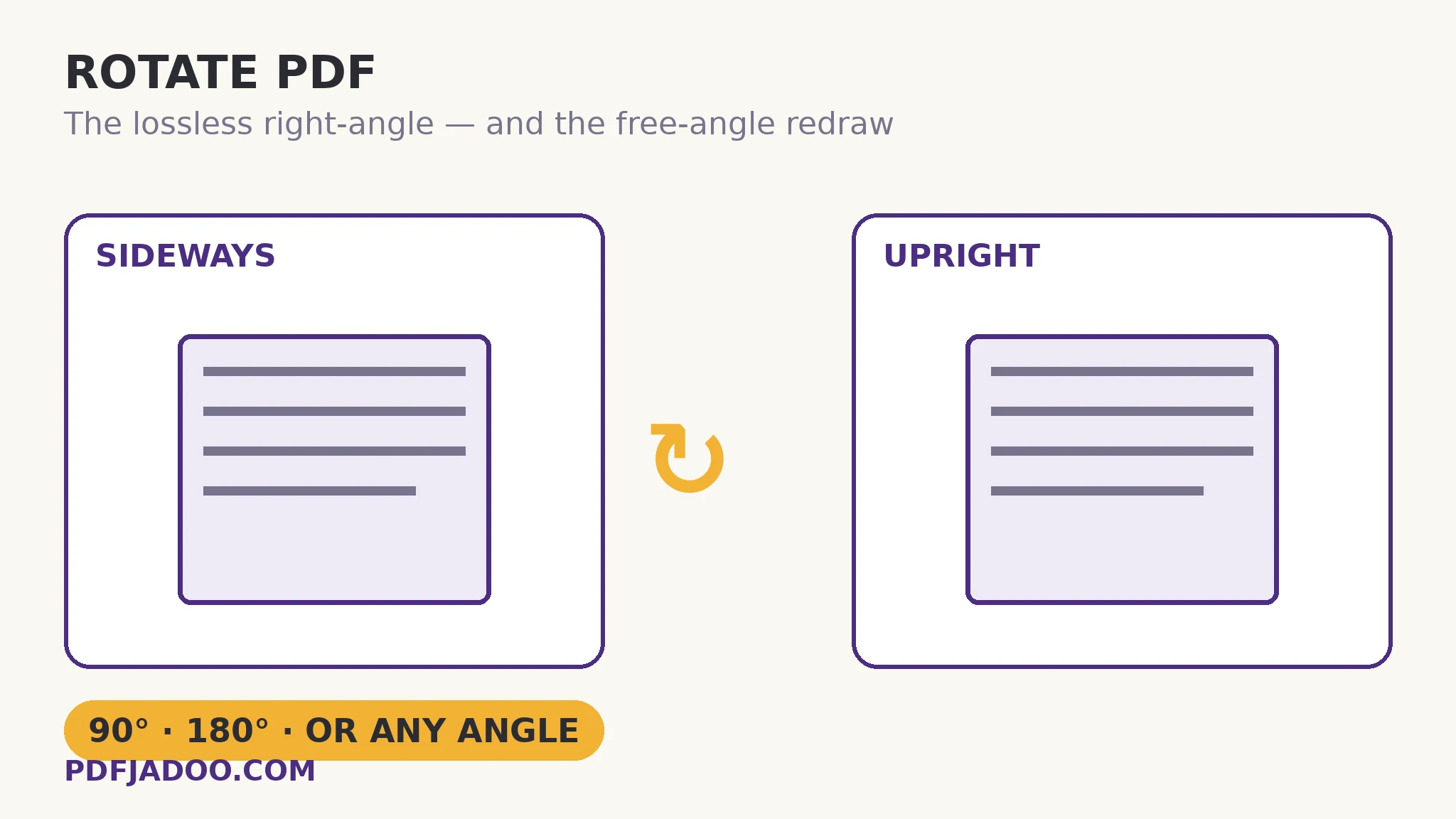
Sideways scans happen to everyone — the feeder took the page landscape, the phone was turned, the archive was bound oddly. Fixing them feels like one operation, but Rotate PDF quietly performs two different ones, and the difference is worth understanding. A turn of exactly 90°, 180° or 270° is a flag in the file — the page's content is untouched, only its display orientation changes — so it is instant and lossless, and the tool uses it automatically when you land on a right angle. Any other angle — the 3° lean of a crooked scan — cannot be a flag; the page must be re-drawn, re-rendered at full quality at the new angle. Both are legitimate; they are simply different machinery, and this article keeps them straight.
 By the PDFJadoo Team6 min read
The flag: why right angles cost nothing
Every PDF page carries a rotation value — 0, 90, 180 or 270 — that tells viewers how to present it. The page's content stream (its text, vectors and images) is stored once, unrotated; the viewer applies the flag when drawing. Changing orientation at a right angle therefore means changing one number per page: nothing is re-encoded, no pixel is recomputed, quality loss is impossible, and the operation is effectively instant even on long documents. It is also reversible for the same reason — a wrongly turned page turns back with zero cost, forever.
The tool's interface is built around the real-world shape of the problem. With one PDF, page previews appear so you can tick only the crooked ones — the common case is a document that is fine except for pages 14 and 31, and turning the whole file to fix two pages would break the other forty. With several PDFs, the same chosen turn applies to every page of each — the batch of scans from the same mis-fed feeder, fixed in one pass.
The redraw: straightening the lean
A scan that leans 2–4° is not sideways; it is crooked, and no flag fixes a lean. The free angle control dials any angle, clockwise positive, counter-clockwise negative — and the previews turn as you dial, so you straighten by eye against the page's own text lines, which is the only reliable reference a crooked scan offers. Landing exactly on a right angle snaps back to the lossless flag automatically; anything else re-draws the turned pages at full quality. A redrawn page is a fresh render — excellent, but a render — so the craft rule is: use the smallest correction that makes the text lines level, and prefer fixing the scan's worst pages rather than re-drawing a whole document for one leaning chapter.
Rotate pages, step by step
Step 1 — drop the PDF onto Rotate PDF. One file brings previews; several files take the batch turn. Nothing uploads.
Step 2 — choose the scope. All pages, or only the pages you tick in the previews.
Step 3 — choose the turn. The 90° clockwise, 90° counter-clockwise or 180° buttons for orientation; or dial a free angle and watch the previews until the text lines sit level.
Step 4 — save and spot-check. Open the result at the pages you turned. Right-angle turns are flags — if one is wrong, turn it back losslessly and save again.
Rotation vs the sideways photo problem
Worth distinguishing: a page that displays sideways is a rotation-flag matter, fixed here. A photograph inside a page that lies sideways is content — the page is upright, the picture in it is not — and belongs to image tools and the EXIF story in combining photos into a PDF. Diagnosing which of the two you have takes one look: if the page's text is sideways too, it is the flag; if only the photo leans, it is the photo.
Turn it the way it should read.
Right angles flipped losslessly, crooked pages straightened by eye with live previews — in your browser.
Open Rotate PDFSources
- Adobe — Rotate pages in a PDF: Adobe's reference for rotating pages in 90-degree steps and saving the change so it survives reopening — the permanent-versus-view-only distinction this guide explains.
- Tool behaviour — the steps and limits in this guide are from PDFJadoo's own Rotate PDF tool page, checked 18 November 2026; the file never leaves your device, so the result you preview is the file you save.
A worked example: the archive box scan
A 90-page scanned archive arrives with three faults: the whole file is fine except a landscape table section (pages 40–47, sideways), and one chapter (pages 60–66) leans about 3° from a hurried feed. One sitting fixes both, differently: tick pages 40–47 and turn 90° clockwise — a flag change, instant, lossless. Then tick 60–66, dial +3° against the previews until the ruled lines level, and let those seven pages redraw at full quality. The other 75 pages are never touched by either operation — which is the point of per-page scope: the cure is applied exactly where the disease is.
Edge cases
The document that fights back. Some PDFs carry pages whose content was drawn rotated, with a 0 flag — turning the flag makes them worse. The previews tell you the truth before you save; trust them over assumptions.
Mixed-orientation originals. A report with genuinely landscape tables among portrait pages is not broken. Rotate nothing; the author's orientation is content.
Straightening twice. Each free-angle redraw re-renders. If the first attempt is off by a degree, redo from the original file at the corrected total angle, not from the redrawn output.
Before you finish: the 60-second check
- Scope chosen deliberately: all pages, or only the ticked crooked ones
- Right-angle turns used for orientation — lossless flags, freely reversible
- Free angle dialled against the previews' text lines, smallest correction that levels them
- Redo work starts from the original file, never from a redrawn output
- The saved file was spot-checked at exactly the pages that were turned
Fair questions
How do I rotate a PDF page for free?
Drop the PDF onto Rotate PDF, tick the pages (or take all), choose 90° clockwise, 90° counter-clockwise or 180°, and save. Right-angle turns change the page's rotation flag, so they are instant and lossless.
Can I rotate just some pages of a PDF?
Yes — with one PDF, previews appear and you tick only the pages to turn. With several PDFs, the same turn applies to every page of each file, for batch fixing.
How do I straighten a slightly crooked scan?
Use the free-angle control: dial a small angle (clockwise positive, negative the other way) and watch the page previews turn as you go, until the text lines sit level. Non-right angles re-draw the page at full quality.
Does rotating a PDF reduce its quality?
At 90°, 180° or 270°, no — only a display flag changes; the content is untouched and the turn is freely reversible. A free-angle straightening re-renders the turned pages at full quality, which is excellent but is a redraw — redo from the original if you need another attempt.
Why is one photo inside my PDF still sideways after rotating?
If the page's text is upright but a photo inside it lies sideways, the photo itself is the rotated content — a picture problem (EXIF orientation), not a page-rotation problem. Fix the image before it enters the PDF.
Is my PDF uploaded to rotate it?
No — the tool runs in your browser; your file never leaves your device.
Tool behaviour — per-page ticking with previews, batch turns, the free-angle dial with live previews, the lossless right-angle vs full-quality redraw distinction — is from PDFJadoo's own Rotate PDF page. Checked 18 November 2026.
Keep reading
Reorder PDF pages
Turned the pages? Now put them in the order the story needs.
Crop a PDF's margins
The other page-geometry fix: trim what the scan wasted.
Make a scanned PDF searchable
Straightened the archive? Give its words back with OCR.
Combine JPG photos into one PDF
The sideways-photo problem, at its EXIF source.