Rotate an image: every degree, not just the right angles
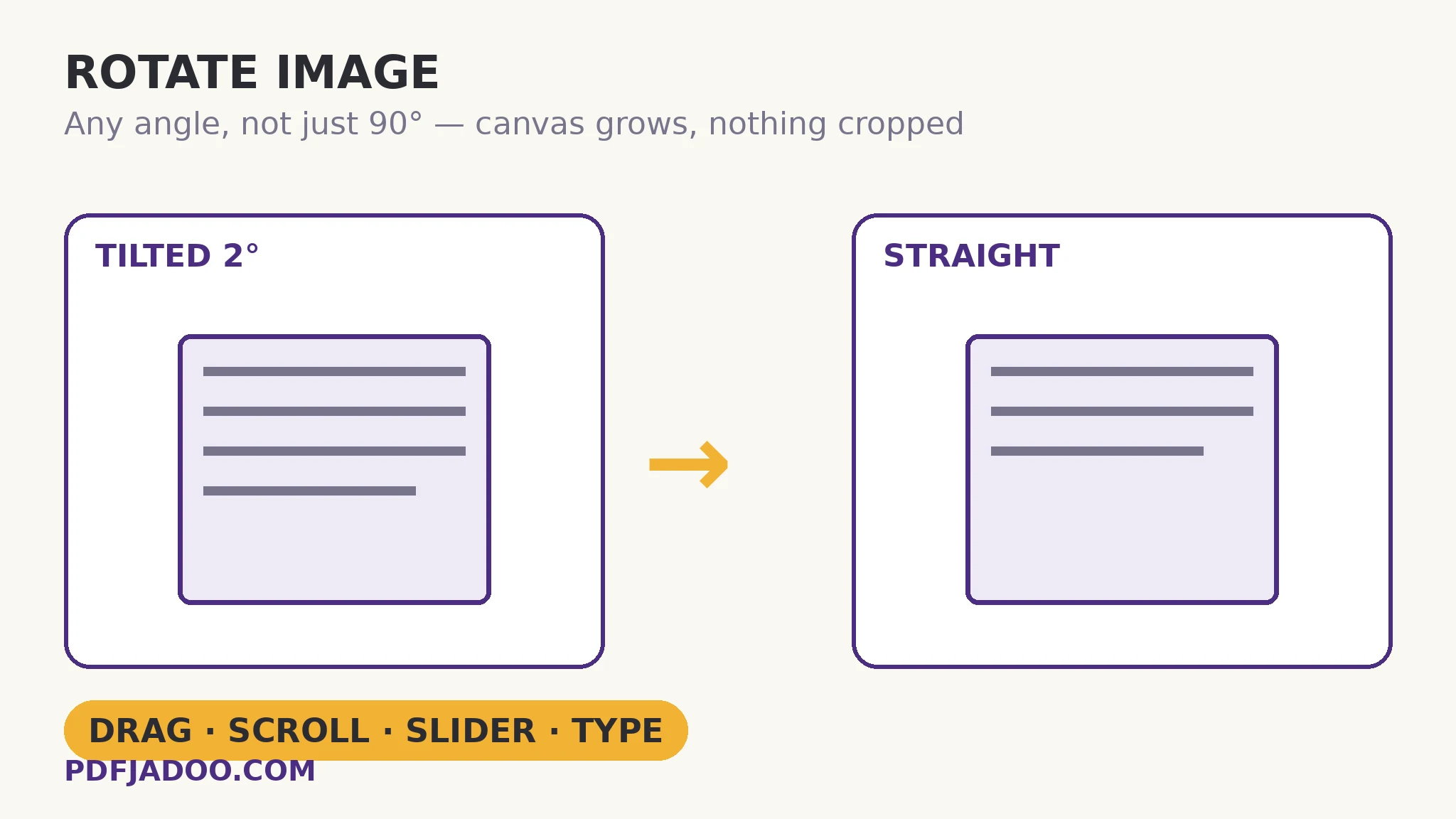
The direct answer: you can rotate a picture by any angle — drag it round in a circle, scroll on it (Shift for finer steps), use the slider, or type the exact degrees — and the canvas grows to fit the turned corners, so nothing is ever cropped. Most “rotate” buttons offer only quarter turns, which fix a sideways photo and do nothing for the far commoner fault: the horizon tilted by two degrees, the document photographed at a slant. Rotate Image is built for the degrees in between. Two facts govern quality, both stated on the tool's page: exact 90° turns are pixel-perfect rearrangements, while any other angle resamples the pixels and can soften the finest detail very slightly — and the saved picture is re-drawn once, at its full original resolution, so the softening happens a single time, from the best source. This article covers the mechanics, the corner question every rotation must answer, and the sideways-phone-photo case.
 By the PDFJadoo Team5 min read
Why the canvas grows: the geometry of a turned rectangle
The direct answer: a rotated rectangle no longer fits inside its own outline — its corners sweep outside the original frame — so the tool enlarges the canvas to the turned picture's bounding box instead of amputating the corners. Every image rotator must answer the corner question somehow: crop the corners off, fill the empty wedges with a colour, or grow the canvas. Cropping silently deletes content — the top of the building, the edge of the document. Filling invents content. Growing is the only honest answer, and it is this tool's: the saved picture is the whole picture, turned, sitting in a frame exactly big enough for it. The wedges at the corners are transparent where the format allows it — PNG and WebP keep their transparency, corners included; a JPG, which has no transparency, is saved on white.
A fact about formats on this tool: BMP and GIF pictures are saved as PNG, and a GIF keeps only its first frame. Rotation is a still-image operation; an animated GIF's frames are a film, and the honest conversion takes the frame you were looking at. Knowing that before you rotate a GIF saves the surprise of a still where motion used to be.
Pixel-perfect vs resampled: the one quality distinction
The direct answer: a 90°, 180° or 270° turn rearranges existing pixels without inventing any, so it is lossless; any other angle must calculate new pixel values where the turned grid falls between the old one, which is why a 2° straighten softens the finest detail very slightly. The practical consequence is a workflow rule: do your quarter turns and your fine straightening in one visit, from the original, and save once. Rotating a rotated copy compounds the resampling; rotating from the original spends it a single time. The tool supports the rule — the picture turns live in the preview and stays where you leave it, and “Back to 0°” resets to the untouched original orientation at any point before saving.
Rotate an image, step by step
The direct answer: drop the image, turn it by whichever control suits your hand — presets for quarter turns, drag/scroll/slider/typing for fine angles — and press Rotate my image to download the result at full resolution.
Step 1 — drop one image onto Rotate Image. It appears in the preview at its true orientation — a phone photo's stored orientation note is honoured on load, so a sideways-in-the-file portrait shows upright before you touch anything.
Step 2 — turn it. The ⟲/⟳ presets give exact quarter turns; for a tilted horizon, drag the picture round in a circle or scroll on it, holding Shift for finer steps, and watch the horizon against the frame.
Step 3 — check the corners. The canvas has grown; the whole picture is present. On a JPG the new corners are white; on PNG/WebP they are transparent.
Step 4 — press Rotate my image and download. The save re-draws once at full original size. Keep the original file — rotation, like everything in this kit, is a new file, not an edit in place.
The sideways phone photo, settled
The direct answer: yes, this fixes it permanently — the rotation you choose is baked into the saved pixels, so the photo opens upright in every viewer, including the ones that ignored its orientation note. The distinction is the whole problem: many phone photos are not actually stored sideways; they are stored straight with a note saying “display me turned”, and well-behaved viewers obey the note while others show the raw pixels. Baking the turn into pixels ends the disagreement — there is no longer a note to ignore.
Straighten the two degrees. Keep every corner.
Drag, scroll, slide or type the angle — the canvas grows, the save happens once, at full resolution.
Open Rotate ImageA worked example: the horizon that leaned
The direct answer: a seascape photographed with a 2° lean straightens with a typed −2° turn (clockwise degrees are the tool's unit; the lean's opposite is the correction), and the grown canvas keeps the lighthouse and the shoreline's edge that a crop would have taken. The walkthrough shows the craft points in miniature: the turn is judged against the horizon line itself, not by eye against the frame; the save is made once, from the original file, so the resampling cost is paid a single time; and the result — saved as PNG to keep the corner wedges transparent for the collage it was headed into — slots over the page background with no white corners showing. A 90° tool would have left this photo exactly as broken as it found it.
Edge cases
Straightening a document photo. A page photographed at a slant has perspective as well as tilt — its far edge is smaller, not just turned. Rotation levels it but cannot un-foreshorten it; the scan tools correct perspective at capture.
Huge angles typed by hand. The angle is degrees clockwise and wraps naturally — 370° is 10° — but the honest correction for a photo stored upside down is the 180° preset, pixel-perfect, not a typed 180.0 that resamples.
Rotating for a form limit. If the destination also has a size cap, rotate first, then compress the rotated result — order of operations, each from the best available source.
Before you finish: the 60-second check
- Quarter turns used the presets (pixel-perfect); fine angles were judged against a real line in the picture
- All rotation happened in one visit, from the original file — resampling paid once
- The corners were checked: grown canvas, nothing cropped, wedges as expected for the format
- GIFs were rotated knowing only the first frame is kept, saved as PNG
- The sideways phone photo was saved with the turn baked into pixels — fixed for every viewer
Fair questions
How do I rotate an image by a few degrees, not 90?
Drop it onto Rotate Image and drag the picture round in a circle, scroll on it (Shift for finer steps), use the slider, or type the exact angle in degrees clockwise. The canvas grows to fit the turned corners, so nothing is cropped.
Does rotating an image reduce its quality?
Exact 90° turns are pixel-perfect. Other angles resample the pixels, which can soften the finest detail very slightly — the same trade every editor makes. The picture is re-drawn once at its full original resolution, so rotate from the original and save once.
What happens to the corners when I rotate?
The canvas grows to fit the turned corners — nothing is cropped. In PNG and WebP the new corner wedges stay transparent; a JPG is saved on white, as JPG has no transparency.
My phone photo is sideways in some apps. Will this fix it?
Yes. The photo's stored orientation is honoured when it loads, and the rotation you choose is baked into the saved pixels, so it opens upright everywhere — including viewers that ignore orientation notes.
What happens if I rotate a GIF?
BMP and GIF pictures are saved as PNG, and a GIF keeps its first frame — rotation is a still-image operation. Rotate a frame you have chosen, knowing the result is a still.
Is my image uploaded?
No — rotation runs entirely in your browser; the picture never leaves your device.
Tool behaviour — the drag/scroll/slider/typed-angle controls with Shift for finer steps, the growing canvas, pixel-perfect quarter turns vs resampling at other angles, the single full-resolution redraw, transparency handling per format, BMP/GIF saving as PNG with the GIF's first frame kept, and orientation honoured on load — is from PDFJadoo's own Rotate Image page. Checked 18 November 2026.
Keep reading
Compress an image to an exact size
Straightened — now under the form's KB wall, with the floor respected.
Fix a document photo's shadows
Tilt was one fault; shadow and grey paper are the others. The full cleanup.
Deskew a scanned PDF
Tilted pages inside a PDF: measured from the text lines and levelled.
Rotate PDF pages
The document cousin: quarter turns as a lossless flag inside the file.