PDF to PNG: every pixel exact — the lossless choice
You converted a page to JPG and the letters grew faint coloured halos. That is JPEG doing its designed job — discarding detail the eye supposedly will not miss — on the one kind of content where the eye does miss it: crisp text and line art. PNG is the opposite bargain. It is lossless: every pixel of the render is kept exactly, no smearing around letters, no fringing on diagram lines. The honest trade is size — PNG files are bigger. This article is about when that trade is the right one, and the resolution decision that governs both formats.
 By the PDFJadoo Team6 min read
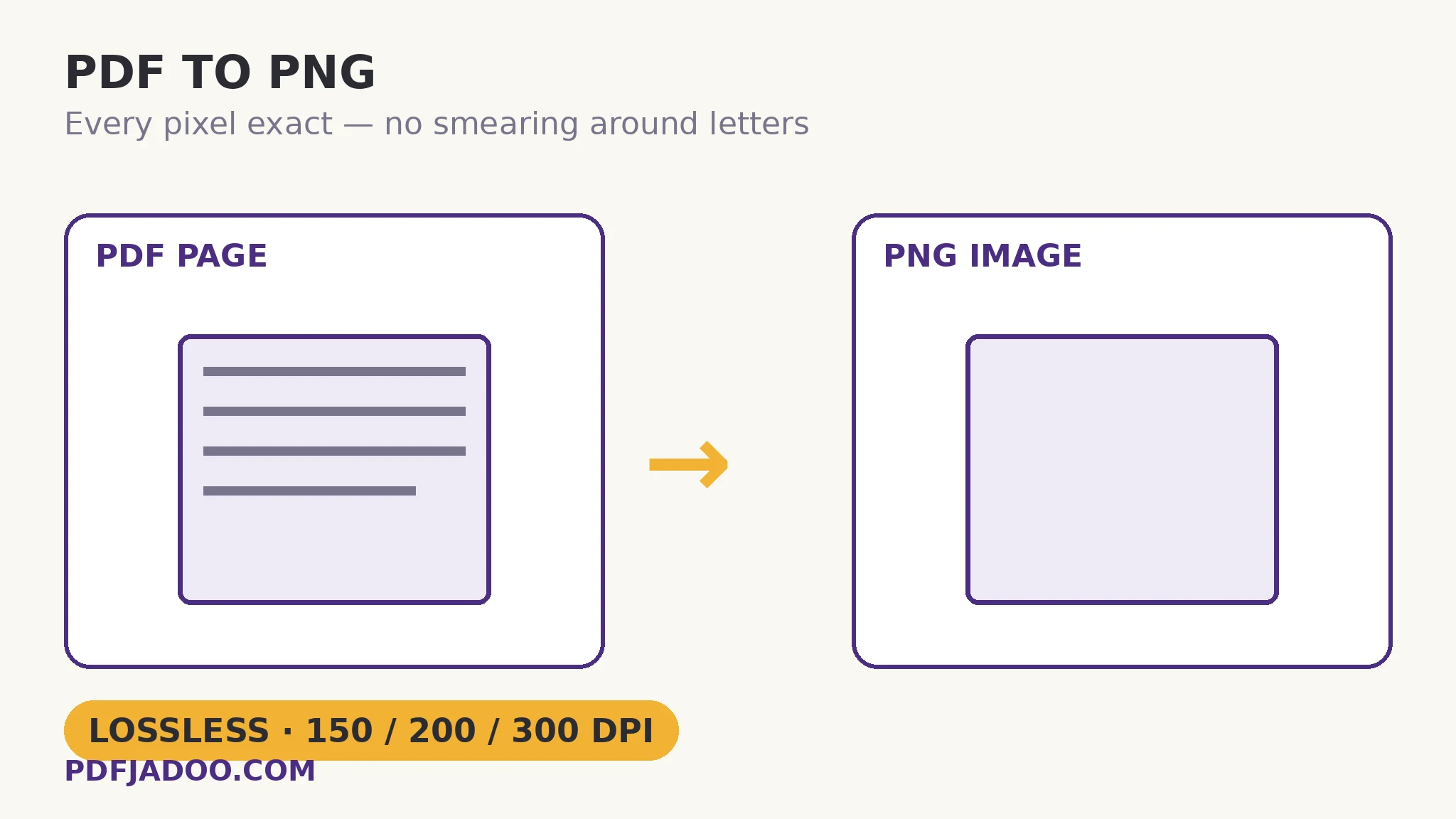
Lossless, precisely: what PNG refuses to do
JPEG compression works by approximation — it stores a close-enough version of the image, tuned for photographs, where tiny errors hide in natural texture. Around a black letter on white paper there is no texture to hide in: the approximation shows as a grey-and-colour fringe, worst exactly where documents need clarity. PNG compression works by pattern, not approximation: it describes the image exactly, exploiting repetition (a white margin compresses to almost nothing) without discarding a single pixel. Flat colour, sharp edges and text are PNG's home ground — which is why screenshots, diagrams and document pages belong here, a point the sibling explainer PDF to JPG: which DPI makes from the other side.
PDF to PNG renders each page at your chosen resolution — 150 DPI for screens, 200 sharper, 300 for maximum detail — and hands you the pages as PNGs. Drop several PDFs and every page of every one arrives in a single ZIP. The render is the same engine-and-DPI story as JPG: the page is a description, the DPI decides how finely it is painted, and the format decides how faithfully the painting is stored. PNG simply refuses the second loss.
When PNG wins, and when it is overkill
| Your page and purpose | Format | Why |
|---|---|---|
| Text pages, diagrams, screenshots of documents | PNG | Razor edges stay razor; flat areas compress well |
| Pages going into design tools or further editing | PNG | Every later save re-compresses a JPG; a PNG master stays exact |
| Photographs and scanned photos | JPG | Natural texture hides JPEG's approximation; PNG would be several times larger for no visible gain |
| Quick shares where size limits bite | JPG | Smaller files; the softness rarely matters at chat size |
The design-tool row deserves emphasis: a JPG degrades every time it is re-saved, because each save approximates the previous approximation. A PNG master can be edited and re-exported indefinitely without drift. If a page image will be worked on, PNG is not a luxury — it is the archive.
Convert PDF pages to PNG, step by step
Step 1 — drop the PDF, or several, onto PDF to PNG. Rendering happens in your browser; nothing uploads.
Step 2 — choose the resolution. 150 DPI for screens, 200 for close reading, 300 for maximum detail — remembering that 300 is slower and heavier, and that PNG multiplies the weight.
Step 3 — press Convert to PNG. A single PDF's pages download as PNGs; a batch arrives as one ZIP holding every page image.
Step 4 — zoom once at 100%. Read the smallest text. With PNG, what you see is exactly what the render produced — if it is soft, the DPI was the limit, and 300 is the remedy.
The size honesty
A text page that is a 120 KB JPG may honestly be a 700 KB PNG at the same resolution — and a photo-heavy page can be several megabytes. That is not bloat; it is the pixel-exactness you asked for, itemised. Budget for it where PNG is chosen: design work, archives and screenshots absorb it gladly; email attachments may argue. The decision is per-purpose, and now it is an informed one.
Keep every pixel. On purpose.
Pages rendered at 150, 200 or 300 DPI and stored losslessly — batches pooled into one ZIP, all in your browser.
Open PDF to PNGA worked example: the diagram for the report
A technical report needs one page of a PDF manual — a wiring diagram with fine labels — dropped into a slide. As a JPG at chat-quality, the labels fringe and the thin lines break up when the slide is projected. As a PNG at 300 DPI, the same page is crisp at full screen, and the file, a few megabytes, is nothing to a slide deck. The example is the whole article in miniature: the content was lines and letters, the audience would zoom, so lossless at high DPI was not indulgence — it was the requirement, recognised.
Edge cases
Transparency. Unlike JPG, PNG can carry transparency — but a rendered PDF page is a full rectangle of page, so the output is a complete page image; transparency only enters if the page itself composites one.
The 300-DPI batch on a phone. Rendering many pages at maximum detail is real work; on a small device, split the batch or step down to 200 DPI, which quarters the strain.
“Why is my PNG softer than the PDF on screen?” Because the screen re-renders the PDF's instructions at display fineness, while the PNG froze one render. Raise the DPI — the frozen render is the one that travels.
Before you finish: the 60-second check
- The content justified lossless: text, diagrams, screenshots, or a master for editing
- DPI matched the destination — 150 screen, 200 close reading, 300 detail and print
- The first PNG passed the 100% zoom check on its smallest text
- File sizes were expected — PNG is heavier than JPG, deliberately
- Photo-only pages were considered for JPG instead
Fair questions
When should I convert a PDF to PNG instead of JPG?
When the page is text, diagrams, line art or a screenshot of a document — PNG is lossless, so letter edges stay razor sharp with no compression fringing. Also when the image will be edited further, since a PNG master never degrades on re-save. For photographs, JPG is smaller with no visible loss.
What DPI should I choose for PDF to PNG?
150 DPI for screens, 200 for pages people will zoom into, 300 for maximum detail, print or design work. Doubling DPI quadruples the pixels — and PNG file size follows.
Why are PNG files so much bigger than JPGs?
Because PNG stores every pixel exactly instead of approximating. Flat, sharp content compresses well by pattern, but the fidelity is paid for in size — that is the honest trade the format offers.
Can I convert several PDFs to PNG at once?
Yes — drop them all onto PDF to PNG and every page of every file arrives in a single ZIP, named by source and page.
Does PNG conversion work on scanned pages?
Yes — conversion renders the page image, so scans and born-digital pages come out equally sharp at the chosen DPI. The words in a scan remain a picture, though; for searchable text, OCR is the tool.
Is my file uploaded for the conversion?
No. Rendering runs entirely in your browser — your PDFs never leave your device.
Tool behaviour — the 150/200/300 DPI settings, lossless output, batch ZIP delivery and in-browser rendering — is from PDFJadoo's own PDF to PNG page. The JPEG/PNG compression contrast is the standard account of the two formats. Checked 18 November 2026.
Keep reading
PDF to JPG: which DPI?
The sibling explainer — the same render decision, the lossy side of the family.
Combine JPG photos into one PDF
Images back into a document: order, orientation and honest sizes.
Extract text from a PDF
When you want the words themselves, not a picture of the page.
Make a scanned PDF searchable
PNG of a scan is still a picture — OCR gives it words.