Listen to a PDF: read aloud — after you've seen and fixed the text
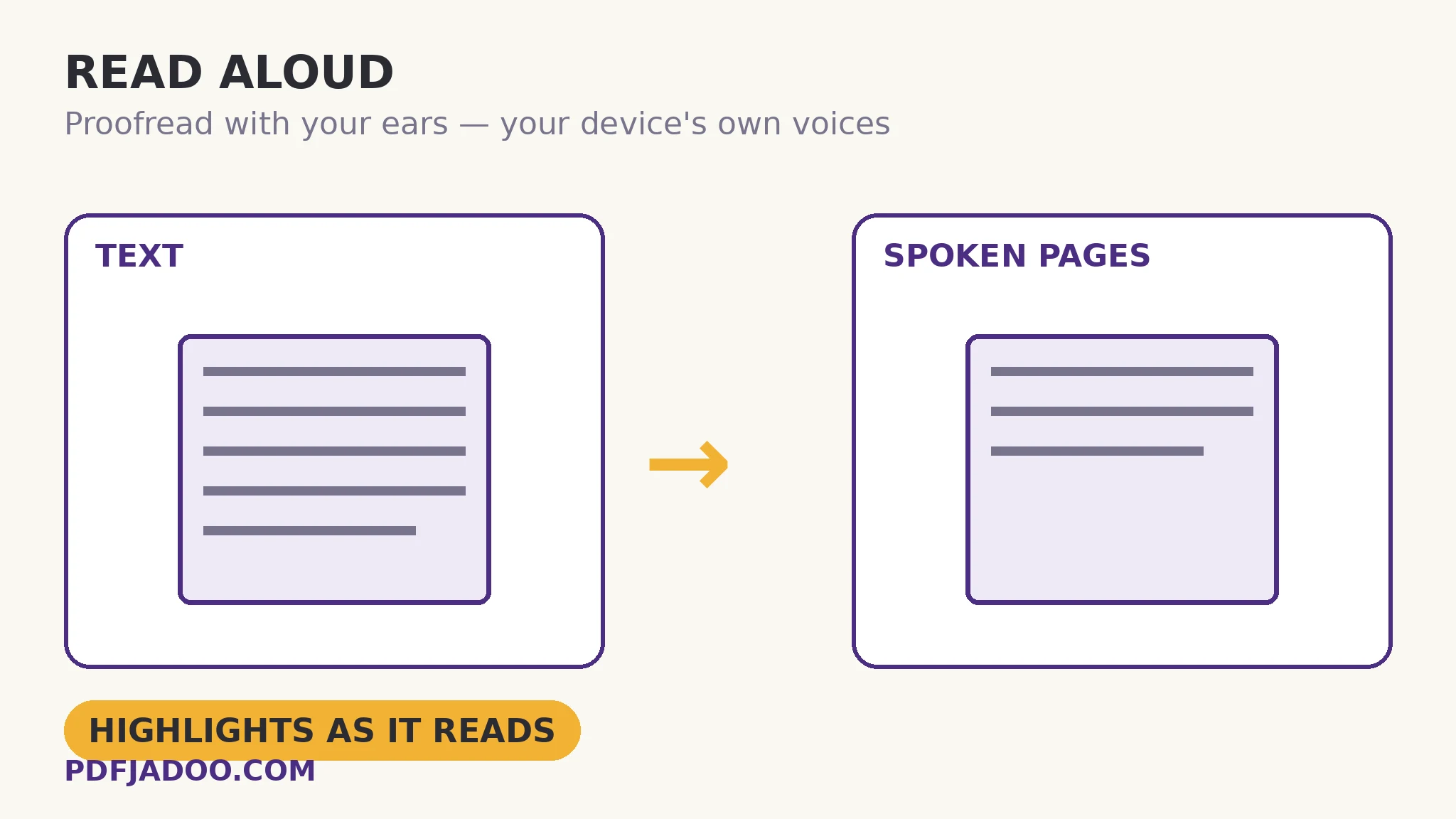
Ears catch what eyes forgive. The transposed words, the missing “not”, the sentence that only looks grammatical — reading aloud exposes them, which is why writers have always proofread by ear, and why listening is the access route for readers whose eyes cannot do the work. Read Aloud reads your PDF with your device's own voices (its speech synthesis — nothing is sent to a voice server), at your speed, highlighting the text as it reads — and it has one design decision that sets it apart: the document's text is extracted first and shown to you, editable, before anything is spoken. OCR's misreads, the header repeated on every page, the hyphenated line-breaks — you fix them before they are read into your ears. This article covers the listening workflows and the edit-first craft.
 By the PDFJadoo Team5 min read
Edit-first: why the transcript step matters
A PDF's raw text is a rough transcript of the reading experience: running headers repeat, footnotes intrude mid-sentence, columns can interleave, hyphenated words split across lines. A reader-aloud that speaks the raw extraction speaks all of that — the page number intoned every forty seconds, the header interrupting each thought. Extracting the text into an editable pane first converts the listener from a victim of the extraction into its editor: delete the furniture, join the split words, fix the OCR errors you can see (the ones you would otherwise hear, wrongly, as the document's content). Five minutes of editing buys an hour of clean listening — the best exchange rate in the accessibility toolkit. It also means the spoken version can be better than the document for listening: a table can be skipped with a note, a URL need not be spelled aloud.
The voices are the device's own — the speech synthesis built into your phone, tablet or computer — which carries the privacy property with it: no audio is generated on a server because no text is sent to one. Voice quality therefore varies by device (modern phones are remarkably good; older desktops less so), and the speed control adapts the reading to the material — slower for dense or proofread text, faster for skimming the familiar. The highlighting keeps eye and ear in sync for those following along on screen — the mode teachers and proofreaders actually use.
The precondition, stated
Listening needs text: a born-digital PDF extracts directly; a scan has no text to extract and must be OCRed first (Make a Scanned PDF Searchable) — after which its text, too, arrives in the editable pane, OCR errors and all, ready for the fixing pass that makes them listenable.
Listen to a PDF, step by step
Step 1 — drop the PDF onto Read Aloud. Text extraction and speech both happen on your device.
Step 2 — edit the extracted text. Remove headers, footers and page numbers; join split words; fix visible misreads; cut what ears don't need (tables, URLs, reference lists) or summarise them in a bracketed note.
Step 3 — choose voice and speed. Your device's voices, listed; speed matched to the material — proofreading slow, reviewing faster.
Step 4 — press play and follow the highlight. Pause where the ear catches what the eye missed; the text pane is the score.
Listening as a working method
Three professions of listening recur: proofreading (the author's own draft, heard fresh — errors announce themselves at speaking pace), accessibility (the document available to ears when eyes cannot, or cannot for long), and parallel work (the report absorbed on the walk, the drive, the chore — reading time recovered from the day's margins). The edit-first design serves all three: the proofreader fixes as she goes, the accessibility user controls the text completely, the walker queues a clean transcript rather than a raw one.
Hear the document — after you've made it worth hearing.
Text extracted and editable first; then your device's voices, your speed, highlighting as it reads.
Open Read AloudA worked example: the proofread that caught the “not”
A consultant's proposal survives three visual proofreads. Read aloud — text edited first: headers stripped, the pricing table replaced with “[pricing table]”, one OCR-style misread in a pasted paragraph fixed — the reading reaches page six and speaks: “the supplier will be liable for delivery delays.” The document says will not be liable — the “not” is present on the page, but her eye had supplied it so confidently across three readings that she never saw its absence in an earlier draft's sentence, and the habit persisted. The ear, which reads only what is written, caught it in one pass. The proposal went out with its meaning intact — the standing advertisement for proofreading at speaking pace.
Edge cases
Numbers and symbols. Voices read figures by their own rules (“1,250” as one thousand… usually); contracts and data-heavy text deserve the numbers checked in the edit pass and listened to with the pane in view.
Long documents. Listen in sittings; the editable pane can be trimmed to the chapter at hand — extract per section by splitting the PDF first if the whole is unwieldy.
Voice availability. The voices are the device's: a phone typically offers several good ones per language; a bare desktop may offer one. The tool lists what the device has — choosing the clearest is the whole setup.
Before you finish: the 60-second check
- The extracted text was edited before speaking: furniture out, splits joined, misreads fixed
- Tables and URLs were cut or noted — ears don't need them spelled
- Speed matched the act: slow for proofreading, faster for review
- Scans were OCRed first — no text, no reading
- Numbers were listened to with the text pane in view
Fair questions
How do I listen to a PDF read aloud for free?
Drop the PDF onto Read Aloud. Its text is extracted into an editable pane — tidy it first — then your device's own voices read it at your chosen speed, highlighting as they go. Nothing is sent to a server.
Why can I edit the text before it is read?
Because raw PDF text carries furniture — repeated headers, page numbers, split words — that ears should not suffer. Editing first turns a rough extraction into a clean listening script, and lets you fix misreads before they are spoken.
Which voices does it use?
Your device's built-in speech voices — the tool lists what your phone, tablet or computer offers. Quality varies by device; modern phones are excellent. No voice server is involved, so nothing is uploaded.
Can it read a scanned PDF?
Not directly — a scan has no text. OCR it first (Make a Scanned PDF Searchable), then read the searchable result aloud; the edit pane lets you fix OCR errors before they are spoken.
Does it highlight while reading?
Yes — the current text is highlighted as it is spoken, so eye and ear stay in sync: the mode proofreaders and teachers use.
Is my document uploaded for speech?
No — extraction and speech synthesis both happen on your device.
Tool behaviour — device speech-synthesis voices, speed control, reading highlight, the extract-and-edit-before-speaking flow, and the OCR-first rule for scans — is from PDFJadoo's own Read Aloud page. Checked 18 November 2026.
Keep reading
Read a PDF in the browser
The eyes' route: same document, opened locally, zoom and page-jump.
Make a scanned PDF searchable
The scan's text layer — the listening precondition.
Summarize a PDF (extractive)
Too long to hear whole? The key sentences first, then listen where it matters.
Extract text from a PDF
The transcript itself, as a file — for any other reader or tool.