Read a PDF in the browser: the file opens here, and stays here
Two reading problems recur. The machine in front of you has no PDF reader installed — the library computer, the borrowed laptop, the locked-down work terminal. And the document in front of you should not be uploaded to a stranger's web viewer — which is how most “online readers” work. PDF Reader dissolves both: drop the file into the browser tab and read — zoom to fit the width, or 100%, 150%, 200%, go to any page, turn pages with the arrow keys — with the file opened locally on your device, never uploaded. The reader is deliberately simple: it is for reading, and this article covers its small craft and its place beside the heavier tools.
 By the PDFJadoo Team4 min read
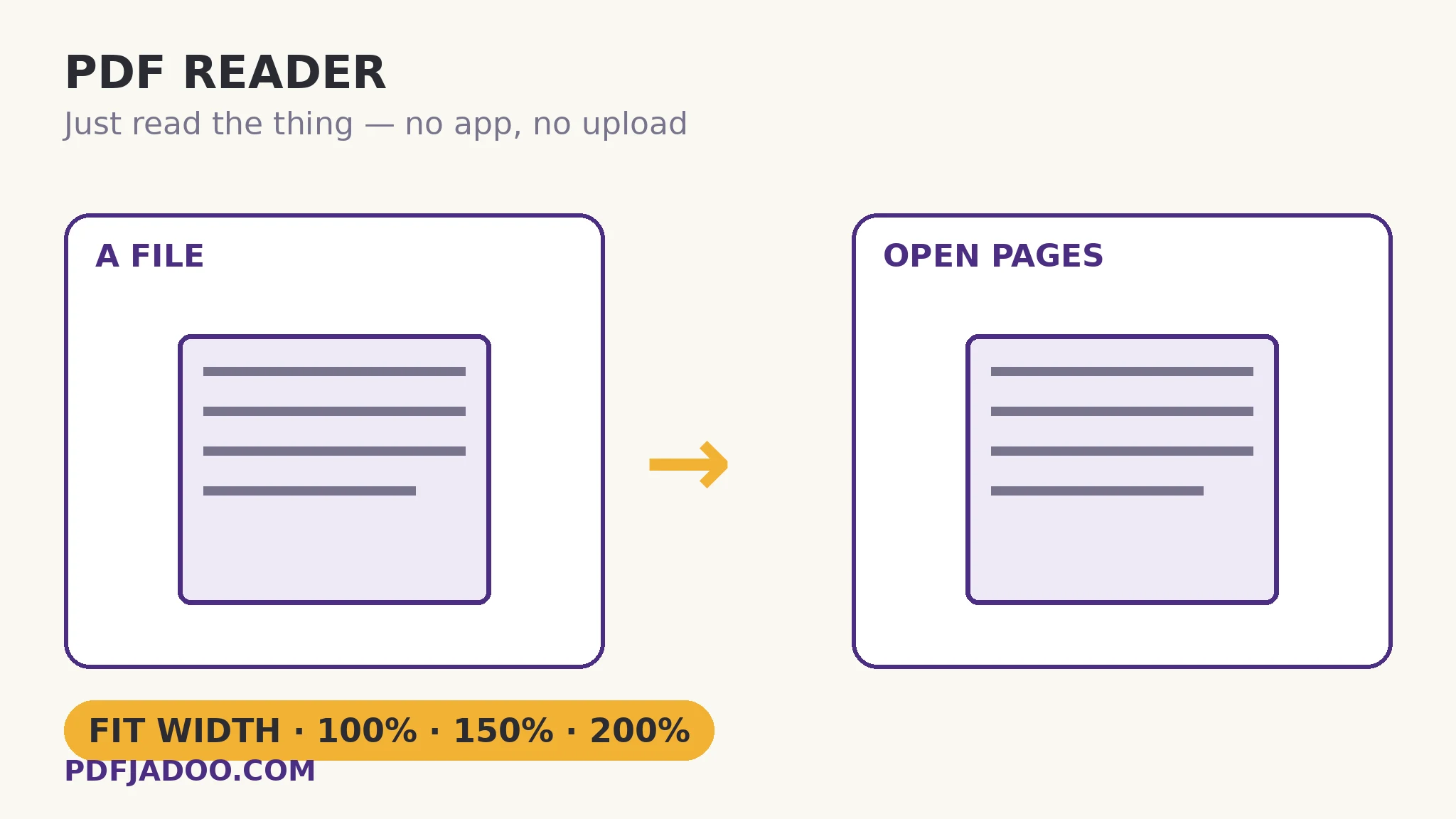
The reader's small, complete kit
Reading a document needs exactly four things, and the reader has exactly those. Zoom with intent: fit-width is the reading default — the page scaled so its lines span your screen, the way a book fills your field of view; 100% is true size (the print preview of the mind — how big will this actually be?); 150% and 200% are the inspection gears, for small print, detailed figures and tired eyes. Go-to-page: type the number, land there — the control that separates a reader from a scroller in any document past twenty pages, and the partner of every citation (“page 47”) the rest of this kit produces. Arrow keys: pages turn from the keyboard, hands uncommitted — the reading rhythm of a document you are working through rather than glancing at. Nothing else is included, and the absence is the design: no editing, no converting, no account, no library of your files kept anywhere — open, read, close.
The privacy property deserves its own emphasis because web readers vary wildly here. This one renders the file in the tab, from your disk: the bytes never travel. For the contract on the borrowed laptop, the records on the shared machine, the manuscript on the library computer — the reading leaves no copy behind on anyone's server, which is the only acceptable behaviour for a good fraction of the world's PDFs.
Where the reader sits in the kit
The reader is the kit's front door: the fastest way to look at a file before deciding what it needs. Inspection starts here (does it open? how many pages? does page 3 look right?) and routes onward — to the inspector for structure, to chat for interrogation, to read-aloud when the eyes need rest. Half the documents dropped into it need nothing more than reading — and for those, it is the whole tool, complete in one tab.
Read a PDF in the browser, step by step
Step 1 — drop the PDF onto PDF Reader. It opens in the tab, from your device — nothing uploads.
Step 2 — set the zoom. Fit-width to read; 100% for true size; 150–200% for small print and figures.
Step 3 — navigate like a reader. Arrow keys to turn pages; the page field to jump — citations land exactly.
Step 4 — close the tab when done. No copy remains anywhere; the file lives where it always lived.
A note on fidelity
The reader renders with the browser's own PDF machinery lineage — the same rendering family as the rest of this kit — so what you see is the document as its pages are: fonts, layout and images as authored. A page that renders wrongly here is telling you something about the file (the inspector will say what), not about the reader.
Open it. Read it. Nothing leaves the machine.
Fit-width reading, true-size checks, deep zoom, page-jump and arrow keys — in the tab, from your disk.
Open PDF ReaderA worked example: the contract on the borrowed laptop
A signing, away from the office: the final agreement arrives by email on a borrowed laptop with no reader installed and no permission to install one — and the document is under NDA, so the “free online PDF viewer” route is out of the question. The browser reader opens it locally: 90 pages, fit-width for the read-through, a jump to page 47 for the clause that changed, 150% for the schedule's small print. The signing proceeds; the tab closes; the borrowed machine holds nothing but its owner's files. The tool was a tab. That was the entire requirement — and most tools would have failed it on the upload alone.
Edge cases
Password-locked files. A document with an open password needs its password — the reader is a reader, not a lockpick; unlock a copy you own with the password you know, then read.
Enormous files on weak machines. Rendering is local, so a 500-page scan on an old laptop renders at the machine's pace — page-by-page navigation still serves; heavy processing belongs to a stronger device.
Forms. Reading shows a form's face; filling belongs to the fill editor, whose fields are live. Judge which act the moment needs.
Before you finish: the 60-second check
- Zoom matched to the act: fit-width to read, 100% for size, 150–200% to inspect
- Page-jump used for citations — no scrolling expeditions
- The file was opened locally — no upload-reader was trusted with it
- Locked files were unlocked as owned copies first, never forced
- The reader was the triage step: route onward only what needs more
Fair questions
How do I read a PDF without installing anything?
Drop the file onto PDF Reader in your browser. It opens in the tab — zoom to fit-width or 100/150/200%, go to any page, turn pages with the arrow keys. Nothing installs and nothing uploads.
Is my PDF uploaded to the online reader?
No — the file is opened and rendered locally on your device, in the tab. That is the design's point: documents that should not visit a server can still be read anywhere.
What zoom levels are there?
Fit-width (the reading default), 100% true size, and 150% and 200% for small print, figures and accessibility.
Can I jump to a specific page?
Yes — type the page number and land there. With arrow keys for turning pages, long documents navigate like documents, not scrolls.
Can I fill a form in the reader?
The reader shows the form's face; filling belongs to Fill PDF Forms, where the fields are live and answers are written back into the file.
Why does a page render oddly here?
The reader shows the document as authored — an odd render usually indicts the file (missing fonts, damage). PDF Inspector will name the structural cause.
Tool behaviour — local in-tab reading, fit-width and 100/150/200% zooms, go-to-page and arrow-key navigation, with no upload — is from PDFJadoo's own PDF Reader page. Checked 18 November 2026.
Keep reading
Listen to a PDF read aloud
Eyes tired? The same document, through the ears — with your edits first.
Chat with a PDF — locally
Reading done, questions remain: passages quoted with page numbers.
PDF Inspector: a file checkup
The page renders oddly? The structural chart explains the file.
Fill a PDF form's real fields
The form needs answers, not just reading — fields live there.