Insert pages into a PDF: a whole document, placed after any page
Documents grow by annex: the report is final, then the appendix arrives as its own PDF; the filing is complete, then the missing exhibit surfaces; the manual needs the new chapter inside, not stapled behind. Insert Pages performs the graft in one move: a second PDF's pages are inserted into the first — all of them, together — after the page you name, with 0 meaning the very front. It is deliberately the coarse tool — whole documents, one position — with the tool itself pointing at Organize Pages for finer surgery. This article covers the annex workflow, the page-number aftermath that separates careful work from careless, and choosing between the coarse tool and the fine one.
 By the PDFJadoo Team5 min read
The coarse tool, proudly
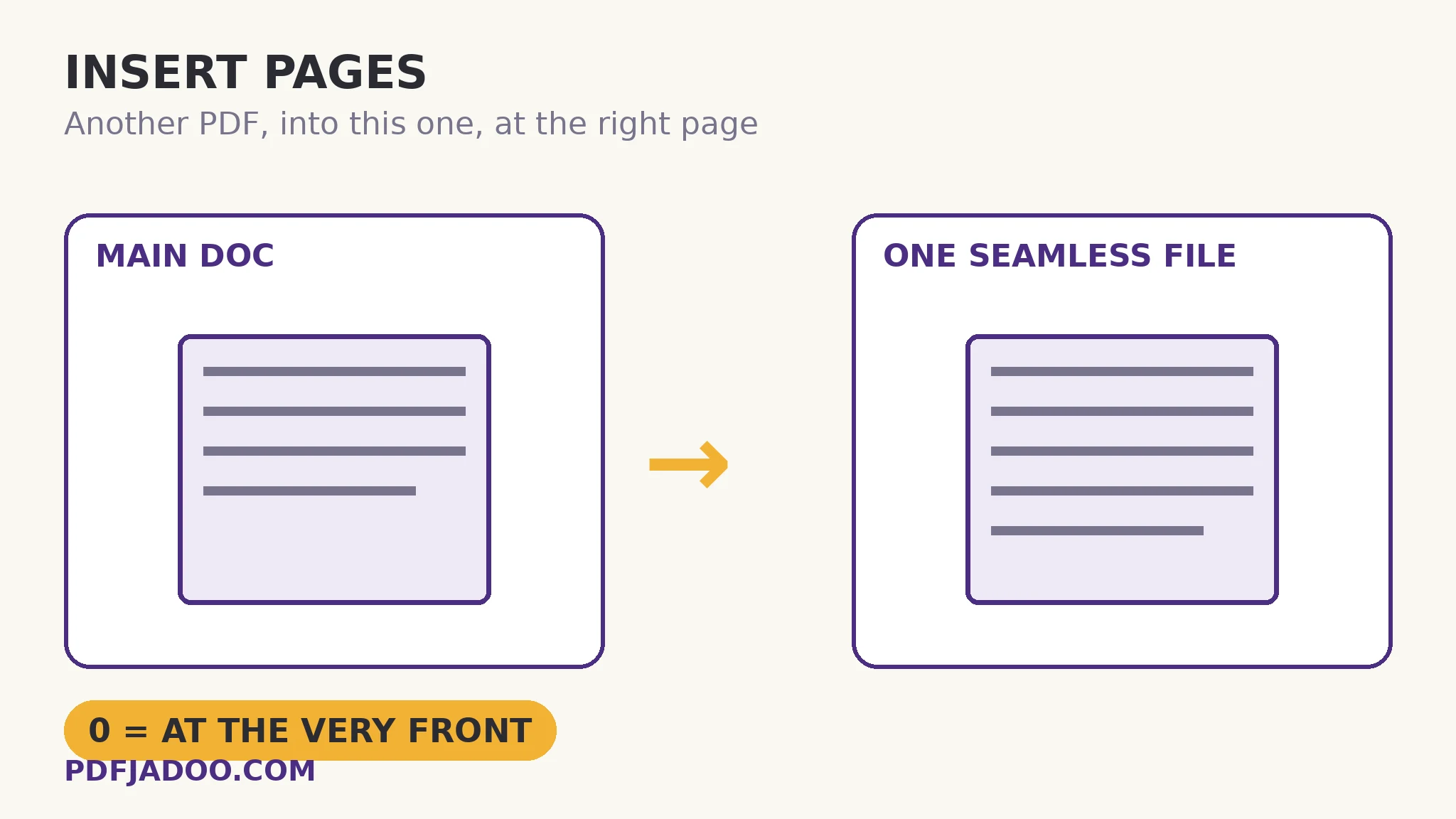
Insert Pages does one thing with total clarity: all of document B, at one position in document A. No page picking, no interleaving, no reordering within the graft. That coarseness is a feature for its true jobs — annexes, appendices, exhibits, chapters, the signed page that must sit inside the agreement — because those jobs are whole-document jobs, and a tool that asks twelve questions to do them invites twelve errors. The position language is exact: insert after page N — after 12 means the graft begins at 13 — and 0 is the front, the cover-position insert (a title page added to a document that lacked one is the classic page-0 graft).
The aftermath is where craft lives. An insertion shifts every following page: printed folios now lie (“page 30” is the file's 34th), a contents page's numbers drift, bookmarks after the graft point at stale pages, and “Page X of Y” footers disagree with the new total. The professional sequence inserts before the numbering passes: graft first, then page numbers, headers and outline are applied to the assembled document. Inserting into an already-numbered document is sometimes unavoidable — then the honest repair is to re-run the numbering on the result, not to leave two numbering regimes in one file.
Coarse vs fine: Insert or Organize?
Insert when a whole document joins at one point. Organize Pages when pages interleave, reorder, or arrive one by one from several sources — the thumbnail-grid surgery. Merge when documents simply concatenate end to end. The three are a family with distinct grips; reaching for Organize to do an annex's job is as wasteful as reaching for Insert to interleave a collated set. Name the job's shape first; the tool follows.
Insert pages, step by step
Step 1 — drop the main PDF onto Insert Pages, then the PDF to insert. Order is meaning: main first, graft second. Both stay in your browser.
Step 2 — name the position. After which page of the main document the graft belongs — 0 for the very front.
Step 3 — press Insert the pages. The assembled document downloads: main, graft whole at the position, main resumes.
Step 4 — verify the seams. The page before the graft, the graft's first and last pages, the page after — three glances that certify the join.
Step 5 — then number. Page numbers, headers, bookmarks — applied to the assembled whole, in that order of operations.
Multiple grafts
Two annexes at two positions? Two passes, working back to front (insert the later graft first) so the first pass's page numbers — the ones you counted by — don't shift under you. Or assemble in Organize in one sitting. Either way: positions are counted in the document as it stands when the graft is made, and the back-to-front rule keeps the counting honest.
The annex belongs inside the document. Put it there.
A whole second PDF, inserted after any page — or at the front with page 0 — in one move.
Open Insert PagesA worked example: the exhibit that arrived late
A 60-page regulatory filing is assembled and paginated when the missing exhibit — a 6-page test report — lands. It belongs after the filing's page 41, as Exhibit C. The graft takes a minute: test report inserted whole after page 41. Then the aftermath, done properly: the filing is re-numbered (its “Page X of 66” now true), the contents page's exhibit entry gains its page, and a bookmark for Exhibit C is written at its new position. The filing that ships is internally true — every reference in it lands where it claims. The graft was the easy part; the truth-telling afterwards is the professionalism.
Edge cases
Mismatched page sizes. An A4 annex in a Letter filing (or the reverse) inserts faithfully and looks foreign; resize one set to the house size before or after grafting.
The graft needs only some pages. Extract the needed pages from the source first (Extract Pages), then insert the extract whole — the coarse tool fed a prepared graft.
Encrypted sources. A locked graft or main file must be unlocked with its known password before assembly.
Before you finish: the 60-second check
- Main first, graft second — and the position counted in the document as it stands
- Back-to-front order for multiple grafts
- Seams verified: before, first, last, after
- Numbering, headers and bookmarks applied (or re-applied) AFTER assembly
- Partial grafts were prepared with Extract Pages first
Fair questions
How do I insert one PDF into another?
Drop the main PDF onto Insert Pages, then the PDF to insert, name the page to insert after (0 for the very front), and press Insert the pages. The second document's pages go in whole, together, at that position.
What does “insert after page 0” mean?
The very front — the inserted pages become the document's opening pages. Adding a cover or title page to a document that lacks one is the classic use.
Can I insert only some pages of the second PDF?
The tool inserts the whole document — that is its design. For a partial graft, extract the needed pages into their own PDF first, then insert that whole.
What happens to page numbers after inserting?
They shift — every page after the graft moves by the graft's length, so printed numbers, contents pages and bookmarks can go stale. Insert before numbering, or re-apply numbers, headers and bookmarks to the assembled document.
Insert Pages or Organize Pages — which do I need?
Insert for a whole document at one position (annexes, exhibits, chapters). Organize for interleaving, reordering or assembling page-by-page from several sources. Merge for simple end-to-end joining.
Are my files uploaded?
No — the assembly runs in your browser; both documents stay on your device.
Tool behaviour — whole-document insertion after a named page, 0 meaning the front, and the pointer to Organize Pages for finer control — is from PDFJadoo's own Insert Pages page. Checked 18 November 2026.
Keep reading
Extract pages from a PDF
Preparing the partial graft: the needed pages, out as their own PDF.
Reorder PDF pages
The fine surgery: interleaving and arranging on the thumbnail grid.
Merge PDF files into one
The simple join: documents end to end, in order.
Add page numbers to a PDF
The aftermath done right: numbering applied to the assembled whole.