ID card scan: front and back, one page, submittable
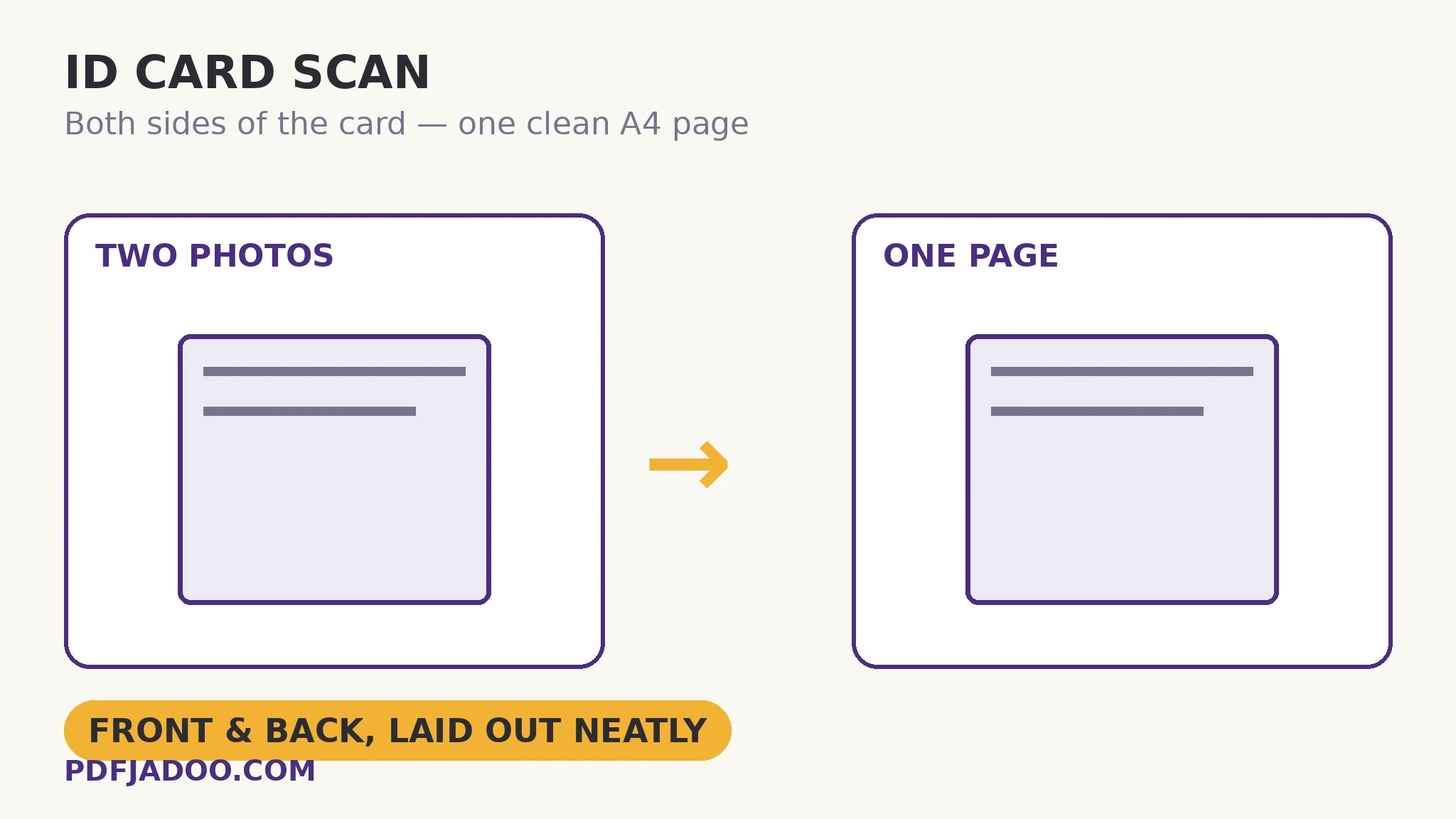
Every verification flow asks for the same artefact: both sides of your ID, on a single page. What applicants have is two phone photos — different light, different angles, one of them upside down. ID Card Scan builds the artefact: photograph the front (and the back, when the application needs it), each photo is cleaned — brightness and contrast corrected — and the sides are laid out together on one A4 page (or one side per page, when a portal prefers that). This article covers the capture and the submission craft around the most scrutinised page in any application.
 By the PDFJadoo Team4 min read
Why one page, and why cleaned
The one-page layout is not bureaucratic fussiness: a reviewer verifying identity compares the sides together — the portrait and number on the front against the machine-readable zone or endorsements on the back — and a single page guarantees the two sides belong to the same submission, at the same scale, in the same light. Two loose uploads invite mismatch and rejection; the composed page is the unit of trust. The cleaning — brightness and contrast correction — serves legibility under scrutiny: the embossed number caught in shadow, the washed-out photo under kitchen light. A verification page is read by a human or a machine with a threshold; cleaning moves marginal captures across it.
The one-side-per-page variant exists because portals differ: some specify a single combined page, others take a two-page PDF. The tool's layout choice covers both from the same two photographs — capture once, lay out as the destination demands.
Capture craft for the most-checked page
ID photos fail verification for photographic reasons more than any other: glare on the laminate (angle the card, not the light, until the sheen leaves the number), blur (tap-focus on the text; the card's small print is the resolution test), cut corners (all four corners in frame — a cropped corner reads as a cropped document), and shadow (the phone's own, across the portrait). The cleaning corrects brightness and contrast; it cannot invent a corner or un-glare a number. Ten extra seconds at capture is the whole secret, and the re-shoot costs nothing while the card is still in your hand.
Make the ID page, step by step
Step 1 — photograph the front with ID Card Scan. Card flat, corners in frame, glare angled away, tap-focused. Processing is on your device — an ID is the last document that should visit a server.
Step 2 — photograph the back, if the application asks for it. Same care; the back's small print is usually the finer test.
Step 3 — choose the layout. Both sides on one A4 page (the classic ask) or one side per page.
Step 4 — inspect at full size. Number legible, portrait clear, corners whole, nothing mirrored. This page will be judged; judge it first.
Handling the artefact
The composed page is a concentrated identity document — front, back, portrait, number — and deserves concentrated handling: submit it to the intended portal, keep your copy somewhere deliberate, and never let it drift into shared folders or chat threads. The tool's on-device processing is the first half of that hygiene; your filing is the second.
Both sides. One page. Accepted the first time.
Front and back photographs, cleaned and composed on A4 — the verification page, built properly.
Open ID Card ScanA worked example: the licence verification, first-time-right
A delivery-platform application asks for “both sides of your driving licence, single page”. The applicant's first attempt — two loose photos, the back one glared across the endorsements — is rejected within the hour. The composed route: both sides re-photographed with the glare angled off, cleaned, laid out on one A4 page, inspected at full size (endorsements legible, all corners whole). Uploaded once; verified the same afternoon. The difference was not the licence; it was the artefact — the same evidence, presented as the single scrutinisable page the process is built to judge.
Edge cases
Front-only applications. Passports and single-sided cards need just the front — the back photograph is optional in the tool, as it is in the ask.
The portal wants separate images. Lay out one side per page, or export the cleaned photos via the page scanner's per-page output — capture once, formats many.
Worn cards. A faded card cleans up in contrast but stays faded in fact; if the source itself is marginal, a flatbed scan at high resolution may serve better — judge the full-size inspection honestly.
Before you finish: the 60-second check
- All four corners in frame on both sides — nothing cropped, nothing mirrored
- Glare angled off the number and endorsements before capture, not hoped away after
- Layout matches the ask: one combined A4 page, or one side per page
- The composed page was inspected at full size — judged before the judges
- The artefact is filed deliberately: a concentrated identity document, handled like one
Fair questions
How do I put both sides of my ID on one page?
Photograph the front and back with ID Card Scan: each photo is cleaned (brightness and contrast corrected) and the two sides are laid out together on one A4 page, ready to submit. One side per page is also available.
Why do applications want both sides on one page?
So a reviewer can judge the sides together — portrait and number against the back's data — as one artefact at one scale, belonging to one submission. Two loose photos invite mismatch and rejection.
My card photo has glare on it. Can cleaning fix it?
Cleaning corrects brightness and contrast, but glare that hides the number must be fixed at capture: angle the card until the sheen leaves the text, then photograph. Re-shooting costs nothing while the card is in your hand.
Do I need the back of a passport?
Only photograph what the application asks for — the back step is optional. Passports and single-sided cards are front-only jobs.
Is my ID uploaded to a server?
No — capture, cleaning and layout happen on your device. An identity document is the last file that should travel, and here it does not.
What if the portal wants separate files per side?
Choose the one-side-per-page layout, or export the cleaned captures as separate images via the Scan to PDF per-page output — one capture session, several formats.
Tool behaviour — front and optional back capture, brightness/contrast cleaning, and the one-A4-page or one-side-per-page layouts — is from PDFJadoo's own ID Card Scan page. Checked 18 November 2026.
Keep reading
Scan documents with your phone
Full pages from the same camera: perspective and shadows handled.
Passport Photo Maker: how it works
The other identity artefact: the compliant photo itself, spec by spec.
Compress a PDF without losing quality
Portal has a size cap? The composed page, shrunk honestly.
Password-protect a PDF
Keeping your own copy of the ID page? Guard the file properly.