Scan with your phone: photographs, given a scanner's manners
The phone in your pocket out-resolves most office scanners — and produces worse documents, because a photograph is not a scan: the page is a trapezoid, the lighting is a gradient, the desk shows at the edges. Scan to PDF supplies the manners: photograph pages in order, and each is perspective-straightened (the trapezoid becomes a rectangle) and shadow-levelled, in your choice of Document, Greyscale, Black & White or Natural look — delivered as one PDF, or as JPG/PNG per page, compiled all-in-one or as separate files. This article covers the capture craft and the four looks, because the tool's half of the bargain only pays if your half — the photographing — is done with a little care.
 By the PDFJadoo Team5 min read
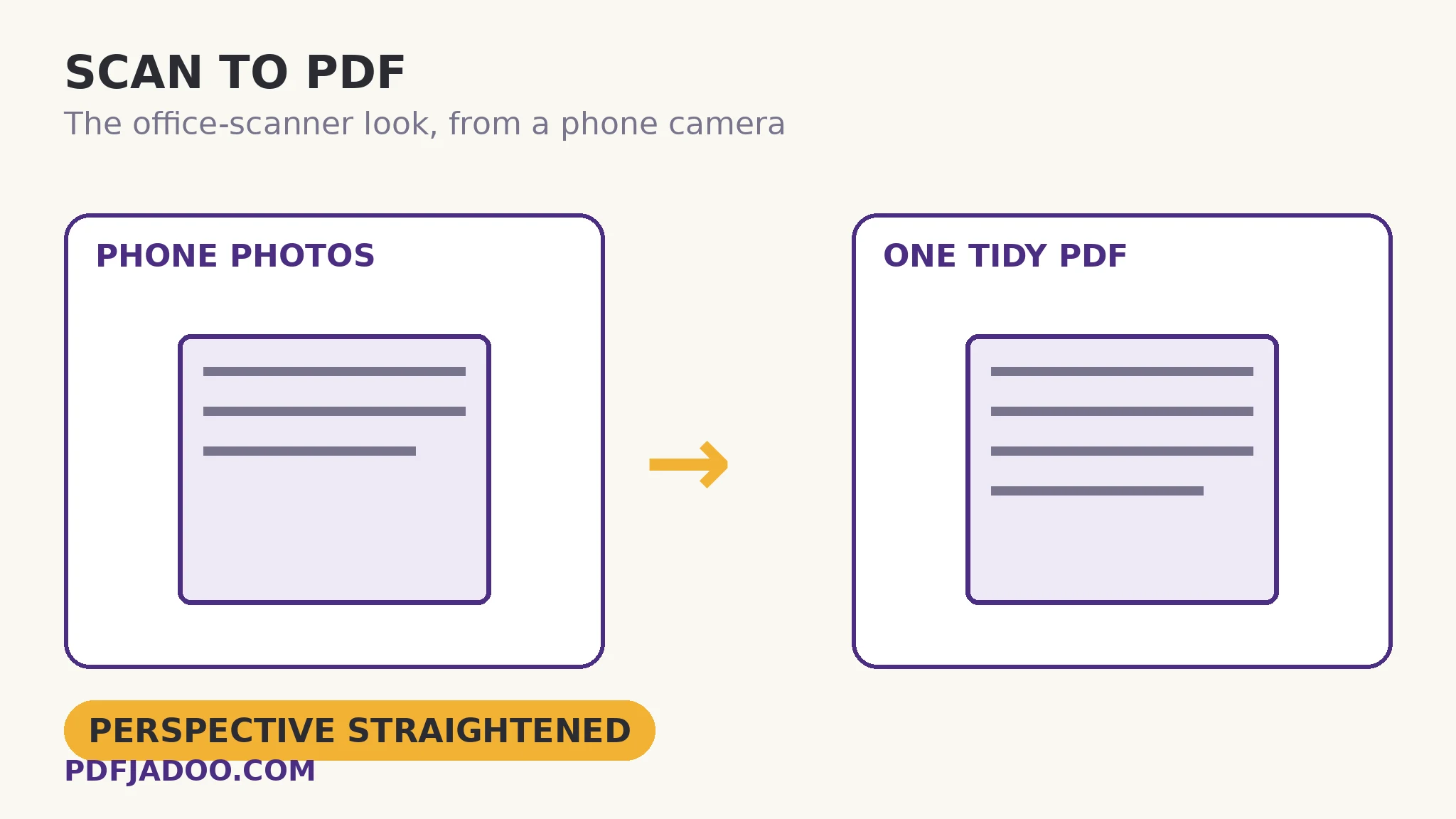
What the corrections actually do
Perspective straightening finds the page's four corners in the photograph and re-projects the trapezoid they form into a true rectangle — the keystone distortion of an angled camera unwound mathematically. Text lines that converged become parallel; the page's proportions return. Shadow levelling evens the illumination: the gradient from window-light, the shadow of the photographer's hand, the darker far edge — the background is estimated and divided out, leaving paper that reads as uniformly white. Together they perform the scanner's two physical virtues — a flat bed and even light — in software.
The four looks are four finishes for four destinies. Document: the clean office finish — bright, contrasty, text-forward; the default for paperwork. Greyscale: photographs and shaded material preserved in tone, ink-jet friendly. Black & White: the fax-pure finish — smallest files, starkest text, best for forms and for OCR's appetite. Natural: the page as it truly looks, colour and all — receipts with stamps, annotated pages, anything whose colour is information. Choosing per document (not per habit) is the craft: the signed contract in Document, the stamped receipt in Natural, the form in B&W.
Output shapes
The deliverable flexes: one PDF of all pages (the document as a document), or per-page JPG/PNG images (for uploads that want pictures, or pages bound for other tools) — and the set can be compiled into one file or kept as separate files. Form portals that demand “one PDF under 2 MB” and portals that demand “each page as an image” are both served from the same capture session.
Scan a document with your phone, step by step
Step 1 — set the stage. Page flat on a contrasting surface, light bright and diffuse (two lamps beat one; daylight from the side beats a ceiling bulb), phone parallel to the page, page filling the frame.
Step 2 — open Scan to PDF and photograph the pages in order. The tool works in your browser — the pages are processed on the device that photographed them.
Step 3 — choose the look per document. Document for paperwork, B&W for forms, Natural for colour-bearing pages, Greyscale between.
Step 4 — choose the output. One PDF for a document; per-page images for portals and pipelines; compiled or separate as the destination demands.
Step 5 — inspect page one at full size. Corners square, shadows gone, smallest text legible — the capture's verdict is readable in ten seconds, and a re-shoot is cheapest now.
Capture craft, the short course
Fill the frame (pixels on the page are resolution; pixels on the desk are waste). Tap to focus on the text. Keep the phone's shadow off the page — light from the side, body to the other side. Flatten curled pages under a hand at the edge (outside the frame) or a sheet of glass for the precious ones. These four habits move phone scans from “acceptable” to “indistinguishable from a flatbed” more than any setting.
Your pocket scanner, with manners.
Pages photographed in order — straightened, levelled, finished in your look — out as one PDF or per-page images.
Open Scan to PDFA worked example: the rental agreement, signed at a kitchen table
Eight pages, no scanner in the house, a deadline tonight. Photographed on the table under two lamps, Document look, one PDF out: corners square, the landlord's faint pencil annotations still legible in the margins (Document keeps light greys), every page's text level. The PDF is emailed, accepted, filed. The same session re-output as per-page PNGs serves the letting portal that wanted images. One capture, two deliverables — and nobody who reads the agreement will ever know a scanner wasn't involved, which is the definition of the job done.
Edge cases
Books. A bound volume's spread is two pages with a curved spine — a different geometry with its own tool: Book Scan splits spreads at the spine.
ID cards. Front-and-back-on-one-page has its own layout tool: ID Card Scan.
Glossy pages. Reflections defeat levelling; angle the light (not the phone) until the sheen moves off the text, or diffuse it with a sheet of paper over the lamp.
Before you finish: the 60-second check
- Stage set: contrasting surface, diffuse light, phone parallel, page filling the frame
- Pages photographed in order — the document's sequence is the capture's sequence
- Look chosen per document: Document, Greyscale, B&W or Natural — by destiny, not habit
- Output shape matches the destination: one PDF, or per-page images, compiled or separate
- Page one inspected at full size before the originals were put away
Fair questions
How do I scan documents with my phone for free?
Open Scan to PDF and photograph the pages in order. Each is perspective-straightened and shadow-levelled in your chosen look, and delivered as one PDF or as JPG/PNG per page — processed on your device.
What do the four looks mean?
Document: the clean, contrasty office finish for paperwork. Greyscale: tones preserved, no colour. Black & White: stark, smallest files, ideal for forms and OCR. Natural: the page's true colours — for stamps, annotations and colour that is information.
How does it fix angled photos?
The page's corners are detected and the trapezoid is re-projected into a rectangle, while the illumination is levelled to remove shadow gradients — the flatbed scanner's two virtues, in software.
Can I get each page as an image instead of a PDF?
Yes — output can be JPG or PNG per page, compiled into one file or kept as separate files, as well as the all-in-one PDF.
How is this different from Book Scan or ID Card Scan?
This tool scans loose pages. Book Scan splits photographed spreads into single pages at the spine; ID Card Scan lays a card's front and back out on one page. Same capture manners, specialised geometry.
Are my pages uploaded?
No — capture and processing happen on your device, in your browser.
Tool behaviour — in-order camera capture, perspective straightening, shadow levelling, the four looks, and PDF or per-page JPG/PNG output compiled or separate — is from PDFJadoo's own Scan to PDF page. Checked 18 November 2026.
Keep reading
Scan book pages and spreads
Bound volumes: spreads split at the spine into single pages.
ID card: both sides, one page
The card layout portals ask for, from two photos.
OCR image to text
Words out of a single photo — the screenshot and notice-board tool.
Make a scanned PDF searchable
The scanned document, made findable: a text layer via OCR.