Header & footer: set it once — every page wears it
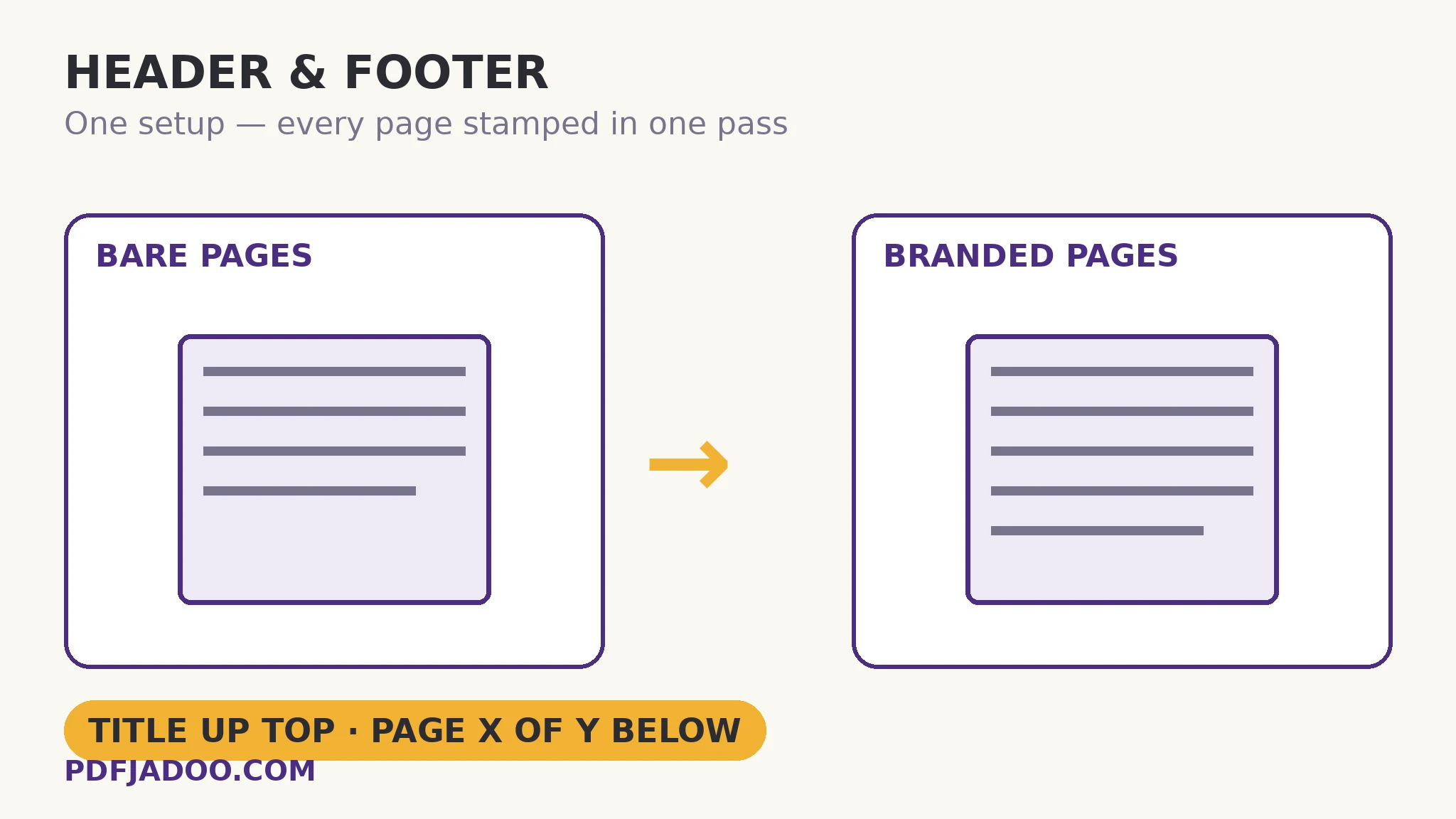
A report's pages need furniture: a title at the top so a loose page knows its document, a confidentiality line at the bottom so it knows its rules, and page numbers that actually count. Doing that by hand across forty pages is not a job; it is a punishment. Header & Footer is the stamping press for it: set header text, footer text, their positions, size, colour and distances from the edges once, watch the live preview of the first stamped page, and every page of the document is furnished in one pass — cover optionally skipped. This article is about the furniture decisions, which are the same ones book designers make, miniaturised.
 By the PDFJadoo Team6 min read
What belongs in the furniture — and what does not
The header's job is identification: the document's title, perhaps the project or the date — the line that lets a single printed page, separated from its set, announce what it belongs to. The footer's job is governance and navigation: the confidentiality or handling line (“Internal — do not distribute”), the organisation, and the page number. The tool supports the full arrangement: header and footer text independently, each positioned left, centre or right; text size from 8 to 16 pt; preset or custom colour; distances from the top and bottom edges (44 pt and 40 pt are the defaults the tool opens with); a page-number position of its own, with the footer able to show “Page X of Y”; a first page number setting for documents whose count starts elsewhere; and skip the first page for the cover.
What does not belong: anything that changes per page (that is content, not furniture), anything long (furniture is read at a glance, at small size, on every page — a sentence becomes wallpaper), and anything the page already says (a header repeating the page's own heading is noise). The live preview of the first stamped page exists because furniture judgement is visual: you are checking collisions — does the header sit clear of the document's own title block? does the footer line fight the page's existing footer? — and weight: furniture should be present at a glance and invisible at a read.
Stamped, therefore permanent — the sequencing rule again
Like page numbers, header and footer text is drawn onto the pages as content. It prints, it copies, it survives. Two consequences: stamp the final document (after assembly edits), because the furniture will not follow later changes; and stamp a copy when the clean original must stay clean — the tool never touches your original file, which stays on your device unstamped, so the discipline is simply in which file you send.
Add a header and footer, step by step
Step 1 — drop the finished PDF onto Header & Footer. Assembled, pruned, ordered — furniture is a finishing act.
Step 2 — write the furniture. Header: the title, short. Footer: the handling line. Keep both glanceable.
Step 3 — place and size them. Positions per element, size in the 8–16 pt band, colour preset or custom, distances from the edges — then read the live preview like a stranger: clear of the page's own furniture? quiet at reading distance?
Step 4 — settle numbers and the cover. Page numbers on, in the footer as “Page X of Y” if the set-integrity matters; first-page number set if the count starts elsewhere; cover skipped if the document has one.
Step 5 — stamp and verify a middle page. The preview showed page one; check page twenty in the saved file — furniture must sit identically where the content is densest.
Furniture across a document family
The quiet power of a stamping tool is consistency across files: the same header text, position, size and colour applied to the report, its appendix and its summary makes three files read as one publication. Decide the house style once — title top-centre, handling line bottom-left, Page X of Y bottom-right, one colour — and apply it to everything the project sends out. Recipients feel the order before they can name it.
Furnish the document.
Title, handling line and counting page numbers — set once, previewed live, stamped on every page in one pass.
Open Header & FooterSources
- Adobe — Add headers, footers and Bates numbering to PDFs: Adobe's account of stamping headers and footers across every page, including margins and page-range options — checked against the setup in this guide.
- Tool behaviour — the steps and limits in this guide are from PDFJadoo's own Header & Footer tool page, checked 18 November 2026; the file never leaves your device, so the result you preview is the file you save.
A worked example: the board pack
A monthly board pack is assembled from five sources into one 46-page PDF: finance export, HR summary, two scanned annexes, a chart appendix. Assembled, it reads as five documents in a trench coat. One furniture pass changes its nature: header — the pack's title and month, top-centre, quiet grey; footer — “Board — Confidential” bottom-left, “Page X of 46” bottom-right; cover skipped. Now a page found loose on the printer tray announces its document, its month, its handling rule and its place in the set. The content did not change at all; the document became governable. That is what furniture is for.
Edge cases
Pages that already wear furniture. Source documents with their own headers get a second layer — usually visually obvious in preview. The honest fixes are positioning (use the free edge) or accepting the double stamp on annexes only.
Mixed page sizes. Distances are from each page's edges, so furniture tracks the page; very small pages may crowd — check the smallest page in the saved file, not just the preview's first page.
Colour discipline. A loud colour at small size on every page shouts forty times. The presets exist because furniture colours are a solved problem: quiet, dark, ignorable until needed.
Before you finish: the 60-second check
- The document was final — assembled and pruned — before stamping
- Header identifies, footer governs; both are glanceable, neither is a sentence
- The live preview was read for collisions with the pages' own furniture
- Page numbers and the cover decision were set deliberately
- A dense middle page was verified in the saved file
- The same house style will be reused across the document family
Fair questions
How do I add a header and footer to a PDF for free?
Drop the PDF onto Header & Footer, type the header and footer text, set positions, size, colour and edge distances, check the live preview, and stamp — every page furnished in one pass, in your browser.
Can the footer show “Page X of Y” automatically?
Yes — page numbers can be shown in the footer in Page X of Y form, with their own position (bottom-left, centre or right), and a first-page-number setting if your document's count starts somewhere other than 1.
Can I skip the cover page?
Yes — “skip the first page (cover)” leaves the cover bare while the rest of the document is stamped, the standard book and report convention.
Is the header stamped as real content or an overlay?
As content — drawn onto each page, so it prints and copies with the document. Stamp the final assembled file; the furniture will not renumber or move if pages change later. Your original file is never modified.
What sizes and positions are available?
Text sizes from 8 to 16 pt; header positions top-left, centre or right; footer positions bottom-left, centre or right; header and footer distances from their edges are adjustable (defaults 44 pt and 40 pt); colours come as presets or a custom colour.
Is my PDF uploaded?
No — the stamping runs in your browser; the file never leaves your device.
Tool behaviour — independent header/footer text, positions, 8–16 pt sizes, colour presets and custom colour, edge distances, Page X of Y footer numbers, first-page-number and skip-cover controls, and the live first-page preview — is from PDFJadoo's own Header & Footer page. Checked 18 November 2026.
Keep reading
Add page numbers to a PDF
Just the numbers, in depth: formats, positions and the cover rule.
Watermark a PDF
Furniture whispers; a watermark declares. DRAFT and CONFIDENTIAL, stamped diagonally.
Merge PDF files into one
Assemble the pack first — furniture is the finishing act.
Overlay a letterhead PDF
When the furniture is a whole designed page, not lines of text.