WebP to Word: decode the unopenable — then read it
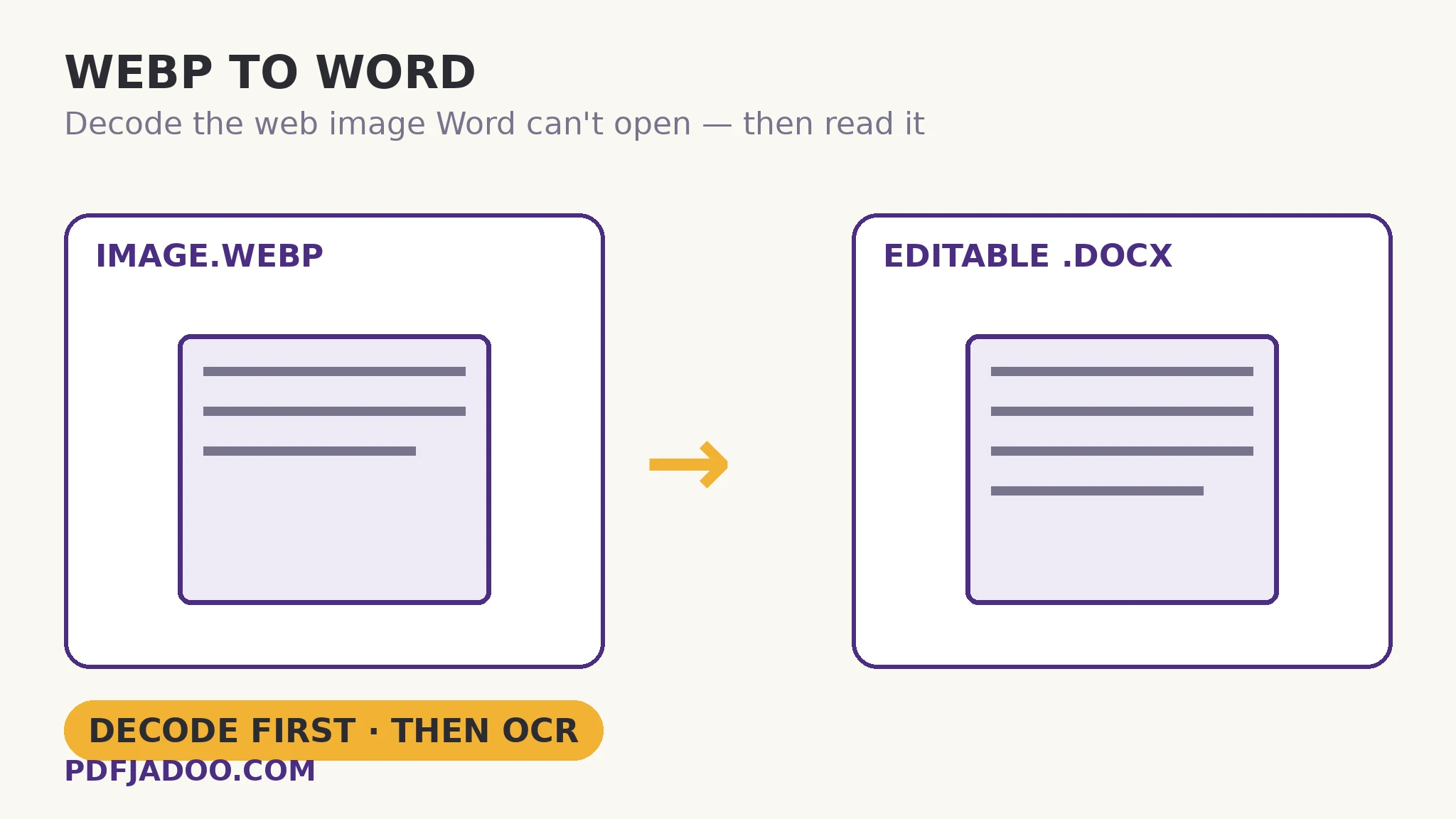
The direct answer: the conversion is a two-step chain — the WebP image is decoded (a format Word cannot open at all), then its text is OCRed and rebuilt as a genuine, editable .docx, with the recognised text shown in a box for checking. WebP is the web's own image format, and saving a picture from a site increasingly means saving a WebP: the infographic, the scanned page a site serves as WebP, the graphic whose words you need. WebP to Word runs the family's shared engine — the same Tesseract OCR and document-rebuilding logic as JPG and PNG to Word, stated openly — with the family's terms: OCR, not magic; layout, fonts and pictures are not reproduced; the engine loads once (a few MB) and then works fully offline. WebP is the headline act here; JPG and PNG photos, screenshots and scans work too. What is unique to this source is its double problem — an unopenable format and web-image content: stylised display fonts, text set over photographs, and low-resolution saves. This article covers the chain and those traps.
 By the PDFJadoo Team5 min read
Web-image traps: what the web does to text
The direct answer: web graphics set text for looking, not for reading — display fonts with decorative letterforms, words laid over busy photographs, and images saved at the smallest resolution the page could get away with — and each habit taxes OCR in its own way. Display fonts break the engine's letter-shape expectations at their most flamboyant (a swash capital is a guess, not a letter). Text over photography gives letters a shifting background that breaks stroke detection — the same reason levelling a document photo helps: contrast is the engine's food, and a photo background serves it unevenly. Low resolution is the quietest tax: a web image saved at 800 pixels wide carrying a full page of text gives each letter a handful of pixels, and no engine reads handfuls reliably. One quotable remedy outranks the rest: find the largest version of the image the site offers — open the image in its own tab, take the original file rather than the thumbnail the page displayed — because pixels per letter is the accuracy budget everything else spends.
The decode step itself is lossless and uninteresting — deliberately: WebP decoding in the browser is exact, so the OCR stage receives precisely the pixels the site served. All the drama is in what the site chose to serve.
The family's shared contract
The direct answer: like its siblings, this tool returns structured text — recognised lines grouped into headings, paragraphs and lists inside a real .docx — and shows the recognised text in a box before the document is relied on. For web sources the check box carries extra weight: display-font misreads cluster in headings (the most decorative text on the graphic), so proof the headings with the same numbers-first discipline — a title misread is the error that survives into your document's first line.
Convert a WebP image to Word, step by step
The direct answer: fetch the largest version of the image, drop it onto the converter, check the recognised text — headings and figures first — and download the .docx.
Step 1 — get the best source. Open the image in its own tab and save the original, not the page's scaled display copy. Pixels per letter is the budget.
Step 2 — drop the WebP onto WebP to Word. JPG and PNG web images work too. Decoding and recognition happen on your device.
Step 3 — press Convert to Word. The decode unlocks the format; the engine reads; progress shows.
Step 4 — check the box with web-source eyes. Headings (display fonts), numbers, and any text that sat over a photograph — the three trap zones.
Step 5 — download the .docx and edit freely. A genuine Word document: every word real text, in Word, LibreOffice or Google Docs.
When the words should stay put
The direct answer: if the graphic's design is its meaning — a chart whose layout argues, an infographic whose flow is the content — the honest artefact is the image itself, and the .docx serves as its searchable companion, not its replacement. Keep both: the picture for the eye, the text for the record. That pairing is the mature pattern for web-source material.
The web saved it as WebP. Your document needs words. Both problems end here.
Decoded exactly, read by Tesseract, rebuilt as a real .docx — checked by you in the box first.
Open WebP to WordA worked example: the infographic's data table
The direct answer: an industry infographic saved from a site as WebP — its small data table needed in a report — converts into a .docx whose figures, proofed against the graphic, drop into the report as quotable text with the image cited as source. The walkthrough's craft points: the original full-size file was fetched from its own tab (the page had displayed a half-size copy whose table text garbled on the first attempt — the pixels-per-letter rule, demonstrated by its breach); the headings, set in the infographic's display font, needed three corrections in the check box, exactly where the trap map predicted; and the report carried the graphic itself in an appendix, text and image as companions. The conversion took minutes; the source discipline took one of them and saved the rest.
Edge cases
Text baked into a meme or banner at thumbnail size. Some web images are simply too small to read — the honest outcome is a poor read, and the remedy is a larger source or none. The check box will tell you which you have.
Transparent WebP graphics. Text over transparency decodes onto whatever ground the pipeline gives it; if a read garbles, placing the image on white (any editor) restores the contrast the engine expects.
The image is actually a scan. Sites serve scanned pages as WebP too — those read like the scans they are, and the document-scan pipeline (fix, then OCR) may serve a difficult one better than a direct conversion.
Before you finish: the 60-second check
- The largest available version of the image was fetched — pixels per letter is the budget
- Headings were proofed as display-font territory, numbers with the usual discipline
- The .docx is paired with the original graphic where design carries meaning
- Transparent or photo-backed text garbles were treated as contrast problems, fixed at the source
- The right sibling was chosen by source: web image → this tool
Fair questions
How do I convert a WebP image to Word?
Drop the WebP onto WebP to Word and press Convert to Word. The image is decoded — a format Word cannot open at all — then OCRed and rebuilt as a genuine, editable .docx, with the recognised text shown in a box for checking.
Why can't Word just open the WebP?
Word does not read the WebP format — the file is unopenable there, before any question of text. This conversion solves the format first (an exact decode) and the text second (OCR), which is why it exists as its own tool.
Which image types work?
WebP is the headline act; JPG and PNG photos, screenshots and scans work too. All three image-to-Word tools share one OCR engine — they differ by source, and say so.
Why did the headings misread?
Web graphics set headings in decorative display fonts, whose letterforms break OCR's expectations. Proof headings in the check box first — and fetch the largest version of the image, since pixels per letter is the accuracy budget.
Can it keep the infographic's layout?
No — OCR reads the words and types them into a fresh document with rebuilt structure; the original layout, fonts and pictures are not reproduced. Keep the graphic itself as the visual companion to the extracted text.
Is my image uploaded?
No — decoding and recognition run on your device; the engine loads once (a few MB) and then works fully offline.
Tool behaviour — the decode-then-OCR chain, the shared Tesseract engine and .docx rebuild across the image-to-Word family, the check-first text box, accepted formats with WebP as the headline act, and the stated accuracy terms — is from PDFJadoo's own WebP to Word page. Checked 18 November 2026.
Keep reading
JPG to Word: editable text
The camera sibling: a photographed page, read and retyped.
PNG to Word: screenshot text
The screenshot sibling: the cleanest source of the three.
PDF to WebP page images
WebP as a destination instead: page previews at web weight.
OCR image to text
Just the words as text — no Word document around them.