PNG to Word: the cleanest source OCR ever gets
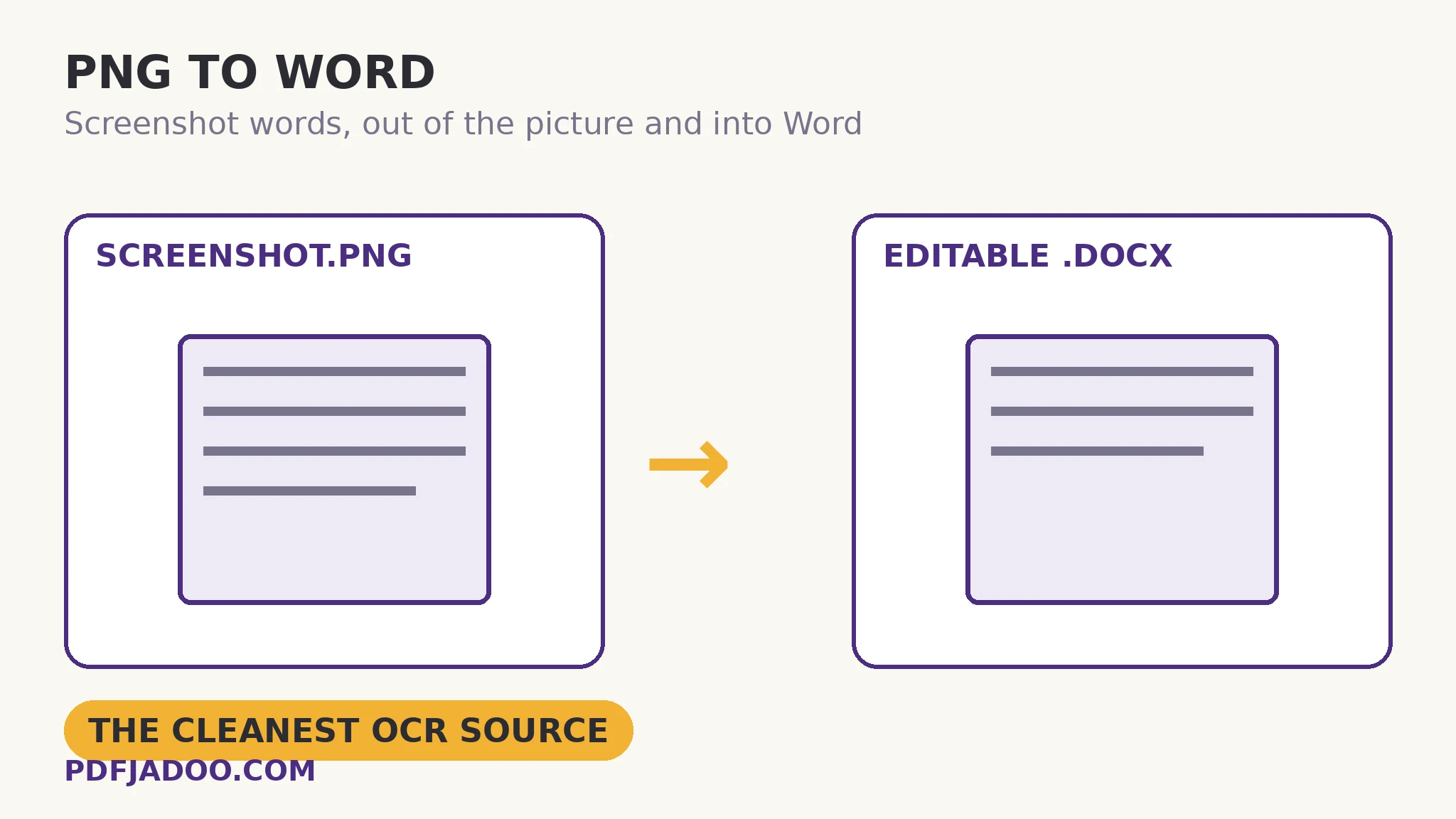
The direct answer: drop the PNG, and the Tesseract engine reads its text into a genuine, editable .docx — recognised lines grouped into headings, paragraphs and lists — with the recognised text shown in a box first so you can check it before relying on the document. Of the three image-to-Word sources, the screenshot is the aristocrat: pixel-perfect, high-contrast, perfectly level, evenly lit by definition — every fault that degrades a camera photo (angle, shadow, glare) is absent by construction, so recognition is usually the cleanest of the trio. PNG to Word shares its engine and its honesty with the family — this is OCR, not magic: the image's layout, fonts and pictures are not reproduced; handwriting reads poorly; the engine loads once (a few MB) and then works fully offline — and the accepted inputs are the family's: PNG is the headline act; JPG and WebP photos, screenshots and scans work too. What differs here is the failure-mode list, which belongs to screens: tiny UI fonts, dark-mode inversion, and multi-column layouts. This article is the screenshot specialist of the three.
 By the PDFJadoo Team5 min read
The screenshot's three traps
The direct answer: tiny user-interface fonts (small pixels per letter), dark-mode screens (light text on dark ground), and multi-column layouts (reading order) account for nearly every screenshot OCR failure. Each has a capture-side cure that costs nothing. Tiny fonts: capture at the device's full resolution and, where the app allows, zoom the content before screenshotting — letters with more pixels are letters the engine can read. Dark mode: most engines expect dark text on light ground; inverting the screenshot (or switching the app to light mode for the capture) restores the expected polarity. Multi-column: crop the screenshot to one column at a time and convert the pieces in order — the rebuild assembles paragraphs faithfully when it is not asked to guess a reading order across a gutter. One quotable family fact applies here as everywhere: the recognised text appears in a check box before the .docx is relied on — with screenshots, proof the numbers and the code strings first, because a misread in a copied error code or command is the expensive kind.
Why screenshots matter enough for their own tool: the modern document increasingly is a screenshot — the error message quoted in a ticket, the chat excerpt in a report, the slide captured from a call, the dashboard in an audit. Each carries text that someone will otherwise retype, with retyping's own error rate added to OCR's. The conversion's value is the elimination of that second, human error source.
The rebuild, once more
The direct answer: recognised lines are grouped back into headings, paragraphs and lists by the same document-rebuilding logic as PDF to Word, and written as a real .docx — editable text, not an image embedded in a Word file. A screenshot of a slide deck's text becomes paragraphs you can quote in the report; a screenshot of an article becomes a document you can annotate. The picture's design stays behind, by the family's stated contract — words travel, stage sets do not.
Convert a PNG screenshot to Word, step by step
The direct answer: prepare the capture (full resolution, light polarity, one column), drop it onto the converter, check the recognised text, and download the .docx.
Step 1 — prepare the screenshot. Full resolution; light mode if the source is inverted; crop to the text region (and to single columns) where the layout is complex.
Step 2 — drop the PNG onto PNG to Word. JPG and WebP screenshots work too. Recognition runs on your device — a screenshot of a private chat is not uploaded to be read.
Step 3 — press Convert to Word. The engine reads; progress shows.
Step 4 — check the box. Error codes, commands, figures and names first — the strings whose corruption costs most.
Step 5 — download the .docx and edit freely. Word, LibreOffice, Google Docs — the file is a genuine Word document in all of them.
Which sibling, again
The direct answer: one engine, three sources — a camera photo goes to JPG to Word, a screenshot to PNG to Word, a web-saved image to WebP to Word — and the choice is purely about which failure modes you want the guide for. The tools accept each other's formats; the articles are the specialisation.
Stop retyping screenshots. Read them in.
The cleanest OCR source there is, rebuilt into a real Word document — checked by you before it counts.
Open PNG to WordA worked example: the error message in the ticket
The direct answer: a support engineer's screenshot of a failure dialog — error code, stack lines, a paragraph of guidance — converts into a .docx whose text drops straight into the incident ticket, searchable and quotable, instead of an image attachment nobody can Ctrl+F. The walkthrough's one craft point: the dialog was captured at full resolution on a retina display, so even its small secondary text read cleanly; the single correction, found in the check box, was a zero read as the letter O inside a hexadecimal code — precisely the class of error the numbers-first proofing rule exists to catch. The ticket's future readers can now search the exact code — the difference between an attachment and evidence.
Edge cases
Code screenshots. Monospaced text reads well; indentation may not survive the paragraph rebuild. For code you intend to run, treat the output as a draft and diff it mentally against the image — or keep the screenshot beside the text as the reference.
Screenshots of photographs of text. A screenshot of someone else's photo inherits the photo's faults plus compression. Go to the original image whenever it exists.
Very long page captures. A full-page scrolling screenshot is one tall image; the engine reads it, but column and section order deserve a check-box review before the document is trusted.
Before you finish: the 60-second check
- Capture prepared: full resolution, light polarity, complex layouts cropped to single columns
- The check box was proofed — codes, commands and figures first
- The .docx was understood as a structured rebuild, not a facsimile of the screenshot
- Code screenshots were treated as drafts, verified against the image
- The right sibling was chosen by source: screenshot → this tool
Fair questions
How do I turn a screenshot into an editable Word document?
Drop the PNG onto PNG to Word and press Convert to Word. The OCR engine reads the screenshot and rebuilds the text as a genuine .docx — headings, paragraphs and lists — with the recognised text shown in a box for checking first.
Why do screenshots read better than photos?
A screenshot is pixel-perfect, high-contrast, level and evenly lit by construction — every fault that degrades camera OCR (angle, shadow, glare) is absent. Its own traps are tiny UI fonts, dark-mode inversion and multi-column layouts.
My screenshot is dark mode. Will it read?
Light text on a dark ground is the inverted polarity most engines struggle with. Switch the app to light mode for the capture, or invert the image first — then convert.
Which image types work?
PNG is the headline act; JPG and WebP photos, screenshots and scans work too. The engine loads once (a few MB) and then works fully offline.
Can it reproduce my screenshot's layout?
No — this is OCR, not magic: the words are read and typed into a fresh Word document with rebuilt structure; the original layout, fonts and pictures are not reproduced.
Is my screenshot uploaded?
No — recognition runs on your device. Screenshots of private chats and internal systems are read locally, never on a server.
Tool behaviour — the shared Tesseract engine and .docx rebuild, the check-first text box, accepted formats with PNG as the headline act, the one-time engine load and offline operation, and the stated accuracy terms — is from PDFJadoo's own PNG to Word page. Checked 18 November 2026.
Keep reading
JPG to Word: editable text
The camera-photo sibling: angle, shadow and glare are its curriculum.
WebP to Word: editable text
The web-image sibling: a format Word cannot even open, decoded then read.
OCR image to text
The words as plain text, without the Word document around them.
Extract text from a PDF
Text already digital in a PDF? No OCR needed — lift it directly.