PDF to WebP: the same page, two-thirds the weight
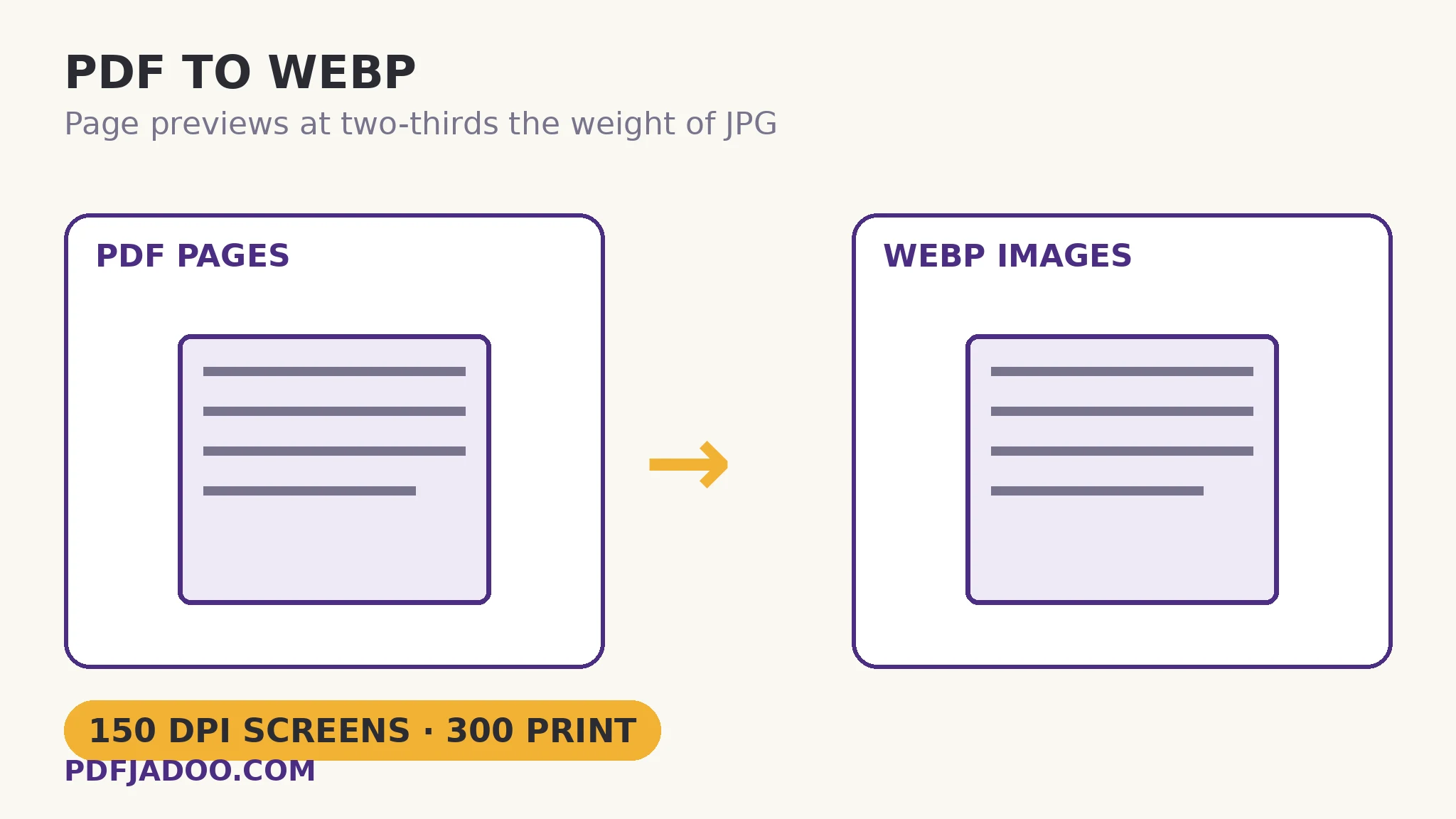
The direct answer: each page is rendered fresh from the PDF's own data at your chosen DPI, then encoded as WebP — which holds the page at roughly two-thirds the size of an equivalent JPG. Web publishers live on a weight budget: every preview image on a document library, every thumbnail in a catalogue, is paid for in load time. PDF to WebP is the page-image converter aimed at that budget. The render-first law governs quality — pages are rendered from the PDF's own data, so text stays crisp at any DPI you choose: 150 suits screens and sharing, 200 sharpens, 300 suits print — and the delivery is sized to the document: a one-page PDF gives you the WebP itself; a longer PDF gives a ZIP with one numbered WebP per page. The standing trade of every page-image tool applies and is stated on the page: the text is no longer text — each page becomes a picture of the page — so this route serves previews and publishing, never documents people must search or copy from. This article covers the weight economics and choosing WebP against its siblings.
 By the PDFJadoo Team5 min read
Why WebP wins the preview job
The direct answer: WebP's encoding is a generation newer than JPG's, squeezing the same visual quality into roughly two-thirds of the bytes — and across a library of hundreds of page previews, a third saved is the difference between a sluggish catalogue and a snappy one. The saving compounds exactly where publishers hurt: listing pages carry dozens of previews; a reader browsing a report archive loads page after page. One quotable comparison for the sibling shelf: PNG keeps every pixel losslessly and weighs the most, JPG is the universal middle, WebP is the web-optimised choice, and GIF survives on compatibility alone at 256 colours. The four share one render step and differ only in what the encoding keeps — which is why the kit offers all four without pretending they are four technologies.
The numbered-ZIP delivery deserves its sentence: page images that arrive named in sequence drop straight into a website's gallery or a CMS without a renaming session. The converter's job is not finished at the render; it is finished when the files are usable, and sequence is usability.
The picture-of-a-page trade
The direct answer: a WebP page preview shows the page perfectly and carries none of its powers — no selectable text, no links, no form fields, no search. For a preview that is exactly right: the preview's job is to be looked at, and the document itself — one click away — keeps every power. The error is using page images as the document, a publishing pattern that locks readers out of search, copying and accessibility tools. Previews in WebP, documents in PDF: the pairing this converter exists to serve.
Convert PDF pages to WebP, step by step
The direct answer: drop the PDF, choose the DPI by the destination — 150 for screens, 300 for print — press Convert to WebP, and download the image or the ZIP of pages.
Step 1 — drop the PDF onto PDF to WebP. Rendering happens in your browser — a publisher's unreleased documents do not visit a server for their previews.
Step 2 — choose the render quality. 150 DPI suits screens and sharing; 200 for a sharper look; 300 for print. Higher DPI means bigger images and a slower render — spend it where eyes will notice.
Step 3 — press Convert to WebP. One page yields the image itself; many pages yield the numbered ZIP.
Step 4 — publish the previews beside the document. The image for the eye, the PDF for everything else — linked, adjacent, each doing its own job.
WebP's one compatibility footnote
The direct answer: every modern browser displays WebP natively, which settles the web case entirely; the format's remaining strangers are some older desktop apps and email clients, where JPG stays the safe envelope. Choose by destination, as always: web page → WebP; email attachment → JPG; archive master → PNG or TIFF. The render is shared; the envelope is the decision.
Previews at web weight. Documents at full power.
Rendered crisp at your DPI, encoded at two-thirds the JPG weight, delivered numbered and ready to publish.
Open PDF to WebPA worked example: the report library's diet
The direct answer: a publisher's archive of 300 report covers and first-page previews, re-struck as WebP at 150 DPI, sheds roughly a third of its image weight — the listing pages load noticeably faster, and nothing visual changed. The walkthrough's discipline: the PDFs were untouched (they are the products; the images are their shop windows); the DPI was matched to the display size the previews actually render at, not to a theoretical maximum; and the old JPGs were retired only after the new set was verified page by page. Weight work is invisible when done right — visitors feel a faster site and attribute it to nothing, which is the correct attribution.
Edge cases
Photographic pages. WebP's advantage is largest exactly there — continuous-tone pages compress kindly. Line-art pages with vast flat areas also do well; the format is rarely the wrong answer on the web.
The print detour. 300 DPI WebP prints fine, but a print pipeline that asked for TIFF wants TIFF; the preview format should not wander into the archive's job.
Transparency. A rendered page is opaque by nature — the page has a background. WebP's transparency support is real but irrelevant to page renders; it matters for the image-to-image converters in this kit's other family.
Before you finish: the 60-second check
- DPI matched to the display size the previews actually get — not a theoretical maximum
- Previews published beside the PDF, never instead of it
- Numbered ZIP contents verified in sequence before uploading to the site
- Destination check: WebP for web pages, JPG for email, PNG/TIFF for masters
- The source PDFs were untouched — previews are editions, not replacements
Fair questions
How do I convert PDF pages to WebP?
Drop the PDF onto PDF to WebP, choose a render quality — 150 DPI for screens, 300 for print — and press Convert to WebP. A one-page PDF gives you the WebP itself; a longer PDF gives a ZIP with one numbered WebP per page.
Why WebP instead of JPG for page previews?
WebP keeps photos and graphics at roughly two-thirds the size of an equivalent JPG — across a library of previews, that third is the page-load budget. Pages are rendered fresh from the PDF's data, so text stays crisp at any DPI you choose.
Is the text still text in the WebP?
No — each page becomes a picture of the page. For real text, PDF to Text or PDF to Word is the right tool; WebP previews exist to be looked at, beside the document itself.
What DPI should I pick?
150 for screens and sharing, 200 for a sharper look, 300 for print. Higher DPI means bigger images and a slower render — match it to the size the preview will actually be displayed at.
Does every browser show WebP?
Every modern browser displays WebP natively. Some older desktop apps and email clients remain strangers to it — for email attachments, JPG stays the safe envelope.
Is my PDF uploaded?
No — rendering happens in your browser, on your device.
Tool behaviour — fresh rendering from the PDF's data, the roughly-two-thirds-of-JPG weight claim, the 150/200/300 DPI guidance, single-image vs numbered-ZIP delivery, and the picture-of-a-page statement — is from PDFJadoo's own PDF to WebP page. Checked 18 November 2026.
Keep reading
PDF to GIF: still pages, honestly
The compatibility survivor: 256 colours, everywhere welcome, limits stated.
PDF to JPG: which DPI?
The universal envelope, and the DPI reasoning in full.
PDF to PNG: the lossless choice
When every pixel must survive: the lossless end of the shelf.
Compress an image to an exact size
The previews are still too heavy? A target size, met honestly.