PDF to SVG: the page as a graphic that never blurs
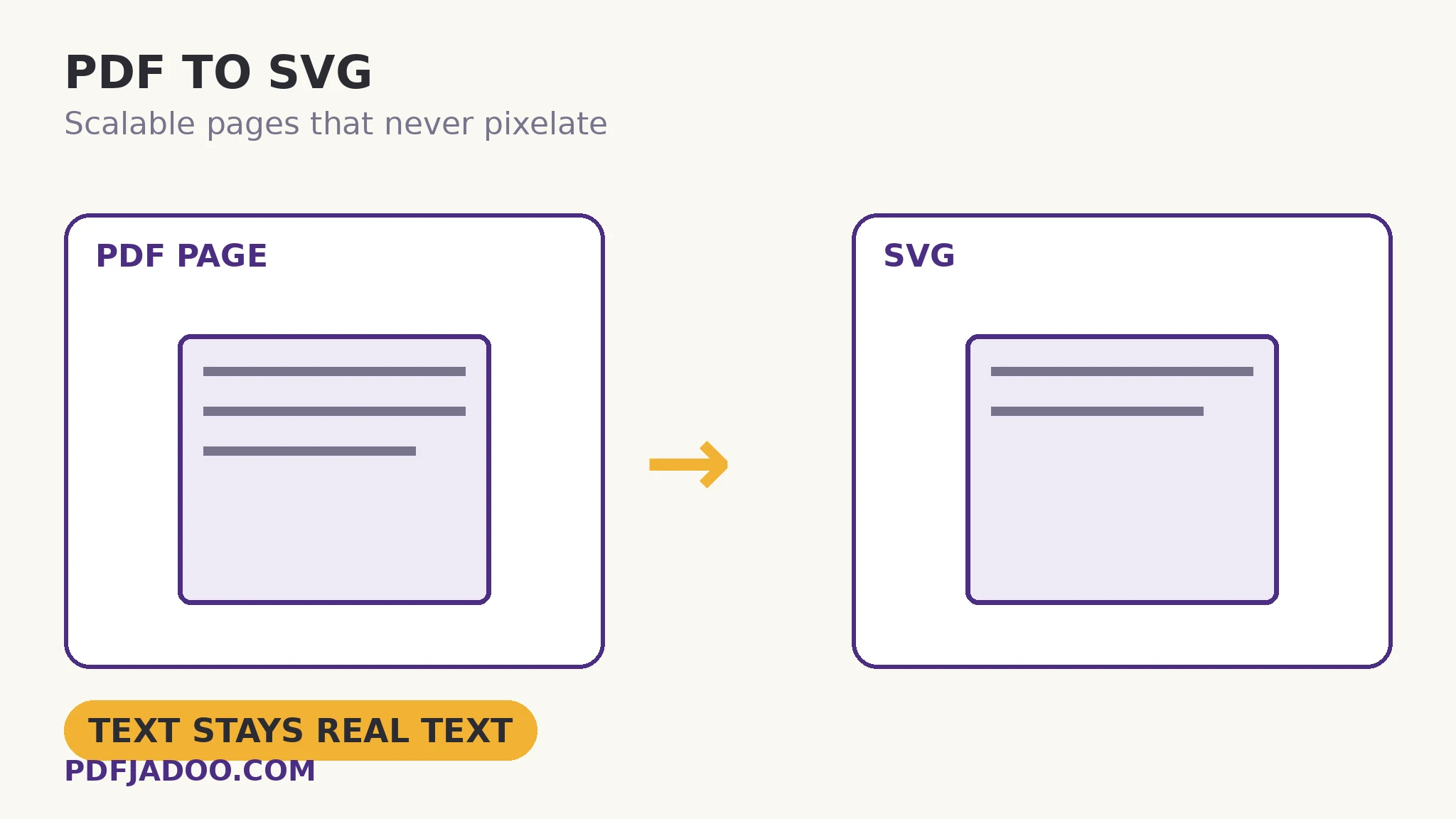
Some PDF pages are really graphics wearing a document's clothes: the diagram, the chart, the logo sheet, the infographic, the map. Putting them on the web as rendered pixels (a JPG screenshot) condemns them to one resolution — blurry on zoom, heavy at print size. Their native web form is SVG: the scalable vector format browsers render natively, which describes the drawing mathematically so it stays sharp at every size. PDF to SVG converts the page into that form — the vector content stays vector, ready to embed in a web page, open in a design tool, or scale from favicon to poster. This article explains when a page is a graphic, what SVG does with text and images inside it, and the format's honest edges.
 By the PDFJadoo Team5 min read
Vector thinking: why the format fits graphics
A raster image (JPG, PNG) is a grid of coloured squares: enlarge it and the squares show. A vector graphic is a set of instructions — this curve, this fill, this letterform — that the renderer executes at whatever size is asked. PDF pages of diagrams and artwork are already stored largely as such instructions, which is why the conversion is natural: the drawing's own mathematics, re-expressed in the web's vector language. The dividends: sharpness at every size (phone, retina display, projector, print), small files for line art (instructions weigh less than pixels for drawings — a chart that is 400 KB as a high-DPI PNG may be 40 KB as SVG), and editability (the SVG opens in design tools with its shapes intact — the recovery route for the vector logo that image extraction honestly cannot lift).
What happens to the page's non-vector citizens? Text in an SVG conversion is handled as the format allows — as text elements or converted shapes depending on the pipeline; either way it renders faithfully, though SVG text is not the place to edit wording (edit words in the PDF or the source, then reconvert). Raster images inside the page — a photograph within the infographic — remain raster, embedded within the SVG: the graphic is vector where the original was vector, pixel where it was pixel. SVG is a container of honesty in that sense: it preserves the nature of each element rather than flattening all to one kind.
Where SVG pages belong
Web embedding is the headline use: diagrams and charts in articles and documentation, scaling with the layout and staying crisp on every display. Design recovery: logos, icons and artwork extracted from documents into the designer's tools. Print and signage: the graphic enlarged without a reshoot. And icon pipelines: a PDF icon sheet becomes SVG assets for an app or site. In each, the alternative — a high-DPI raster — is heavier, blurrier at the extremes, and dead-ended for editing.
Convert a PDF page to SVG, step by step
Step 1 — pick the page that is a graphic. Diagrams, charts, artwork, logo sheets. A prose page gains little from SVG — text documents have better homes (HTML, Markdown).
Step 2 — drop the PDF onto PDF to SVG. Conversion in your browser.
Step 3 — convert and open the SVG. In a browser first: the drawing should be identical, and zooming should reveal no blur — the format's signature.
Step 4 — use it as a graphic. Embed in the page, open in the design tool, or hand it to the icon pipeline — as a file whose size is a display decision, not a property.
SVG vs the rendered image: choosing
The decision rule is the content's nature: drawn content (lines, shapes, text-as-artwork) → SVG; photographed content → the image routes (extract the original, or render the page at a chosen DPI). Mixed pages go by their dominant citizen — the infographic with one photo is an SVG with an embedded photo; the photo page with a caption is an image with text.
Let the drawing stay a drawing.
The page's vectors, re-expressed for the web: sharp at every size, light in the file, editable in the tools.
Open PDF to SVGA worked example: the documentation diagrams
A software manual's forty diagrams live in its PDF; the new docs website needs them as web graphics. The first attempt — screenshots at high DPI — produces heavy, faintly soft images that blur further on retina displays. The SVG route converts each diagram page: files a tenth the weight, edges razor-sharp at every zoom, and — the unexpected dividend — the design team can open them to correct a label's colour for the site's dark mode, shapes intact. The manual's PDF remains the print master; its drawings now live a second, native life on the web.
Edge cases
Font dependence. SVG text that references fonts renders with the viewer's fonts unless the text was converted to shapes; for pixel-perfect portability of artwork, shape-converted text is the norm — one more reason wording edits happen before conversion.
Very complex pages. A page with ten thousand vector objects becomes a heavy SVG; for full illustrated pages, a high-DPI raster may serve the web better. Judge per page.
Interactivity left behind. Links and form behaviour do not ride into a graphic — the SVG is the page's face, as with HTML conversion.
Before you finish: the 60-second check
- The page is genuinely a graphic — drawn content dominates
- The SVG was zoom-tested in a browser: no blur, the format's signature
- Wording was final before conversion — SVG is not where text is edited
- Complex pages were weighed: SVG vs high-DPI raster, per page
- Embedded photos inside the graphic are understood to stay raster
Fair questions
How do I convert a PDF page to SVG?
Drop the PDF onto PDF to SVG and convert. The page's vector content — diagrams, charts, artwork — is re-expressed as an SVG file: sharp at any size, embeddable in web pages and editable in design tools.
Why use SVG instead of a JPG of the page?
A JPG is pixels: one resolution, blurry when enlarged, heavy at large sizes. SVG describes the drawing mathematically, so it renders sharply at every size and is usually far smaller for line art — and it stays editable.
What happens to photos inside the page?
They remain raster images, embedded within the SVG. The graphic is vector where the original was vector and pixel where it was pixel — each element keeps its nature.
Can I edit the text in the SVG?
SVG is a graphic, not a document editor — and its text may be converted to shapes for portability. Edit wording in the PDF or the source document, then reconvert.
When should I NOT use SVG?
For prose pages (use HTML or Markdown routes) and for pages dominated by photography (extract the image, or render at a chosen DPI). SVG's home is drawn content: diagrams, charts, logos, artwork.
Is my PDF uploaded?
No — conversion runs in your browser; the file never leaves your device.
Tool behaviour — page conversion to SVG preserving vector content, with raster elements embedded — reflects PDFJadoo's PDF to SVG tool and the format's standard behaviour as described on its page. Checked 18 November 2026.
Keep reading
Extract images from a PDF
The pixel half of the artwork — originals lifted out intact.
PDF to HTML pages
The whole page as a web page, layout preserved — the other citizenship.
PDF to JPG: which DPI?
When a raster is right: the page rendered, resolution reasoned.
PDF Inspector: a file checkup
Vector or raster? The chart reports the page's true composition.