PDF to HTML: the document, reborn as web pages
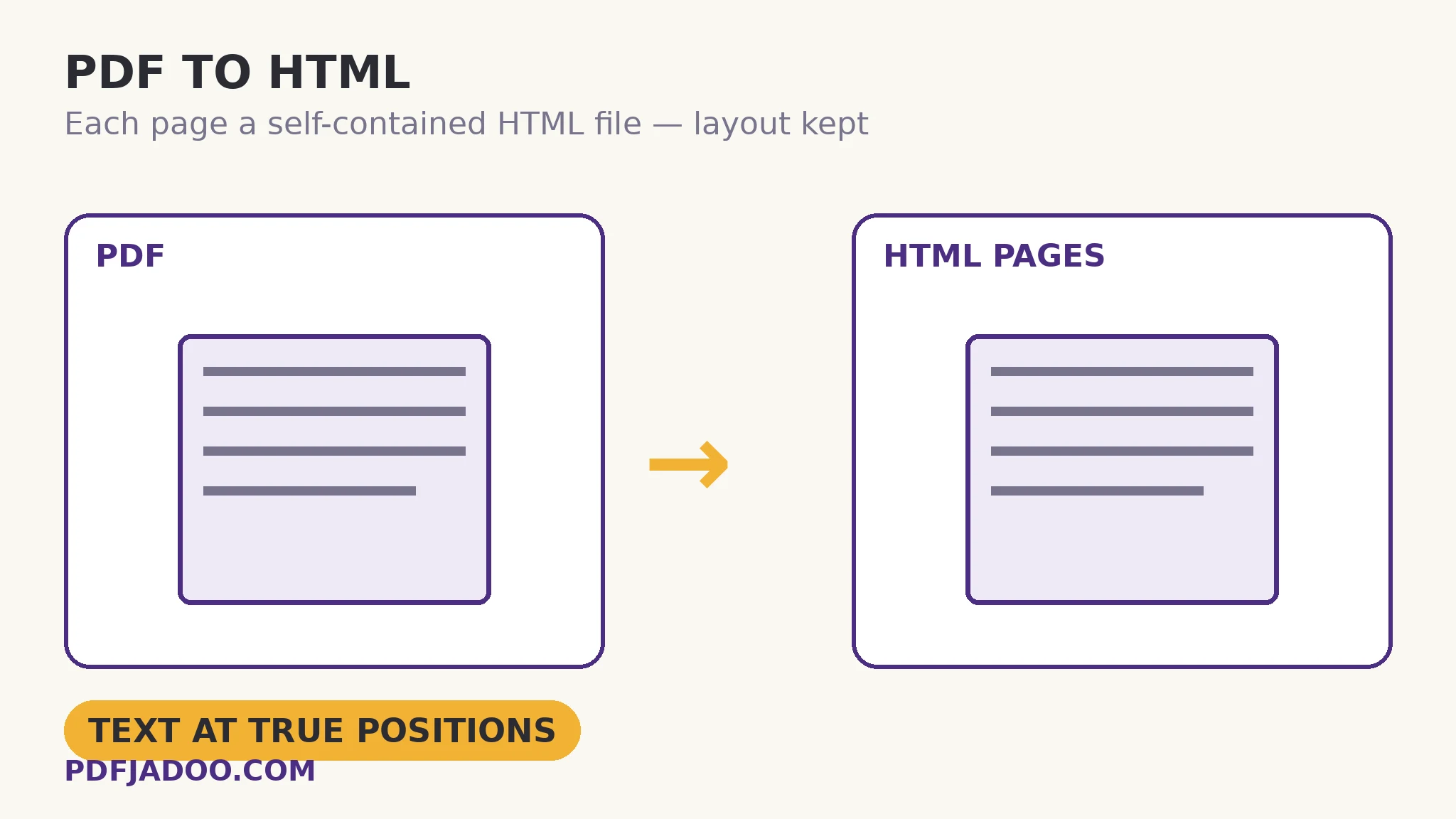
A PDF on a website is a guest: it needs a viewer, it downloads before it reads, it sits outside the site's navigation and search. Some documents deserve citizenship instead — as HTML pages: instant, indexable, linkable page by page. PDF to HTML performs the conversion with the layout kept honest: each page becomes a self-contained HTML file, the text placed at its true positions so the design survives, pictures embedded in the file, at your choice of 150, 200 or 300 DPI render quality — and a multi-page document arrives as a ZIP of numbered page files. This article explains what “self-contained” buys, the DPI choice, and the honest limits of any layout-faithful conversion.
 By the PDFJadoo Team5 min read
What “self-contained” means, and why it matters
An HTML file can depend on a retinue — external stylesheets, separate image files, scripts — or it can carry everything it needs inside itself. The converter's pages are the second kind: everything embedded, one file per page. The practical consequences are large: the file works from any host, any folder, even opened locally; nothing 404s; the page can be emailed, archived or dropped into a site without a supporting cast. The layout method is the fidelity choice: text is positioned at its true coordinates over the page's rendered ground, so columns stay columns, captions stay with their pictures, and the page a visitor sees is the page the author made — the priority for documents whose design carries meaning (brochures, certificates, laid-out reports).
The DPI choice sets the rendered ground's resolution: 150 for light pages and fast loads, 200 the balanced default, 300 when the page will be zoomed or its detail is fine print. Higher DPI means heavier files — the eternal trade — chosen per document's destiny rather than by habit.
What this conversion is not
Positioned-text HTML preserves appearance; it does not produce the flowing, reflowable, semantic HTML of a hand-built web page. Text will not re-wrap for a phone screen the way native web text does — the page holds its designed shape at its designed size, scaling rather than reflowing. For documents whose reading on any screen matters more than their design, the flowing route is PDF to Markdown (then typeset afresh) or PDF to HTML's cousin tools chosen accordingly. Knowing which fidelity you need — the page's face, or the text's freedom — is the whole decision, and it should be made before converting forty pages the wrong way.
Convert a PDF to HTML, step by step
Step 1 — drop the PDF onto PDF to HTML. Conversion runs in your browser.
Step 2 — choose the render quality. 150 light, 200 balanced, 300 for detail and zoom. Match the document's destiny.
Step 3 — press Convert to HTML. One page → one HTML file; many pages → a ZIP of numbered files, in order.
Step 4 — open the result in a browser before publishing. The page should look like the PDF's page. Check the finest print at your chosen DPI — that is where the choice proves itself.
Step 5 — place the files. Any static host serves them as-is; link them in sequence (or from an index you make) since each page is its own file.
Where converted pages shine
Archives that want documents browsable without a viewer; documentation sets where each page needs its own URL; kiosk and intranet displays; and preservation contexts where HTML's openness outlives proprietary formats. In each, the self-contained file is the unit of survival: one file, everything inside, readable by anything that renders the web.
Give the document a web address, not a download button.
Each page a self-contained HTML file — layout preserved, pictures embedded, quality your choice.
Open PDF to HTMLA worked example: the community archive's newsletters
A local-history society holds twenty years of newsletters as PDFs — invisible to search, unquotable by link. Converted at 200 DPI, each issue's pages become files the society's simple site can host as-is: a volunteer adds an index page linking the numbered files, and suddenly a 2009 article has a URL that can be cited in the society's posts and found by the search engines that index the pages' real text. The archive did not change a word; it changed the documents' citizenship — from downloads in a folder to pages on the web.
Edge cases
Forms and scripts do not convert. Interactive elements have no static-HTML equivalent in a layout-faithful page; the page shows the form's face, not its behaviour.
Very long documents. A 300-page PDF becomes 300 files — a structure to plan for (folders per chapter, an index) rather than a pile to upload.
Fine print at 150 DPI. Small type is the first casualty of a light render; documents with legal small print belong at 300, with the file weight accepted.
Before you finish: the 60-second check
- The fidelity decision was made first: the page's face (this tool) vs the text's freedom (Markdown route)
- DPI matches destiny: 150 light, 200 balanced, 300 for fine print and zoom
- The converted pages were opened and read in a browser before publishing
- Multi-page output has a linking plan — an index or sequence — not just a pile of files
- Interactive elements' absence is understood: static pages show faces, not behaviour
Fair questions
How do I convert a PDF to HTML for free?
Drop the PDF onto PDF to HTML, choose 150, 200 or 300 DPI, and convert. Each page becomes a self-contained HTML file — text at its true positions, pictures embedded — and multi-page documents arrive as a ZIP of numbered files.
Will the HTML look like my PDF?
Yes — that is the design: text is placed at its true positions so the layout survives. The trade-off is that positioned text holds its designed shape rather than reflowing like hand-built web text.
What does self-contained mean?
Everything the page needs is embedded in its single HTML file — no external stylesheets or image files to lose or 404. The file works from any host, folder or local disk.
Which DPI should I choose?
150 for light, fast pages; 200 as the balanced default; 300 when the page will be zoomed or carries fine print. Higher DPI means heavier files — choose per document, not by habit.
Do form fields and links survive?
The conversion is layout-faithful and static: it shows the page's face. Interactive behaviour — fillable fields, scripts — does not carry into static HTML pages.
Is my PDF uploaded?
No — conversion runs in your browser; the file never leaves your device.
Tool behaviour — self-contained per-page HTML files, text at true positions, embedded pictures, the 150/200/300 DPI choice and ZIP delivery for multi-page documents — is from PDFJadoo's own PDF to HTML page. Checked 18 November 2026.
Keep reading
PDF to Markdown, cleanly
The text's-freedom route: structure out, typeset afresh anywhere.
Linearize a PDF for the web
Keeping it a PDF online? Then at least let page one arrive first.
Markdown to PDF, typeset
The reverse journey: web-native text, published as a document.
PDF to SVG
One page, as a scalable vector graphic for the site's design itself.