Linearize a PDF: page one from the first bytes, the rest streams in
An ordinary PDF is organised for its writer: objects wherever they landed, the page map at the very end. A web reader asking for page one must therefore fetch the end of the file, then hop around it — for a large PDF on a slow connection, the reader waits for effectively the whole download before seeing anything. A linearized PDF — Adobe's name is Fast Web View — is restructured for its reader: everything page one needs sits at the front, in order, so a supporting viewer displays page one from the first bytes and streams the rest as you read. Linearize PDF performs the restructure with a genuine PDF engine (QPDF) running in your browser — real linearization, not a rename. This article explains what changes inside the file, and clears away the persistent confusion with compression.
 By the PDFJadoo Team5 min read
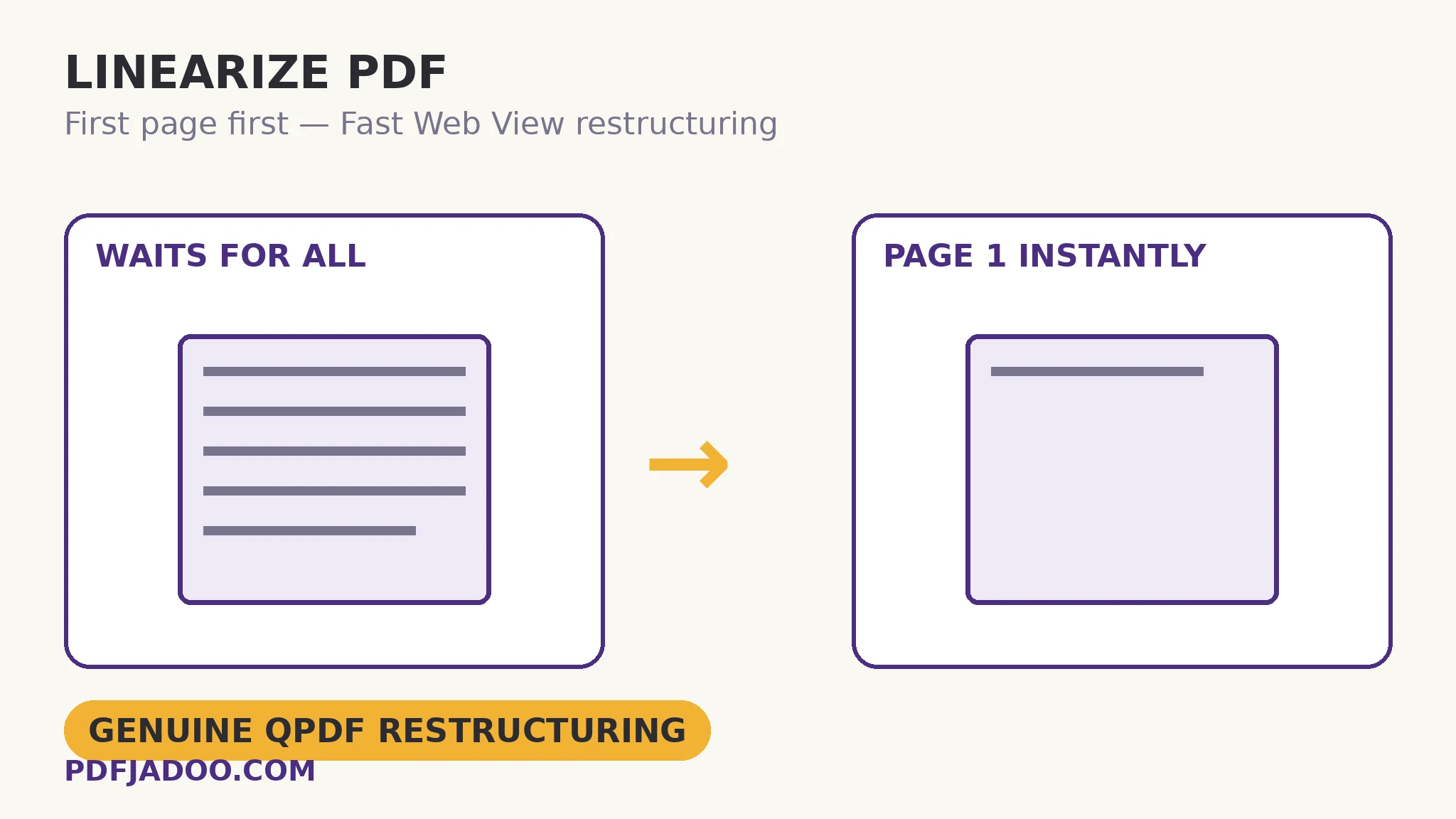
What linearization actually rearranges
Inside a PDF, pages are assembled from objects — fonts, images, content streams — referenced through a cross-reference map. A linearized file adds a front-loaded structure: the first-page objects and a hint table up front, the remaining pages in reading order, so a viewer can fetch sequentially and render progressively. Nothing about the content changes: same pages, same quality, same text. The file's geography changes. That is also why linearization is not compression: the size stays essentially the same (a hint table may add a whisper). If the problem is an 80 MB file, the cure is the compression conversation; if the problem is an 8 MB file that nonetheless opens like a locked door on the web, the cure is order, not size — and very large published PDFs usually deserve both, compress first, then linearize the result.
The benefit needs a supporting viewer to materialise: modern browsers' built-in PDF viewers and Adobe's readers honour Fast Web View and stream progressively; a viewer that downloads-then-opens gains nothing. That caveat is not a reason to skip it — the supporting viewers are precisely the ones web visitors use — but it sets the honest expectation: linearization optimises the web reading path, and does nothing for a file that will be emailed and opened locally.
Which PDFs earn the treatment
The published kind: reports, catalogues, manuals, journals and books served from websites — anywhere a visitor decides in the first seconds whether to keep reading. The longer the document, the larger the win: page one of a 300-page manual from the first handful of bytes, against a 25 MB wait. Short files (a two-page form) gain nothing measurable — order doesn't matter when the whole file is one gulp. Rule of thumb: if it lives at a URL and runs past a dozen pages, linearize it before it goes live, alongside its metadata — the two publishing-craft steps that cost minutes and pay out on every visit.
Linearize a PDF, step by step
Step 1 — prepare the final file first. Linearization is a finishing step: content edits, compression and metadata all precede it, because later rewrites can discard the careful order.
Step 2 — drop the PDF onto Linearize PDF. The QPDF engine runs in your browser; the file is not uploaded to be restructured.
Step 3 — press Linearize it and download the restructured file.
Step 4 — verify as a visitor. Serve the file (or open it via a local server) in a browser viewer on a throttled connection if you can: page one should appear while the rest is still arriving. A file-properties check in a desktop reader also reports “Fast Web View: Yes”.
A note on provenance
Real linearization is engine work — restructuring cross-references and writing hint tables — which is why this tool names its engine: QPDF, the long-standing open-source PDF structural toolkit, compiled to run in the browser. Tools that merely claim the label without the restructure produce files that report “Fast Web View: No”. Verify yours; the property is checkable, and checked is the theme of this whole corner of the kit.
Let page one arrive first. It is the page that decides.
Genuine Fast Web View restructuring by the QPDF engine, in your browser — the published PDF's finishing step.
Open Linearize PDFA worked example: the annual report at a URL
A charity publishes its 96-page annual report. On the office connection it opens fine; on a donor's rural connection, the browser shows a spinner for the full 14 MB — and the analytics show most visits dying inside ten seconds. Nothing is wrong with the file except its order. The published copy is linearized (after a compression pass that halves the size — the two cures for the two diseases), and the same link now paints page one — the cover, the headline figure — almost immediately, streaming the rest while the donor reads. Same report, same URL; the door opens when knocked, instead of after the whole house is carried in.
Edge cases
Already linearized. Re-running is harmless but pointless; check the property first if you keep finishing-step records.
Signed files. Restructuring rewrites the file, disturbing signature seals — linearize before signing, as with sanitizing.
Forms with scripts. The structure changes, the content (including form logic) does not — but test the linearized copy's behaviour before it replaces the master.
Before you finish: the 60-second check
- Linearization came last — after edits, compression and metadata
- The file lives at a URL and runs long enough for order to matter
- Fast Web View was verified on the result (properties or a throttled browser test)
- Signed files were linearized before signing, never after
- The expectation is set honestly: web viewers gain; local opens change nothing
Fair questions
What does it mean to linearize a PDF?
The file is restructured so everything page one needs sits at the front, in order, with a hint table — a supporting web viewer can display page one from the first bytes and stream the rest as you read, instead of downloading the whole file first. Adobe calls it Fast Web View.
How do I linearize a PDF?
Drop the final PDF onto Linearize PDF and press Linearize it. A genuine PDF engine (QPDF) restructures the file in your browser. Do it as the finishing step, after edits, compression and metadata.
Is linearization the same as compression?
No. Linearization changes the file's internal order, not its size — content and quality are identical. Compression reduces size. Large published PDFs often deserve both: compress first, then linearize.
Which PDFs benefit from Fast Web View?
Long documents served from websites — reports, manuals, catalogues, books — where visitors read in browser viewers that support streaming. Short files and email attachments gain nothing measurable.
How can I verify a file is linearized?
A desktop reader's document properties report “Fast Web View: Yes”. Or serve the file and open it in a browser on a slow connection: page one should paint while the rest still downloads.
Is my file uploaded to be linearized?
No — the QPDF engine runs in your browser; the restructuring happens on your device.
Tool behaviour — genuine Fast Web View restructuring performed by the QPDF engine running in the browser — is from PDFJadoo's own Linearize PDF page, which names the engine. Checked 18 November 2026.
Keep reading
Compress a PDF without losing quality
The other disease, the other cure: size first, then order.
PDF metadata: title and author
The finishing step's partner: identity set, then structure set.
PDF Inspector: a file checkup
Check the published file's whole chart before it goes live.
PDF to HTML pages
The alternative web route: pages as web pages, not a streamed file.