PDF metadata: the identity card your document shows before it's opened
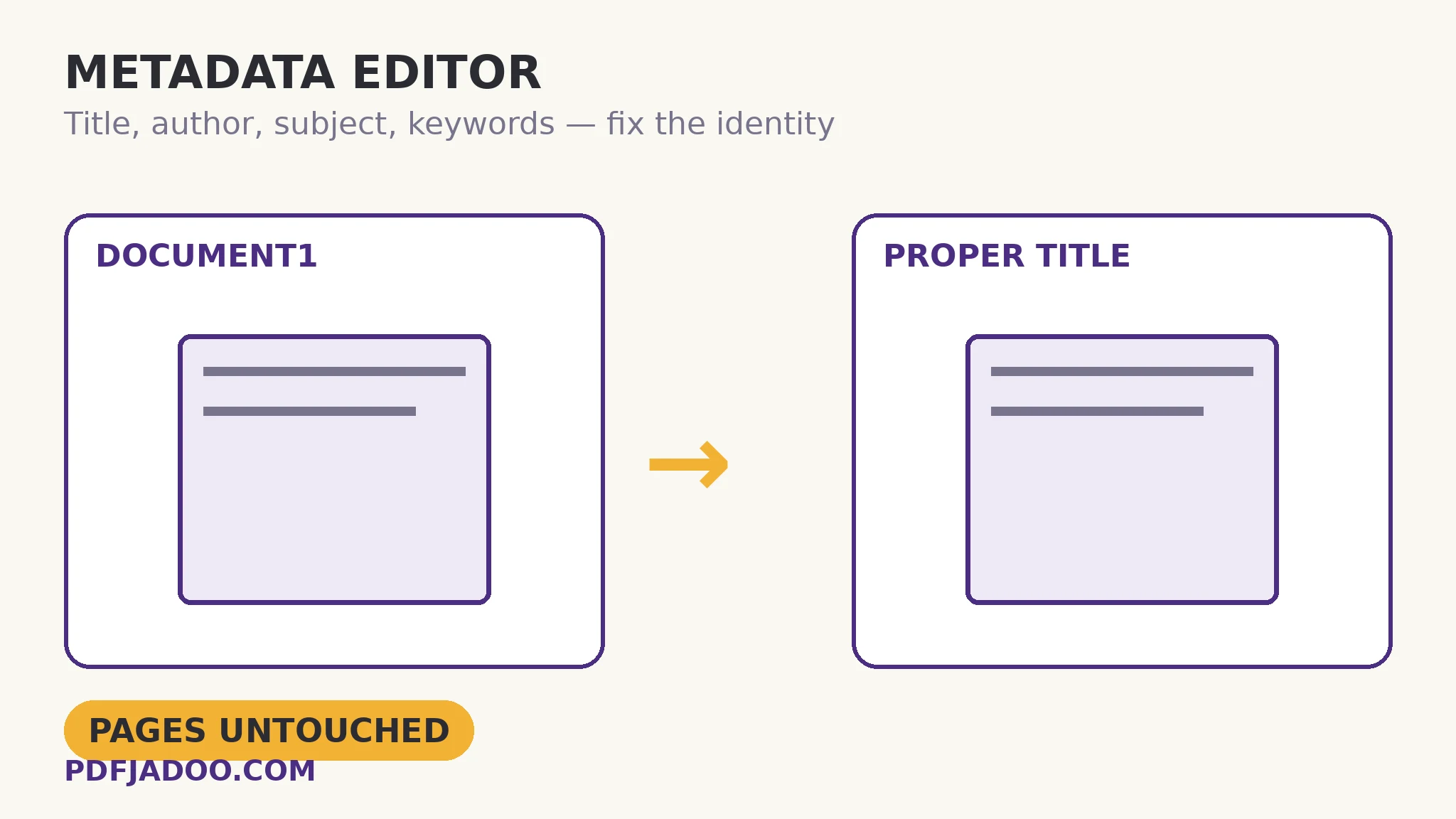
Before anyone reads page one, your document has already introduced itself — in the browser tab, the search result, the archive listing, the reader's title bar — and the introduction is its metadata: title, author, subject, keywords. Left to defaults, that introduction is often an embarrassment: “Microsoft Word - Document1”, an author's personal name on a corporate report, keywords from a template's previous life. Metadata Editor shows you the card and lets you fix it: the fields fill with your PDF's current metadata when it loads; edit, save, done — only the metadata changes; the pages are untouched. This article is about what each field does in the wild, because metadata done deliberately is a small, permanent piece of publishing craft.
 By the PDFJadoo Team5 min read
Where each field surfaces
Title is the hardest-working field: it is the browser tab's text, the title a reader shows, the name search engines and document managers display, and the default filename suggestion on save. A document whose title is its real name — “Q3 Maintenance Report — Riverside Plant” — is findable and forwardable; “Document1” is neither. Author is attribution: the person or body the document speaks for. For published documents it should be the publishing identity (the organisation, the named author of record), which is a deliberate choice, not necessarily whoever's laptop exported the file. Subject is the one-line brief — what this document is about — used by archives and managers as the summary line. Keywords are the retrieval hooks: the terms under which the document should be found in a managed library, comma-separated, chosen as the searcher would type them.
Two neighbouring fields are shown for honesty: the creator/producer note records the software lineage (which application created it, which engine produced the PDF). The editor lets you view the identity as a whole, because the story the fields tell together — a 2026 report “authored” by a template, produced by software the firm retired in 2022 — is often the thing that needs fixing.
Fix vs strip: editor or sanitizer?
Metadata has two hygiene operations and they answer different intents. Fix (this tool) when the document is published — it should carry a correct, deliberate identity into the world. Strip (Sanitize PDF) when the document is released under constraint — a disclosure, a submission — where the safest identity is no identity. The same file can meet both fates at different moments: the archived master carries full, correct metadata; the disclosed copy is sanitized. Confusing the two produces the two classic errors: the published report with no title, and the anonymous disclosure authored by a named employee.
Fix a PDF's metadata, step by step
Step 1 — drop the PDF onto Metadata Editor. The fields fill with the file's current metadata — read the card as a stranger would. Nothing uploads.
Step 2 — write the title as the document's name. The name a human would search for, complete enough to stand alone in a list.
Step 3 — set the author to the identity of record. Organisation or named author — deliberate, not default.
Step 4 — write the subject as a one-line brief; keywords as a searcher would type them. Comma-separated; think of the archive query, not the document's vanity.
Step 5 — save the new metadata. Only the identity changes. Verify in a reader's properties panel and in a browser tab — the two places the card is shown most.
Metadata as archive craft
In any collection larger than a folder — a firm's library, a research archive, a records system — documents are found by their metadata far more often than by their content. A collection whose PDFs carry real titles, consistent authors and honest keywords is a library; a collection of “Document1”s is a haystack with a search box that cannot help. The editor is a one-file tool, but its habit — no document leaves without its identity set — is the archive-scale practice, applied at the moment of creation when it costs thirty seconds.
Let the document introduce itself properly.
Title, author, subject and keywords — viewed, fixed and saved in your browser. Pages untouched.
Open Metadata EditorA worked example: the report library
A consultancy publishes forty client reports as PDFs on a shared drive. Downloaded and re-filed by clients, the reports surface in tabs and lists as “Microsoft Word - Report_Final_v3”, authored by whichever consultant exported them. One pass per report — an afternoon for the library — sets the house pattern: title = “
Edge cases
The PDF with XMP metadata. Modern files may carry a second, XML-based metadata packet alongside the classic fields; readers differ in which they prefer. Setting the classic fields covers the common surfaces; archival-grade work checks both.
Personal names in author. The default author is often a person's account name. On shared or sensitive documents that is a disclosure — see the sanitize route when the right value is none.
Dates. Creation and modification dates are metadata too, written by the tools that touched the file. They are part of the story a forensic reader sees; the editor's scope is the identity fields, and honesty about dates is the file's own.
Before you finish: the 60-second check
- The title is the document's real name — findable alone in a list
- The author is the identity of record, chosen deliberately
- Subject is a one-line brief; keywords are a searcher's terms
- The fixed file was verified in a browser tab and a properties panel
- Strip-vs-fix was decided consciously: published documents are fixed; constrained releases are sanitized
Fair questions
How do I change a PDF's title and author?
Drop the PDF onto Metadata Editor — the fields fill with its current title, author, subject and keywords. Edit them and save. Only the metadata changes; the pages are untouched.
Why does my PDF show “Microsoft Word - Document1”?
That is the default title the creating software wrote into the metadata. Readers, browsers and search engines display the metadata title, not your filename — fix the title field and the document introduces itself properly everywhere.
What is the difference between fixing metadata and sanitizing?
Fixing sets a correct, deliberate identity for a published document. Sanitizing strips the identity (and other extras) entirely, for constrained releases. Published: fix. Disclosed under constraint: strip.
Do keywords help people find my PDF?
In managed libraries, archives and document systems, yes — retrieval runs on metadata. Choose keywords as a searcher would type them, comma-separated.
Does changing metadata affect the pages or the file's content?
No. Only the identity fields change; pages, text and images are untouched.
Is my PDF uploaded?
No — the editor runs in your browser; the file never leaves your device.
Tool behaviour — current metadata loaded into editable title/author/subject/keywords fields, the creator/producer note, and identity-only saving — is from PDFJadoo's own Metadata Editor page. Checked 18 November 2026.
Keep reading
Sanitize a PDF before sharing
The strip operation: when the right identity is no identity.
PDF Inspector: a file checkup
The full chart — metadata alongside fonts, fields and encryption.
Linearize a PDF for the web
Publishing the document online? Identity set — now make page 1 instant.
Add bookmarks to a PDF
The other navigation identity: an outline readers can travel by.