HTML to PDF: the browser prints its own drawing
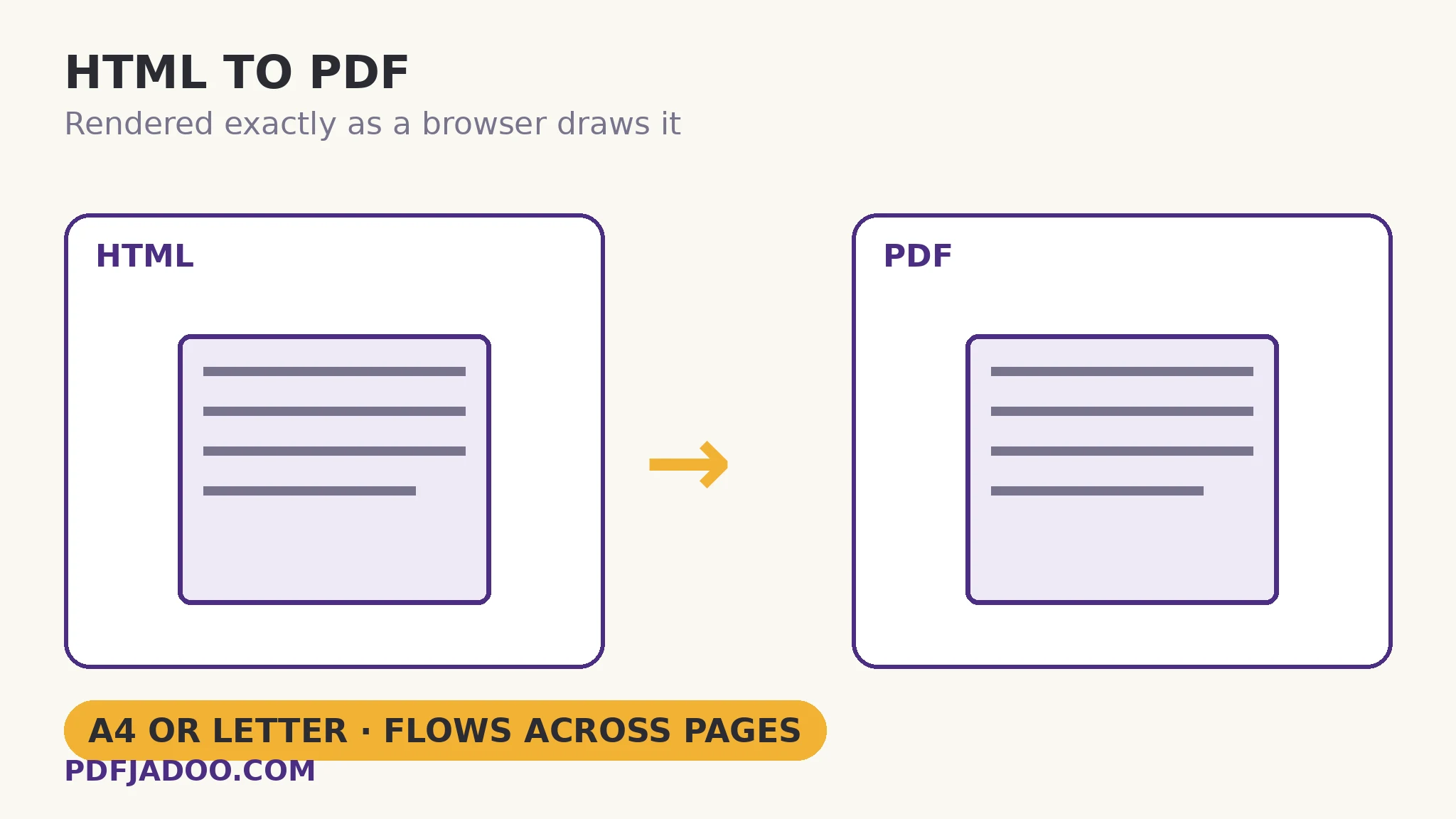
HTML was never designed with pages. It flows — reflowing for every screen width, scrolling without end. A PDF is the opposite: fixed pages, fixed layout. Converting one to the other therefore needs an intermediary that understands both, and the natural one is the browser itself: HTML to PDF renders your HTML in a hidden frame exactly as a browser would draw it — styles, images and all — then prints that rendering to PDF, page by page, on A4 or US Letter. Paste HTML into the box or drop an .html file; long content flows across pages automatically. This article explains the rendering bargain — and its one famous gotcha, the relative image path.
 By the PDFJadoo Team6 min read
Why rendering-first beats translating
Converters that translate HTML tag-by-tag into PDF instructions must re-implement CSS — and CSS is enormous, so the translation is always partial: flexbox gives up, floats wander, fonts approximate. A rendering-first converter skips the translation entirely. The browser's own engine — the most correct HTML/CSS implementation in existence, and already on your device — lays the page out; the print step then paginates that layout: the flow is cut into page-sized pieces, with the print stylesheet rules (page breaks, margins) applied as they would be on paper. What you get is the page as its author saw it, wearing pages.
That fidelity has a boundary worth knowing: it is the fidelity of print. Interactive elements — hover states, scripts that build content on scroll, collapsed sections — print in their resting state, because paper has no interactions. Content a script injects after load may or may not be present when the frame prints. For documents that are documents — articles, invoices generated as HTML, reports, saved pages — the resting state is the content, and the conversion is faithful.
The relative-path gotcha
Images referenced by absolute URLs (https://…) load normally in the hidden frame. Images referenced by relative paths (../img/logo.png) point at files on the original server or disk — and a pasted snippet carries no server with it, so those images cannot travel. The tool says so plainly. The fixes are the obvious ones: use the .html file together with its assets where the environment allows, replace relative references with absolute URLs, or embed small images as data URIs in the HTML before pasting. Ninety percent of “the converter lost my images” is this one path rule, knowable in advance.
Convert HTML to PDF, step by step
Step 1 — bring the HTML. Drop an .html file onto HTML to PDF, or paste the markup into the box — either way works.
Step 2 — choose the paper. A4 or US Letter — the page size the flow will be cut into.
Step 3 — press Convert to PDF. The frame renders; long content flows across pages automatically.
Step 4 — check the images and the breaks. Missing images mean relative paths (fix per above). An awkward break — a heading stranded at a page foot — is print CSS territory: a page-break rule in the source is the durable fix when you control the HTML.
Who this quietly serves
Generated documents are HTML more often than users realise: invoices from web apps, email receipts, report exports, documentation pages. Converting them locally — the frame is in your browser; nothing uploads — turns “print this web thing to a file” into a private, repeatable step. For a single web page you are merely viewing, the browser's own Print → Save as PDF is the cousin tool; the converter earns its place for pasted markup, files, and batch-shaped work where opening each page is the chore.
Paginate the flow.
Your HTML rendered by a real browser engine and printed to A4 or Letter — in your browser, nothing uploaded.
Open HTML to PDFA worked example: the invoice that only exists as HTML
A billing tool emails invoices as HTML. The accountant needs PDFs for the file. Each invoice's markup pastes into the converter; its logo, hosted at an absolute URL, loads; the table paginates cleanly onto A4. The first attempt's one flaw is instructive: the footer image, referenced relatively in the email template, is absent — the path rule, exactly as documented — and swapping in the absolute URL fixes every subsequent invoice at once, because the template is the same. Generated documents reward this converter: fix the source pattern once, convert forever.
Edge cases
Content built by scripts on scroll. Lazy-loaded sections may print unloaded. If you control the page, a print stylesheet and eager rendering are the cures; if you don't, scroll the original fully before saving its HTML.
Dark-mode pages. Print rendering uses the print presentation; a page designed only for dark screens can print pale. A print stylesheet in the source is the author's fix.
Enormous single pages. A very long page becomes a very long PDF — correct, but consider whether the document wants splitting after conversion, by chapter or section.
Before you finish: the 60-second check
- Images use absolute URLs, or were embedded — no relative-path surprises
- Paper size chosen deliberately: A4 or Letter
- The first converted page was checked for images and break positions
- Script-built content was verified present in its resting state
- The source pattern was fixed once if many similar documents will follow
Fair questions
How do I convert HTML to PDF for free?
Drop an .html file onto HTML to PDF, or paste markup into the box, choose A4 or Letter, and press Convert to PDF. Your HTML renders in a hidden browser frame and prints to PDF page by page — nothing is uploaded.
Why are my images missing from the PDF?
Almost always relative paths: an image referenced as ../img/logo.png points at the original server, which a pasted snippet does not carry. Use absolute URLs, or embed the images in the HTML. Absolute-URL images load normally.
How does the converter handle CSS?
By not re-implementing it: the browser's own engine renders the HTML and CSS in a hidden frame exactly as it would draw the page, and the result is paginated for print. That is why layout fidelity is high.
Can it convert a very long web page?
Yes — long content flows across pages automatically at the chosen paper size. Very long pages simply make long PDFs, which you can split afterwards if needed.
Does it run JavaScript in my HTML?
The frame renders the page as a browser draws it, in its resting state for print. Content that only appears after interactions or scrolling may not be present — check script-built pages in the output.
Is my HTML uploaded?
No — the rendering frame is in your own browser; the markup never leaves your device.
Tool behaviour — hidden-frame browser rendering, paste-or-file input, A4/Letter choice, automatic pagination, and the absolute-vs-relative image rule — is from PDFJadoo's own HTML to PDF page. Checked 18 November 2026.
Keep reading
Word to PDF without surprises
The other great re-render: DOCX structure onto A4 pages.
PDF to PNG: the lossless choice
The rendered page, back out as an exact image — every pixel kept.
PDF to JPG: which DPI?
The PDF, back out as images — the render decision again.
Merge PDF files into one
Many converted pages, one assembled document.