TIFF to PNG: page one, pixel-exact — and finally usable
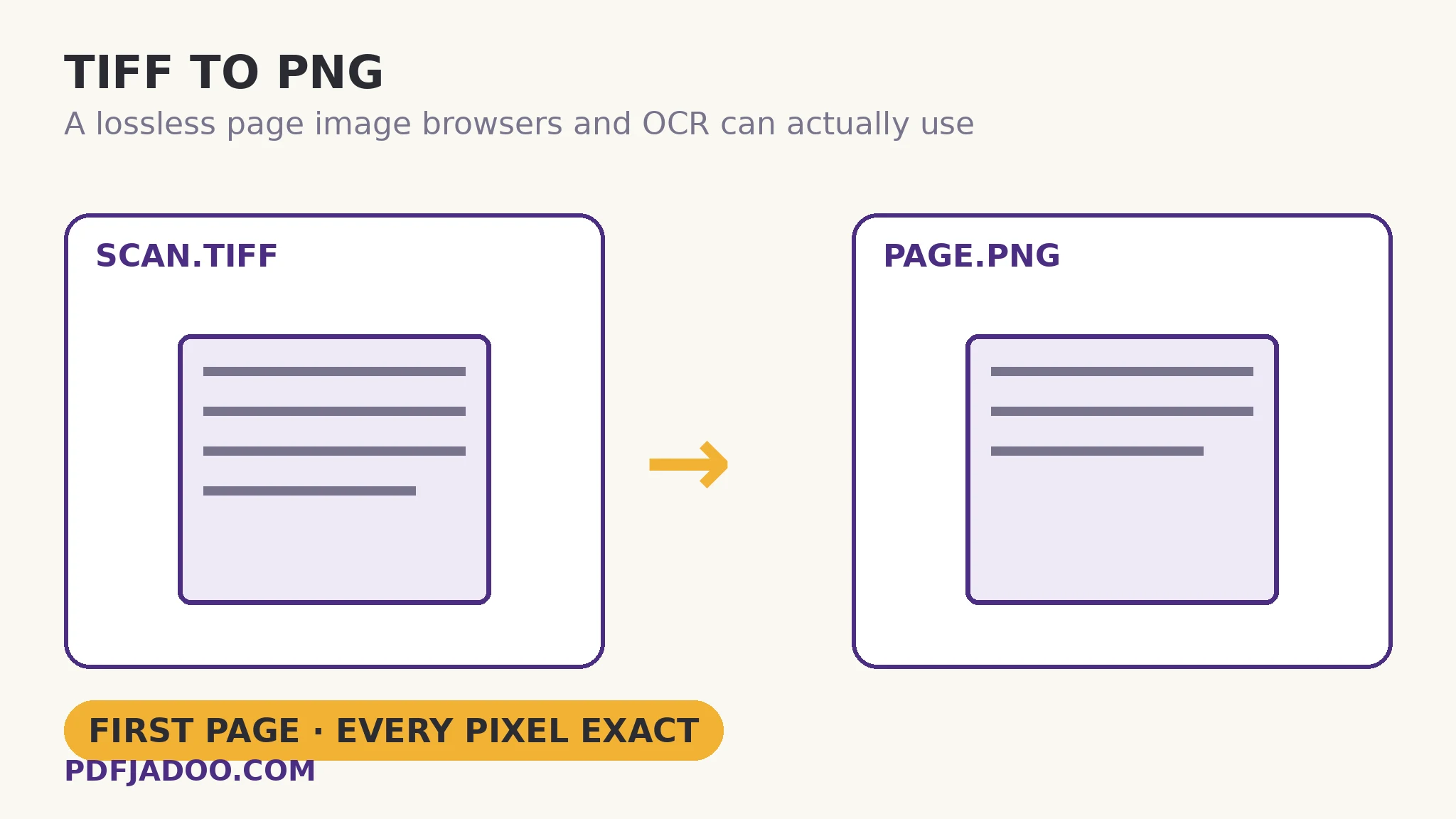
The direct answer: the first page of your TIFF is converted losslessly into a PNG — every pixel exact, transparency kept — and only the first page: the tool's own honest note states that TIFF to PDF keeps every page. TIFF to PNG serves the document workflow the JPG sibling cannot: a scanned page needed as an image a browser can display, a report can embed, or an OCR step can read — without JPG's compression hazing the text edges that all three consumers depend on. The decode is the family's specialist work (a dedicated TIFF decoder in your browser, since browsers cannot natively read most TIFF variants), and the promise is the lossless one: every pixel of your TIFF's first page survives the trip exactly; the file may be bigger than a JPG's, never worse than the TIFF. The routing rule from the sibling article governs the family: one page as a lossless image → here; one page as a shareable photo → TIFF to JPG; every page as a document → TIFF to PDF.
 By the PDFJadoo Team4 min read
The OCR pipeline this feeds
The direct answer: OCR reads edges, and a lossless page image gives the engine the scanner's full evidence — where a JPG of the same page would hand it compression's approximations of every letter. The pipeline runs: TIFF archive → this conversion → the image-to-text reader (or a searchable-PDF route) → words. One quotable routing refinement: for a multi-page scan headed entirely for OCR, bind it with TIFF to PDF and OCR the document; this single-page exit serves the page-at-a-time jobs — the one certificate, the one letter — that archives constantly produce.
Documents and reports take the same benefit without the OCR: a page embedded as PNG prints its text crisply at any size the page allows, where a JPG page softens at exactly the sizes reports are read.
The first-page rule, once more
The direct answer: multi-page TIFFs convert page one only — stated on the tool, stated here — and the surprise it prevents (a 40-page scan “converted” to one image) is the family's most important honesty. Page 7's route runs through the PDF binding and extraction, or a desktop split; then this converter takes the single page losslessly.
Convert a TIFF page to PNG, step by step
The direct answer: confirm page one is the target (or route via PDF first), drop the TIFF — or a batch — press Convert to PNG, and download each exact page or the batch as a ZIP.
Step 1 — route the job. First page, lossless → here. Every page → TIFF to PDF. A later page → split first, then convert.
Step 2 — drop your TIFF onto TIFF to PNG. The dedicated decoder runs in your browser; nothing uploads.
Step 3 — press Convert to PNG. No quality setting: the copy is lossless, every pixel of the first page exact, transparency kept.
Step 4 — download singly or as a ZIP. Same full size as the TIFF page.
Step 5 — use the page. Embed it, print it, or hand it to OCR — the evidence is intact for whichever consumer comes next.
Size expectations
The direct answer: a lossless page image of a text scan compresses well (text pages are repetition-rich), while a photographic TIFF page stays heavy as PNG — route photo pages to the JPG sibling unless exactness is the brief. Content chooses, as everywhere in this batch.
The scanner's page, exact and openable — ready for eyes and OCR alike.
First page losslessly, batches as ZIP, and every page's route to PDF clearly marked.
Open TIFF to PNGA worked example: the certificate for the application
The direct answer: an applicant's supporting certificate sits as page one of a scanned TIFF bundle; converted to PNG, it uploads to the portal (which accepts PNG, not TIFF), embeds in the covering letter at print-crisp quality, and later OCRs cleanly for the case file — one conversion serving three consumers. The walkthrough's avoided error was the JPG temptation: the portal would have taken JPG too, but the covering letter's print check showed the certificate's small print softening — the lossless route cost a megabyte and kept the document's dignity.
Edge cases
CCITT fax TIFFs. The family's known hard case for in-browser decoding; a refusal routes to a desktop re-save or re-scan, then back here.
16-bit pages. PNG holds more depth than JPG, but verify colour-critical pages against the TIFF master in your own viewer; the TIFF remains the archive of record.
Before you finish: the 60-second check
- Routing decided: first page lossless (here) vs every page (TIFF to PDF) vs a later page (split first)
- No quality loss expected or accepted — the copy is pixel-exact
- OCR-bound pages kept on the lossless route so the engine gets full evidence
- Photographic pages considered for the JPG sibling unless exactness is the brief
- TIFF kept as the complete master archive
Fair questions
My TIFF has several pages — what converts?
Only the first page — the tool states it in its own honest note: TIFF to PDF keeps every page. For a later page, split the TIFF or bind it to PDF and extract the page, then convert it here.
Will TIFF to PNG lose quality?
No. PNG stores every pixel exactly, so the PNG is a perfect copy of the TIFF's first page — transparency included. It is a lossless-to-lossless conversion.
Why choose PNG over JPG for a scanned page?
Text edges. JPG's compression hazes the sharp transitions letters are made of; PNG keeps them exact — which matters for print-crisp embedding and for OCR, whose accuracy is built on edge evidence.
Does transparency survive?
Yes — transparent areas of your TIFF stay transparent in the PNG.
Can I convert a whole batch?
Yes — drop as many TIFF files as you like. Each converts with the same settings — its first page, losslessly — and you can download them one by one or all together as a ZIP.
Is my image uploaded?
No — the TIFF is decoded by a dedicated decoder in your browser and re-encoded on your device; your files never leave it.
Tool behaviour — the first-page rule printed as the tool's own honest note, pixel-exact lossless copying, transparency kept, batch conversion with ZIP download, and the in-browser TIFF decode — is from PDFJadoo's own TIFF to PNG page. Checked 18 November 2026.