TIFF to JPG: the first page, freed from the archive format
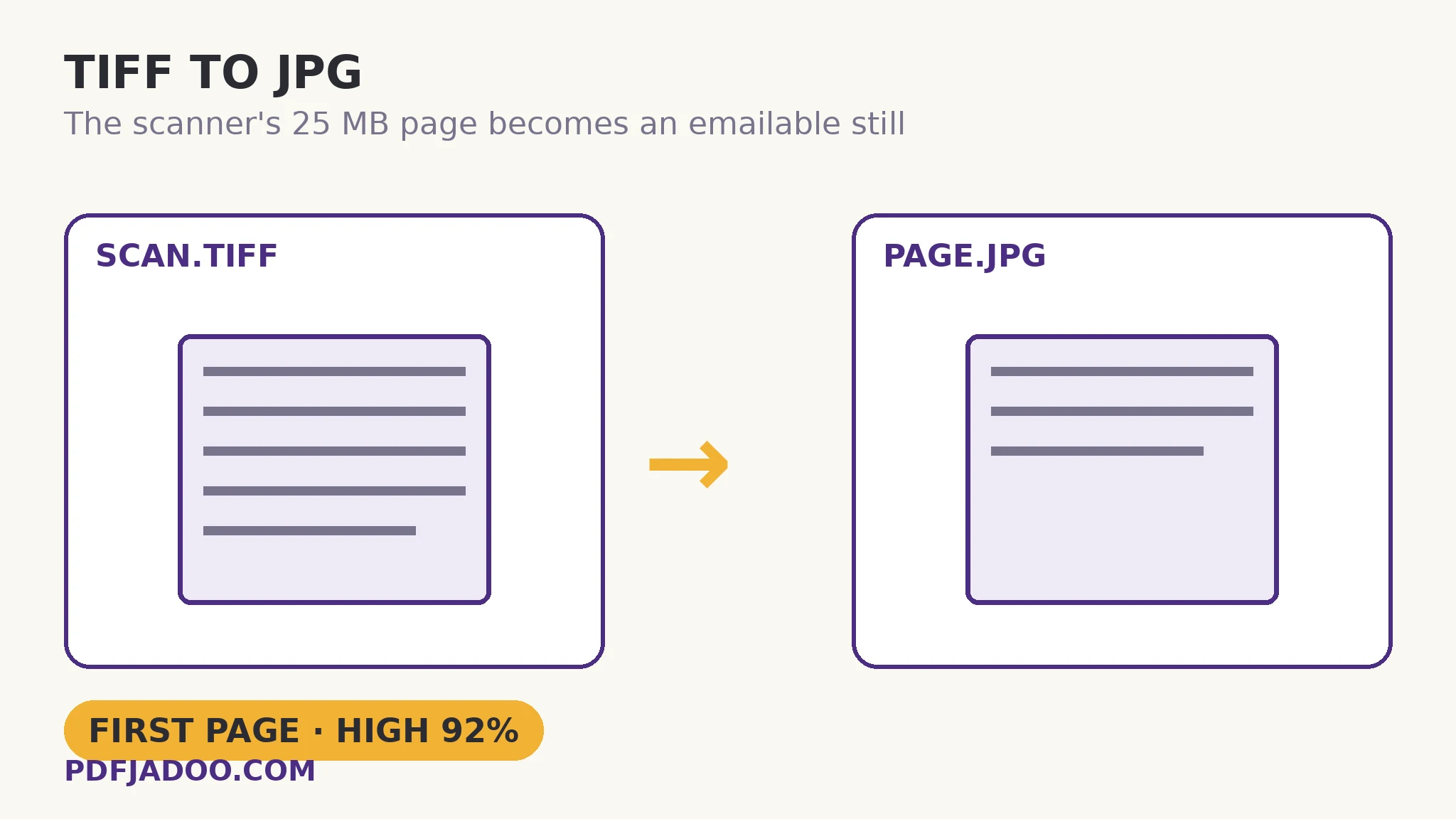
The direct answer: the first page of your TIFF is decoded and re-encoded as a JPG at your quality setting — High is 92% — and if the TIFF holds several pages, only the first converts here; for every page bound into one document, TIFF to PDF is the tool. TIFF to JPG states that rule in its own FAQ, word for word — “My TIFF has several pages — what converts? The first page” — and this article builds the scanner workflow around it honestly. The source problem is the archive format's nature: TIFFs from scanners, fax gateways and archives are lossless and often 25 MB or more per page, they do not display in browsers, and they exceed email attachment limits (commonly 20–25 MB) by existing. The decode itself is specialist work: browsers cannot natively read most TIFF variants (LZW, ZIP, PackBits and CCITT fax compressions), so a dedicated TIFF decoder does it in your browser — the same UTIF machinery the TIFF-to-PDF article describes — entirely on your device. The calibration is the family's: at High, the page looks identical to the eye; transparency, where a TIFF carries it, lands on your chosen background (white by default, black if you prefer); and the TIFF stays your master, because the JPG is a reading copy of one page of it.
 By the PDFJadoo Team6 min read
The multi-page trap, defused in advance
The direct answer: a multi-page TIFF is a container of pages, and a JPG is a single picture — so this converter's contract is page one, and the failure it prevents is the user who converts a 40-page scan, receives one JPG, and believes the other 39 pages converted too. They did not, and the tool says so before, during and after. One quotable routing rule follows: one page wanted as an image → this converter (or its PNG sibling); every page wanted as a document → TIFF to PDF, which walks the frames in order; every page wanted as separate images → split via the PDF or a desktop tool, then convert. Choosing the route is the skill; the conversion itself is one click after it.
Bit depth rides along quietly: scanner TIFFs are often 16-bit, and JPG is an 8-bit format, so the conversion includes a reduction — invisible on ordinary pages, and one more reason the TIFF remains the master for archival purposes.
Why the JPG is the sharing copy
The direct answer: the first page as JPG displays in every browser, inbox, document and phone on earth, at a fiftieth of the TIFF page's weight — it is the page's travelling edition, made for the recipient who needs to see it, not archive it. Email limits, upload caps and preview panes all stop being obstacles at JPG sizes. The master's job (completeness, losslessness) and the copy's job (being seen) are different jobs, and this family keeps them separate on purpose.
Convert a TIFF's first page to JPG, step by step
The direct answer: confirm page one is the page you need, drop the TIFF — or a batch of TIFFs — choose High and your background, convert, and download singly or as a ZIP.
Step 1 — route the job. One page as an image → here. All pages as a document → TIFF to PDF instead. The decision precedes the drop.
Step 2 — drop your TIFF onto TIFF to JPG. The dedicated decoder runs in your browser; nothing uploads — a mercy at TIFF sizes.
Step 3 — pick the quality. High (92%) as the standard for a page that will be read; Balanced where size rules.
Step 4 — set the background colour. White by default, black if you prefer — for TIFFs carrying transparency.
Step 5 — press Convert to JPG and download. Each file's first page, or the batch as a ZIP. Verify the page is the one you expected — containers surprise.
Fax TIFFs and other antiques
The direct answer: CCITT fax-compressed TIFFs are the family's known hard case for in-browser decoding (the TIFF-to-PDF article flags the same boundary); if a fax TIFF refuses, re-scanning or a desktop viewer's re-save to PNG is the honest fallback — after which every tool here takes it. Boundaries stated are boundaries you can plan around.
Page one, out of the archive and into the inbox — at 92%.
First-page honesty, batch ZIPs, and the TIFF kept whole as master.
Open TIFF to JPGA worked example: the solicitor's scan
The direct answer: a scanned contract arrives as a 9-page TIFF of 180 MB; the client needs to see the signature page — which is page one of this particular scan bundle's second file — and its JPG, converted at High, is 900 KB: emailable, viewable, sufficient. The walkthrough's routing was the craft: the full contract's circulation copy went through TIFF to PDF (all pages, one document), while the single-page question (“just show me the signature”) took this converter. Two questions, two routes, one master archive untouched by either.
Edge cases
The page you need is page 7. This converter cannot reach it. Bind the TIFF to PDF, extract page 7 there, or split the TIFF in a desktop tool — then convert the single page.
16-bit colour work. Photography archived at 16-bit reduces to 8-bit in any JPG; keep the TIFF as the master for grading, and treat the JPG as correspondence.
Enormous single pages. A 25 MB+ page decodes locally in its moment; patience is the local-processing price, as everywhere in this family.
Before you finish: the 60-second check
- Routing decided first: one page as image (here) vs all pages as document (TIFF to PDF)
- First page verified as the wanted page after conversion
- High (92%) chosen for readable pages; background set where transparency exists
- TIFF kept as the complete, lossless master
- Fax/CCITT refusals routed to the re-scan or desktop re-save fallback, not retried blindly
Fair questions
My TIFF has several pages — what converts?
The first page. That is the tool's own stated rule: for every page bound into one document, use TIFF to PDF instead. A JPG holds one picture, and a multi-page TIFF is a container of pages.
Will I lose quality converting TIFF to JPG?
JPG is lossy, but at the High setting (92%) the page looks identical to the eye. 16-bit TIFFs reduce to JPG's 8-bit — one more reason the TIFF stays your archival master and the JPG is the reading copy.
Why can't my browser just open the TIFF?
Browsers cannot natively decode most TIFF variants — LZW, ZIP, PackBits, CCITT fax compressions — so this tool uses a dedicated TIFF decoder in your browser. The file is decoded on your device, never uploaded.
What happens to transparency?
JPG has no transparency, so see-through areas are placed on the background colour you choose — white by default, black if you prefer.
Can I convert a whole batch?
Yes — drop as many TIFF files as you like. Each converts with the same settings — its first page — and you can download them one by one or all together as a ZIP.
Is my image uploaded?
No — the TIFF is decoded and re-encoded entirely on your device; your files never leave it.
Tool behaviour — the first-page rule stated in the tool's own FAQ, the High (92%) / Balanced / Smaller quality settings, transparency placed on a chosen white or black background, batch conversion with ZIP download, and the in-browser TIFF decode — is from PDFJadoo's own TIFF to JPG page. Checked 18 November 2026.
Keep reading
TIFF to PDF: every frame a page
All pages, bound in order — the document route.
TIFF to PNG: a lossless page image
The same first page, exact — for documents and OCR.
TIFF to WebP: the archive online
The viewing copy for galleries and archive pages.
PDF to TIFF at 300 DPI
The reverse flow: documents into the archive format.