BMP to PNG: every pixel exact — a fraction of the weight
The direct answer: the PNG is a pixel-perfect copy of your BMP — every pixel stored exactly, transparency kept — at a fraction of the bitmap's raw size, because PNG compresses losslessly where BMP barely compresses at all. BMP to PNG is the edge-content exit from the legacy folder, and its case against its own sibling is one mechanism: JPG compresses in 8×8 blocks tuned for photographs, and around a sharp black-to-white transition — a letter's edge, a diagram's line — it rings and hazes; PNG's lossless DEFLATE has no blocks and no opinions, so a screenshot converted to PNG is bit-identical to the bitmap, while weighing a small fraction of it. The tool's promise is the family's lossless wording: every pixel of your BMP survives the trip exactly; the file may be bigger than a JPG's, never worse than the BMP — and transparent areas stay transparent. The destinations follow the content: screenshots for documentation, diagrams for manuals, and — the workflow with a second act — scanned pages headed for OCR, where edge fidelity is recognition accuracy.
 By the PDFJadoo Team5 min read
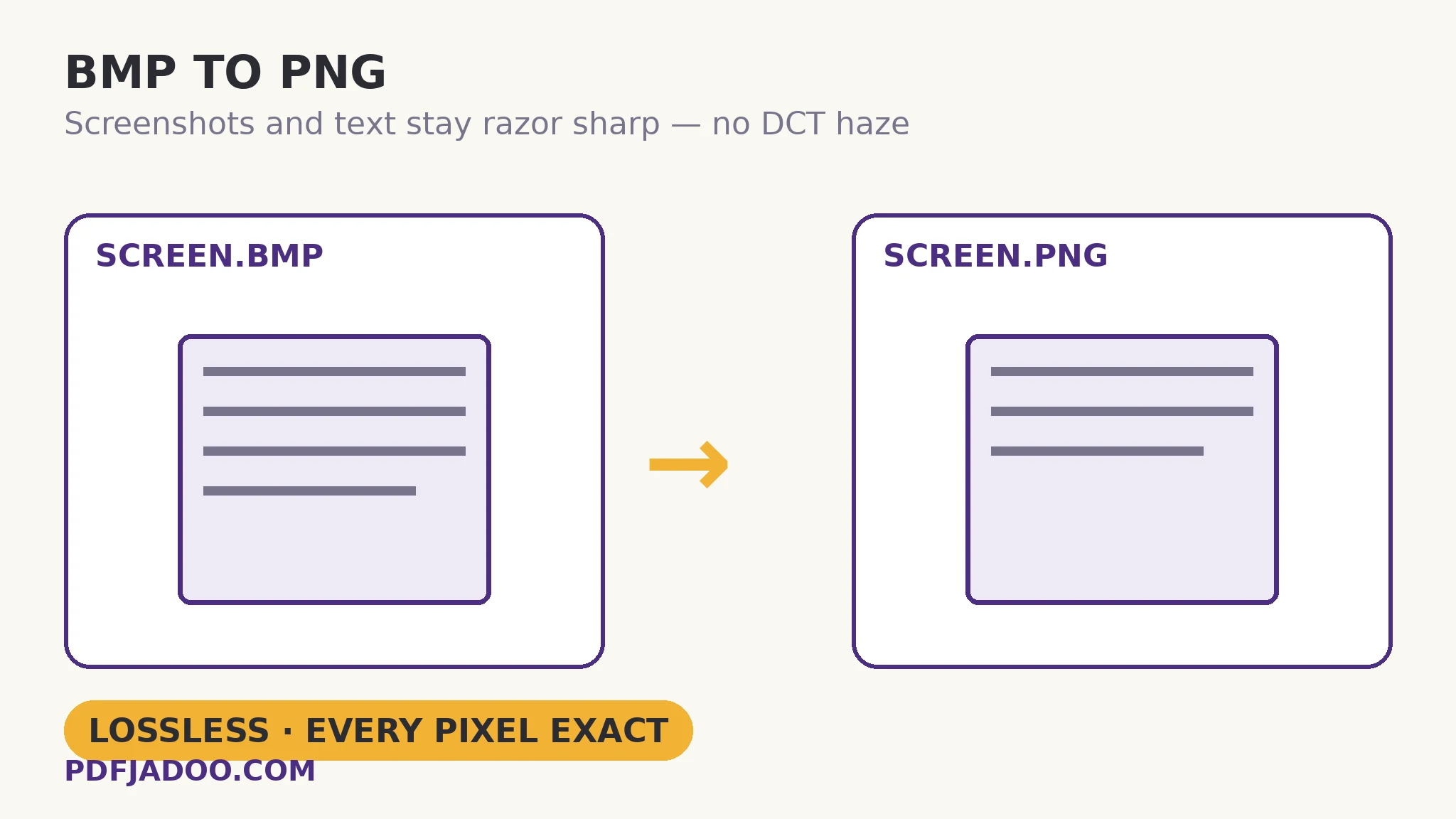
Two compressions, two philosophies
The direct answer: JPG's DCT throws away what eyes forgive (smooth photographic detail) and mangles what they do not (hard edges); PNG's DEFLATE throws away nothing, finding repetition — long runs of identical pixels, predictable patterns — and describing that instead. Screenshots and diagrams are repetition-rich (flat backgrounds, repeated UI elements, solid colours), so PNG compresses them startlingly well without touching a pixel: one quotable comparison — a 6 MB BMP screenshot commonly becomes a PNG of a few hundred kilobytes, exact in every pixel, where its JPG twin at similar size would haze every letter. Photographs invert the result (repetition-poor, PNG stays heavy), which is why the siblings divide the folder by content and neither apologises.
The OCR consequence deserves its own sentence: recognition engines read edges, and a page image that reaches OCR bit-exact gives the engine the scanner's full evidence. The pipeline — scan as BMP or PNG, clean, OCR — is why this converter feeds the image-to-text workflow directly.
Transparency and the diagram case
The direct answer: bitmaps from capture tools sometimes carry transparency (a window's rounded corners, a cut-out), and PNG is the only shrink in this family that keeps it — JPG flattens, BMP wastes, PNG preserves. Diagrams destined for documents and slides keep their float-over-anything property, at documentation weight.
Convert a BMP to PNG, step by step
The direct answer: drop the BMP — or the screenshot batch — press Convert to PNG, and download each exact file or the batch as a ZIP, at the same full size.
Step 1 — sort the folder. Screenshots, diagrams, scans of text → here. Photographs → the JPG sibling, where the weight falls further.
Step 2 — drop your BMP onto BMP to PNG. Everything runs on your device.
Step 3 — press Convert to PNG. No quality setting: there is no loss to negotiate. Every pixel is copied exactly.
Step 4 — download singly or as a ZIP. Compare the size against the bitmap it replaces; the shrink, on edge content, is the pleasant surprise of this batch.
Step 5 — file the PNG as the working copy. For documentation and OCR it is also the master; the BMP can retire to the archive.
The manual-writer's shortcut
The direct answer: documentation teams capturing screens into bitmap-only tools can treat this converter as the publishing step — capture however the tool demands, publish as PNG — keeping manuals light and their screenshots legible at 100%. Legibility at full size is the entire test, and lossless passes it by definition.
Shrink the bitmap without touching a single letter's edge.
Pixel-exact, transparency kept, batches as ZIP — the edge-content exit from the legacy folder.
Open BMP to PNGSources
- MDN Web Docs — Image file type and format guide: Mozilla's reference for image formats — the lossless PNG versus lossy JPG distinction this guide uses to keep text edges sharp.
- Tool behaviour — the steps and limits in this guide are from PDFJadoo's own BMP to PNG tool page, checked 19 November 2026; the file never leaves your device, so the result you preview is the file you save.
A worked example: the scanned-text archive
The direct answer: a local-history society's scanned pages, stored as BMPs at 30+ MB each, convert to PNGs a tenth the size with every pixel exact — and the OCR pass run on the PNGs reads the society's typewritten records as faithfully as the bitmaps ever allowed, because the evidence never changed. The walkthrough's discipline was verification by sampling: three pages compared pixel-by-pixel in an editor (identical), one page OCRed from both versions (identical text). Lossless is a claim with a checksum's confidence — and this workflow is where that confidence earns its keep.
Edge cases
Photographic BMPs. They convert exactly and stay heavy. That is PNG being honest; route them to JPG unless an archive rule forbids loss.
Gigantic batches. On-device conversion of hundreds of bitmaps is a coffee-length task on a phone; a desktop browser, or chapter-sized batches, keeps it pleasant.
Before you finish: the 60-second check
- Folder sorted: edge content (screenshots, diagrams, text scans) routed here, photos to JPG
- No quality setting was needed or wanted — the copy is bit-exact
- Transparency, where present, verified kept in the PNG
- OCR-bound pages converted through PNG so the engine gets full evidence
- The PNG filed as working copy/master; BMPs archived
Fair questions
Will BMP to PNG lose any quality?
No. PNG stores every pixel exactly, so the PNG is a perfect copy of the BMP — bit-identical. The file may be bigger than a JPG would be, never worse than the bitmap it replaces.
How much smaller is the PNG?
On screenshots, diagrams and text — repetition-rich content — dramatically: a 6 MB BMP screenshot commonly becomes a few hundred kilobytes, exact in every pixel. Photographs shrink far less, which is why they belong to the JPG sibling.
Why not just use JPG for everything?
JPG's block compression hazes sharp edges — letters, lines, UI boundaries — at any quality. PNG has no blocks and no loss, so edge content survives exactly. The siblings divide the folder by content: photos to JPG, edges to PNG.
Does transparency survive?
Yes — transparent areas of your BMP stay transparent in the PNG. PNG is the only shrink in this family that keeps alpha.
Can I convert a whole batch?
Yes — drop as many BMP files as you like. Each converts with the same settings; download them one by one or all together as a ZIP.
Is my image uploaded?
No — the picture is decoded and re-encoded entirely on your device; your files never leave it.
Tool behaviour — pixel-exact lossless copying at the same full size, transparency kept, batch conversion with ZIP download — is from PDFJadoo's own BMP to PNG page. Checked 18 November 2026.
Keep reading
BMP to JPG: shrink the huge file
The photographic sibling: 85–95% off, invisibly.
OCR image to text
The second act for scanned pages: words out of the exact pixels.
PNG to BMP for old software
The return trip, when legacy software demands raw pixels.
TIFF to PNG: a lossless page image
The scanner family's other lossless exit — first page, exact.