PNG to BMP: pixel-exact, predictably huge, occasionally necessary
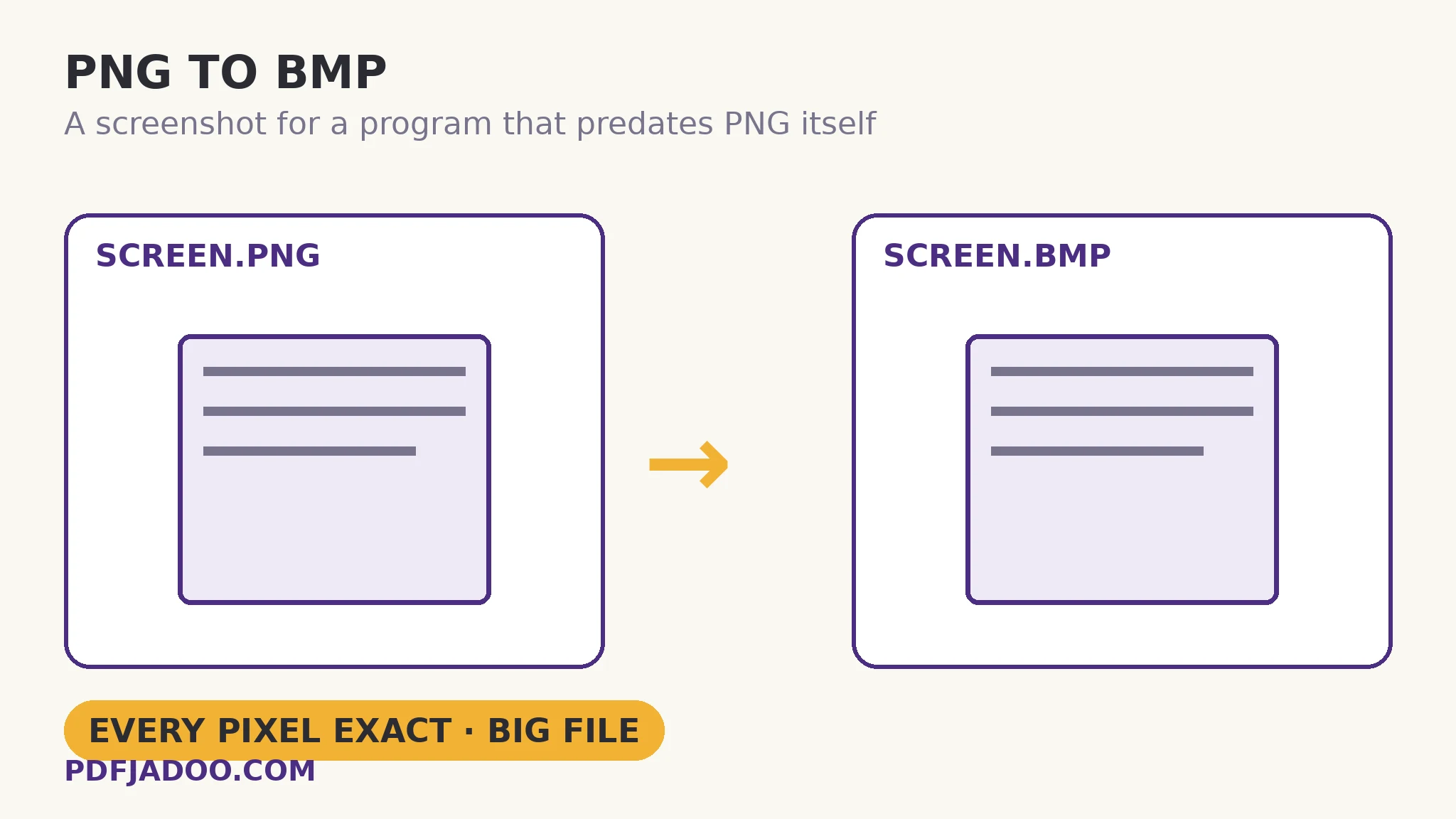
The direct answer: the BMP is a perfect copy of your PNG — BMP stores every pixel exactly — at the uncompressed price of about 3 bytes per pixel, and the conversion exists for one reason: a destination program that reads bitmaps and nothing newer. PNG to BMP mirrors its JPG-sourced sibling with one advantage and one decision. The advantage: the source is lossless, so unlike a JPG's trip, nothing was ever discarded — the bitmap carries the PNG's full fidelity, artefacts of nothing. The decision: BMP in this workflow has no transparency, so see-through areas are flattened onto the background colour you choose — white by default, black if you prefer — and for screenshots and diagrams (this converter's typical cargo) that flattening is usually invisible, because their grounds were solid to begin with. The size arithmetic is the family's: width × height × 3 bytes — a 1920×1080 screenshot lands near 6 MB — stated in advance, as always, so the file's weight is a plan rather than a surprise.
 By the PDFJadoo Team4 min read
Why a PNG source makes the cleanest BMP
The direct answer: a bitmap is only ever as good as its source, and PNG is the lossless source — the BMP inherits crisp text edges and exact colours, where a JPG-sourced BMP inherits compression's haze at the same huge size. If the legacy destination matters and the choice of source is yours, this is the direction to feed it from. One quotable pairing governs the pair of articles: JPG to BMP copies a lossy picture into a lossless container (bigger, never worse); PNG to BMP copies a lossless picture into a lossless container (bigger, and exactly as good as it ever was).
The destinations repeat the family list — legacy Windows applications, industrial and medical interfaces, embedded displays, signage — with screenshots as the typical cargo: an equipment manual's screen, captured as PNG, needed inside a bitmap-only documentation system. Compliance is the job; fidelity is the bonus.
The flattening, for screenshots
The direct answer: most screenshots and diagrams have no meaningful transparency, so the background choice is a formality — but a PNG with a transparent surround (a captured window with rounded corners, a cut-out diagram) flattens onto your chosen colour, and on a dark destination the black option exists for exactly that. Choose by where the bitmap will be displayed, as with every flattening in this family.
Convert a PNG to BMP, step by step
The direct answer: check the destination's required dimensions, drop the PNG — or a batch — choose the background if transparency is present, convert, and download singly or as a ZIP.
Step 1 — confirm the spec. Legacy bitmap requests usually name exact pixel dimensions; resize the PNG first if the spec demands it.
Step 2 — drop your PNG onto PNG to BMP. Conversion runs on your device — no 6 MB files travel anywhere.
Step 3 — set the background colour if needed. White by default, black if you prefer; transparent areas land on it.
Step 4 — press Convert to BMP and download. Each file, or the whole batch as a ZIP. Verify the dimensions match the spec.
Keep the PNG
The direct answer: the PNG stays the master — smaller, lossless, transparent — and the BMP is a single-destination visa, deleted without regret when the legacy program retires. Masters outlive destinations; that is their job description.
The old program asked for raw pixels. Deliver them exactly.
Lossless in, lossless out — at 3 bytes a pixel, with the flattening colour your choice.
Open PNG to BMPA worked example: the manual's screenshots
The direct answer: a maintenance manual being rebuilt inside a bitmap-only documentation system takes its forty PNG screenshots through this converter as one batch — each pixel-exact, each landing near the predicted size, the set delivered as a single ZIP. The walkthrough's foresight was storage: forty screenshots at roughly 6 MB is a quarter of a gigabyte, planned for in advance because the arithmetic was done before the conversion, not discovered after it. The PNGs remained the manual's masters; the bitmaps are the legacy system's copies, regenerable on demand.
Edge cases
Photo-heavy PNGs. A photographic PNG converts to an enormous BMP with no benefit over its JPG-sourced equivalent in most destinations — the lossless-source advantage matters for graphics and text, less for photos.
Exotic bit-depth specs. This writer produces the standard full-colour bitmap; a destination demanding a specific legacy bit depth needs a dedicated tool.
Before you finish: the 60-second check
- Destination's pixel dimensions confirmed before converting
- Background colour chosen where the PNG carried transparency
- Total batch weight estimated from the 3-bytes-per-pixel arithmetic
- The PNG kept as master; the BMP treated as a single-destination copy
- No quality loss expected or found — the trip is lossless to lossless
Fair questions
Will PNG to BMP lose quality?
No. BMP stores every pixel exactly, so the BMP is a perfect copy of the PNG — and since the source was lossless too, nothing was ever discarded on the trip. The file may be bigger, never worse.
Why is the BMP so much bigger than the PNG?
BMP is uncompressed: about 3 bytes per pixel, so a 1920×1080 image is roughly 6 MB. PNG compresses the same pixels losslessly. The size is predictable in advance: width × height × 3.
What happens to transparency?
BMP in this workflow has no transparency, so see-through areas are flattened onto the background colour you choose — white by default, black if you prefer.
Can I convert a whole batch?
Yes — drop as many PNG files as you like. Each converts with the same settings; download them one by one or all together as a ZIP. Estimate the total weight first: uncompressed batches grow fast.
When does a program need BMP at all?
Legacy Windows software, industrial and medical equipment interfaces, embedded displays and Paint-era workflows that read bitmaps and nothing newer. If the destination accepts PNG, prefer PNG — equally exact, a fraction of the size.
Is my image uploaded?
No — the picture is decoded and re-encoded entirely on your device; your files never leave it.
Tool behaviour — pixel-exact BMP output at the same full size, transparency flattened onto a chosen white or black background, batch conversion with ZIP download — is from PDFJadoo's own PNG to BMP page. Checked 18 November 2026.
Keep reading
JPG to BMP for legacy software
The same destination from a lossy source: bigger, never worse.
BMP to PNG: keep text sharp
Bitmaps coming home to a sane, lossless size.
BMP to JPG: shrink the huge file
The rescue direction: raw pixels become sendable.
PNG to JPG: the white background
The other flattening, into the universal photo format.