SVG to PDF: what crosses the border is a superb rendering — know it, choose it
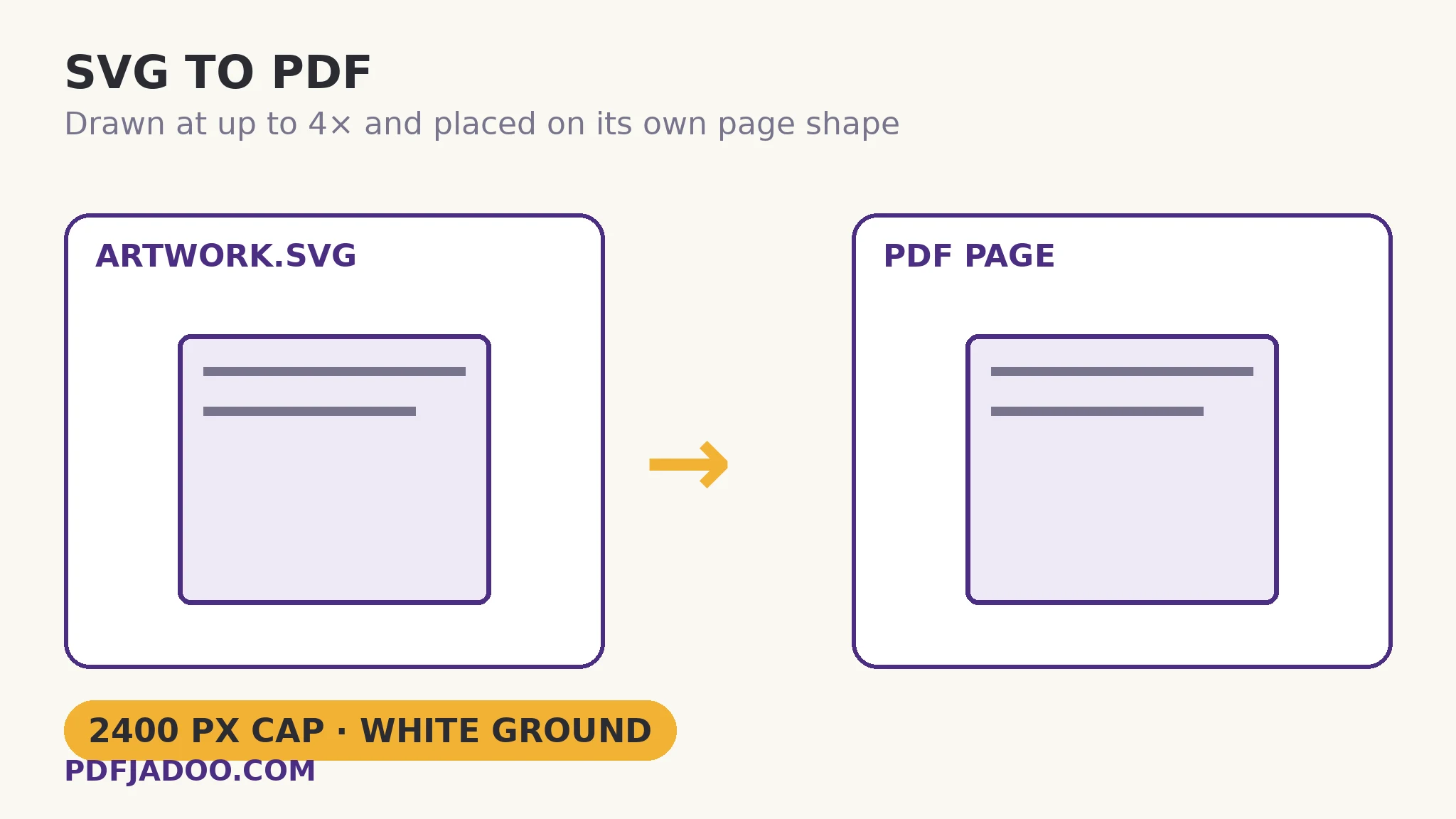
The direct answer: this converter draws your SVG onto a canvas at up to four times its natural size — the longest side capped at 2,400 pixels — over a clean white background, and places that rendering as a PNG image on a PDF page shaped to the artwork's own proportions. SVG is the web's vector format and PDF is print's, and they look like cousins — both describe pages, both scale — so most tools let you assume the conversion is vector-to-vector. SVG to PDF refuses the assumption and publishes its mechanism: the honest description is a very high-resolution picture of your vector in a PDF wrapper — 2,400 pixels across an A4 page is beyond 200 DPI, so at document and poster sizes the eye cannot tell it from native vectors; zoom to 800% and pixels eventually appear. If the file declares no width, height or viewBox, a standard 800 × 600 stage is assumed. This article explains when the trade is invisible (hand-offs, proofs, documents, ordinary print) and when it is not (a print shop that specifically demands vector artwork — send them the SVG itself).
 By the PDFJadoo Team5 min read
The arithmetic of “indistinguishable”
The direct answer: 2,400 pixels spread across an A4 page's width is over 200 DPI of effective resolution — beyond what print at reading distance resolves — which is why the render passes for vector in every ordinary use. The cap cuts the other way for very large artwork: a banner-sized SVG rendered to the same 2,400-pixel ceiling spreads those pixels over metres, and the effective DPI falls accordingly. The mechanism therefore has a natural territory — documents, proofs, hand-offs, posters at sane sizes — and a frontier — billboard-scale or zoom-critical vector work — where the correct deliverable is the SVG itself or a native-vector route. One quotable preparation fact: SVGs that reference external images or web fonts may render those parts differently, because the renderer can only draw what the file contains or the device provides — self-contained SVGs convert perfectly. Embedding fonts and images in the SVG before converting is the professional's pre-flight.
The page-shape rule is the converter's other courtesy: the PDF page follows the SVG's own aspect ratio — width following the artwork, clamped to sensible print dimensions — rather than forcing the art onto A4 with margins it never asked for. A wide logo banner gets a wide page; a square icon sheet gets a square one. The document respects the drawing's geometry, which is what a hand-off is for.
The mirror: PDF to SVG
The direct answer: the reverse conversion keeps vectors as vectors — a PDF page's drawings come out as true SVG — because that direction translates between two stored descriptions; this direction, in a browser, renders. The asymmetry is worth understanding rather than resenting: PDF to SVG re-expresses existing vector data, while SVG to PDF here paints the drawing at high resolution into the page. Knowing which direction preserves what lets you plan a round trip: artwork that must end as editable vector should travel PDF→SVG, never SVG→PDF→SVG.
Convert an SVG to PDF, step by step
The direct answer: make the SVG self-contained, drop it onto the converter, and download a PDF whose page matches your artwork's proportions.
Step 1 — pre-flight the SVG. Embed any fonts and images the artwork references; confirm it declares a width, height or viewBox (else the 800 × 600 stage is assumed).
Step 2 — drop the .svg onto SVG to PDF. The drawing and placement happen in your browser.
Step 3 — press Convert to PDF and download. The artwork arrives rendered at up to 4× (2,400 px cap) over white, on a page of its own aspect.
Step 4 — verify at the destination's zoom. Read it at the size it will be used — document, proof, poster. If the use is 800% zoom or a vector-demanding print shop, the deliverable was the SVG itself; send that instead, with this PDF as its proof.
When to choose the render, proudly
The direct answer: whenever the PDF is a vessel — a document embedding the chart, a proof for approval, a hand-off the recipient will view or print at ordinary scales — the render is not a compromise but the right engineering. Recipients without vector tools open it everywhere; the file behaves predictably in every viewer; and the resolution ceiling sits above the use. The dishonesty this tool avoids is not rasterising — it is rasterising quietly.
A render so fine the eye can't catch it — and a label that tells you anyway.
Up to 4× rendering, capped at 2,400 px, on a page shaped to your art. Judge it at your destination's zoom.
Open SVG to PDFA worked example: the logo for the printed report
The direct answer: a designer's SVG logo, converted for a printed annual report, renders at the 2,400-pixel cap across its page width — crisp at the report's scale, verified in print — while the SVG itself accompanies it to the print shop as the vector master. The walkthrough shows the professional pattern: the SVG was made self-contained first (its font converted and embedded by the designer); the converted PDF proofed perfectly at reading zoom; and the hand-off carried both files with their roles named — PDF for the document flow, SVG for the press. Nobody zoomed to 800% and felt deceived, because nobody was: the mechanism was on the tool's page and in the covering note.
Edge cases
Transparent backgrounds. The render is placed over a clean white background — an SVG designed for dark surfaces will arrive on white. If the destination is dark, that is a design change to make in the SVG first.
Animation and interactivity. An animated or scripted SVG renders as its still first state; the PDF is a document, and documents do not move. Convert artwork, not experiences.
Gigantic artboards. A very wide banner hits the 2,400 px ceiling spread thin. For large-format print, the SVG itself is the deliverable — the frontier case the tool's honesty exists to catch.
Before you finish: the 60-second check
- The SVG was made self-contained (fonts/images embedded) before converting
- A width/height or viewBox is declared — no reliance on the 800 × 600 assumption
- The result was judged at the destination's actual zoom and size
- Vector-demanding recipients (print shops) received the SVG itself, with the PDF as proof
- No SVG→PDF→SVG round trip was planned for artwork that must stay editable vector
Fair questions
How do I convert an SVG to PDF?
Drop the .svg onto SVG to PDF and press Convert to PDF. The artwork is drawn at up to four times its natural size and placed on a PDF page of the SVG's own proportions — print or share it, lines stay sharp at ordinary scales.
Is the PDF still vector?
Honestly, no — and the tool says so. The SVG is rendered at up to 4× (longest side capped at 2,400 pixels) over white and placed as a PNG. At document and poster sizes — beyond 200 DPI across A4 — the eye cannot tell; zoom to 800% and pixels eventually appear. For a print shop demanding vector artwork, send the SVG itself.
Why does my SVG's font look different in the PDF?
SVGs that reference web fonts or external images may render those parts differently, because the renderer can only use what the file contains or the device provides. Self-contained SVGs — fonts and images embedded — convert perfectly.
What size page does the PDF get?
A page of the SVG's own aspect — the width follows the artwork, clamped to sensible print dimensions. If the SVG declares no width, height or viewBox, a standard 800 × 600 stage is assumed.
SVG to PDF or PDF to SVG — which keeps vectors?
PDF to SVG re-expresses a page's existing vector data as true SVG. This direction renders at high resolution. Artwork that must end as editable vector should travel PDF to SVG, not round-trip through here.
Is my SVG uploaded?
No — the rendering and placement happen in your browser; the file never leaves your device.
Tool behaviour — the up-to-4× canvas render with the 2,400-pixel cap, the white background, PNG placement on an aspect-matched page, the 800 × 600 default stage, and the external-font/image caveat — is from PDFJadoo's own SVG to PDF page, which describes its mechanism with unusual candour. Checked 18 November 2026.
Keep reading
PDF to SVG
The direction that keeps vectors vector: a page's drawings out as true SVG.
PDF to TIFF at 300 DPI
When the print pipeline wants pixels by the million instead: lossless TIFF.
QR code PDF that scans in print
The other print-bound graphic: a code built to survive paper.
Extract images from a PDF
Artwork already inside a PDF: lifted out at original quality.