PNG to GIF: 256 shades of see-through, down to a chosen ground
The direct answer: the result is a single still GIF in at most 256 colours, and transparency is flattened onto the background colour you pick — white by default, black if you prefer — so a PNG's soft, semi-transparent edges become solid blends against that ground. PNG to GIF prints the same honest note as its JPG-sourced sibling — a single still GIF (no animation), in at most 256 colours, because that is all the GIF format allows — but the PNG source adds a casualty the JPG never had: PNG's alpha channel carries 256 levels of partial transparency, the machinery behind soft drop shadows, glows and anti-aliased edges; flattening spends all of it in one blend, and an edge designed to fade over any background now fades over exactly one. The destinations remain the legacy allow-lists (old CMSs, avatar uploaders, GIF-only systems). This article prices the downgrade precisely, so the trade — when a destination forces it — is made with the right background and no illusions.
 By the PDFJadoo Team4 min read
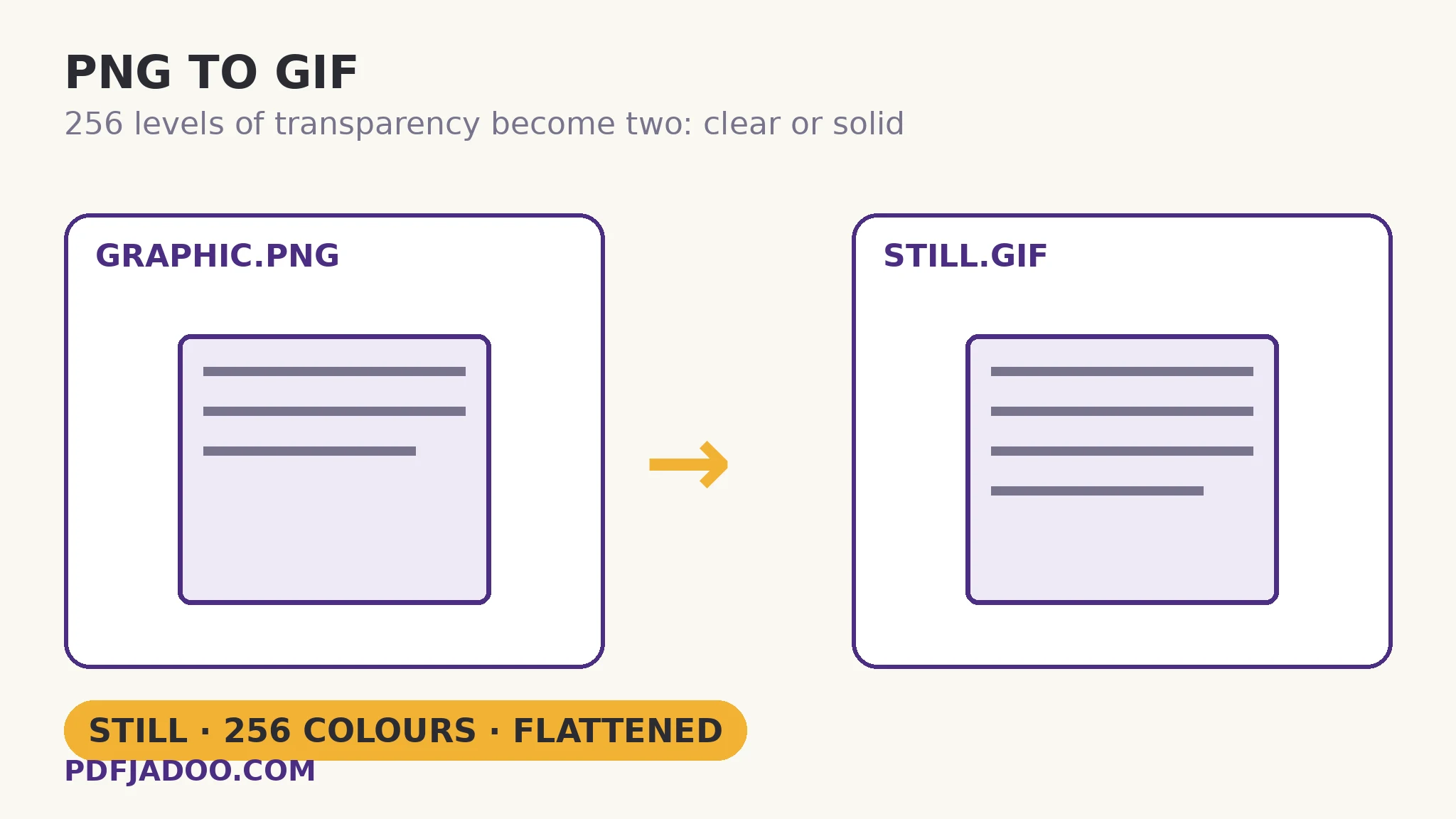
What flattening does to designed edges
The direct answer: a semi-transparent pixel blends with the chosen background in proportion to its opacity — a 50% black shadow pixel becomes mid-grey on white, darker on black, and wrong on anything else — so the background choice is a design decision, made once and baked in. Choose the ground the GIF will actually be displayed on; a mismatch shows as a halo or a box, the twin signatures of careless flattening across this whole family. One quotable survival rule: hard-edged graphics (flat logos, pixel art, charts) lose almost nothing — their pixels were opaque and few-coloured already — while photographic and softly-shadowed graphics lose the most, and should make this trip only under orders from a destination.
The colour ceiling compounds the edge story: the palette's 256 entries must now cover the picture and its blended edges, so a gradient shadow can band as well as harden. At small display sizes, both effects retreat below visibility — scale remains the legacy format's best friend.
The destination list, once more
The direct answer: GIF-only uploaders and systems — older forums, legacy CMSs, some email-signature and intranet tooling — are the whole brief; anywhere PNG or WebP is accepted, both beat this conversion on fidelity, and WebP beats it on size too. The converter's virtue is not that GIF is good, but that the door sometimes opens for nothing else.
Convert a PNG to GIF, step by step
The direct answer: choose the background by the display destination, drop the PNG — or a batch — press Convert to GIF, and check the edges at display size before downloading singly or as a ZIP.
Step 1 — choose the background as a design decision. The colour the GIF will sit on: white by default, black for dark destinations. Blended edges bake this in.
Step 2 — drop your PNG onto PNG to GIF. Conversion runs entirely on your device.
Step 3 — press Convert to GIF. Still, ≤256 colours, transparency flattened onto your ground.
Step 4 — inspect the edges. Shadows, glows and anti-aliased rims at the size they will be seen; halos mean the ground was wrong, not the tool.
Step 5 — download each file or the batch ZIP. Keep the PNG — every future destination deserves a fresh decision from the master.
Stickers and avatars
The direct answer: small, flat, hard-edged graphics — the sticker and avatar class — are this conversion's survivors: few colours, opaque pixels, tiny display sizes, and a legacy uploader at the end of the journey. If your graphic belongs to that class, convert without anxiety; if it has a soft shadow, read the first section again.
When the door opens only for GIF, walk through with the right background.
Still, 256 colours, alpha blended onto your chosen ground — checked at display size.
Open PNG to GIFA worked example: the forum badge
The direct answer: a community forum that accepts only GIF avatars takes a member badge — flat colours, hard edges, designed opaque — through this conversion without a visible loss, because the badge's design never used the alpha subtlety the format cannot carry. The walkthrough's contrast case sat in the same folder: a softly-shadowed version of the same badge, flattened onto white, showed its halo immediately against the forum's grey theme — and the hard-edged original, converted instead, did not. Same tool, same settings; the graphic's design decided the outcome before the conversion began.
Edge cases
Glow effects. A glow is a transparency gradient — flattening turns it into a solid aura of the blended colour. On a matching ground it reads as design; on any other, as damage.
Animated PNGs (APNG). This path produces a still from the image as presented; animation is not carried into a single-frame GIF here.
Before you finish: the 60-second check
- Background chosen to match the real display ground — halos are a choice error, not a tool error
- Hard-edged graphics converted confidently; soft shadows and glows converted only under destination orders
- Result inspected at display size before download
- The PNG master kept — the GIF is a one-destination copy
- PNG/WebP used instead wherever the destination allowed them
Fair questions
What happens to my PNG's transparency?
It is flattened onto the background colour you pick — white by default, black if you prefer. PNG's 256 levels of partial transparency become solid blends against that one ground, so choose the colour the GIF will actually be displayed on.
Will the GIF be animated?
No — the result is a single still GIF, in at most 256 colours, which is all the GIF format allows here. A still source produces a still file.
Why do the edges of my logo look wrong?
Anti-aliased and semi-transparent edges blend with the flattening background. On a different display ground they show as a halo or box. Re-convert from the PNG master onto the correct ground colour.
Can I convert a whole batch?
Yes — drop as many PNG files as you like. Each converts with the same settings; download them one by one or all together as a ZIP.
Which graphics survive PNG to GIF best?
Flat, hard-edged, few-coloured graphics — logos, badges, charts, pixel art — displayed small. Photographs and softly-shadowed graphics lose the most and should convert only when a destination demands GIF.
Is my image uploaded?
No — the picture is decoded and re-encoded entirely on your device; your files never leave it.
Tool behaviour — the single-still result in at most 256 colours, transparency flattened onto a chosen background, batch conversion with ZIP download — is from PDFJadoo's own PNG to GIF page and its printed honest note. Checked 18 November 2026.
Keep reading
JPG to GIF: still, 256 colours
The same destination from a photograph — banding is its tax.
PNG to WebP: transparent and smaller
The modern exit: alpha survives and the file shrinks.
GIF to PNG: clean edges
GIFs coming back to a lossless still with honest transparency.
PNG to JPG: the white background
The other flattening — into the universal format, at 92%.