JPG to GIF: a still picture in 256 colours — stated up front
The direct answer: the result is a single still GIF — no animation — in at most 256 colours, because that is all the GIF format allows; your photograph's millions of colours are mapped to the best 256 for that picture, and smooth gradients can show gentle banding. JPG to GIF prints that honest note on its own page, and this article exists to explain when the trade is right. The destinations are legacy-shaped: an old CMS, a forum avatar uploader, an intranet or a signature system whose allow-list says GIF and stops there. The tool's mechanics are the family standard — decoded and re-encoded on your device, batches with the same settings, download singly or as ZIP — with one format fact to set before converting: in this workflow transparency is flattened onto the background colour you pick — white by default, black if you prefer — because the still GIF produced here carries no alpha. If nothing forces GIF, PNG or WebP is almost always the better still. If something forces GIF, convert with your eyes open about the palette.
 By the PDFJadoo Team4 min read
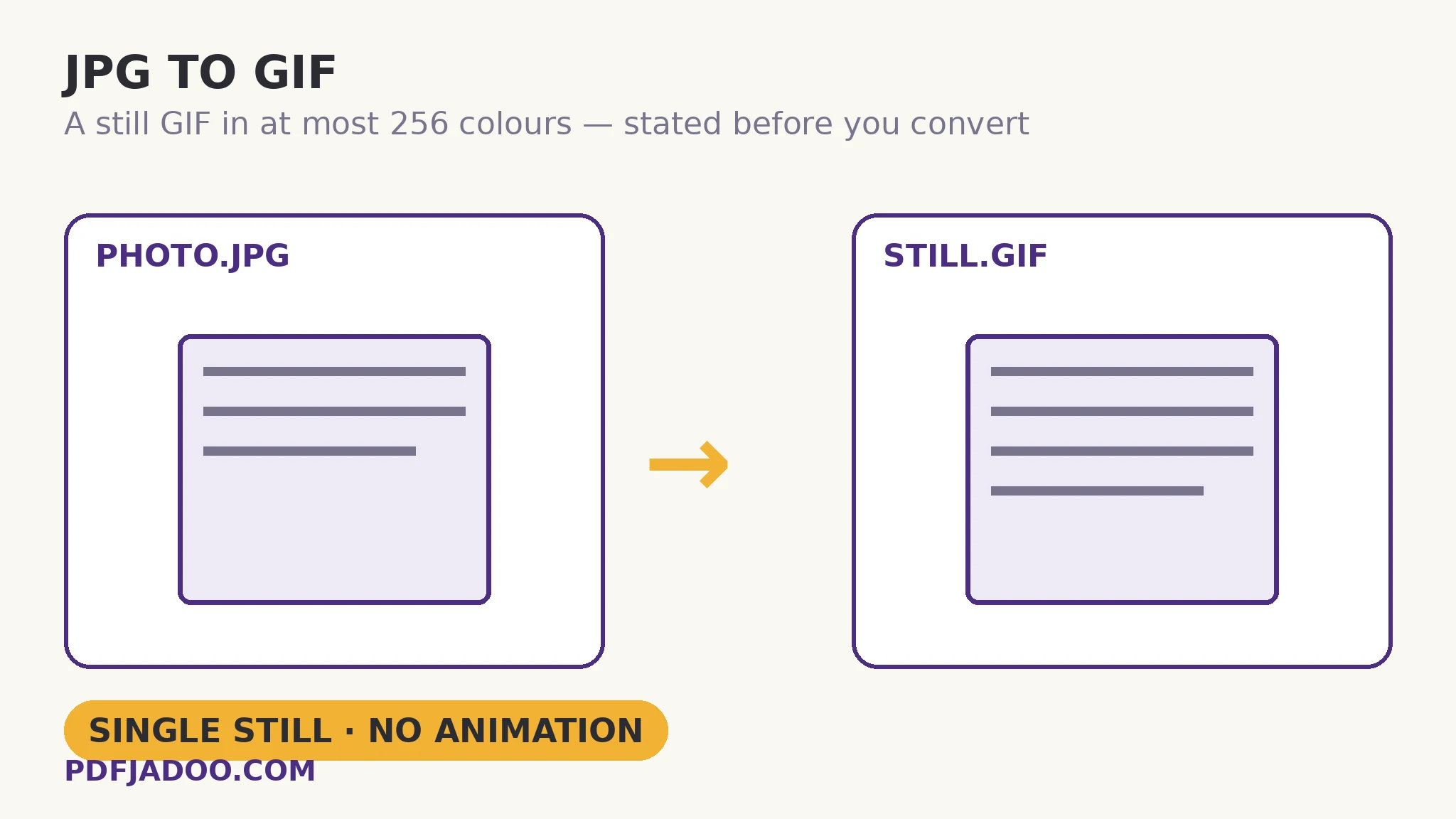
The palette: what 256 colours does to a photo
The direct answer: the converter builds a palette of the 256 colours that serve this particular picture best and maps every pixel to its nearest palette entry — flat graphics and logos barely notice, while photographs lose their smooth transitions first: skies step, skin tones flatten, shadows block. That mapping, called quantisation, is not a defect of the tool but the definition of the format, unchanged since 1989. One quotable expectation follows: the smaller and flatter the image, the better a GIF it makes — a chart, a logo or a diagram converts beautifully; a sunset converts honestly, with banding you can see. Dithering (scattering dots to fake intermediate tones) is the classic mitigation; the still you get here is the palette's plain statement.
And the animation expectation deserves its sentence: a GIF file can hold animation, but a single JPG holds one picture, so the converted GIF is one frame — if movement is what you need, no still-source converter can supply it; the source must be a video or a frame sequence.
When GIF is genuinely the answer
The direct answer: when a destination's allow-list ends at GIF — legacy uploaders, older forum and email-signature systems, equipment interfaces of a certain age — and for small flat graphics destined for maximally old software. Everywhere else, the modern stills win on colour, size or both. Format choice is destination choice; nostalgia is not a destination.
Convert a JPG to GIF, step by step
The direct answer: drop the JPG — or a batch — pick the background colour if transparency matters, press Convert to GIF, and download singly or as a ZIP.
Step 1 — confirm the destination truly wants GIF. If PNG or WebP is accepted, stop here and use those — the palette ceiling is a real cost.
Step 2 — drop your JPG onto JPG to GIF. Conversion runs entirely on your device.
Step 3 — set the background colour. White by default, black if you prefer; transparent areas are flattened onto it.
Step 4 — press Convert to GIF and look at the result. Check gradients and skin tones for banding at the size the image will be seen; flat graphics will be exact, photos approximate.
Step 5 — download each file or the batch ZIP. A still GIF, honestly labelled by its own format.
The avatar case
The direct answer: forum and community avatars are the still-GIF's surviving stronghold — small, flat or photographic, displayed tiny — where 256 colours at 100 pixels wide is a constraint nobody can see. Scale forgives palettes; check at display size, always.
GIF because the destination demands it — with the palette priced in.
Still, 256 colours, transparency on your chosen ground — converted on-device, batches as ZIP.
Open JPG to GIFA worked example: the intranet staff photo
The direct answer: a company intranet whose profile system accepts only GIF takes the staff photo as a still GIF at its small display size, where the palette's limits are invisible — the same file at poster size would band visibly, and would also be the wrong tool for the job. The walkthrough's check was the display-size check: viewed at the 160 pixels the intranet shows, the conversion is indistinguishable from the JPG; the format's ceiling exists, but the destination never reaches it. Matching the conversion to the display is the whole craft of legacy formats.
Edge cases
Photographs with big skies. The worst case for banding. If the destination allows any alternative, take it; if not, a smaller display size hides the steps best.
“Make it animated.” Not from one still. A sequence of images or a video is the source animation needs; a single-frame GIF from a single JPG is a photograph in a GIF envelope.
Before you finish: the 60-second check
- The destination's GIF-only rule was confirmed before paying the palette cost
- The result was checked at real display size — banding hides at small sizes
- Transparency background chosen (white/black) — the still carries no alpha
- No animation was expected from a single still source
- PNG/WebP were used instead wherever the destination allowed them
Fair questions
Will my JPG become an animated GIF?
No — a single JPG holds one picture, so the result is a single still GIF with no animation. Animation needs an animated source: a video or a sequence of frames.
Why does my photo look banded?
GIF allows at most 256 colours. Your photo's millions of colours are mapped to the best 256 for that picture, and smooth gradients — skies, skin, shadows — can show gentle banding. It is the format's ceiling, not a fault.
What happens to transparency?
In this workflow it is flattened onto the background colour you pick — white by default, black if you prefer. The still GIF produced here carries no transparency.
Can I convert a whole batch?
Yes — drop as many JPG files as you like. Each converts with the same settings; download them one by one or all together as a ZIP.
When is a still GIF the right choice?
When a destination accepts GIF and nothing else — legacy CMSs, forum avatar uploaders, older intranet and signature systems — and for small flat graphics shown at small sizes, where the palette limit is invisible.
Is my image uploaded?
No — the picture is decoded and re-encoded entirely on your device; your files never leave it.
Tool behaviour — the single-still result in at most 256 colours, transparency flattened onto a chosen background, batch conversion with ZIP download — is from PDFJadoo's own JPG to GIF page and its printed honest note. Checked 18 November 2026.
Keep reading
GIF to JPG: the first frame
The reverse trip: a GIF's opening frame as a full-colour still.
PNG to GIF: binary transparency
The same still destination from a PNG source — edges under the palette.
WebP to GIF: a still image
Web-saved pictures into the legacy envelope.
PDF to GIF: still images
Document pages as still GIFs — the same honest format facts.