IRCC rejected your photo or scan? Work through the real causes
A refusal message rarely tells you which rule you broke — it just stops you. In practice, almost every rejection is one of a short list of causes: the wrong format, the wrong size, a name the system cannot take, a scan nobody can read, or a photo rule that no resizing can cure. Find your cause first, then apply its fix — not the other way round.
 By the PDFJadoo Team9 min read
Start with the specification, not with the error message
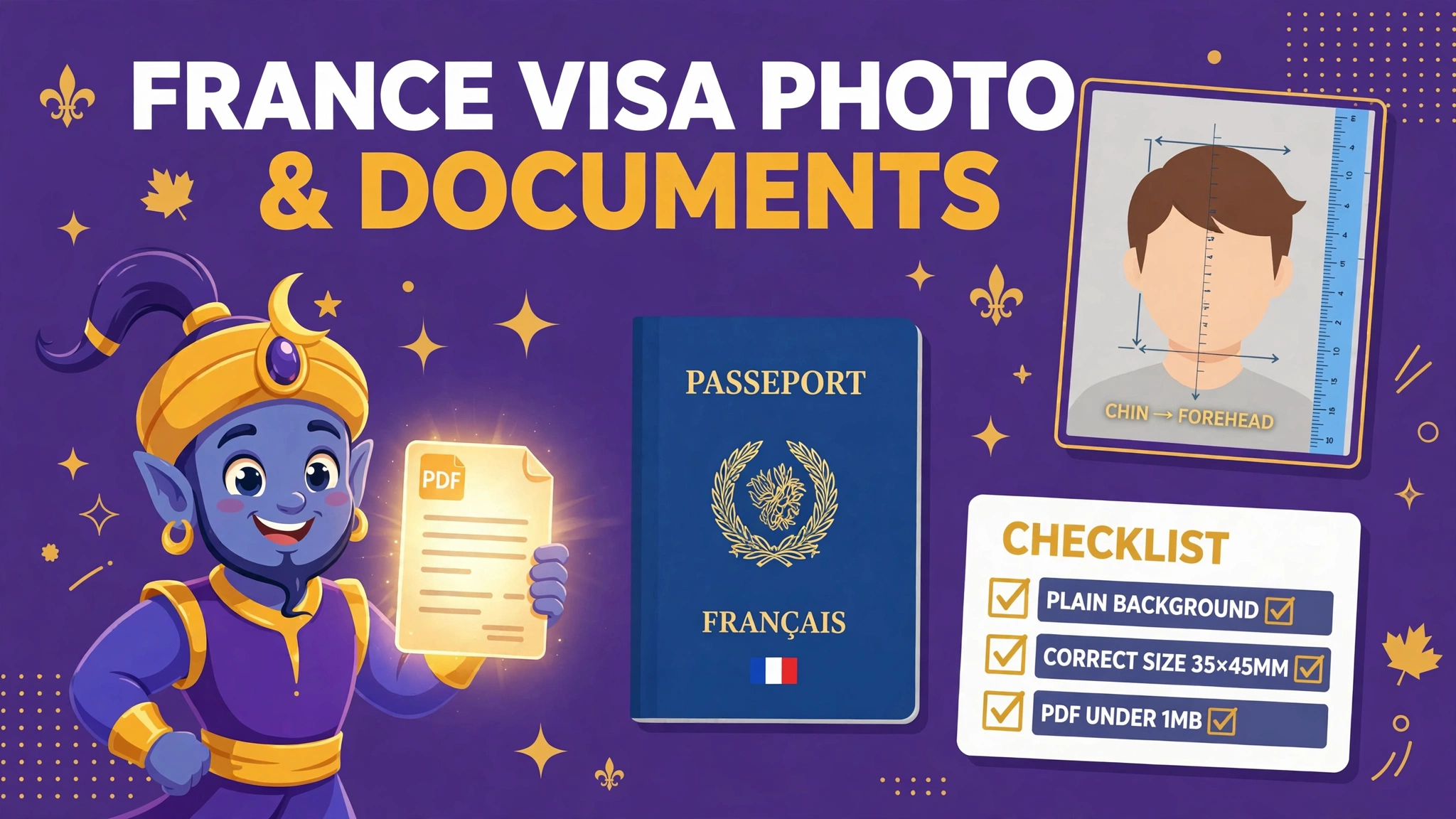
Before diagnosing anything, hold the actual numbers in front of you, because half of all “mystery” rejections stop being mysterious the moment the specification is on the table. For an IRCC digital photo for visa, work or study purposes: the frame must be at least 35 by 45 millimetres, the image at least 420 by 540 pixels, and your head must measure 31 to 36 millimetres from chin to crown. The file must be JPEG or JPEG2000, in colour, and its size should ideally be 240 kB and not less than 60 kB. If instead you are scanning a printed photo, scan it at at least 600 DPI. For documents, the frame is different: one file per upload field, a cap of 4 MB per file in an IRCC secure account and 5 MB in the IRCC Portal, formats that vary by account with PDF the safest choice, and file names built only from letters, digits, hyphens, underscores and dots.
| Check | The verified requirement |
|---|---|
| Photo frame | At least 35 × 45 mm; at least 420 × 540 px; head 31–36 mm, chin to crown |
| Photo format | JPEG or JPEG2000, in colour; file ideally 240 kB and not less than 60 kB |
| Scanned photo | Scan at at least 600 DPI |
| Document size | 4 MB per file in a secure account; 5 MB in the IRCC Portal |
| Document format | Varies by account — PDF is the safe common choice |
| File name | Letters, digits, hyphens, underscores and dots only |
Now work through the causes below in order, from the most mechanical to the most fundamental. One honest line runs through this guide: a tool can fix a file's size, format, pixels and name; it cannot fix what a photo shows or what a document says. Where a cause sits on the far side of that line, this guide says so plainly.
Cause 1 — Your iPhone saved the photo as HEIC
This is the quietest failure of all, because nothing about the photo looks wrong. It opens on your phone, it looks sharp, and yet the upload refuses it. The reason is the container: iPhones commonly save photos in HEIC format, and HEIC is not among the formats IRCC accepts. The picture is fine; the wrapper is not. The fix is conversion, not retaking. Run the photo through HEIC to PDF if it belongs inside a document PDF, or convert it to an accepted image format when it is the digital photo itself — then check the converted file against the specification above, because conversion changes the container, not the dimensions. Confirm the pixel size and the file size of the new file before uploading, and keep the original HEIC untouched on your phone as your master copy. Our separate guide to HEIC photos that won't upload walks this single cause in more depth if it turns out to be yours.
Cause 2 — The file is simply too big
Modern phone cameras produce generous files, and one unedited photo or colour scan can sail past a document cap without looking unusual. For documents, the ceiling is 4 MB per file in a secure account, or 5 MB in the IRCC Portal — check which account you are in. The fix is Compress PDF: shrink the file, verify the new size, then open the result and read it — compression that blurs a stamp or signature trades one rejection for another, slower one. For a photo, remember the specification has a floor as well as a target: ideally 240 kB, not less than 60 kB. A photo squeezed far below that floor can fail for being too small. Aim inside the window, not under it.
Cause 3 — The format is not one your account accepts
Accepted formats vary by IRCC account, which is why a friend's advice from a different program can mislead you: their account may take a file yours refuses. PDF is the safe common denominator for documents — the endpoint of this site's guided IRCC chain. For the digital photo, the accepted pair is specific — JPEG or JPEG2000 — and a perfectly good PNG of your face is still the wrong format for that slot. Match format to slot, not to habit, and convert anything exotic before offering it. Starting from phone pictures of paper? Scan to PDF takes you from camera shots to one properly ordered PDF in a single pass.
Cause 4 — The scan is greyscale, dark, or simply unreadable
Some rejections are not about the file but about what an officer's screen can make of it. The photo specification asks for colour, and the same instinct applies to documents: a greyscale scan of a colour-stamped page throws away information the stamp was carrying. Dark scans usually trace back to lighting — a page photographed from an angle, with the phone's own shadow across it. The honest fix is a rescan, done slowly: page flat, light even, camera square above the page, checked at full zoom. Ask of the result: could a stranger read every word and number without guessing? If the answer needs a pause, rescan. No converter repairs a page that was never captured clearly; it only preserves what you gave it.
Cause 5 — The PDF is password-protected
Banks and institutions often issue PDFs that are secured, and applicants reasonably upload the file exactly as received. The practical problem is that IRCC cannot open secured files — a password-protected PDF can be refused even though its size, format and name are all correct. Treat this as practical guidance for your own documents: upload an unprotected copy of a document that is yours, keep the protected original stored safely, and name the two files clearly so the secured one is never sent by accident. Remember, too, the one-file rule: the unprotected copy — complete and in order — is the file to build and check.
Cause 6 — The photo itself breaks a photo rule
This is the cause people most want a tool to fix, and the one where honesty matters most. IRCC's photo rules govern the photograph itself — how it was taken and whether it has been altered — not just the file carrying it. For permanent residence and passport products, IRCC requires unaltered photos. An edited or cropped photo does not become eligible because its file now measures correctly; the file was never the problem. Our Passport Photo tool handles the file side — size, format and pixels — and does it well on a properly taken photo. But if the photograph itself breaks the rules, the genuine fix is a new studio photo taken to the specification. Less convenient than a converter, and the only answer that holds up when the photo is examined. Our guide to why your photo was rejected goes deeper on photo-rule failures.
Cause 7 — The file name contains characters IRCC refuses
After size and format, check the smallest thing on the screen: the name. IRCC file names may use only letters, digits, hyphens, underscores and dots. Ordinary names break this constantly — a space between words, an accented letter in a family name, a bracket the scanner app added. None of these change the document; all of them can stop the upload. Rename the file with plain characters, following a simple pattern of name, document type and number if needed, and re-upload the renamed copy. Because the content is untouched, this is the fastest fix on the list — and the one most often discovered last, after an evening spent re-compressing a file that was never too big.
Fix the file side, right in your browser
Size, format, pixels and assembly are the causes a tool genuinely solves — and PDFJadoo's tools do it in your browser, with your files never uploaded to a server. Start from the IRCC hub and pick the repair your diagnosis points to.
Open the IRCC hub Prepare a photoA two-minute diagnostic, in order
- Look at the file extension first — HEIC and other unaccepted formats fail before anything else is judged
- Check the file size against your account's cap — and, for a photo, against the 60 kB floor as well
- Confirm the format matches the slot: JPEG or JPEG2000 for the photo, PDF as the safe document choice
- Open the file and read it at full zoom — colour, light and legibility are yours to judge honestly
- Check whether the PDF is password-protected; if it is, prepare an unprotected copy of your own document
- Read the file name character by character for spaces or accented letters, and rename if needed
- Finally, ask whether the photo itself follows the photo rules — if not, a studio retake is the real fix
Worked through in that order, the vague word “rejected” resolves into one specific, fixable fact about your file — or one honest fact about your photo. Either way, you stop guessing, and the next upload goes in with a reason to succeed.
Fair questions
Why does IRCC refuse my iPhone photo?
iPhones often save photos in HEIC format, which IRCC does not accept. The photo itself is fine — only the container is wrong. Convert the HEIC photo into an accepted format or build it into a PDF, check the resulting file size and dimensions, and upload that version instead.
What are the IRCC digital photo requirements?
For visa, work and study uploads, the frame must be at least 35 by 45 millimetres and at least 420 by 540 pixels, with the head measuring 31 to 36 millimetres from chin to crown. The image must be JPEG or JPEG2000, in colour, and the file should ideally be 240 kB and not less than 60 kB. A scanned photo needs at least 600 DPI.
Can a sizing tool fix a photo I edited or cropped myself?
No, and this limit matters. IRCC requires unaltered photos for permanent residence and passport products, and a tool that resizes a file cannot make an edited photo eligible again. For those products, use a proper studio photo taken to the specification. A sizing tool is for file size, format and pixel dimensions — not for changing what the photo shows.
Why won't IRCC open my PDF?
One practical cause is password protection. IRCC cannot open secured files, so a password-protected PDF can fail even when its size and format are correct. Upload an unprotected copy of your own document instead, and keep the protected original safely stored on your own device.
My file name looks normal. Why would it be refused?
IRCC file names may contain only letters, digits, hyphens, underscores and dots. Spaces and accented characters — both common in ordinary file names — fall outside that set. Rename the file with plain characters before uploading; the document inside the file stays exactly as it was issued.
Are my documents uploaded to a server when I fix them here?
No. PDFJadoo tools run in your browser and your files are never uploaded. Converting, resizing and compressing happen on your own device, so the passport scan or bank statement you are repairing never leaves your hands while you repair it.
Sources: Government of Canada, IEC work-permit photo requirements page on canada.ca (digital photo dimensions, formats and file size), and IRCC Help Centre — “What file size and format should I use?” (qnum 1123, at ircc.canada.ca/english/helpcentre/answer.asp). Specifications change — check the live official pages and your own document checklist before you upload. This page is general information only and is not immigration advice. PDFJadoo is not affiliated with IRCC or the Government of Canada.