Prepare your IRCC documents: one file, under the limit
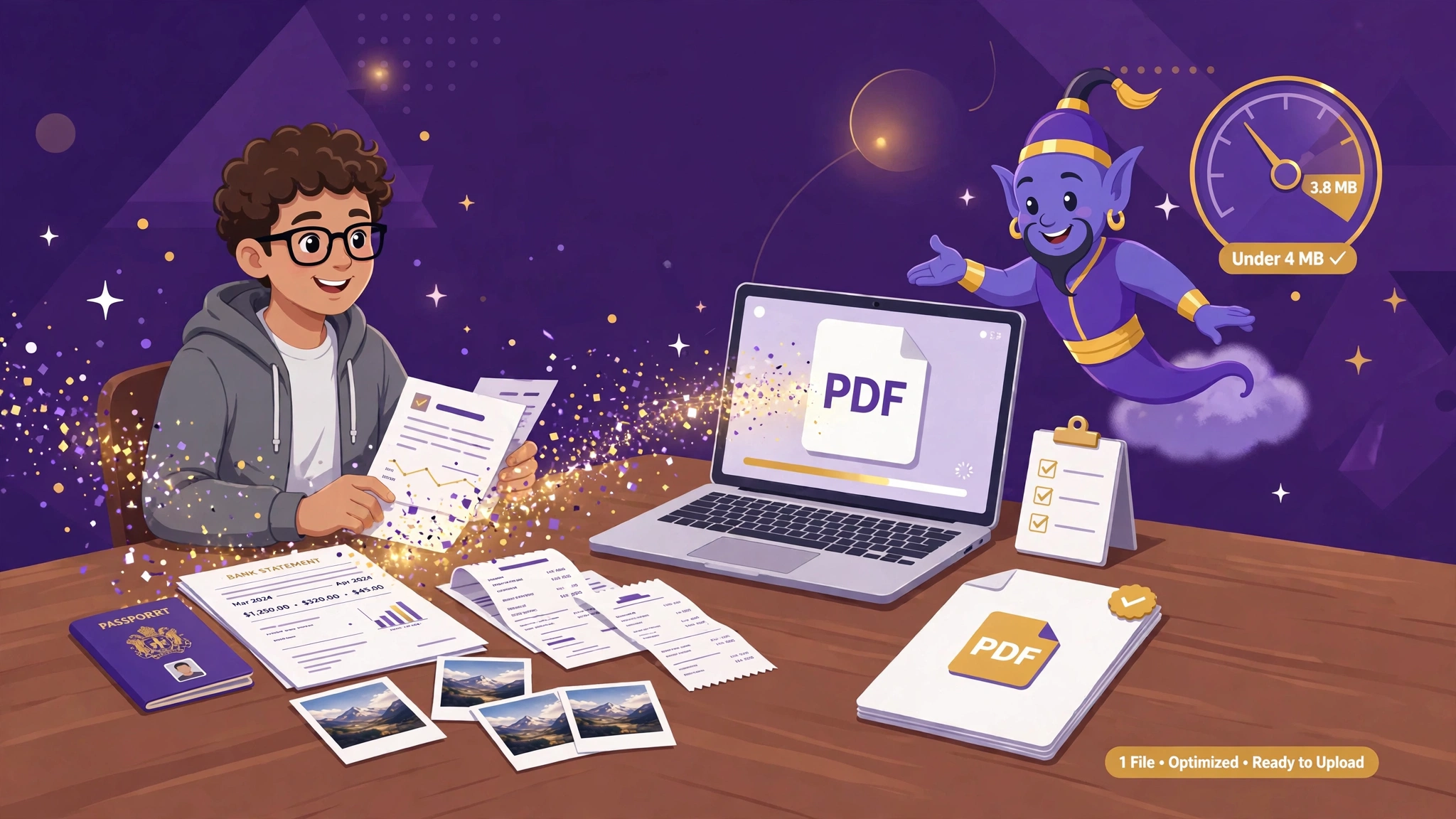
IRCC gives you one upload slot per document and a size cap — 4 MB in an IRCC secure account, 5 MB in the IRCC Portal. This page chains three free tools to get each supporting document ready: photos and scans in, one tidy PDF out. One honest boundary, up front: your application form itself is different. IMM forms are filled in and validated in Adobe Acrobat Reader on a computer — no website can do that, including this one. Start with your documents below; for the form, see why it only opens in Reader.
 By the PDFJadoo Team6 min read
The rules you're working within
Everything below comes from IRCC's own Help Centre and guides (linked at the end) — because getting them wrong has real consequences:
| Rule | What IRCC says |
|---|---|
| One file per upload field | “You can only upload 1 file per field in your online application.” If you upload a second file into the same slot, the first is replaced — only the last file you upload is saved. Uploading statements one by one leaves IRCC with just the last one. |
| Size limit per file | 4 MB in an IRCC secure account. The IRCC Portal allows 5 MB. Permanent residence and citizenship uploads are also capped at 4 MB — and some programs can set lower limits, so the number on your own checklist is the one that counts. |
| Accepted formats | PDF is the safe common denominator. Depending on the account, .jpg, .png, .tiff, .doc and .docx are also accepted — but a PDF keeps every page fixed and in order, which is what an officer needs. |
| File names | Use only letters (A–Z, a–z), digits (0–9), hyphens, underscores and dots — no spaces and no accented characters. IRCC's own convention looks like Last-First-DocumentType-1.pdf. |
| Documents needing extra sheets | IRCC's instruction for multi-part documents is the same idea: when a document has many pages (its example is a passport with several stamped pages), include them all in one file. |
This page prepares supporting documents — passports, statements, letters, certificates, photos. Your IMM application form follows a different path entirely, and the warning box below the steps explains why it must never pass through these tools. PDFJadoo is not affiliated with IRCC, and this page is general information, not immigration advice.
Step 1 — turn photos and scans into PDFs
Photograph or scan each document, one document at a time, in colour. Lay pages flat, shoot straight down in good light, and include every page — front and back where anything is printed or stamped. Then run each document's images through JPG to PDF: it binds the images into one PDF in the order you pick, at their full quality.
- One PDF per document at this stage (passport.pdf, statements.pdf, letter.pdf) — combining comes next
- Keep the page order the way an officer would expect it: cover page first, then chronologically
- iPhone photos are fine — if a photo is saved as HEIC rather than JPG, run it through our HEIC to PDF tool instead, which turns iPhone photos straight into a PDF
Step 2 — combine into one file per slot
Now take everything that belongs in one upload slot and combine it with Merge PDF. For a “proof of funds” slot, that might be the bank letter PDF followed by six statement PDFs. For a passport slot, the bio page plus every stamped page. Order matters: put the summary or cover document first, then the supporting pages in sequence — and save the merged file with its final name (letters, digits, hyphens, underscores and dots only), so the file you check in Step 3 is the exact file you upload.
Step 3 — shrink it under the limit
Check the merged file's size. Scans and phone photos are heavy — a merged set regularly lands at 6–12 MB, which a 4 MB slot will reject. Run it through Compress PDF and check the result again against your account's limit. If it is still over, go back to the sources: IRCC's own advice is to re-save images at the lowest size your program offers and to scan at 150 DPI or less, then rebuild, merge and compress again. Finally, open the finished file and read it: zoom into a stamped page and a signature. Legible to you at a glance is the standard — an officer will be reading the same pixels.
⚠ Stop — never run a validated IMM form through these tools
Do not merge, convert or compress a validated IMM form. The barcodes Reader generates are how IRCC reads your answers; altering the file destroys them, and the application can be returned as incomplete. Fill and validate the form in Adobe Acrobat Reader and upload that file exactly as it comes out of Reader — untouched. New to the forms? Read why IMM forms only open in Reader and our step-by-step IMM 5710 walkthrough.
Start at step 1 — it's free
Drop your document photos into JPG to PDF and build the first document. Then merge each slot's set into one file and compress it under the limit. Everything runs in your browser: passport scans and bank statements never leave your device — the way sensitive documents deserve.
Turn photos into a PDFBefore you upload: the 60-second check
- The file matches the slot (this slot's documents only — one file per field is a one-way door)
- Its size is under your account's limit (4 MB secure account / 5 MB IRCC Portal — or the exact number your checklist states)
- Every page is in it, in order, and readable when zoomed
- The file name uses only letters, digits, hyphens, underscores and dots
- Your validated IMM form is not inside the merged file — it uploads separately, untouched
Fair questions
Can this page fill in my IMM form for me?
No — and no website honestly can. IMM forms are interactive files whose checks and barcodes only work inside Adobe Acrobat Reader on a computer, with JavaScript turned on. Anyone who fills and validates the form has to do it there; IRCC's own instructions say the same. What this page does is prepare the documents that go with the form. Our guide explains the form side: why the form shows “Please wait…” and how to open it properly.
I uploaded a second file to correct the first. What happened?
Exactly what IRCC designed: the new file replaced the old one, and only it was saved. If your “correction” was a single page of a multi-page document, the slot now holds only that page. Rebuild the complete document as one file and upload that — replacement works in your favour when the replacement is the whole document.
Which limit applies to me — 4 MB or 5 MB?
It follows the account, per IRCC's Help Centre: 4 MB for an IRCC secure account, 5 MB for the IRCC Portal, and 4 MB for permanent residence and citizenship uploads. Some programs set lower limits — treat the number printed in your own account's checklist as final.
Are my passport and bank statements safe here?
PDFJadoo's tools process files entirely in your browser — nothing is uploaded to a server, so there is nothing to store, leak or delete later. For documents this sensitive, that's the only arrangement that makes sense, and it's how every tool on this site works.
Sources: IRCC Help Centre — the answers on upload limits, one file per field, accepted formats and reducing file size (qnum 1123, qnum 1124, qnum 1160, qnum 1213); IRCC guide 5578 / sponsorship application guide (file-name characters and naming convention). This page is general information only and is not immigration advice. PDFJadoo is not affiliated with or endorsed by IRCC or the Government of Canada — canada.ca is the authority.
Keep reading
IRCC form says “Please wait…”?
Why the form won't open — and the 5-minute fix.
How to fill in IMM 5710, step by step
The work-permit extension form, section by section.
One file, under 4 MB
The full merge-and-compress workflow, explained.
Sponsor form: one file under 2 MB
Both sides of your card in a single file, for the interest to sponsor form.
Merge PDF
Combine each slot's documents into one file.
Applying somewhere else too?
SSC, FPSC & PPSC and US visa photos — every portal's rules in one hub.