HEIC to PDF: decoded and bound in one step — order is drop order
The direct answer: each HEIC photo is decoded at its full resolution, its recorded orientation respected, and stored as a high-quality JPEG page inside the PDF — one photo per page, the pages in the order you dropped the files. The problem this solves in one step is usually solved in two: the portal accepts PDF but the phone produced HEIC, a format most Windows software and web forms still cannot decode. HEIC to PDF collapses the detour — a HEIC decoder (heic2any) unpacks each photo locally in your browser, and the results bind directly into the most openable document format there is. Two quotable mechanics govern the result: reorder before you convert if the sequence matters, because the PDF preserves drop order faithfully — and a batch may take the better part of a minute, because HEIC's compression is serious mathematics being undone on your device's processor; that is the privacy bargain working as intended, the alternative being your family photos on a stranger's server. This article explains the binding and when the two-step route is still the right one.
 By the PDFJadoo Team5 min read
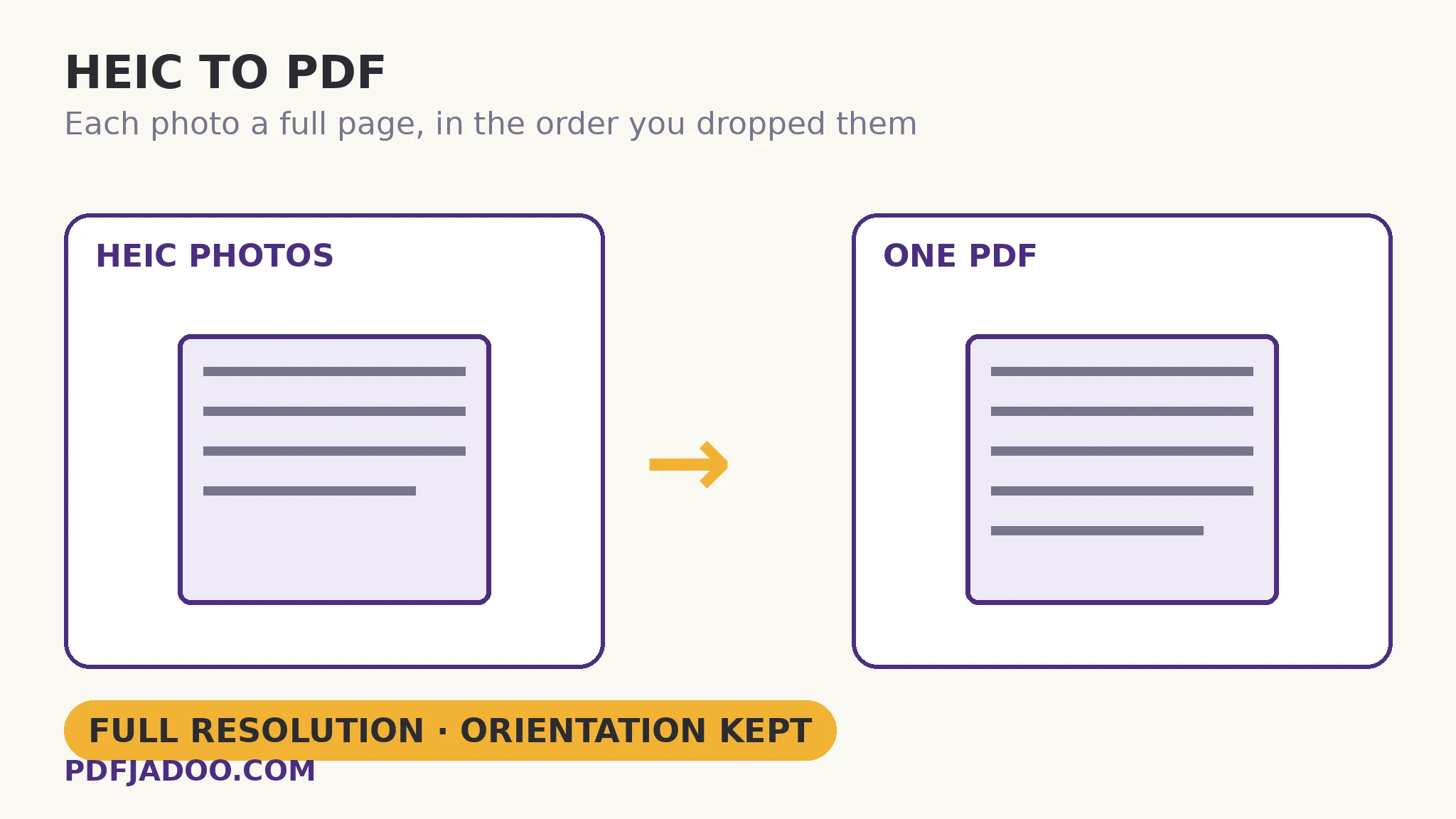
The decode-and-bind path
The direct answer: the conversion is a decode, not a photograph of a photograph — each photo is unpacked at full resolution and placed as a high-quality JPEG page, so the PDF carries the photo's full detail at its natural aspect. Orientation deserves its emphasis because it is where cheap converters fail silently: iPhones store many photos “sideways” with an orientation note, and a binder that ignores the note produces a PDF of turned pages. This one respects the orientation your phone recorded — pages arrive upright. One sizing consequence follows from full resolution: the PDF of a photo set is a substantial file, because nothing was shrunk to make it — if the receiving portal also imposes a size cap, the honest sequence is bind first, then compress the PDF to its target with the same floor-respecting honesty as every compression on this site.
Why PDF at all, when JPG exists? Because the receiving world's grammar differs by desk: an application form wants a document — one file, pages in order, openable identically everywhere — where a bundle of JPGs is an attachment-management problem. The photo set as a document is the unit applications are built to receive.
When the two-step route still wins
The direct answer: when individual photos need individual treatment — one rotated, one compressed to an exact KB, one cropped — convert to JPG first, treat them, then bind with the image-to-PDF tools; the direct binding is for sets that are ready as they are. Tool choice is workflow shape: a clean set goes direct; a set needing surgery goes through the JPG workbench. Both routes share the same local decode, so the privacy property is identical either way.
Convert HEIC photos to PDF, step by step
The direct answer: arrange the photos in the order the document should read, drop them onto the converter, press Convert to PDF, and download one document.
Step 1 — order the set before dropping. The PDF preserves drop order faithfully — page one is the first file dropped. Reorder now, not after.
Step 2 — drop one or more HEIC photos onto HEIC to PDF. Decoding happens locally in your browser; no photo ever uploads.
Step 3 — press Convert to PDF and allow the time. A few seconds per photo is normal on phones; a holiday batch may take the better part of a minute. That is HEVC mathematics on your processor, not a stall.
Step 4 — download the document and verify the binding. Each photo a full page, in order, upright, at full resolution. Send it to anyone — no Apple device required on their end.
The size conversation, honestly
The direct answer: expect the PDF to be much larger than the HEIC set — the photos are stored as high-quality JPEG pages, and JPEG is roughly twice HEIC's weight for the same picture. That growth is the compatibility tax, itemised in advance. Where a cap binds, compress the finished PDF (the floor-respecting compressor) rather than degrading the photos before binding.
One file, every photo, openable by anyone.
Full-resolution decode, orientation respected, drop order preserved — the application-ready document.
Open HEIC to PDFA worked example: the application evidence pack
The direct answer: twelve iPhone photos of supporting documents — certificates, letters, a passport page — become one PDF in the order the checklist lists them, uploaded once to a portal that rejected every HEIC individually. The walkthrough: the photos were dropped in checklist order (the binding's one act of authorship); the decode took under a minute on the phone itself; the resulting PDF was checked page by page for upright orientation — the failure mode the tool explicitly guards — and compressed once to fit the portal's cap. The applicant's evidence travelled as one document with a table of contents implied by its order. The portal's grammar was satisfied because the file finally spoke it.
Edge cases
Mixed sets with JPGs. This binder takes HEIC; a mixed photo set routes through the JPG/PNG binder after converting the HEIC members — or all members are converted to JPG first and bound together uniformly.
Live Photos. A Live Photo binds as its still frame — the document can only hold the still, and the HEIC on the phone keeps the living version.
Hundreds of photos. In-browser decoding of a huge batch is a patience exercise; split into chapter-sized sets, bind each, and merge the PDFs — the library pattern.
Before you finish: the 60-second check
- Drop order was arranged before converting — it becomes the page order
- Orientation was verified page by page in the result
- Full resolution was expected to mean a substantial file — the cap, if any, was handled by compressing the PDF after
- Live Photos were understood to bind as stills; HEIC originals stay on the phone
- Huge sets were split and merged rather than forced through one batch
Fair questions
How do I convert HEIC photos to a PDF?
Drop one or more HEIC photos onto HEIC to PDF and press Convert to PDF. Each photo is decoded at full resolution and becomes a full page — in the order you dropped the files — and you download one document anyone can open.
Why not just convert to JPG first?
You can — and should, when individual photos need editing, rotating or exact-size compression first. The direct binding wins for ready sets: one step, full resolution, drop order preserved, no intermediate files.
Will my photos be rotated correctly?
Yes — photos keep their orientation: the orientation your phone recorded is respected in the decode, so pages arrive upright rather than stored-sideways.
Why does a batch take so long?
HEIC achieves its small size with serious mathematics, and undoing it on a phone processor is the heaviest lifting any tool on this site asks of a browser. A batch may take the better part of a minute — the privacy bargain working as intended.
How are the photos stored inside the PDF?
Each is stored as a high-quality JPEG page at the photo's full resolution — one photo per page. Expect the PDF to be substantially larger than the HEIC set; compress the finished PDF if a portal caps the size.
Are my photos uploaded?
No — the HEIC decoder runs locally in your browser; no photo ever uploads.
Tool behaviour — the heic2any local decode at full resolution, orientation respected, high-quality JPEG pages in drop order, and the batch timing note — is from PDFJadoo's own HEIC to PDF page. Checked 18 November 2026.
Keep reading
HEIC to JPG at full resolution
The picture envelope for the same decode — batches, ZIP, 92% High.
Combine JPG photos into one PDF
JPG sets bound the same way: order, pages, one document.
Compress a PDF without losing quality
The bound photo PDF meets a portal cap: shrink it with the floor respected.
A document checklist you can tick off
The evidence pack's companion: the list the photos were ordered by.