Compare two PDF versions: which pages actually changed?
“Just two small changes” — the most load-bearing sentence in document work. The revised contract, the corrected proof, the updated policy: each arrives claiming a small, known delta, and the reader's job is to verify the claim without re-reading forty pages. Compare PDFs does the verification mechanically: drop the old and new versions; both are rendered and compared page by page, pixel by pixel; the output is a PDF report — a summary page stating how many pages changed, then each changed page shown old beside new. Unchanged pages are certified by their absence. This article explains what pixel comparison proves, what it cannot, and the verification workflows it anchors.
 By the PDFJadoo Team6 min read
Pixel comparison: the honest middle ground
There are two classical ways to compare documents. Text diffing extracts both texts and compares words — precise about wording, blind to layout, and defeated by reflow (a paragraph that moves pages reads as changed everywhere). Pixel comparison — this tool's method — renders both versions and compares the pages as pictures: it catches anything a reader would see: a changed figure, a moved clause, a swapped image, a different signature. Its blindness is the mirror image: a change with no visual consequence (metadata, an invisible layer) does not register, and a purely cosmetic shift (the same text re-set in a marginally different render) can flag a page whose words never changed. For the verification question humans actually ask — “what will a reader see differently?” — pixels are the right evidence. The report format follows the question: summary first (the count), then evidence (each changed page, old beside new, so the human judges the flagged differences in seconds).
The alignment assumption is page-to-page: page 3 of the old against page 3 of the new. An insertion early in the document shifts every later page's content and the comparison will flag the cascade — correctly, in visual terms (every page does look different), and the summary count makes the cascade obvious at a glance. The craft is reading the report: a one-page change set is a verification; a thirty-page change set after “two small changes” is a conversation.
What the report is for
Three workflows recur. Counterparty verification: the returned draft against the sent draft — the silent-edit check. Correction verification: the corrected proof against the marked proof — did the printer fix page 12, and touch nothing else? Release verification: the published file against the approved file — the last gate before a document becomes public. In each, the report is not just an answer but a record: a PDF that can be filed with the project, proving what was checked.
Compare two versions, step by step
Step 1 — drop the old version onto Compare PDFs, then the new one. Order matters: old first. Both files stay in your browser — drafts under negotiation are not uploads.
Step 2 — press Compare the two files. Both render; pages compare pairwise.
Step 3 — read the report's summary first. “3 of 42 pages changed” is the headline; if the count surprises you, the surprise is the finding.
Step 4 — judge each flagged page. Old beside new: the change should be the change you expected — the corrected figure, the amended clause. An unexpected flag gets read word by word.
Step 5 — file the report. With the project, as the verification record.
When versions differ structurally
If the new version is a re-typeset (different software, different fonts), pixel comparison flags freely — the method compares appearances, and appearances changed wholesale. In that world, extract both texts (PDF to Text) and diff the words instead. Choose the instrument for the question: appearance questions to pixels, wording questions to text.
“Two small changes.” Verify which two.
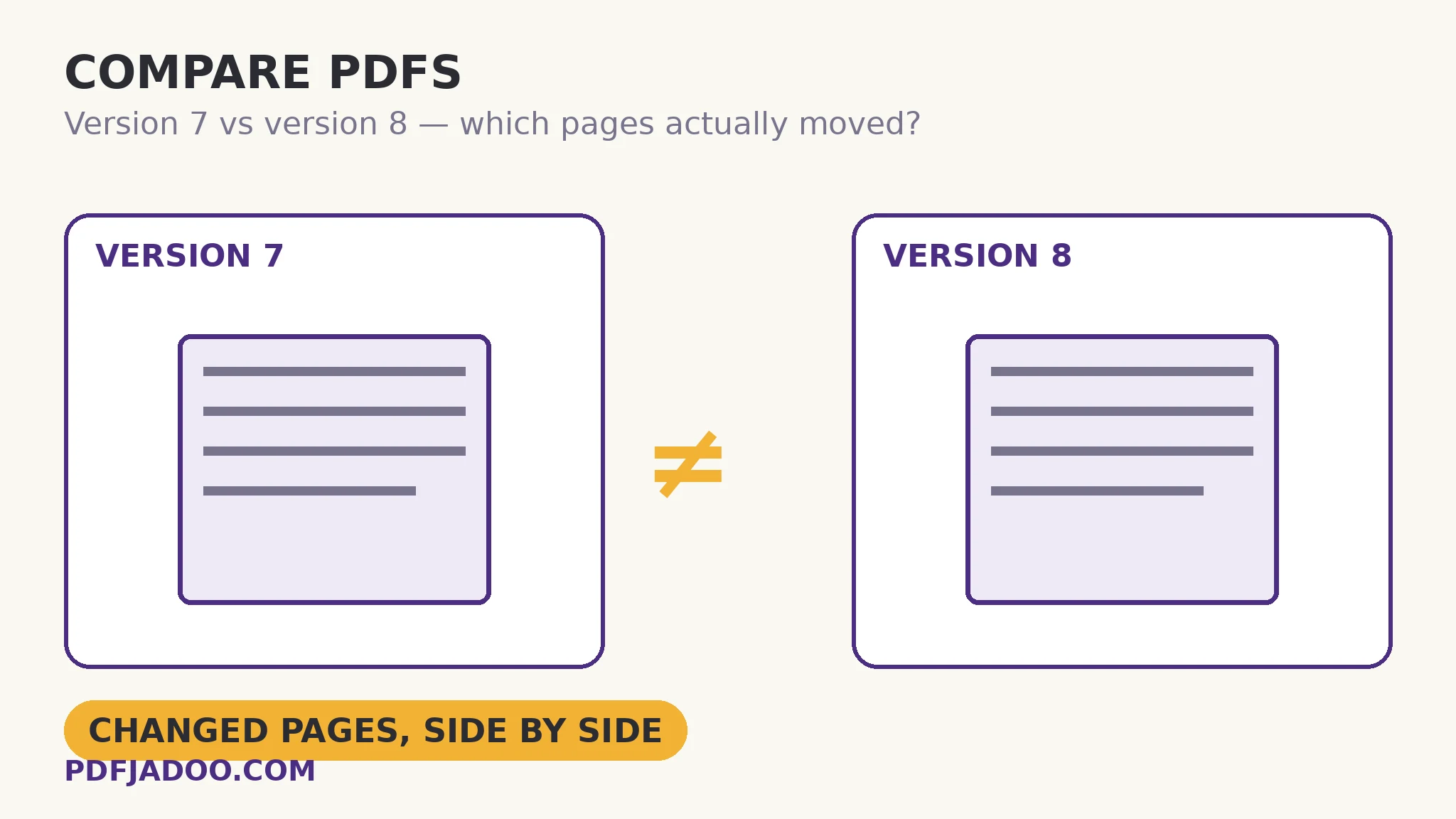
Old and new rendered, compared page by page — a PDF report of exactly the pages that moved, shown side by side.
Open Compare PDFsA worked example: the returned contract
A 38-page services agreement goes out; it returns “agreed, with two typos fixed”. The comparison reports 3 changed pages of 38. Pages 9 and 27 are the typos — visible, benign. Page 31 is neither expected nor a typo: in the liability clause, “shall not exceed” has become “shall exceed” in a retyped sentence — a two-word deletion that inverts the clause's meaning. Whether it was a slip or a strategy, the comparison is the only reason it was caught before signature: nobody re-reads page 31 of a contract they believe they already know. The report took a minute; the clause was worth the minute.
Edge cases
Scanned versions. Two scans of the “same” document differ in every pixel (alignment, noise). Pixel comparison is for born-digital versions of one lineage; scans compare by eye or by OCR-then-text-diff.
Different page counts. Pages beyond the shorter file's end have no partner; the summary's count framing keeps this honest — treat unpaired pages as changed by definition and read them.
Rendering noise. A page re-exported by different software may flag despite identical words. Judge the side-by-side: if you cannot see a difference at reading zoom, the words are the same — confirm via text extraction if it matters.
Before you finish: the 60-second check
- Old version dropped first, new second — order is meaning
- The summary count was read before the pages: a surprising count is itself the finding
- Every flagged page was judged against the expected change set
- Unexpected flags were read word by word, not waved through
- The report PDF was filed with the project as the verification record
Fair questions
How do I compare two PDF versions?
Drop the old version onto Compare PDFs, then the new one, and press Compare the two files. You get a PDF report: a summary of how many pages changed, then each changed page shown old beside new.
Does it compare text or appearance?
Appearance: both versions are rendered and compared page by page as pixels. It catches anything a reader would see — changed figures, moved clauses, swapped images — and it can flag pages whose appearance shifted without the words changing.
What if a page was inserted early in the document?
Every later page's content shifts, so the comparison flags the cascade — visually true, and the summary count makes the pattern obvious. For wording-only questions in restructured documents, extract both texts and diff the words instead.
Can I compare two scans of the same document?
Not usefully — two scans differ in every pixel by nature. Compare born-digital versions here; scans compare by eye, or by OCR followed by a text diff.
Is the report useful as a record?
Yes — it is a PDF: summary plus side-by-side evidence of each changed page. File it with the project as proof of what was verified and when.
Are my drafts uploaded for comparison?
No — rendering and comparison run in your browser. Drafts under negotiation never leave your device.
Tool behaviour — old/new rendering, page-by-page pixel comparison, and the PDF report format (summary count, then changed pages side by side) — is from PDFJadoo's own Compare PDFs page. Checked 18 November 2026.
Keep reading
PDF Inspector: a file checkup
One file's full chart — the companion diagnostic when a version misbehaves.
Extract text from a PDF
The wording-diff route: both texts out, words compared.
Repair a damaged PDF
A version that won't open at all? Recover a readable copy first.
PDF tables to CSV
The changed page is a price table? Extract both versions' numbers and diff the data.