IRCC digital photo specifications: the file-size band that fails photos at both ends
Almost every portal on earth only rejects a photo for being too big. IRCC’s published digital specification is a band: a frame of at least 35 × 45 mm, at least 420 × 540 pixels, JPEG — and a file that should ideally be 240 kB and not less than 60 kB. Too small fails just as surely as too large.
 By the PDFJadoo Team9 min read
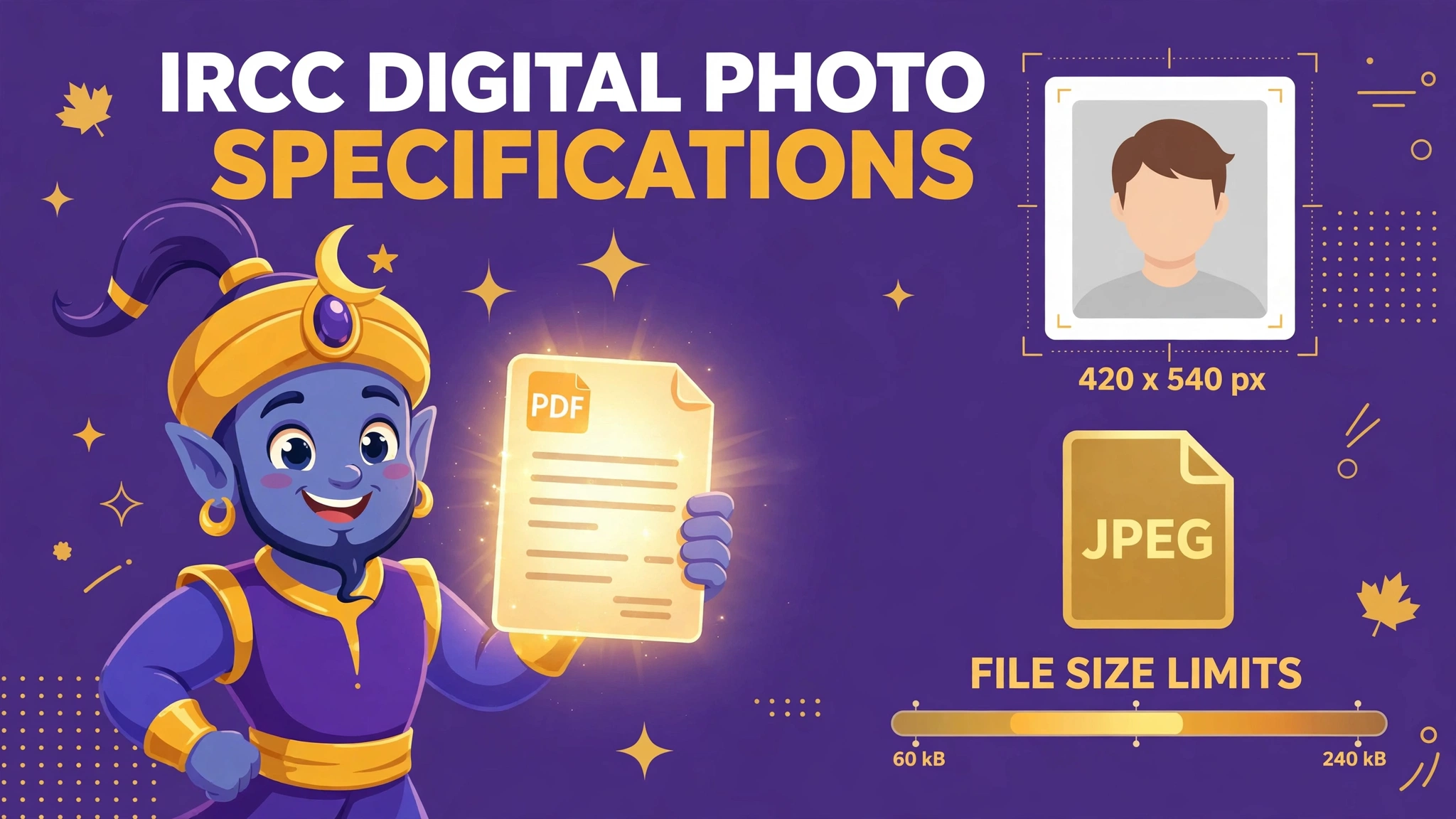
The official digital specification, as IRCC publishes it
First, a distinction that saves applications: this page is about the digital photo for IRCC online applications — the visitor-visa family of uploads — not the 50 × 70 mm printed frame used for Canadian passports and permanent resident cards. The digital frame is smaller, the measurements are given in both millimetres and pixels, and the file itself is part of the specification. IRCC publishes the full digital specification on its online-application guidance (the International Experience Canada work-permit pages carry the complete text, and the same frame-and-band figures recur across IRCC’s digital guidance):
| Element | What IRCC specifies |
|---|---|
| Final frame size | At least 35 mm × 45 mm. |
| Composition | Full front view of the head and tops of the shoulders, with the face in the middle of the photograph. |
| Head size | Between 31 mm and 36 mm from chin to crown. |
| Pixel dimensions | At least 420 × 540 pixels. |
| Scanning an existing photo | Minimum resolution of 600 pixels per inch. |
| File format | JPEG or JPEG2000. |
| File size | Ideally 240 kB (kilobytes) — and not less than 60 kB. |
| Colour | Colour, 24 bits per pixel, in RGB colour space — the common output for most digital cameras. |
Read the file-size line twice, because it is the one that behaves unlike every other portal you have used. There is a target (about 240 kB), and there is an explicit minimum (60 kB). IRCC’s citizenship digital photo guidance phrases the same idea from the other side: approximately 240 kB, but no more than 4 MB, at least 420 by 540 pixels, in JPG or JPEG with minimal compression, saved directly from the camera without changes to the original file. Two programmes, one philosophy: the file should be a healthy, lightly handled JPEG of a few hundred kilobytes — not a thumbnail and not a raw multi-megabyte dump.
One honesty note before the fixes. IRCC does not publish a single universal digital-photo page that governs every programme at once; it publishes per-programme specifications and generates a personalised document checklist inside your account when you apply. The table above is the published online-application specification, and it is the right preparation target for the visitor-visa family of uploads — but if the checklist in your own account states different figures for your programme, your checklist wins. Prepare to the band, then confirm against your checklist before you submit.
Why IRCC digital photos get rejected
The failures split cleanly into two families: files that arrive too small, and files that arrive too big. Both usually begin life as a perfectly good photograph on a phone.
- Too small: the photo passed through a messaging app, which re-compressed it to a fraction of its size — often well under 60 kB and under 420 × 540 pixels
- Too small: a screenshot of the photo, which keeps the look and discards the pixels
- Too small: an over-enthusiastic “compress to email size” export that crushed a 240 kB target down to 30 kB
- Too big: the raw phone original — several megabytes of uncompressed detail the specification never asked for
- Wrong format: PNG or HEIC, where the specification lists JPEG or JPEG2000
- Wrong frame: the 50 × 70 mm passport or PR-card crop submitted where a 35 × 45 mm frame is required, or the reverse
- Head outside the 31–36 mm band: face too small in the frame, or cropped so tightly the crown or chin is clipped
- A scan made at screen resolution: an existing print scanned below the 600 pixels-per-inch minimum arrives soft and undersized
- Greyscale or heavily filtered output, where the specification asks for colour, 24 bits per pixel, RGB
The too-small family deserves emphasis because it inverts everyone’s instincts. Applicants who have been trained by other portals to shrink everything reach for the strongest compression they can find — and produce the one file IRCC’s band explicitly excludes. A 420 × 540 pixel JPEG at very low quality can weigh 25 kB and look acceptable on a phone screen while containing too little information for an officer — or an automated checker — to verify a face. The floor exists precisely to stop that file. Equally, the multi-megabyte original is not “extra safe”: it is simply unprepared, and on programmes with a stated maximum it fails outright. The craft is landing in the middle of the band, on purpose, with the numbers checked rather than assumed.
The fix, step by step, with the Passport Photo tool
PDFJadoo’s Passport Photo tool exists for exactly this landing: it frames the photo to the programme’s shape and exports a JPEG at a controlled size, in your browser. Work from the original file and check the numbers at the end.
Step 1 — Recover the original. Find the photo as the camera saved it — in your camera roll or the photographer’s original file — not the version inside a chat thread, a social post or an email forward. Every hop through another app strips size and pixels, and no tool can put information back. If the only copy you hold is a forwarded one under 60 kB, retake or re-request the original; this is the single most common root cause of the too-small rejection.
Step 2 — Frame it to 35 × 45. Open the Passport Photo tool and choose the IRCC / Canada visa digital preset. Position the photo so the full front view of the head and the tops of the shoulders show, face in the middle, and the head fills the guide — the on-screen equivalent of 31–36 mm chin to crown inside the 35 × 45 mm frame. Keep the background plain and the expression neutral; framing tools cannot repair a smile, a tilt or a shadow, and those are content failures no export setting can save.
Step 3 — Export as JPEG, aimed at the middle of the band. Export in JPEG format and aim near the published ideal of about 240 kB — comfortably above the 60 kB floor, comfortably below any programme maximum. If your first export lands under 60 kB, export again at higher quality or larger pixel dimensions rather than uploading and hoping. If it lands in the megabytes, step the quality down gradually: the distance between 240 kB and 60 kB is your safety margin, so spend it slowly.
Step 4 — Verify pixels and weight on the finished file. Check the exported file’s properties before you upload: at least 420 × 540 pixels, extension .jpg or .jpeg, and a size inside the band. Verify the file you will actually upload, not the preview — exports, downloads and “send as document” options can each produce a different copy.
Step 5 — Scanning a print instead? Set the scanner to at least 600 pixels per inch, scan the original print flat and straight, save as JPEG, then run the same framing and verification pass from Step 2. A scan below 600 ppi starts life below the specification and no export can promote it back.
Step 6 — Match the checklist in your account. Before submitting, compare your finished file against the document checklist IRCC generated for your application. If your programme’s figures differ from the published specification used here, re-export to your checklist’s figures — the tool’s settings make that a two-minute correction rather than a new photograph.
Land inside the IRCC band — free
Frame to 35 × 45 mm and export a JPEG near 240 kB — above the 60 kB floor, below the ceiling — with the Passport Photo tool. It runs entirely in your browser.
Prepare my IRCC photoA worked example: rejected at 38 kB, accepted at 232 kB
An applicant photographs himself correctly — plain background, neutral expression, sharp focus — and sends the portrait to his own laptop the convenient way: through a messaging app. The app, doing what messaging apps do, delivers a friendly 38 kB copy at reduced dimensions. It looks fine. It uploads. It comes back: the file fails the digital specification.
Two numbers explain the whole story. The delivered copy weighs 38 kB, below the 60 kB floor, and its pixel dimensions have been cut below the 420 × 540 minimum. Nothing about the man, the lighting or the framing was ever wrong — the file that travelled was wrong. The repair uses the same photograph: the original is transferred by cable at full size (just over 3 MB, rather more than the band wants), framed in the Passport Photo tool to the 35 × 45 preset, and exported as a JPEG at 232 kB with dimensions above the pixel minimum. Same face, same sitting, same camera — a different file, prepared to the published band instead of to a chat app’s defaults. That is the entire lesson of this specification: IRCC is checking the file as much as the face.
The 60-second check before you upload
Open the finished file’s properties and walk these six lines. If you cannot confirm a line, do not upload yet.
- Frame: 35 × 45 mm shape, head and top of shoulders fully in view, face centred
- Head size: chin-to-crown inside the 31–36 mm band — not clipped, not tiny in the frame
- Pixels: at least 420 × 540, checked on the actual file
- Format: JPEG (or JPEG2000) — the filename ends in .jpg or .jpeg
- Weight: at or above 60 kB, near the 240 kB ideal, and under your programme’s stated maximum
- Provenance: this is the camera original’s export — not a messaging-app copy, not a screenshot, and (if scanned) scanned at 600 ppi or more
Six lines, one minute. The applicants who fail this specification rarely fail on photography; they fail on file handling — a forwarded copy, a crushed export, an unexamined raw original. The 60-second check is aimed at the file, because that is where this rejection lives.
Fair questions
What are IRCC’s digital photo specifications?
In IRCC’s published digital photo specification for online applications: a final frame of at least 35 mm × 45 mm showing the full front view of the head and top of the shoulders, head height of 31–36 mm from chin to crown, at least 420 × 540 pixels, JPEG or JPEG2000 format, in colour (24 bits per pixel, RGB), with a final file size ideally around 240 kB and not less than 60 kB. If you scan an existing photo, the minimum scan resolution is 600 pixels per inch.
Why was my IRCC photo rejected as too small when it looks sharp on my phone?
Because the band has a floor as well as a ceiling. A photo sent through a messaging app is usually re-compressed to well under 60 kB and often under 420 × 540 pixels, so it fails the minimum even though it looks fine on a small screen. Always start from the camera’s original file, never from a copy that has passed through a chat app or social media.
My phone photo is several megabytes. Is bigger always safer with IRCC?
No. IRCC’s published digital guidance targets a modest file — ideally about 240 kB in the online-application specification — and IRCC’s citizenship digital photo guidance sets a maximum of 4 MB. A multi-megabyte phone original usually needs to be sized down carefully to the programme’s band, not uploaded raw and not crushed below the floor.
What scanner settings should I use for an IRCC digital photo?
If you are scanning a photo you already have, IRCC’s published specification sets a minimum resolution of 600 pixels per inch. Scan the original print at 600 ppi or above, save it as JPEG, and then check that the finished file is at least 420 × 540 pixels and inside the file-size band before you upload.
Can I upload a PNG photo to IRCC?
For the online-application digital photo specification, IRCC lists JPEG or JPEG2000 only — PNG is not listed there. Some other IRCC portals, such as the permanent residence photo upload, do accept PNG. The formats differ by programme, so follow the specification and checklist for your own application rather than assuming one IRCC rule covers all of them.
Is there one IRCC digital photo specification for every application?
No single universal page covers every programme. IRCC publishes specifications per programme and generates a personalised document checklist inside your account. The figures in this guide are IRCC’s published online-application specification; where your own checklist or programme page states different figures, follow your checklist.
Sources: Immigration, Refugees and Citizenship Canada — the International Experience Canada online-application guidance, “Digital photo” section (frame at least 35 mm × 45 mm; head 31–36 mm; at least 420 × 540 pixels; scan minimum 600 pixels per inch; JPEG or JPEG2000; ideally 240 kB, not less than 60 kB; colour, 24 bits per pixel, RGB), and IRCC’s citizenship digital photo requirements (JPG or JPEG with minimal compression, at least 420 by 540 pixels, approximately 240 kB and no more than 4 MB). Honesty note: IRCC publishes no single universal digital-photo specification covering every programme, and no separate visitor-visa-only digital band beyond the per-programme pages and the personalised checklist generated in your account; this guide uses the published online-application specification and tells you to follow your own checklist where it differs. This page is general information only and is not legal or immigration advice. PDFJadoo is not affiliated with Immigration, Refugees and Citizenship Canada.
Keep reading
Passport Photo
Frame to 35 × 45 and export a JPEG inside the kB band.
IRCC photo scan rejected?
The scanned-photo failures — glare, tilt and soft focus — and their fixes.
Canada passport photo rejected
The other Canadian frame: 50 × 70 mm, paper rules, studio prints.
Combine IRCC documents under 4 MB
One slot, one file: merging supporting documents for IRCC uploads.