How to edit a PDF perfectly — without losing the original formatting
You can edit a PDF so that the saved file is indistinguishable from the original — but only one method gets there. Converting the file to Word and back rebuilds the whole page, and the original look is lost in the rebuild. Editing the text in place, inside the PDF, changes nothing but the words. This guide explains the difference, walks the in-place method step by step, covers scanned pages, and is honest about the cases where no editor can honestly promise perfection.
 By the PDFJadoo Team11 min read
The short answer: edit in place, not by conversion
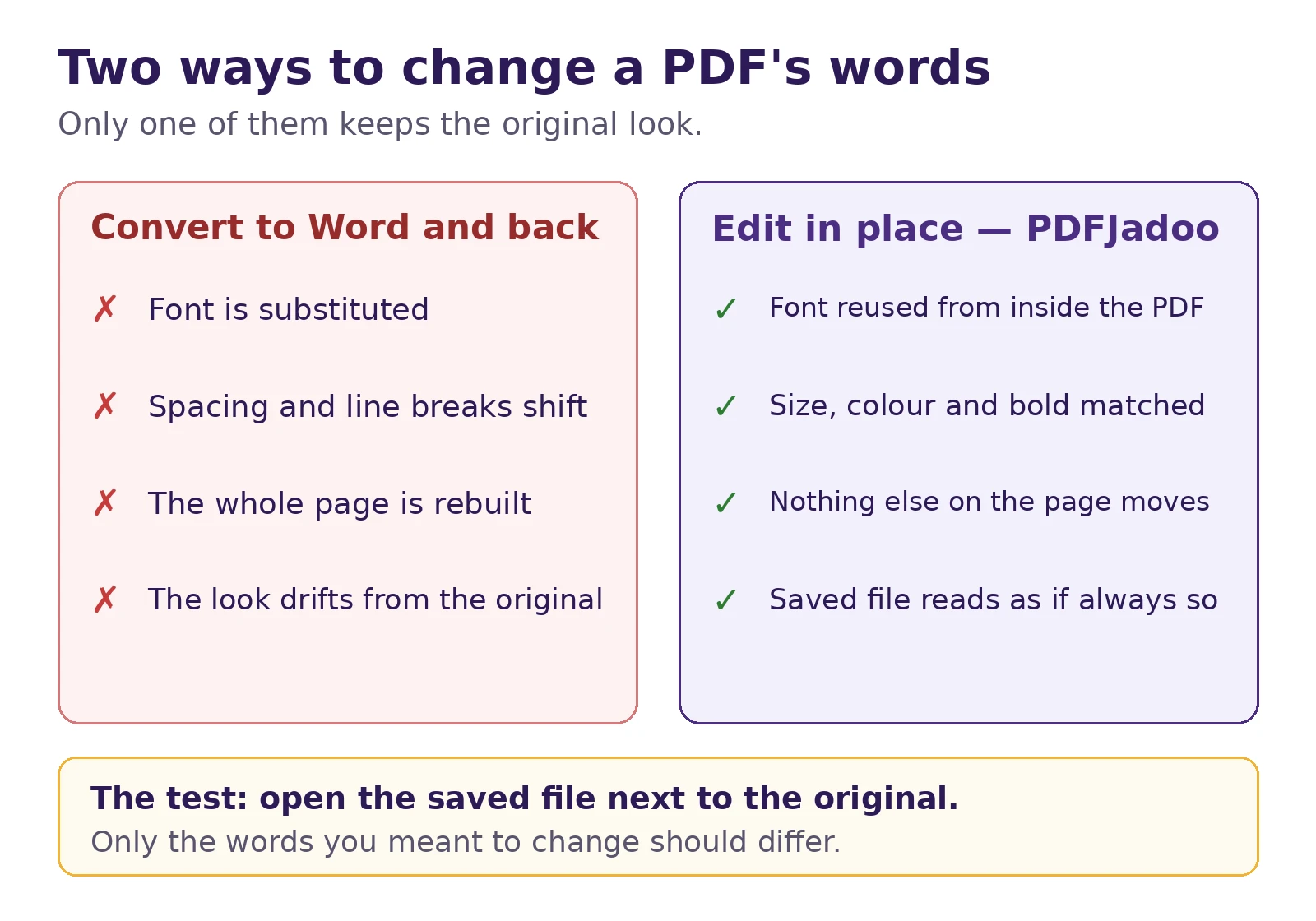
You edit a PDF perfectly by editing its text in place: tap the words, retype them, and let the editor write the replacement in the document's own font, at the original size and colour, in the space the old words occupied. Nothing is converted, nothing is re-flowed, and nothing else on the page moves. PDFJadoo's Edit PDF tool works exactly this way — free, in your browser, with your file never uploaded and no document limit. The popular alternative, converting the PDF to Word, editing there and converting back, rebuilds the document from an approximation of it. The approximation is where the formatting goes.
Hold on to one sentence and you can judge any editor, including ours: a PDF edit is perfect when the saved file differs from the original only in the words you meant to change. Everything below is about how to pass that test — and about the two situations, subset fonts and scanned pages, where the test gets harder and honesty matters more than promises.
What "perfect" actually means
"Perfect" is not a marketing word here; it has a checklist. When a reader's eye catches an edit, it is because one of four things changed. The typeface is different — the replacement word sits in a font that is nearly, but not quite, the document's own. The size or weight is off — a fraction larger, or bold where the original was regular. The colour has shifted — black that is slightly greyer than the line around it. Or the position and spacing moved — the word sits a hair above the baseline, or the letters breathe differently from their neighbours. An edit that preserves all four is invisible, not because it is hidden, but because there is nothing to see: the page looks the way it always looked.
That is also why no honest person can promise that every editor is perfect for every file — a point even Google's AI overview makes when you search for a perfect PDF editor. Perfection is a property of the method and the file. The method must be in-place editing. The file must cooperate: it needs a real text layer, and it needs its fonts embedded completely enough to draw the words you type. When either condition fails, a good editor says so and does the closest honest thing — it does not quietly hand you a slightly different document and call it perfect.
Why converting to Word loses the look
A PDF does not store paragraphs. It stores lines of precisely positioned characters — which is why, as our explainer on how editing PDF text really works puts it, you are editing lines, not paragraphs. A Word converter has to guess the structure back: it infers paragraphs, headings and columns from the positions of the lines, substitutes a font it has for the font it does not, and re-wraps the text using Word's own spacing rules. Then, when you convert back, the document is rendered a second time from that reconstruction. Two translations, each lossy. The classic symptoms are the ones in our guide to what went wrong when a PDF-to-Word conversion breaks the layout: a lookalike font, gaps that have crept into justified text, a table whose columns have wandered.
None of this makes conversion useless — it is the right tool when you intend to rewrite a document wholesale and the look is allowed to change. But for the everyday job — fix the typo, correct the date, remove the wrong line — conversion is a demolition crew hired to change a lightbulb. Every conversion is a translation, and every translation of a page loses something the original had. In-place editing skips both translations: the page is never taken apart, so there is nothing to put back wrong.
How to edit a PDF perfectly, step by step
The method below uses the PDFJadoo Edit PDF tool, because it is built for exactly this job — but the discipline is the same in any true in-place editor, including Acrobat's.
- Open the file in the editor. Drop your PDF onto the tool. It opens in your browser; the file is never uploaded, so even a sensitive document — a contract, a statement, an ID — stays on your device.
- Tap the text you want to change. Click or tap the words themselves, not a box around them. Retype the correction. The replacement is written in the original font, at the exact original size and colour, automatically — that matching is the whole point.
- Keep replacements close to the original length. A corrected date or a fixed name fits the space it inherits. A sentence twice as long as the original has to go somewhere, and "somewhere" is how edits become visible.
- Delete by editing, not by covering. To remove a word or a line, tap it and delete the text. The old words are erased against the page background, leaving no box, no patch and no layer for a reader to find.
- Work page by page, and zoom in. Check each edited line at reading size. The editor's own note applies here: the on-screen preview can look a little different while you work — the saved file is the accurate one, so judge the result after saving, not before.
- Press Done once, save, and run the side-by-side test. Open the original and the edited file next to each other and scan both pages. If your eye lands anywhere other than the words you changed, that edit needs another look.
- Check bold and italic runs separately — a replacement typed over a mixed line should inherit each run's own weight.
- Mind hyphenated line-endings: if the original broke a word across lines, a longer replacement can push the break somewhere ugly.
- Look at the print preview before you send the file. Print is where slightly-off colour and spacing show themselves.
What in-place editing preserves — and what it cannot
Here is the honest ledger. The left column is what the in-place method protects by design; the right column is where physics, not effort, sets the limit.
| Preserved by in-place editing | The honest limits |
|---|---|
| The font — reused from inside the PDF itself, not approximated from a library. | Subset fonts. Most PDFs embed only the characters the document already used. A character that was never stored cannot be drawn in the original font. |
| Size, colour and weight — matched from the original text run, bold included. | Fonts never embedded. If the file references a font it does not contain, there is nothing to reuse. |
| Spacing and layout — nothing else on the page moves; there is no re-flow. | Long replacements. Text far longer than the original can outgrow the space the old words occupied. |
| Everything else — images, other pages and the document's structure stay untouched, and edits print with the page. | Scanned pages. A scan has no text layer at all — it needs the repair method in the next section. |
The subset limit deserves one more sentence, because it is the one people actually meet. A subset font is a font with most of its letters missing — the ones the document never used were never stored. Adobe's own documentation on PDF fonts explains embedding and subsetting in these terms: producers embed subsets to keep files small, which is sensible — until you type a character the subset never carried. When that happens in PDFJadoo's editor, the closest matching font is used and the editor tells you in plain words. An editor that stays silent at that moment is not more accurate; it is just quieter about being less accurate.
Editing a scanned PDF so it still looks original
A scanned page is a photograph of a page. The words are pixels, so there is nothing for any editor to tap and retype — and any tool that claims one-click editing of scanned text is running a conversion or a recognition guess underneath, with the losses to match. The repair that keeps a scan looking original is a two-step craft, and it is the one the Edit PDF tool supports directly: whiteout, then retype.
- Cover the wrong words with Whiteout. Paint over exactly the area of the mistake, matched to the page background.
- Type the replacement over the same spot. Choose a font close to the document's own, set the size so the new line's height matches its neighbours, and sit it on the same baseline.
- Match the colour, not just the words. Scanned text is rarely pure black; a slightly soft grey reads as original where a hard black shouts.
On a clean, evenly lit scan, a repair done this way is genuinely hard to spot. On aged, textured or unevenly lit paper, it can show as a slightly cleaner patch — and that is a limit of the photograph, not a failure of effort. If a scan is badly skewed, stained or showing print through from the other side, the honest options are to rebuild that page as a fresh document or to ask whoever issued it for the original file. Pretending otherwise is how edited documents end up looking edited.
The everyday case: a resume with no Word file
Most real-world "perfect editing" is not dramatic. It is a CV with one wrong date, sent out for a month before anyone noticed, where the Word file is long gone and the PDF is all that survives. That is the job our walkthrough of how to edit a PDF resume without the Word file covers line by line: tap the date, retype it in the resume's own font, save, and the document that goes to the next employer is the same document — with the right year in it. No rebuild, no fresh template, no tell-tale change of typeface halfway down the page. The same applies to the typo in a signed agreement, the wrong figure in an invoice, the old address on a letterhead: small corrections, made invisibly, are the entire craft.
When in-place editing is the wrong tool
Honesty about a method includes its borders. If you need to rewrite whole paragraphs, restructure a report, or redesign a form, in-place editing is the wrong instrument — rebuild the document properly, in Word or in Acrobat, and let the look change on purpose. Our guide to editing a PDF without Acrobat draws the same line from the other side: free in-browser editing covers the everyday fixes completely, and heavy re-engineering is a different job. Choosing the wrong tool for the job is how documents get damaged; choosing the in-place method for a text fix is how they stay perfect.
Questions people ask
How can I edit a PDF without losing formatting?
Edit the text in place, inside the PDF, instead of converting the file to Word and back. A conversion rebuilds the whole page — fonts get substituted, spacing shifts, lines re-wrap — and that rebuild is where formatting is lost. An in-place editor reuses the PDF's own embedded font at the exact original size and colour and changes only the words you touch, so the rest of the page is never rebuilt.
Can I edit a scanned PDF and keep it looking original?
With the right method, yes. A scanned page is a picture, so its words cannot be tapped and retyped. Cover the wrong words with whiteout, then type the replacement over the same spot in a matching font, size and colour. On a clean scan the repair is hard to spot; on aged or unevenly lit paper it can show as a slightly cleaner patch. No editor can honestly do better than that with a photograph of a page.
What is the most accurate free PDF editor?
Judge by the saved file, not the promise: the most accurate editor is the one whose output is indistinguishable from the original except for the words you changed. That means in-place editing with the document's own fonts — the approach PDFJadoo's Edit PDF tool takes, free, in your browser, with no document limit. Its honest caveat: if a font inside your PDF is only a partial "subset", the closest match is used, and the editor tells you so. For heavily engineered files, desktop Acrobat remains the reference.
Why did my replacement text come out in a slightly different font?
Because of font subsetting. Most PDFs embed only the characters the document already uses, to keep the file small. If the word you type needs a character the subset never stored, no editor can draw it in the original font — the closest matching font is used instead. A trustworthy editor tells you when this happens rather than letting you discover it later.
The method is the result
There is no setting called "perfect" and no premium tier that unlocks it. A PDF edit comes out perfect when the method refuses to rebuild the page: the words change inside the document, in the document's own font, and everything else is left exactly where it was. Open the Edit PDF tool, make your fix, and run the side-by-side test. If the only difference is the one you meant to make, the edit was perfect — and now you know why.
Edit your PDF in place — free
Tap the text, retype it in the original font, size and colour, and save a file that looks like it was always that way. The Edit PDF tool runs entirely in your browser: no upload, no sign-up, no document limit.
Open the Edit PDF toolSources
- Adobe Help Center — Edit text in PDFs (how Acrobat edits text in place and matches fonts).
- Adobe Help Center — PDF fonts (font embedding and subsetting, and why documents carry partial fonts).
- PDF Association — pdfa.org (the industry association for the PDF format; background on how PDF stores text and fonts).
- Tool behaviour — in-place editing, the subset-font notice and the whiteout repair for scans are from PDFJadoo's own Edit PDF page and its honest-notes panel.
PDFJadoo is developed by Faizan Ahmad in Alberta, Canada, alongside YardSolver and CookSmartPicks. Product details are from the sources listed under Sources, checked 19 November 2026.
Keep reading
Edit a PDF without Acrobat
No Acrobat, no install: the same in-place fix, free in the browser.
How editing PDF text really works
Lines, not paragraphs — why a PDF edits the way it does.
Edit a PDF resume
The same job, aimed at the document people edit most.
PDF to Word, honestly
For heavy rewrites: what conversion keeps, and what it shifts.