GIF to PDF: paper cannot move — so frame one becomes the page
The direct answer: an animated GIF contributes its first frame to the PDF — a PDF page cannot move — with photographs placed as high-quality JPEG pages and transparent images losslessly as PNG, in Fit page, A4 or US Letter sizes with margins of None, Small (18 pt) or Medium (36 pt). GIF to PDF prints the rule on its own page as an honest note, and this article builds the document craft around it: the destinations are submissions — a GIF image that must enter a document, an application or a printed pack that accepts only PDF — and the pre-flight duty is the frame check from the sibling articles: watch the GIF's opening, because frame one is the page, and a fade-in's blank opening binds as a blank page. The placement rule mirrors the family's other binders: each image is placed by its nature (photo → JPEG page for sane size; transparent graphic → lossless PNG page, alpha honoured against the page), the order is your drop order, and the output is one combined PDF or one PDF per image as a ZIP. A 256-colour GIF stays a 256-colour picture inside the document — binding cannot add colour, any more than it can add motion.
 By the PDFJadoo Team5 min read
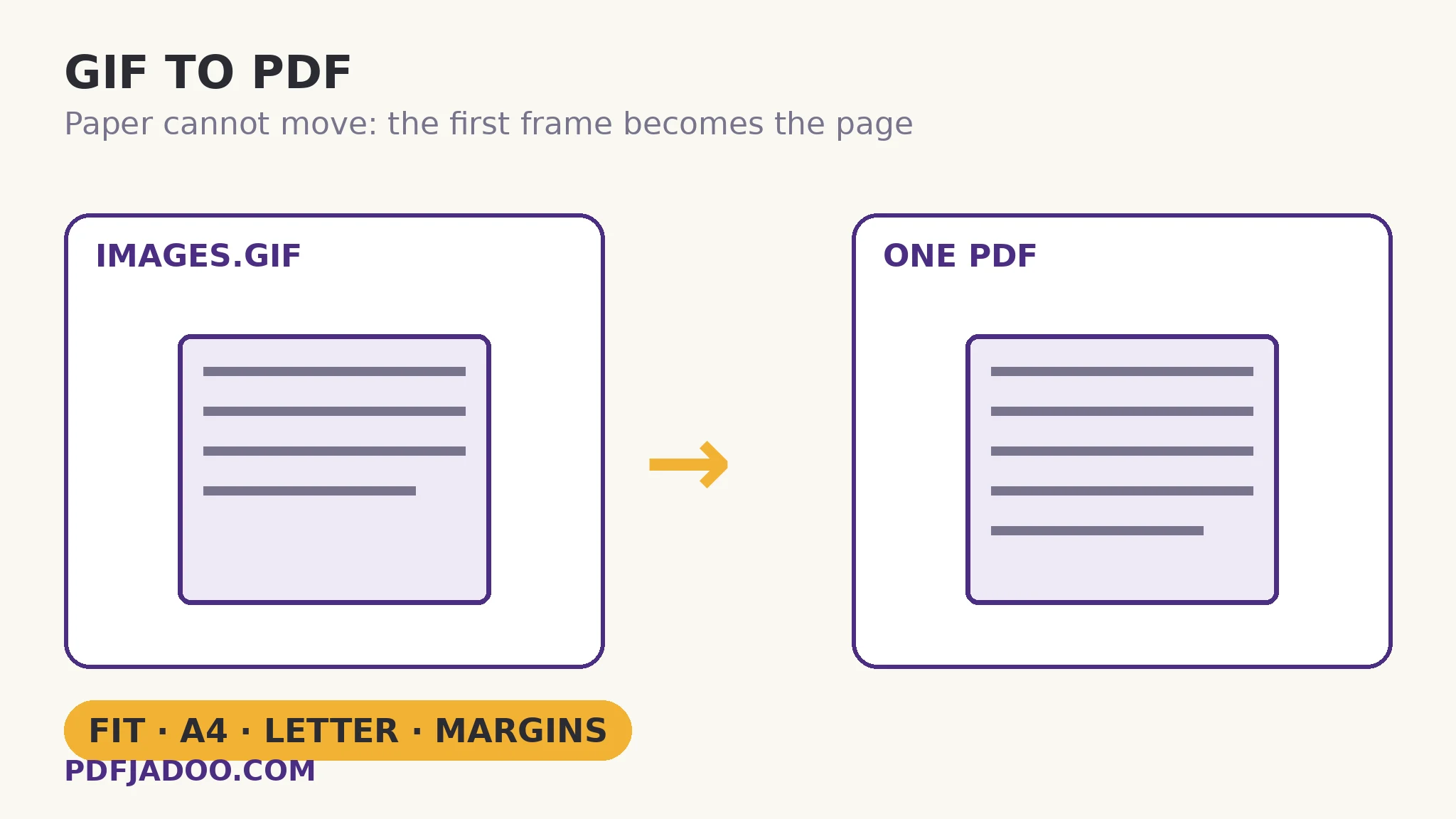
The still is a feature, where paper is the destination
The direct answer: most GIF-to-PDF errands are stills errands in disguise — the screenshot saved as GIF, the diagram, the logo, the single-frame capture — whose animation was never the point; for those, the binding is lossless in intent: the frame becomes a page, placed by nature, in a document every system opens. The genuinely animated minority deserves the warning label, and gets it: one quotable pre-flight — if the GIF moves and the movement is the message, a PDF is the wrong destination entirely; send the GIF (or a video) and let the document reference it, rather than binding its first frame and calling it the content.
Colour honesty completes the picture: GIF's 256-colour palette binds as-is. A photographic GIF's page will show its palette's limits at print size — the binder preserves; it does not enrich. Where the original photo exists, bind from it instead.
Order and geometry
The direct answer: drop order becomes page order, and the geometry decision repeats the family rule — Fit page for screen-read evidence, A4 or Letter with the 18-point margin for print-bound packs. A set of GIF screenshots bound as an incident appendix wears Fit honestly; the same set printed for a meeting wears A4.
Bind GIFs into a PDF, step by step
The direct answer: check each GIF's first frame, set the geometry, drop the files in reading order, choose combined or per-image output, and download.
Step 1 — frame-check the set. Each GIF's opening becomes a page. Blank fade-ins are excluded or replaced with their still equivalents first.
Step 2 — choose page size and margin. Fit page, A4 or US Letter; None, Small (18 pt) or Medium (36 pt) margins.
Step 3 — drop the GIFs onto GIF to PDF. Binding runs in your browser; nothing uploads.
Step 4 — choose the output. One combined PDF for the document; one PDF per image (ZIP) when each stays its own record.
Step 5 — download and read the document. Every page a first frame, placed as JPEG (photos) or lossless PNG (transparent images) — verify the set reads as intended.
Caption the stills
The direct answer: where a bound GIF was animated, a caption or filename noting “still from animated GIF” keeps the document honest for future readers — the page shows a moment, and the record should say a moment is what it is. Provenance is a caption away.
GIFs into the document the submission demands — frame one, placed properly.
Fit, A4 or Letter; JPEG or PNG pages by nature; combined or per-image output.
Open GIF to PDFA worked example: the evidence appendix
The direct answer: a dispute file's six GIF captures — chat screenshots and one animated screen recording — bind into an A4 appendix: five still captures as pages in order, and the recording's first frame (the error state, which the recording was authored to open on) as the sixth, captioned as a still from the recording. The walkthrough's checks were the article's: every opening frame viewed before binding (one fade-in GIF was replaced by its exported still), margins set to Small for the printed pack, and the caption discipline applied to the one animated source. The appendix reads as evidence because its stills were chosen, not defaulted.
Edge cases
Long animations as sources. Only frame one binds, whatever the loop's length or weight; a mid-animation moment needs a frame extraction first, then the still binds here.
Transparent GIF diagrams. They place as lossless PNG pages — alpha against the page's white, exactly as a diagram should print.
Before you finish: the 60-second check
- Every GIF's first frame viewed before binding — fade-in blanks excluded
- Animated sources captioned as stills where the document keeps a record
- Geometry chosen: Fit for screen evidence, A4/Letter + margins for print
- Order arranged as the document should read
- 256-colour limits accepted — photographic GIFs bound from originals where they exist
Fair questions
What happens to an animated GIF in a PDF?
It contributes its first frame — a PDF page cannot move. The tool states it as an honest note. If the movement is the message, a PDF is the wrong destination; send the GIF or a video instead.
How are the images placed inside the PDF?
By nature: photos are placed as high-quality JPEG pages, and transparent images losslessly as PNG — so a diagram's alpha is honoured and a photo's size stays sane.
What page sizes and margins can I choose?
Page size: Fit page to each image, A4 or US Letter. Margins: None, Small (18 pt) or Medium (36 pt). On fixed sizes each image is scaled to fit inside page plus margin, centred, proportions untouched.
Can I get a separate PDF for each GIF?
Yes — choose the per-image output and the set downloads as a ZIP, one PDF per image, each from its first frame.
Will the PDF improve my GIF's colours?
No — a 256-colour GIF stays a 256-colour picture inside the document. Binding preserves; it does not enrich. Where the original photo exists, bind from it.
Are my images uploaded?
No — the binding runs entirely in your browser; your files never leave your device.
Tool behaviour — the first-frame rule printed as the tool's own honest note, Fit/A4/Letter page sizes with None/18/36-point margins, combined or per-image ZIP output, photos placed as high-quality JPEG and transparent images losslessly as PNG — is from PDFJadoo's own GIF to PDF page. Checked 18 November 2026.
Keep reading
WebP to PDF: web images bound
The sibling binder for web-saved images, decoded directly.
GIF to JPG: the first frame
The same frame as a standalone still for forms and reports.
BMP to PDF: rescue legacy screenshots
Legacy sets bound with the same placement intelligence.
PNG to PDF: screenshots in order
The geometry guide in full, from the lossless binder.