How to remove hyperlinks from a PDF — every link gone, every word kept
Sometimes a document should simply sit still. You are about to print a contract, file a form with a portal, or forward a report somebody sent you — and every blue phrase in it is a live wire, ready to take the reader somewhere you never chose. This guide explains how to remove hyperlinks from a PDF properly: what a link inside a PDF actually is, why stripping it is often the right call, the free fix that runs in your browser, and the alternatives — with what each of them really costs.
 By the PDFJadoo Team7 min read
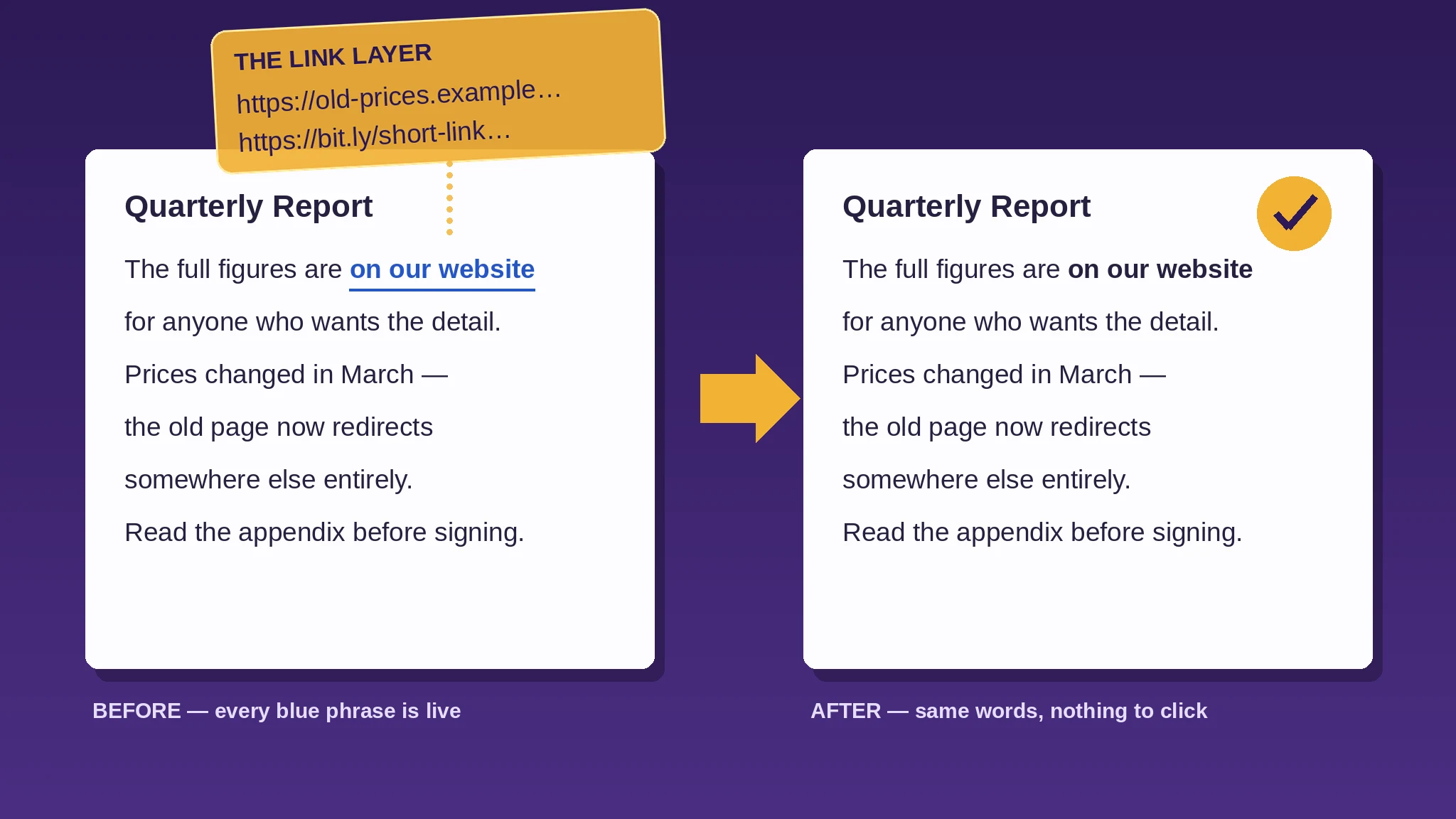
What a PDF hyperlink actually is
Open any PDF and what you see is paint: letters, lines and pictures laid down on a page, as fixed as print. A hyperlink is not paint. It lives in a second structure every page can carry — the annotation layer — as an invisible rectangle floating over some words, holding an instruction: when clicked, go here. Your viewer draws the two together, so the phrase looks like part of the page. It is not. It is a trapdoor laid over the page.
That separation explains the two things people find confusing. First, the blue colour and the underline are just styling the author painted onto the words — they are not the link, and they survive link removal untouched. Second, because the link is its own layer, it can be lifted away surgically: delete the rectangles and their instructions, and the page below is never redrawn, reflowed or re-typeset. Unlinking a PDF is not editing the document. It is peeling a sticker off it.
There are two kinds of trapdoor. Web links carry an address — a website, a document, an email address. Internal links jump within the file — the contents page that leaps to chapter three, the cross-reference that hops to an appendix. Both live on pages as link annotations, and a proper removal takes both. One thing is not a page link: the bookmarks outline in your viewer's sidebar. That is a separate table of contents stored elsewhere in the file, and it stays standing after the page links are gone.
Why remove hyperlinks from a PDF at all?
Nobody removes links from a document they are still drafting — the links are useful there. Removal is for the moment a document leaves your hands, and the reasons repeat:
Printing a clean copy. Paper cannot be clicked. A contract, a handout or a filed form reads as a finished artefact on paper, and live links add nothing except the chance for a print path to draw stray rectangles or borders around them.
Formal submissions and portals. Application portals, courts, examiners and HR systems want a self-contained file that behaves like the paper it replaces. A document that keeps trying to send the reviewer off to the internet is the opposite of that — and a reviewer who prints first will never follow your links anyway.
Security — links you did not create. A forwarded PDF's links point wherever its author chose, and the visible words can promise one destination while the rectangle underneath goes somewhere else entirely. That mismatch is the oldest trick in phishing documents. If a file arrived from outside and is about to circulate inside your office, removing its hyperlinks before it travels is basic hygiene — the words can be judged on their merits, with no trapdoors under them.
Outdated and wrong destinations. Documents outlive web pages. Last year's price list now lands on a parked domain full of adverts; the guidance page was restructured and the link dies at a 404; the domain lapsed and somebody else bought it. The PDF still looks authoritative — and every click makes it lie.
A professional, finished document. Reports, certificates, signed agreements, invoices: the file should stand on its own, complete in itself, instead of depending on pages that may move, change or vanish.
Keeping the reader in the document. Every live link is an exit door. In a training manual, a thesis or a proposal, sometimes the kindest and most deliberate choice is a reader who stays on the page until the page is done.
How to remove hyperlinks from a PDF, step by step
Step 1 — keep the original, and clean a copy. Removal is permanent in the file it is done to. Duplicate the document first and name the pair plainly — "Report-MASTER.pdf" with its links alive, "Report-SEND.pdf" for the copy you are about to clean. Everything after this step happens to the copy.
Step 2 — open Remove Hyperlinks and drop the copy in. Open Remove Hyperlinks and drop the sending copy into the circle. There is nothing to configure: the tool reads every page's annotation layer, which is where the links live.
Step 3 — press Remove the links, and read the count. The tool removes every link annotation on every page — web links and internal jumps alike — and also strips any web address riding on the action of an annotation that stays, like a note that quietly phones home. Then it tells you the honest number: how many hyperlinks it removed. If it reports none, that is a real answer too — the file was already clean, and now you know it instead of hoping it.
Step 4 — check the result like a stranger. Open the cleaned copy and run your cursor over the phrases that used to be links. The words look exactly as they did — blue, underlined, unchanged — but the pointing-hand cursor never appears, and clicking does nothing. That small anticlimax is the entire point.
Step 5 — send, file or print the cleaned copy. The master stays on your side of the fence, links intact, ready for the day the document is revised and a fresh copy needs cleaning. And the privacy point, stated plainly because it decides whether tools like this are usable on real documents at all: the whole job — reading, cleaning, saving — happens in your browser, on your device. The file is never uploaded to a server, so a contract, a payslip or an application can be cleaned exactly as safely as it can be read.
Strip the links, keep the words
Remove every hyperlink from a PDF in one pass — free, in your browser, with the count reported honestly and your file never uploaded. The words stay exactly as they are; the clicking goes.
Open Remove HyperlinksOther ways to delete a hyperlink in a PDF — and what each one costs
Adobe Acrobat Pro. The heavyweight route genuinely works: the Edit PDF tools let you select link rectangles and delete them, and Preflight fixups can strip annotations across a whole file. The costs are a subscription, a desktop install, and a workflow built for one file at a time. If Acrobat already sits on your desk, use it in good health; buying it for this one job is a sledgehammer's price for a picture hook.
Print to PDF. Every viewer offers it, and the links do die — because the entire file is rebuilt as a picture of itself. What else dies with them is the fine print: on some systems the text stops being selectable or searchable, file size jumps, and form fields, bookmarks and careful typography are handled however the print path feels like handling them. It removes clickable links the way repainting a house removes a doorbell.
The Word round-trip. Open the PDF in Word, select all, and press Ctrl+A then Ctrl+Shift+F9 — Word's unlink-fields shortcut — then save back to PDF. For a document that was born in Word and is returning there for edits anyway, that is legitimate. For a finished, designed PDF it is a gamble: Word converts the file into its own idea of the document, and pagination, fonts, tables and spacing can all shift on the way through and back.
One by one in a free editor. Perfectly fine — for two links. A forty-link report turns it into an afternoon of hunting rectangles, with the near-certainty that one survives, unnoticed, in a footer on page nineteen.
What removing the links does not change
The list of things that stay is the reason this operation is safe to do on finished documents. The words — every letter, including the blue, underlined styling, which is paint and not mechanism. The pictures and layout — the tool never redraws a page, so nothing can shift, reflow or re-render at a different quality. Other annotations — highlights, stamps and sticky notes stay where they were; the single exception is a note that itself carries a web action, whose action is stripped, because a note that phones home is a link in a costume. The bookmarks outline — a separate structure, untouched.
Two neighbouring jobs are not this one. If the printed words themselves are wrong — a mistyped address sitting on the page as plain text — that is editing, and it belongs to Edit PDF. And if the file is leaving your hands entirely, link removal is one step of a fuller routine — redact what must not be read, strip the hidden extras, then protect the clean copy — set out in before you share a PDF. When the document is a form whose answers must become permanent, the finishing move is Flatten PDF instead. The rest of the deck is on the tools index.
Worked example: the supplier report that kept misbehaving
Here is the job with names on it. A facilities manager receives a supplier's quarterly report as a PDF and forwards it to six colleagues. Buried in it are fourteen live links. One goes to the supplier's old pricing page — the domain has since lapsed and now shows a parked page full of adverts. Another is a shortened link nobody in the office can vouch for, because a shortened link is a destination wearing a mask. Nothing in the visible text looks wrong; that is exactly the problem.
So she keeps the received file untouched as her master, makes a copy, and puts the copy through Remove Hyperlinks. The count comes back: 14 hyperlinks removed. She opens the cleaned copy, hovers over the two phrases she knew about — nothing, and nothing — and forwards that copy with one sentence: "Links stripped from the attached copy; the original is on file if anyone needs them." Total cost, about three minutes — and the report now says only what its words say, to exactly the people she sent it to.
Before you finish: the 60-second check
- The cleaned file is a copy — the linked original is saved, untouched, as your master
- The tool's count makes sense to you (and if it reported none, the file was already clean)
- You hovered and clicked where the links were — the hand cursor never appears
- The blue, underlined styling is still there, and you know why: it is paint, not link
- You are sending the cleaned copy, not the master
Fair questions
Does removing hyperlinks change the text or the layout?
No. The words, the pictures and the layout are the page; the links are a separate layer over it. Removing the layer leaves the page exactly as it was — the document reads identically, it simply cannot be clicked.
Will the blue, underlined look disappear too?
No — and that surprises people. The blue colour and the underline are styling the author painted onto the words; they are part of the page, not part of the link. After removal the phrase still looks like a link, it just does nothing. If you also want the styling gone, that is an editing job on the words themselves.
Can I get the links back after removing them?
Not from the cleaned file — removal is permanent there. That is why the steps start with keeping the original untouched and cleaning a copy. The master keeps its links; the copy you send does not.
Does it work on a scanned PDF?
A scan is a photograph of a page, and a photograph has no link layer — there is usually nothing to remove, and the tool will honestly report that it found no hyperlinks. If links were added to the scan afterwards as annotations, those are removed like any others.
Are internal links removed too — the ones that jump to another page?
Yes. Contents entries and cross-references that live on the page as link annotations are removed along with the web links. The bookmarks outline in your viewer's sidebar is a separate structure, not made of page links, and it stays.
Is it free — and is my file uploaded anywhere?
Free, and no. Remove Hyperlinks runs entirely in your browser, on your own device: the file is read, cleaned and saved locally, and works even with the internet off. Nothing is sent to a server.
Tool behaviour is from PDFJadoo's own Remove Hyperlinks page: link annotations are removed from every page, and web (URI) actions are stripped from any annotations that remain. The annotation-layer explanation is the standard structure of the PDF format. Checked 16 November 2026.
Keep reading
Remove Hyperlinks
Every clickable link stripped — the words stay, the clicking goes.
Sanitize PDF
Metadata, scripts, attachments and hidden extras — gone before you share.
Flatten PDF
Form answers baked into the page — final means final.
Before you share a PDF
Redact, clean, protect — the full routine for a file leaving your hands.